How to Request Time Off
Requesting Time Off in the App
You can submit a time-off request directly from the mobile app using the Time Off icon on the bottom toolbar.
This screen shows all of your time-off requests, with the soonest upcoming request listed at the top.
Once a date has passed, that request will automatically fall off the list.
Understanding Request Statuses
All time-off requests must be approved by a manager.
Each request will show one of three statuses on the right:
-
Approved – Your manager has approved your request
-
Waiting for review – Your manager has not reviewed it yet
-
Denied – Your request was not approved
Types of Time Off You Can Request
You can request:
-
A full day
-
Multiple days
-
A partial day (specific hours)
Adding a New Request
To submit a new request, tap the + icon in the top-right corner.
Requesting a Full Day Off
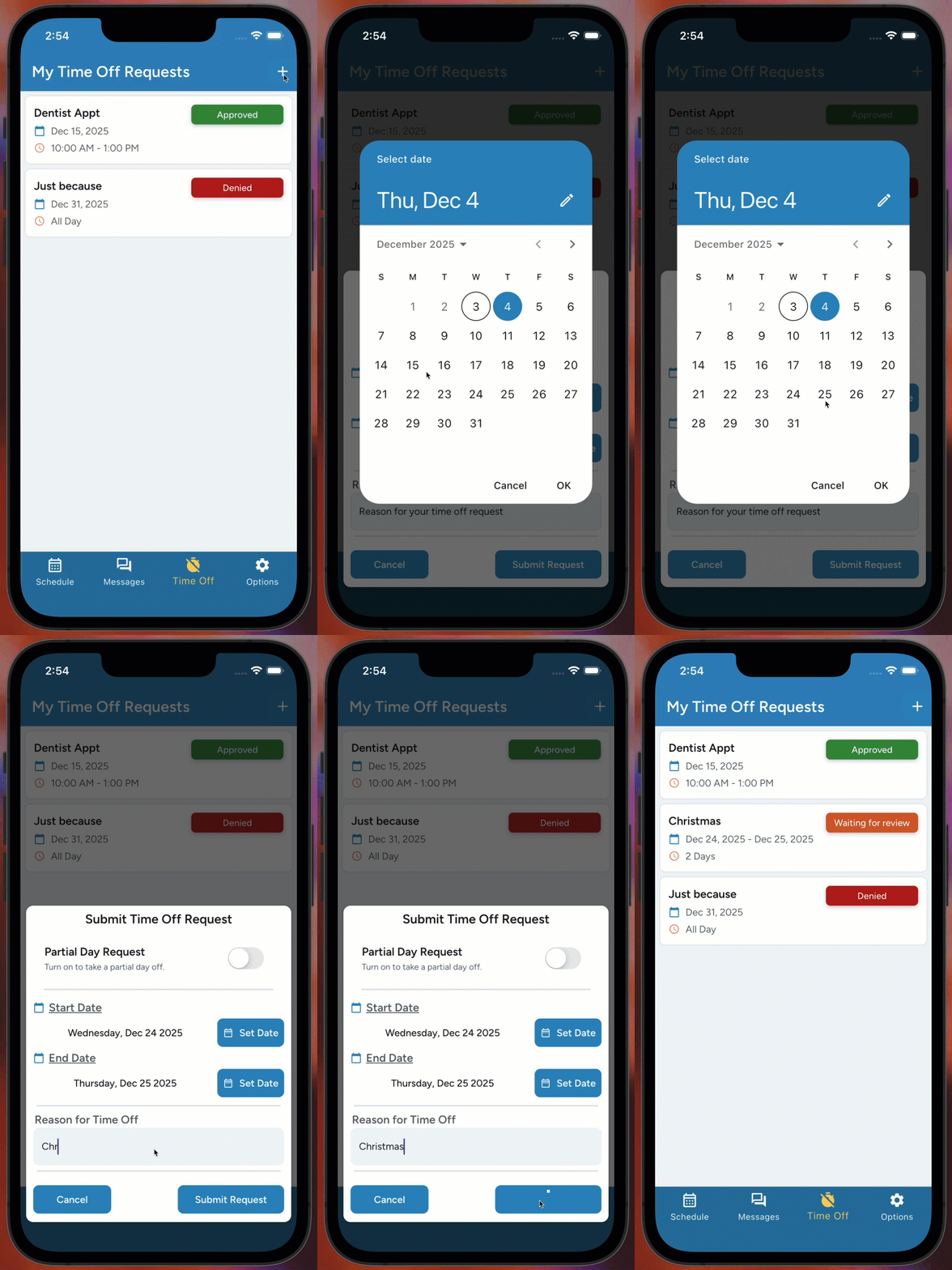
To request a full day off:
-
Tap the + icon in the top-right corner
-
Set the Start Date
-
Set the End Date
-
Enter a Reason for your request
-
Tap Submit
Note: The Start Date, End Date, and Reason fields are all required.
Your manager will then review your request
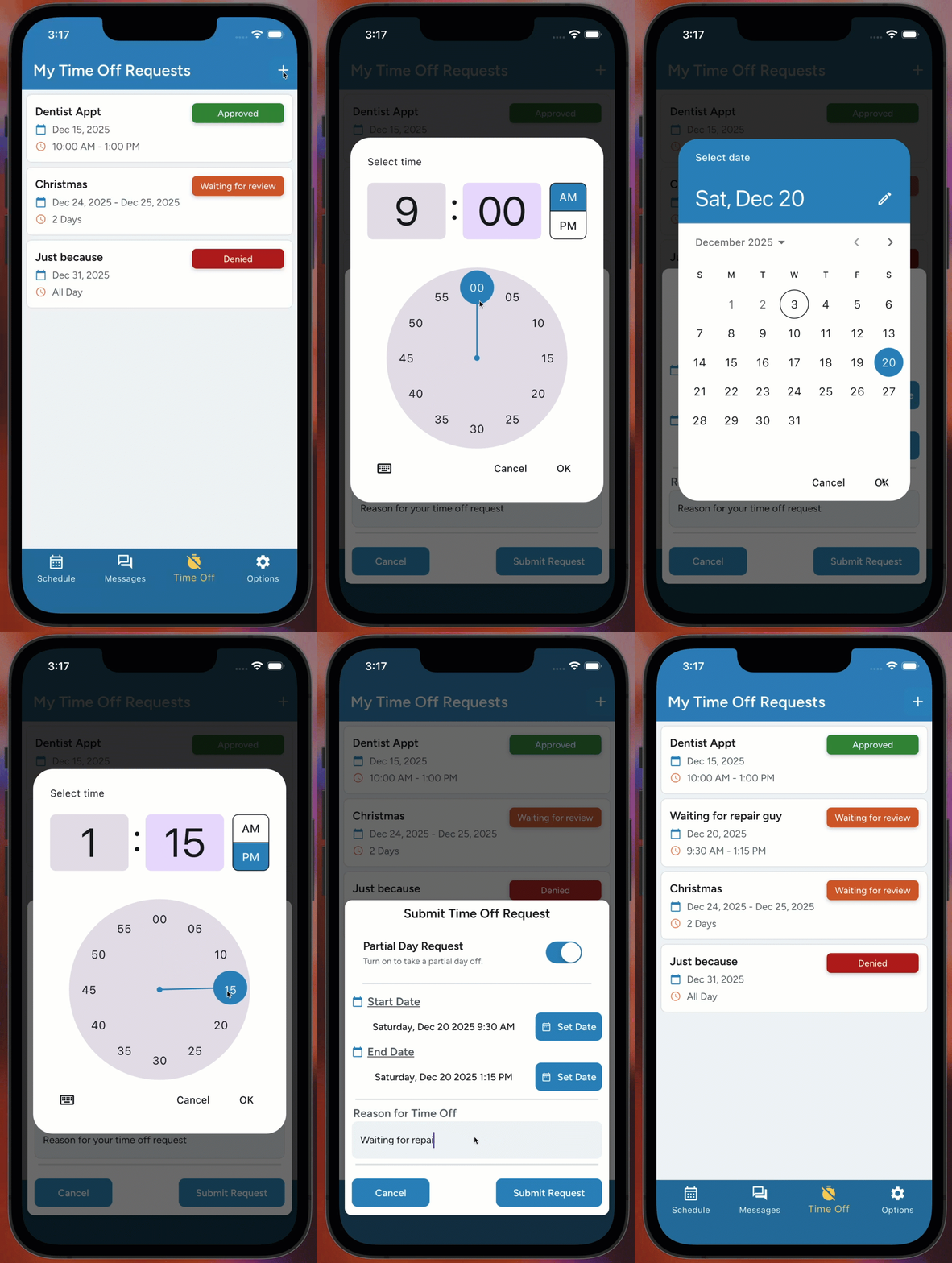
Requesting a Partial Day Off
To request time off for part of a day:
-
Tap the + icon in the top-right corner
-
Select the Start Date
-
Choose the Start Time
-
First select the hour
-
Then select the minutes
-
Tap OK
-
-
-
Select the End Date
-
Choose the End Time the same way (hour → minutes → OK)
-
-
Enter a Reason for your request
-
Tap Submit
Note: The Start Date & Time, End Date & Time, and Reason fields are all required.
Your manager will then review your request