How to Request Time Off
This guide walks you through how to request time off using the Ingage Scheduling app or website.
You can submit requests for full days, multiple days, or just part of a day. All time-off requests must be reviewed and approved by a manager before they become official.
Each request will show one of the following statuses:
-
Waiting for review – Your manager has not reviewed the request yet
-
Approved – Your request has been approved
-
Denied – Your request was not approved
Requesting Time Off in the App
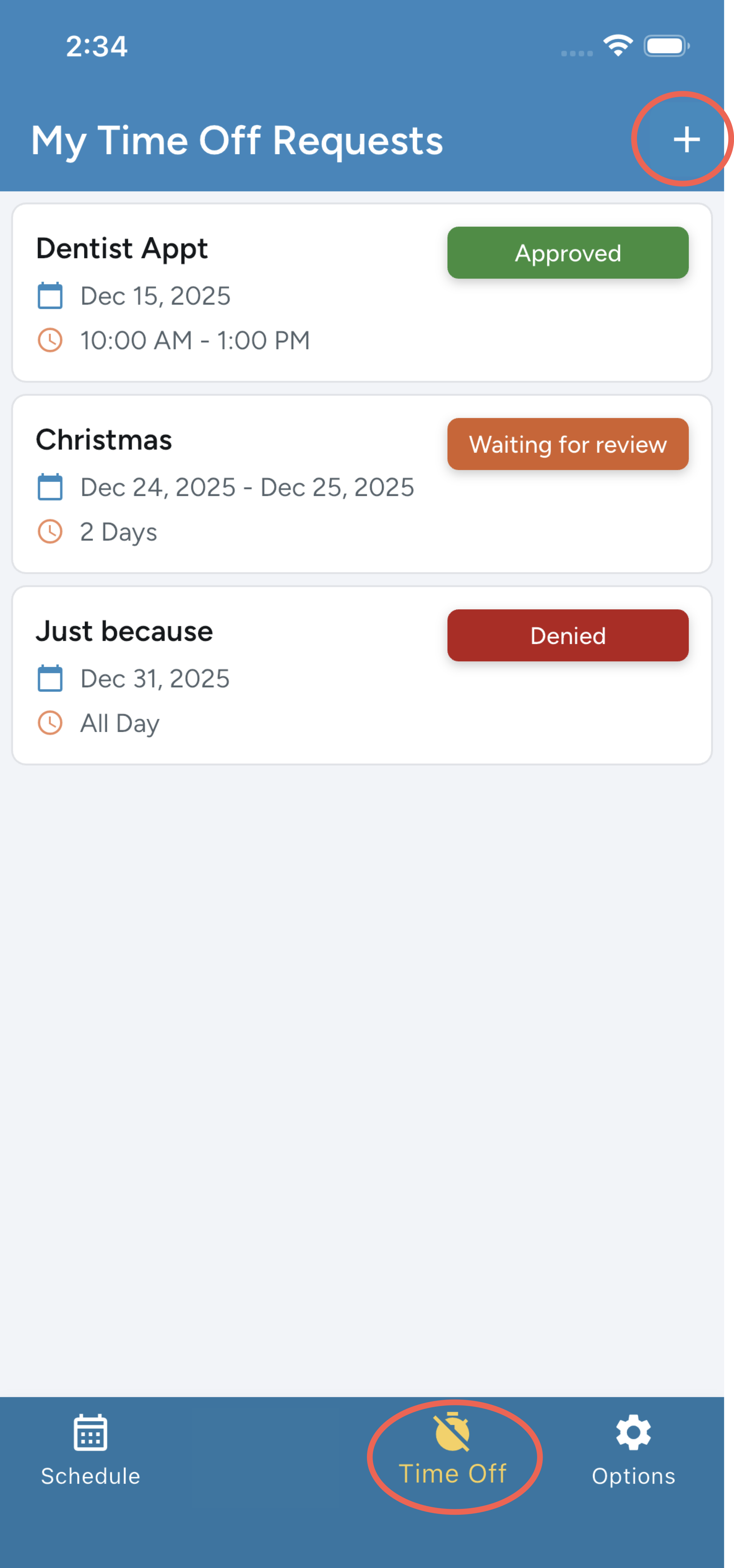
You can submit a time-off request directly from the mobile app using the Time Off icon on the bottom toolbar.
This screen shows all of your time-off requests, with the soonest upcoming request listed at the top.
Once a date has passed, that request will automatically fall off the list.
Adding a New Request
To submit a new request, tap the + icon in the top-right corner.
Requesting a Full Day Off
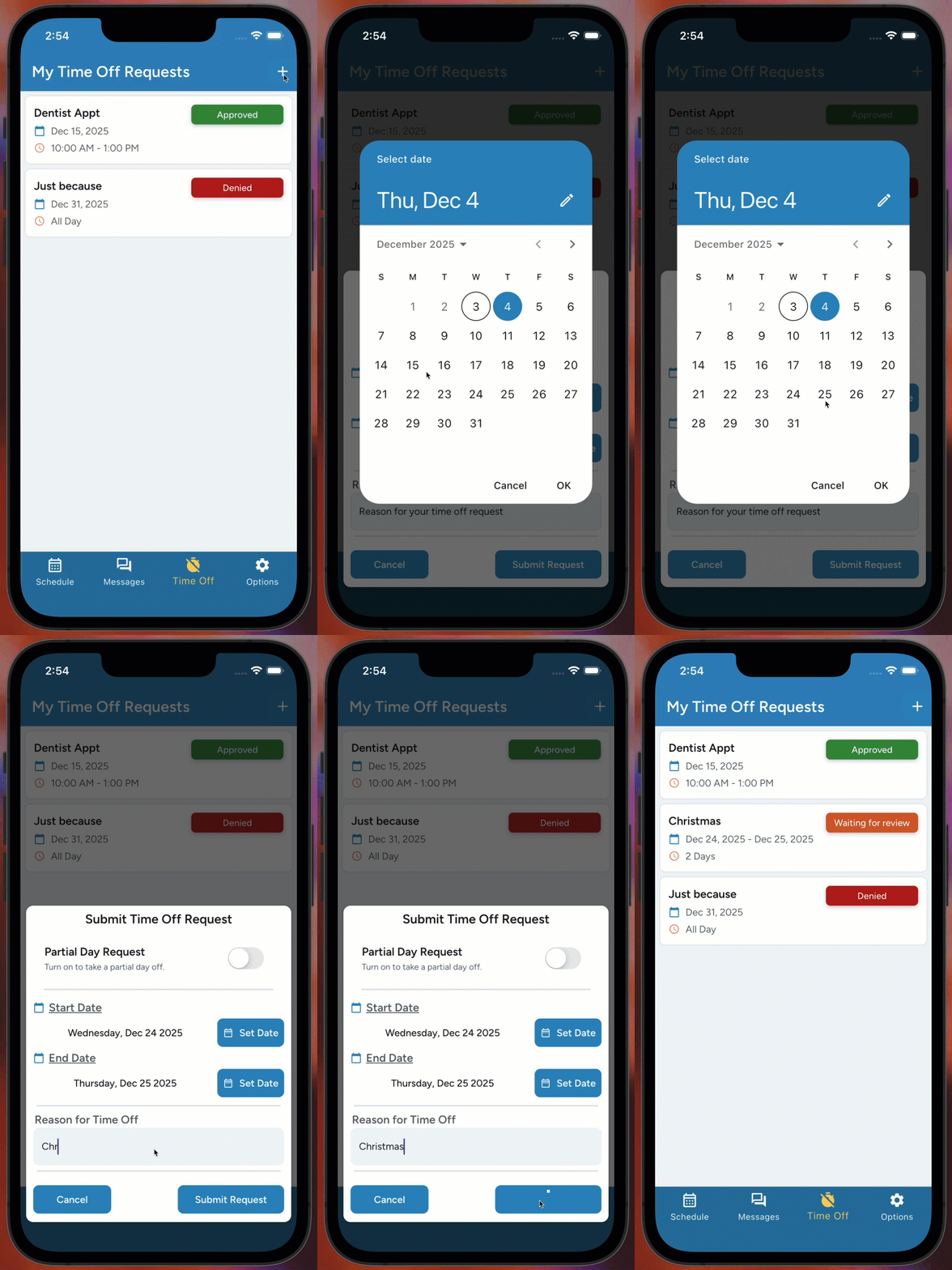
To request a full day off:
-
Tap the + icon in the top-right corner
-
Set the Start Date
-
Set the End Date
-
Enter a Reason for your request
-
Tap Submit
Note: The Start Date, End Date, and Reason fields are all required.
Your manager will then review your request
Requesting a Partial Day Off
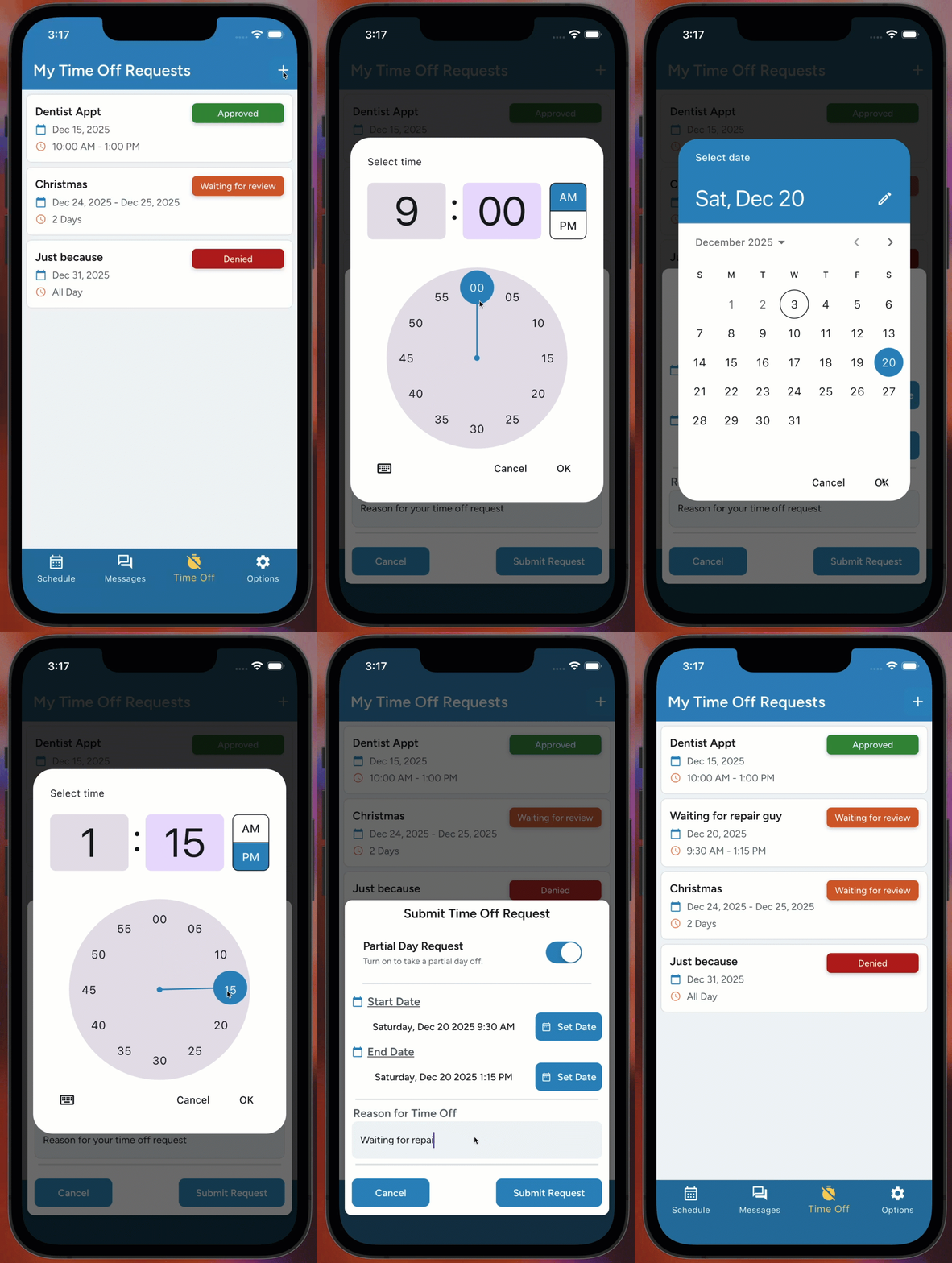
To request time off for part of a day:
-
Tap the + icon in the top-right corner
-
Select the Start Date
-
Choose the Start Time
-
First select the hour
-
Then select the minutes
-
Tap OK
-
-
-
Select the End Date
-
Choose the End Time the same way (hour → minutes → OK)
-
-
Enter a Reason for your request
-
Tap Submit
Note: The Start Date & Time, End Date & Time, and Reason fields are all required.
Your manager will then review your request
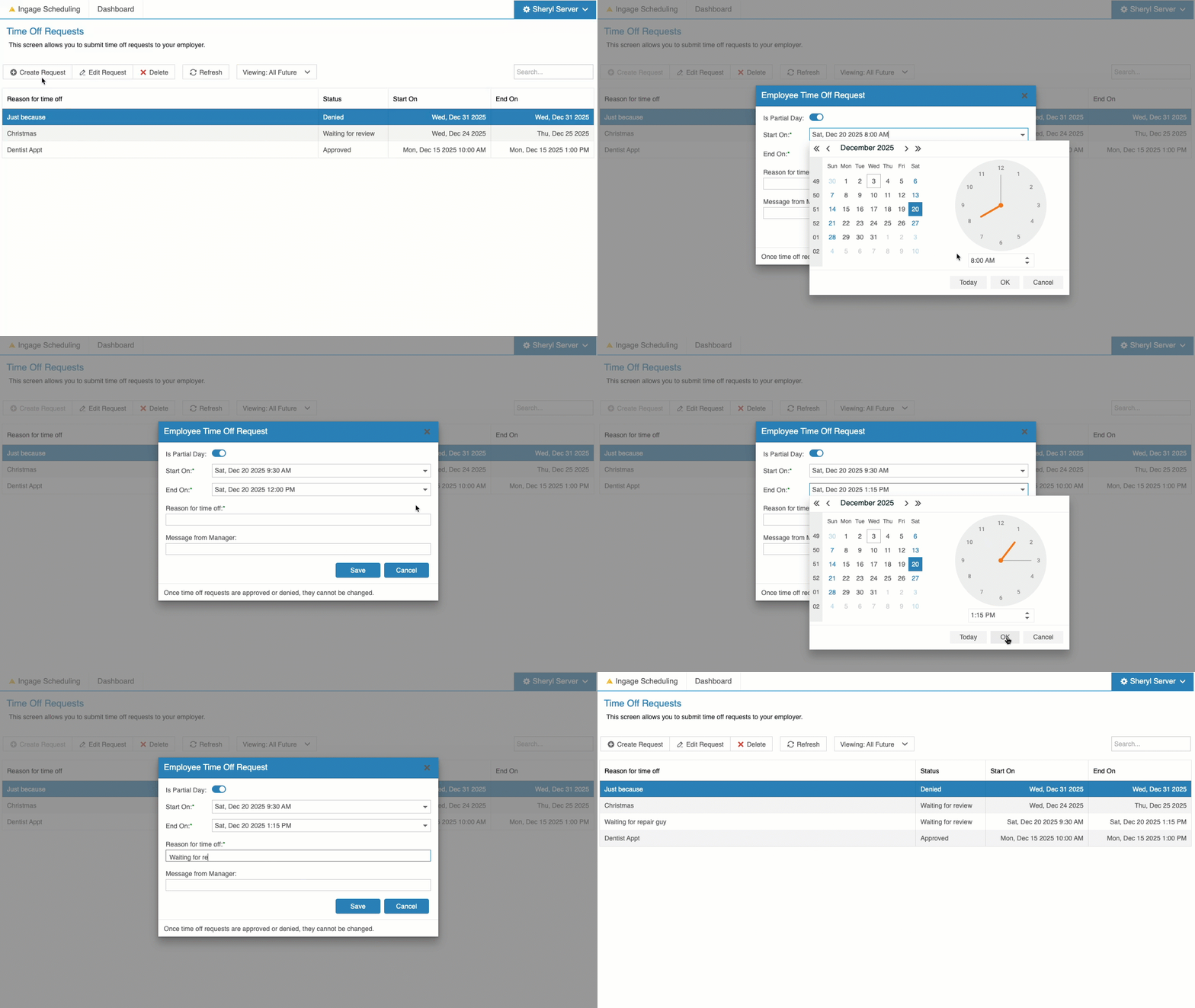
Requesting Time Off on the Website
You can also submit time-off requests from the Ingage Scheduling website.
To get there:
-
Log in to the Ingage Scheduling website
-
Click the dropdown next to your name in the top-right corner
-
Select My Time Off
This page will default to show all of your future time-off requests.
You can use the Viewing dropdown in the center of the screen to filter which requests you want to see.

Adding a New Request
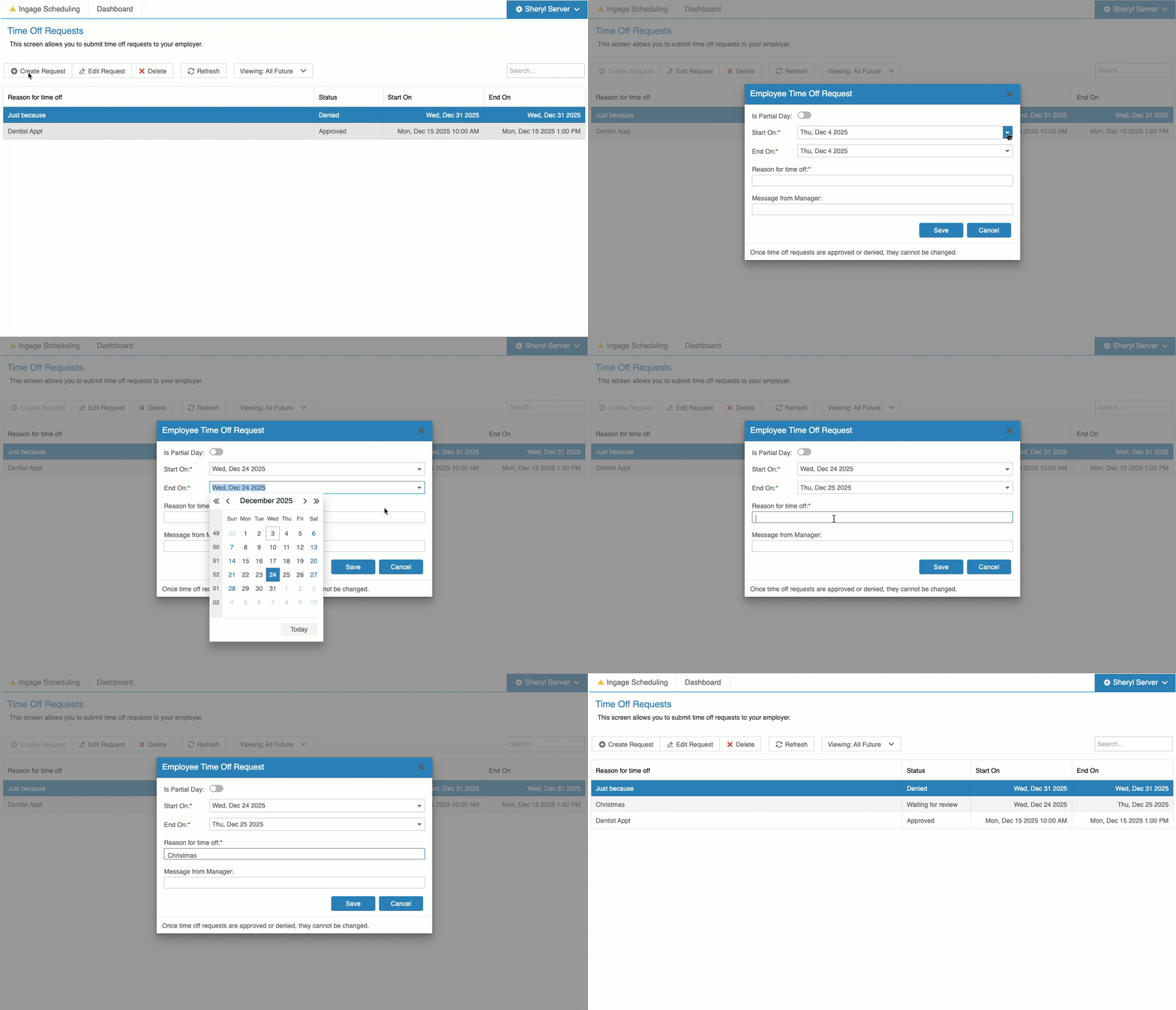
To submit a new request, click the +Create Request button
Requesting a Full Day Off
To request a full day off:
-
Click the +Create Request button
-
Set the Start Date
-
Set the End Date
-
Enter a Reason for your request
-
Click Save
Note: The Start Date, End Date, and Reason fields are all required.
Your manager will then review your request
Requesting a Partial Day Off
To request time off for part of a day:
- Click the +Create Request button
-
Select the Start Date
-
Type in the Start Time or use the arrows to adjust the time
-
-
Select the End Date
-
Choose the End Time the same way
-
-
Enter a Reason for your request
- Click Save
Note: The Start Date & Time, End Date & Time, and Reason fields are all required.
Your manager will then review your request