
Managing ShiftHub
What Is ShiftHub?
ShiftHub is the area of the Scheduling system where managers review and manage employee-initiated schedule changes. This includes shift swap requests and shift give away requests submitted by employees.
ShiftHub allows managers to:
-
Review pending requests
-
Approve or reject changes to the schedule
-
Maintain visibility into upcoming schedule adjustments before they take effect
How to Access ShiftHub
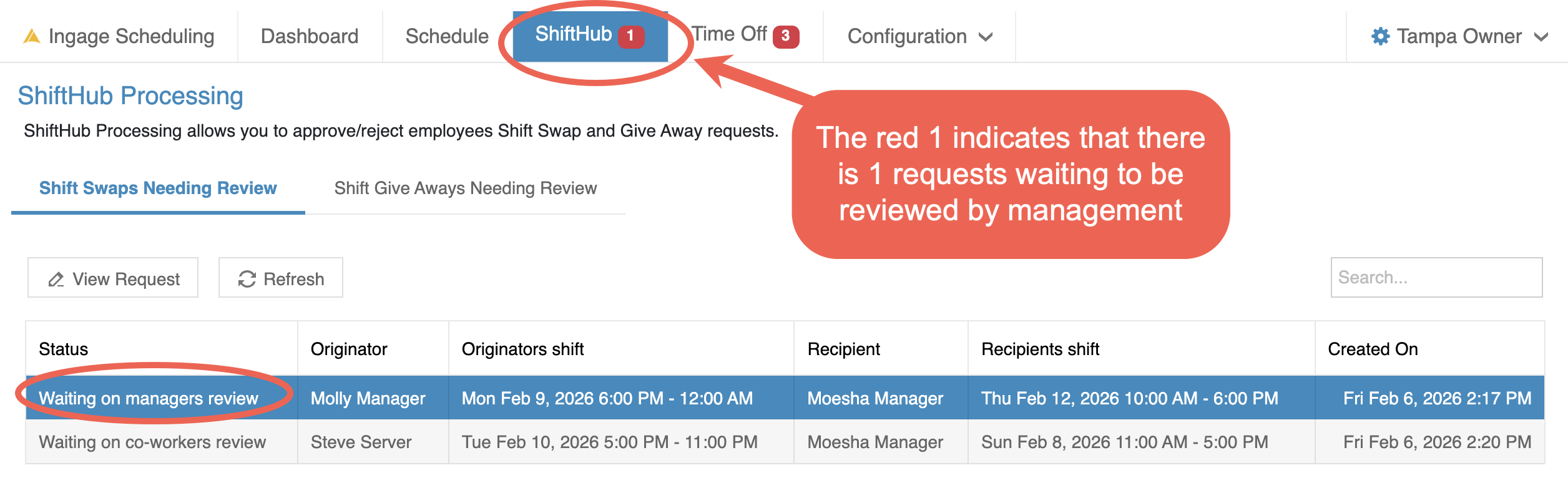
To access ShiftHub:
-
Log in to Scheduling
-
Click ShiftHub from the top navigation bar
When there are requests that require manager action, you will see a notification badge on the ShiftHub tab so you know something needs to be reviewed.
Reviewing Shift Swap Requests
Managers review employee shift swap requests from the ShiftHub area of Ingage Scheduling.
When you open ShiftHub, the system defaults to Shift Swaps Needing Review. This view shows all shift swap requests, not just the ones that currently require your action.
Understanding Shift Swap Statuses
Each request will display a status so you can quickly see where it is in the process:
-
Waiting on co-worker’s review -The employee has submitted a shift swap request, but the other employee has not yet accepted or rejected it.
-
Waiting on manager’s review - Both employees have agreed to the swap, and the request is now waiting for manager approval.
You can see both types of requests so you have visibility into what’s coming up, even if no action is required yet
Note: The red notification badge on ShiftHub only appears when a request is waiting on manager review.
Manager Review Flexibility
Managers are allowed to review and approve a shift swap even if the co-worker has not formally accepted it yet.
This allows you to:
-
Talk with both employees directly
-
Confirm that both parties agree to the swap
-
Approve the request without waiting for the co-worker to complete the step in the system
This helps keep scheduling flexible and avoids delays when communication has already happened in person.
Opening a Shift Swap Request
To review a shift swap request, you can:
-
Double-click the request, or
-
Select the request and click View Request
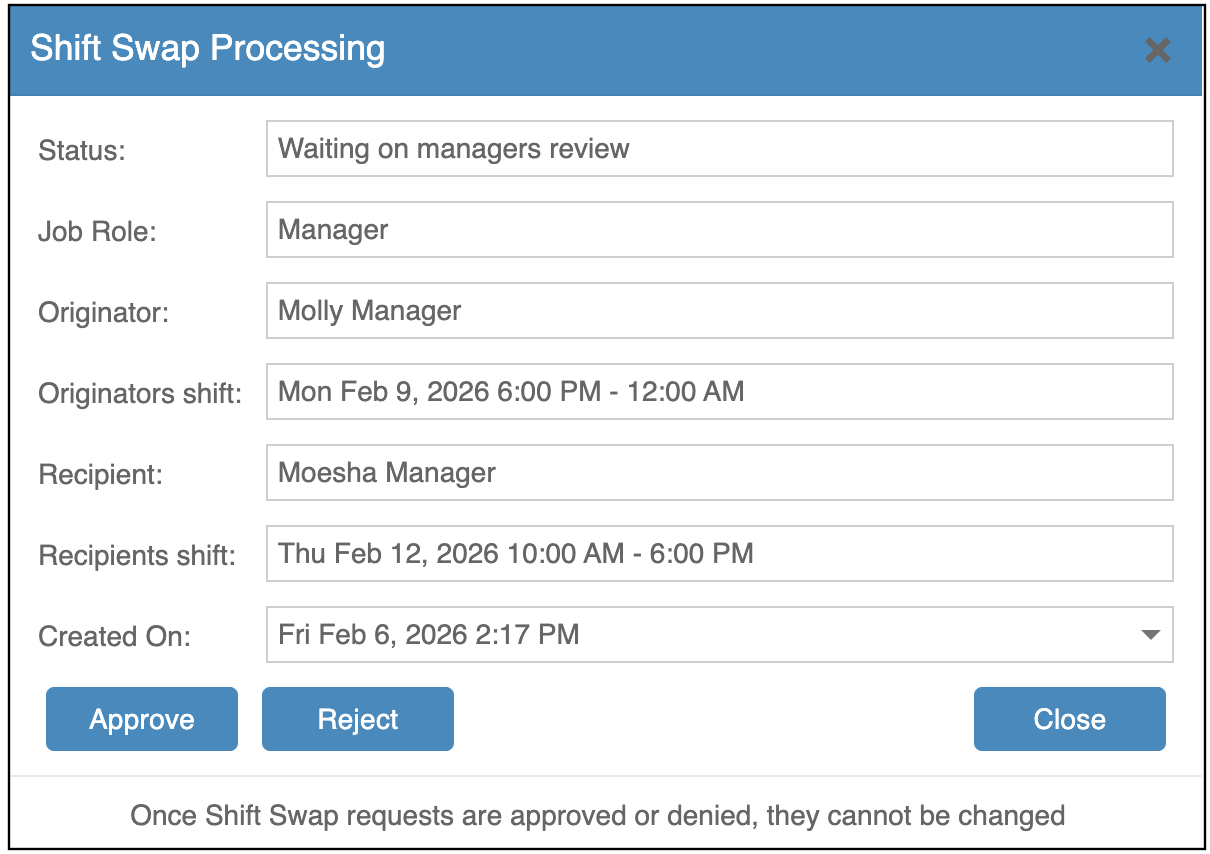
This opens the Shift Swap Processing window where you can see:
-
The job role
-
The original employee and their shift
-
The receiving employee and their shift
-
The current status of the request
-
When the request was created
Approving or Rejecting a Shift Swap
From the request window, managers can:
-
Click Approve to accept the shift swap
-
Click Reject to deny the request
Once approved or rejected:
-
The decision is final and cannot be changed
-
The schedule updates automatically if approved
-
Both employees are notified of the outcome