
Reviewing ShiftHub requests
ShiftHub lets your team sort out cover among themselves: they can swap shifts with each other, give a shift away to someone who wants it, or ask to pick up an open house shift. Nothing changes on the schedule until a manager approves it, and ShiftHub review is where you do that.
You see ShiftHub review if one of your job roles at the selected location grants ShiftHub rights. Managers and Administrators usually have them. Requests are shown for the location picked at the top right: a trade belongs to the location of its shift.
Find what needs your attention
When something is waiting, the ShiftHub menu at the top shows a red badge with the count. Click it to open ShiftHub review.
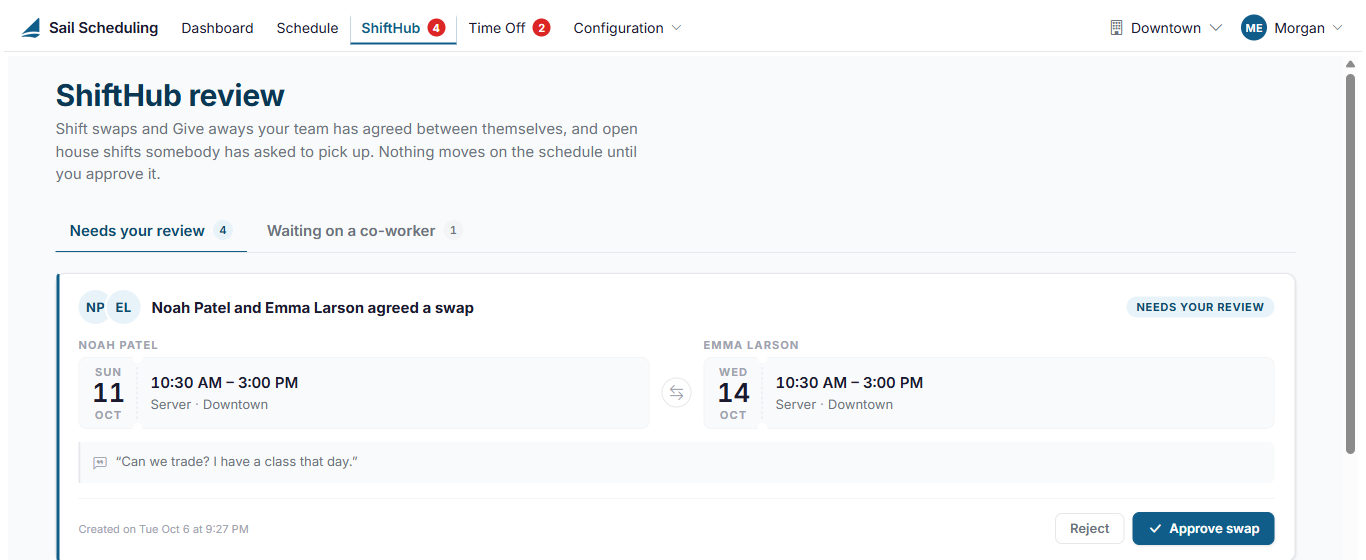
Requests are sorted into two tabs:
- Needs your review: the employees have done their part, and it's your turn. A swap both people have agreed to, a give-away somebody has claimed, or an open house shift somebody has asked to pick up.
- Waiting on a co-worker: swaps that have been offered, but the co-worker hasn't answered yet.
Each card shows the shifts involved, the note the employee wrote, and when the request was made.
Shift swaps
In a swap, two employees trade shifts: each takes the other's. The card shows both shifts side by side.
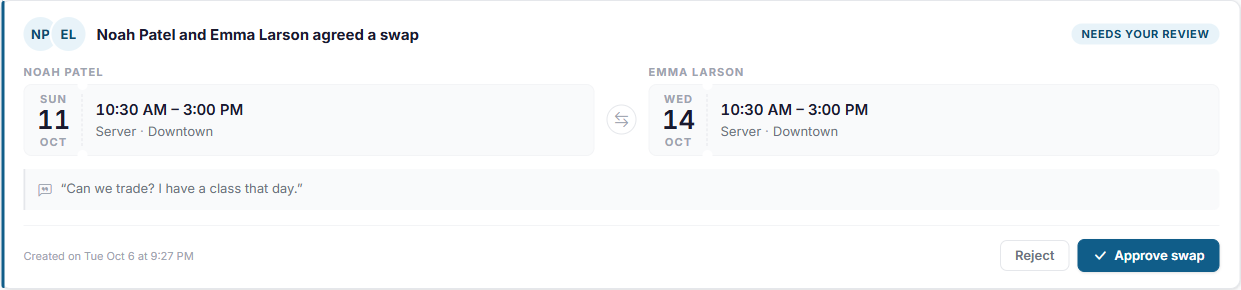
Click Approve swap and confirm. The two shifts change hands on the schedule right away, and both employees are told. If either of them would end up working two shifts at once, the swap is refused and nothing changes. It's refused too if either shift has changed on the schedule since the request was made (removed, unassigned or given to someone else); reject the request instead.
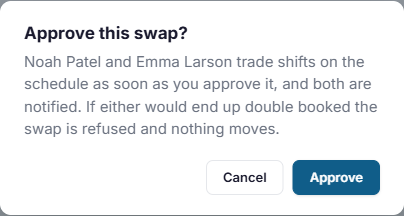
Click Reject to turn it down. Both keep their original shifts.
A swap the co-worker hasn't answered
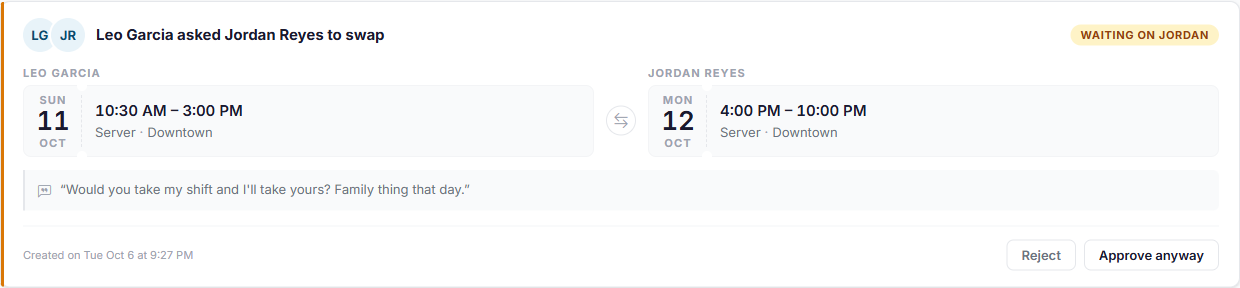
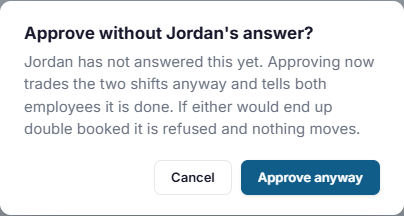
Swaps that are still waiting for the co-worker's answer are on the Waiting on a co-worker tab. Normally you leave these until they answer. But if the shift needs covering and you can't wait, click Approve anyway: the shifts are traded as if the co-worker had agreed, and both employees are told.
Give-aways
In a give-away, an employee offers up a shift and a co-worker who works the same job role claims it. It reaches you once someone has claimed it. The card says who is taking whose shift.
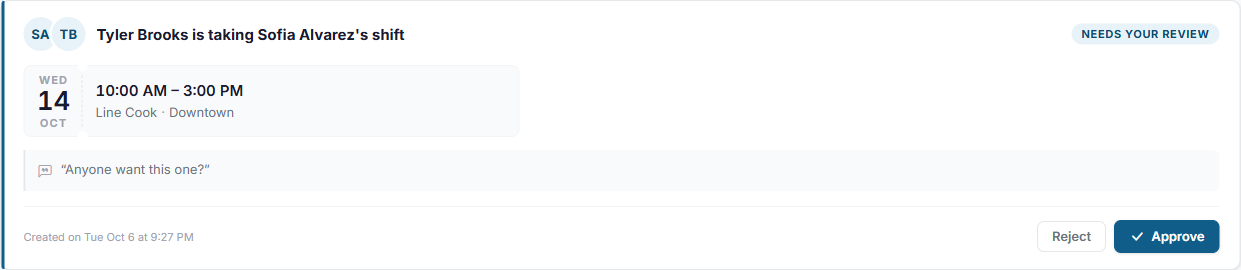
Click Approve to move the shift to the person taking it. Click Reject to leave it with the employee who offered it; it doesn't go back up for someone else to claim. Both employees are told either way. If the shift has been removed, unassigned or given to someone else on the schedule since it was offered, Approve is refused and nothing changes; reject the request instead.
Until someone claims it, a give-away is only on your team's Up for grabs list, not in your review.
Open house shift pickups
When people ask to pick up an open house shift, the shift gets one card, however many people are asking. Everyone asking is listed in the order they asked, with:
- their skill level in that job role,
- when they were hired and how long they've been with you, if a hire date is on file,
- and when they asked.
Click a name to open that employee's record, if you manage them.
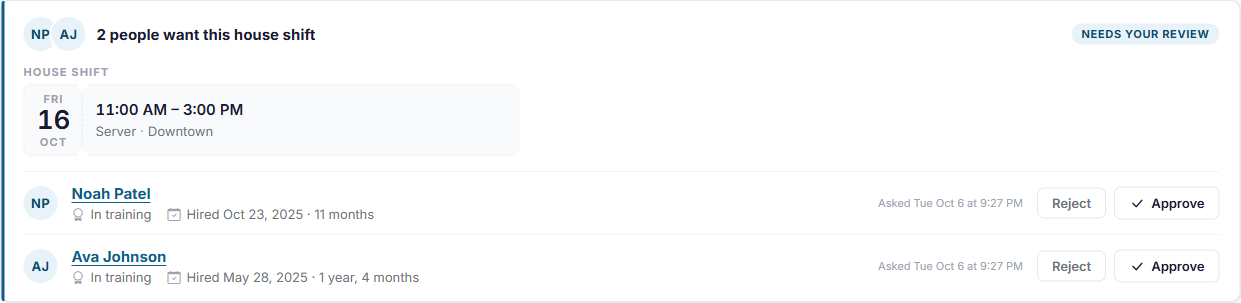
Click Approve next to the person you want to give it to, and confirm. The shift goes on their schedule and they're told. Everyone else who asked is told it has gone.
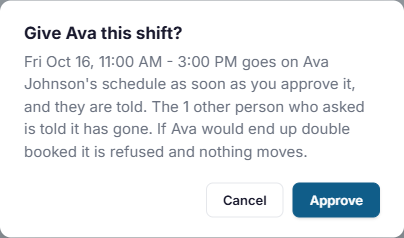
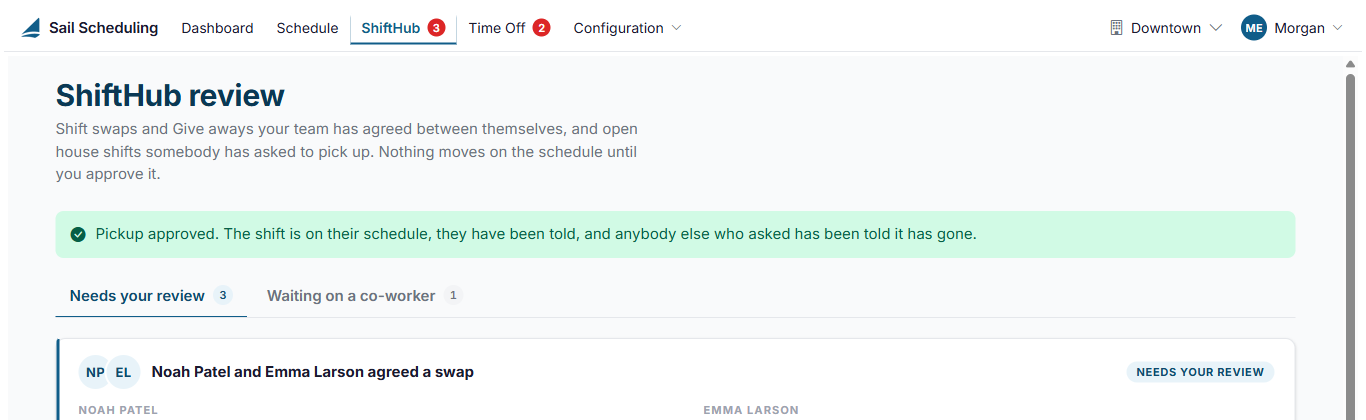
Click Reject next to someone to turn down their request. They're told no, and the shift stays open for everyone else.
If you would rather decide on the schedule, you can also give an open house shift to someone there with Assign to…. See House shifts and open shift pickup.
Good to know
- A shift can only be in one trade at a time. While it's offered in a swap, it can't also be given away, and the other way around.
- Employees can only trade shifts that are published, and only with co-workers who work the same job role.
- Only open house shifts that haven't started yet appear here. If a shift is filled, unpublished or removed on the schedule, its requests drop out of your review.
- An Administrator can switch shift trading on or off for the whole company on the Settings page, and choose whether house shift pickups need approval.
No Comments