Welcome to Ingage Scheduling!
What to Expect From Your New Scheduling System
This system makes it easier for you to see your schedule, request time off, swap shifts, and get updates directly on your phone or Email.
This guide shows you everything you need to know before your first day using the new system.
Setting Up Your Account
You will receive an email invitation to join Scheduling.
Open the email and click "Sign Up" to begin creating your account.
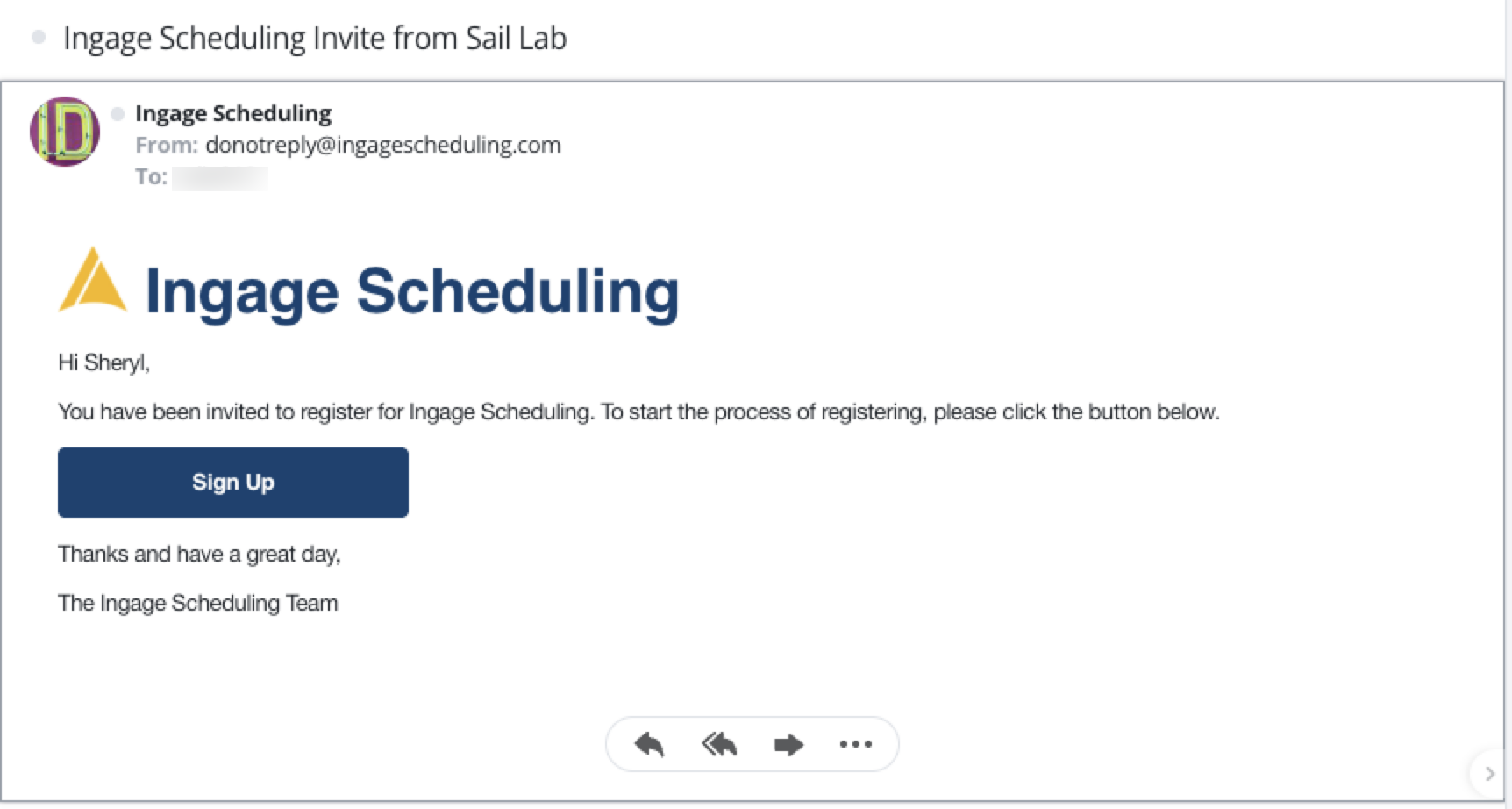
Once you click "Sign Up" in your invitation email, you’ll be taken to the Scheduling website.
What you see next depends on whether you already have a Sail Backoffice login.

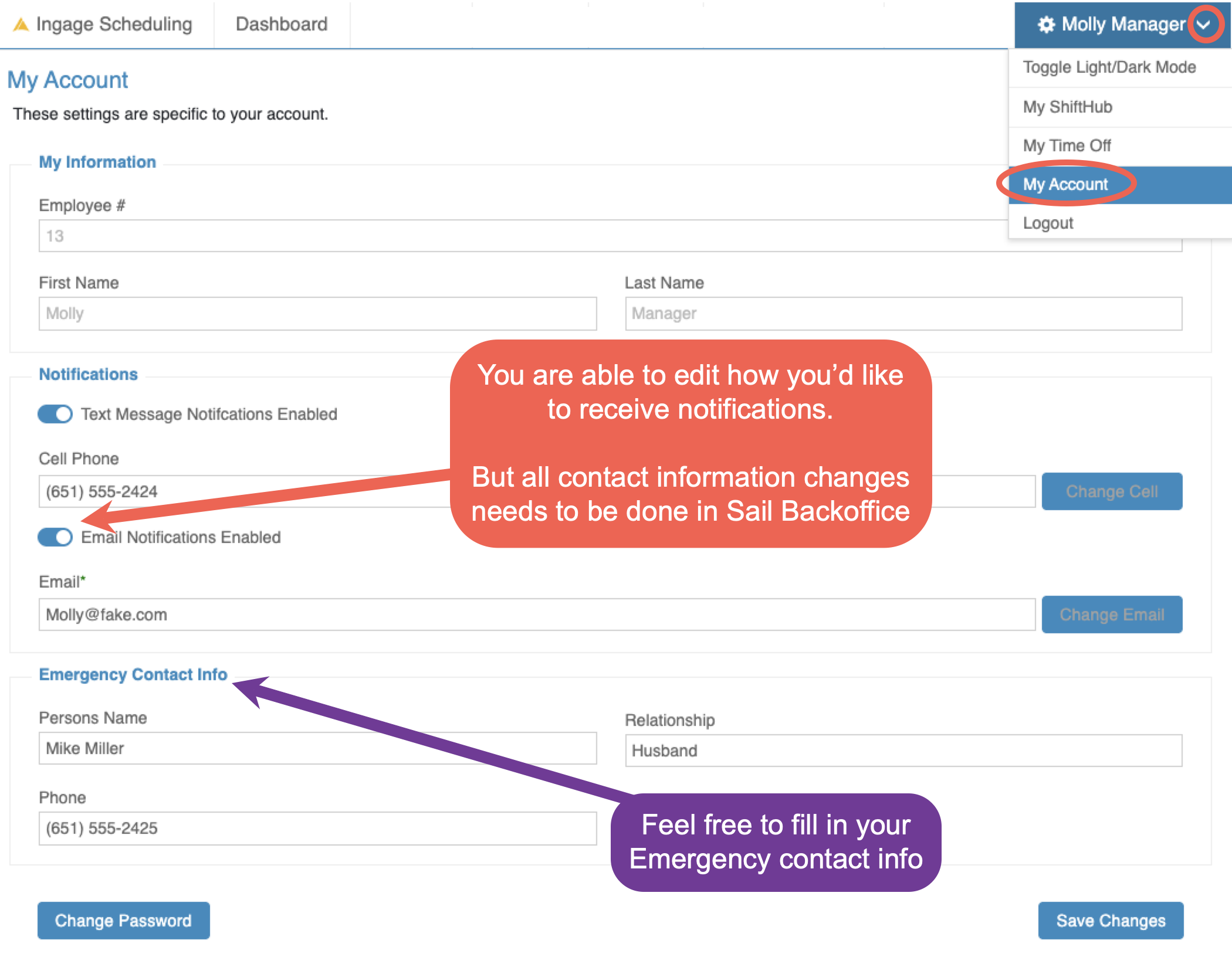
If you ever want to change how you receive notifications, you can do that anytime from your account settings.
How Your Schedule Will Be Sent To You
Depending on your notification settings, you will receive your schedule by text message, email, or both.
Here’s what each version looks like:
Text Message Schedule
You will receive a text message listing all of your upcoming shifts for the week.
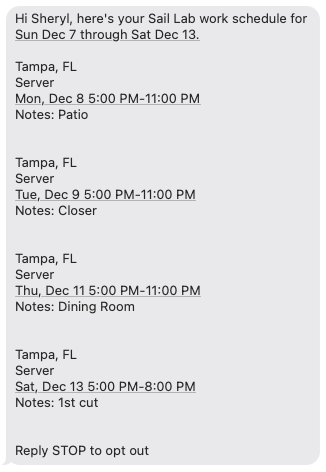
Note: If you reply STOP to any schedule text message, you will no longer receive text notifications — even if text messaging is still enabled in your notification settings. To start receiving text messages again, reply START.
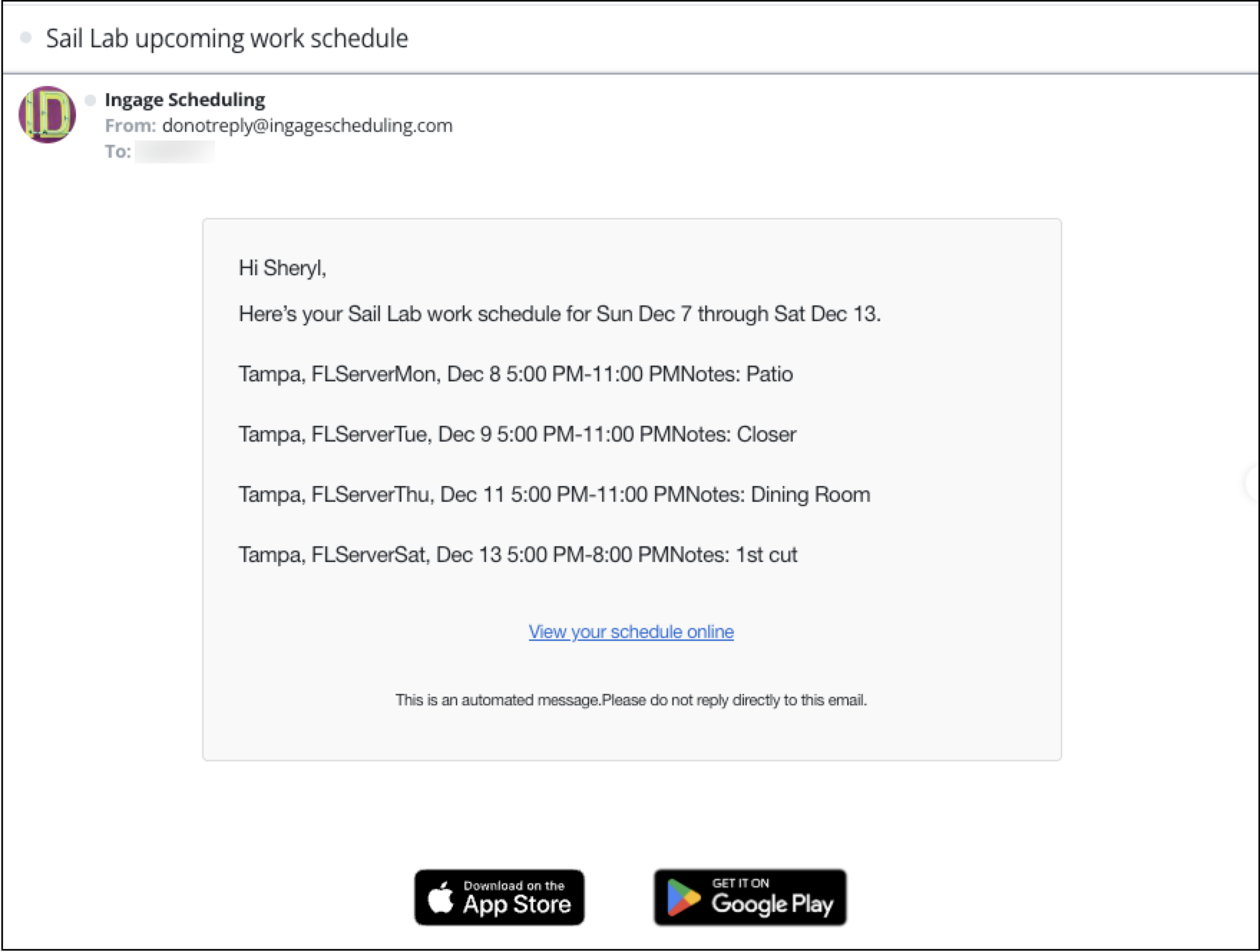
Email Schedule
If you have email notifications enabled, you will receive your full schedule in an email.
How To View My Schedule
You can view your schedule either in the mobile app or on the website.
They both show your upcoming shifts, job roles, and hours.
Viewing Your Schedule in the App
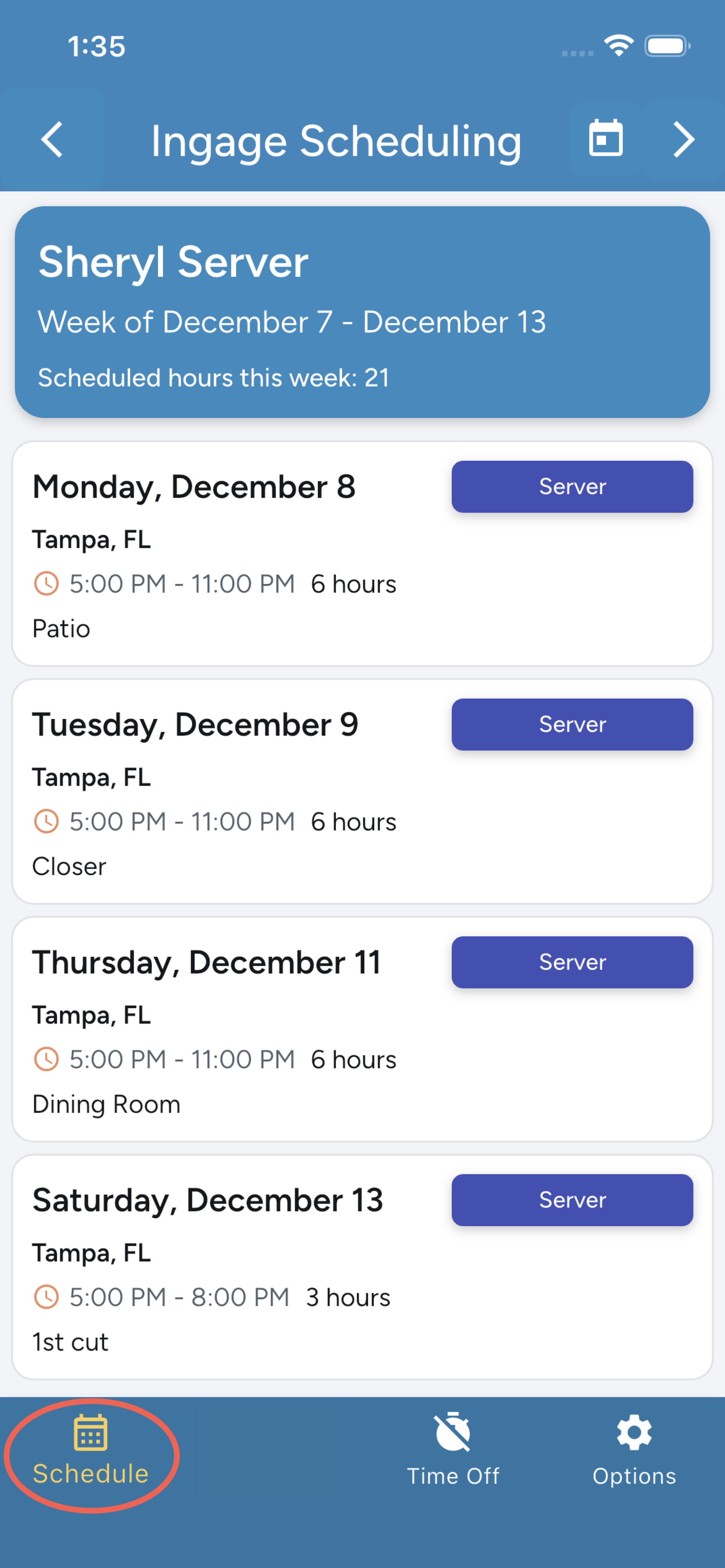
Use the Schedule icon at the bottom of the app (circled in the screenshot).
In the app, you’ll be able to see:
-
All of your shifts for the selected week (you can swipe left/right or use
the arrowarrows on the top to move between weeks) - Your total scheduled hours for the week, displayed at the top
- Your scheduled hours for each shift
-
The job role you’re working each day
-
Any shift notes such as: Closer, 1st cut, area you're working
This view gives you a quick breakdown of where you’re working and what to expect each day.
Viewing Your Schedule on the Website
On the Scheduling website, you’ll also see a list of your upcoming shifts.
The website view shows:
-
Your scheduled work hours
-
The store you’re scheduled at
-
The job role you’re working that day
This option is helpful if you prefer checking your schedule from a computer or don’t have the app handy.

Additional Links:
- Scheduling Website: https://ingagescheduling.com/Account/Signin
- How to Request Time off
- Links to download the app in the app store
 .
.