
Sales Period Report (Sail) vs. Monthly Credit Card Processing Statement
Introduction
While both the Sales Period Report (SPR) and the monthly credit card processing statement appear to represent the same data, they actually do not. Follow the steps below to correctly compare the two reports.
Comparing the Reports
| Sales Period Report | MX Merchant Statements | |
| What Data is Provided | Provides data for all sales types from the period | Credit card activity information only |
| Time Period | Sales captured in the month | Batches settled in the month for which the statement is for |
Sales period reports reflect only the sales that occurred on the specific days the report was generated for. In contrast, merchant credit card statements from MX are based on the month in which the payment batches settle. As a result, there may be discrepancies where sales data from the end of one month carry over into the following month, since the statements do not necessarily match the daily sales periods.
Retrieving Your MX Merchant Statement
To learn how to access your Statements in MX Merchant please click the link: https://help.ingageit.com/books/help-mx-merchant-and-payments/page/accessing-your-statements-in-mx-merchant
Retrieving Your Sales Period Report (SPR)
Step 1 - Log into Back Office and Access the SPR
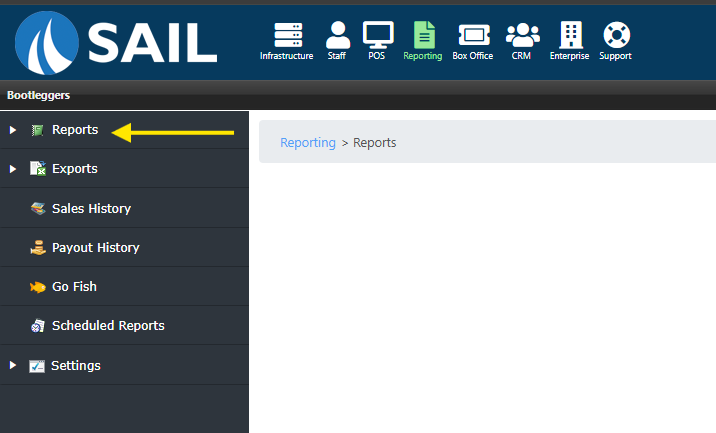
Click on "Reporting", then "Reports":
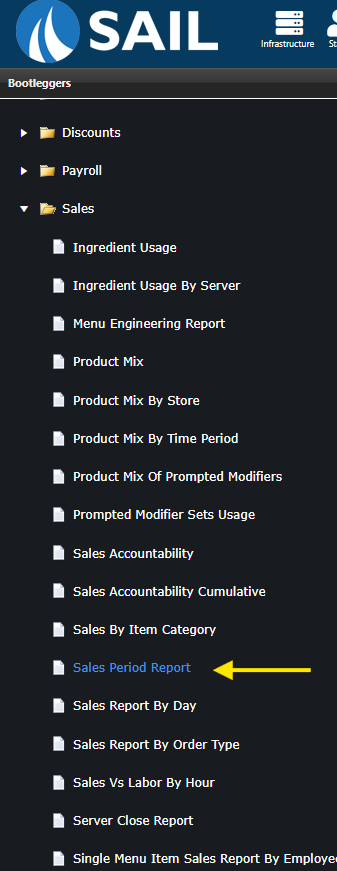
Then select "Sales" and "Sales Period Report":
Step 2 - Select Report Parameters
Next, you will need to input the report parameters. This is the start and end date for sales day which you would like the report.
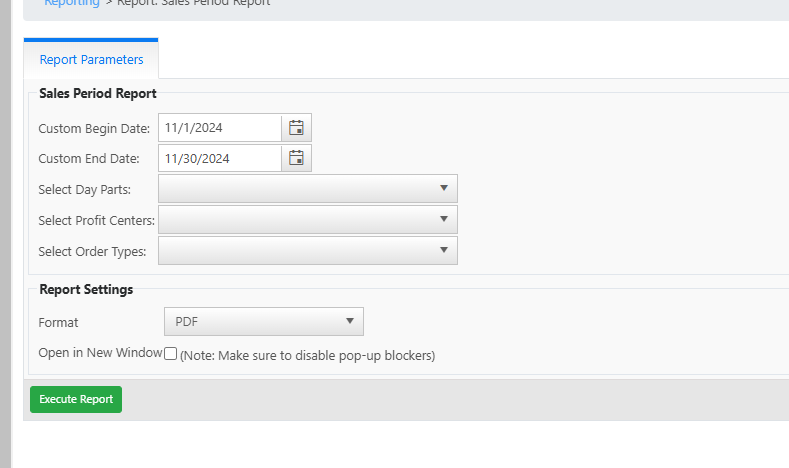
STOP: If you use these dates because you want all of November's credit card data, and want to compare it so that it matches your statement in MX Merchant, they will will NOT match!
Instead, to make sure the data matches, you will need to take into account the calendar days. MX Merchant statements are based on the month in which the payment batches settle. You cannot change the dates for which the MX Merchant statements are generated, but you can for the SPR.
For example: In November of 2024, you will need to take into account that the batch from 10/31 will settle 11/1. At the end of the month, you can see sales from 11/29 and 11/30 will settle in December, because they are weekend days. Therefore, in order to make the data from both statements match, you will need to change your "Begin Date" to 10/31/24 and your "End Date" to 11/28/24:
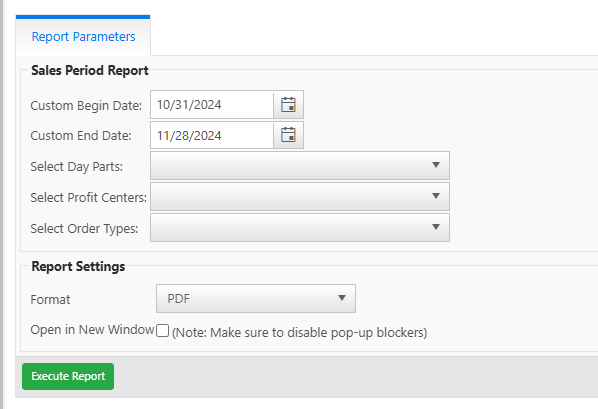
When complete, select "Execute Report" in the "PDF" format.
Step 3 - Compare Reports
You will know you have selected the correct dates if the total in the "Payment Summary: Credit" column is correct:
