
Accessing Your Statements in MX Merchant
Introduction
This document will guide you in how to access your statements in MX Merchant (MXM). All new processing statements are available to view on the 5th business day of the new month.
Accessing Your Statements
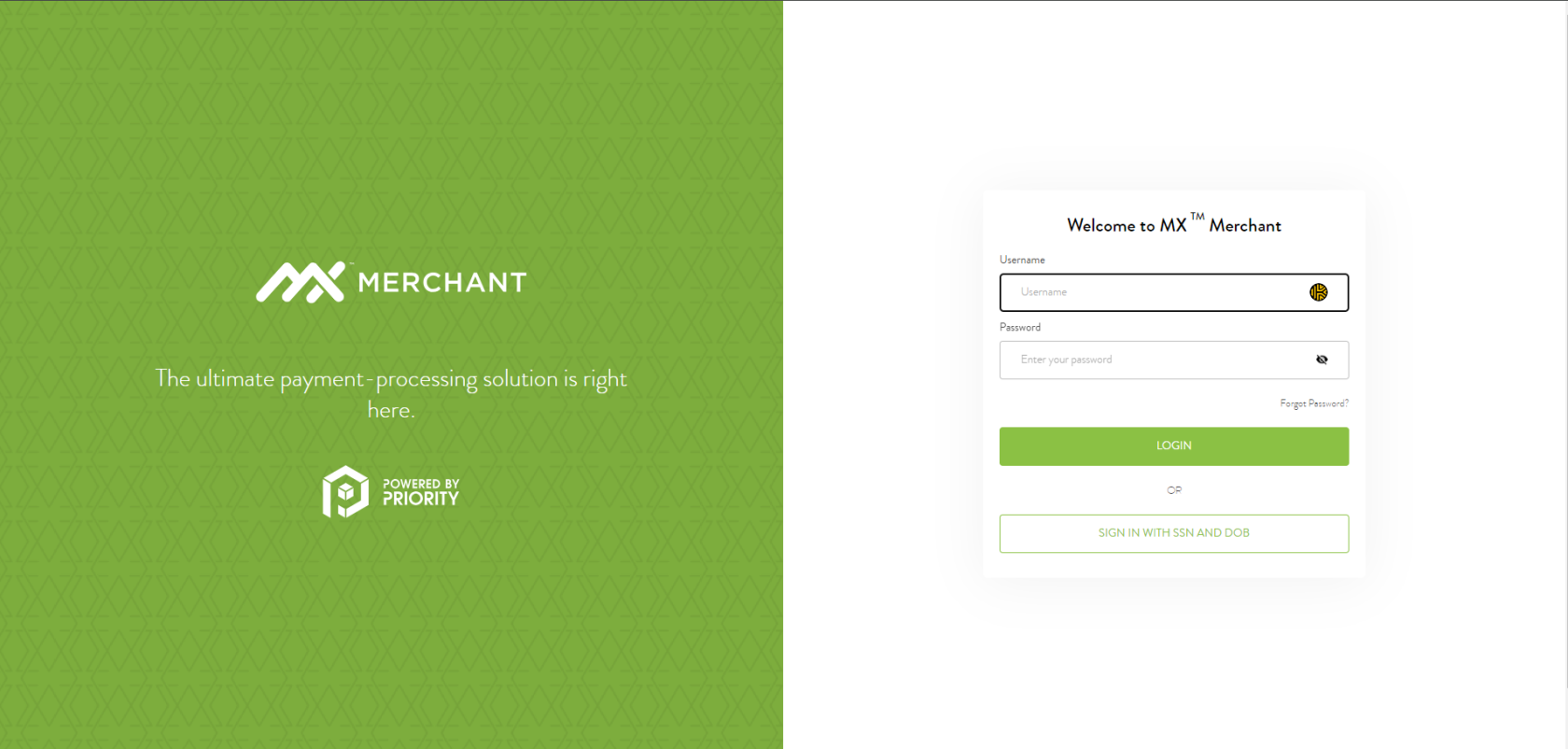
Step 1 - Login to MXM
Go to www.mxmerchant.com and login using your credentials. If you do not have credentials, request your user account be added to the account in question by contacting payments@ingageit.com.
Step 2 - Select Location
Verify you are connected to the proper account. You may have to edit your "Location". To do this, select the  in the top right-hand corner. Select "Edit" next to "Location". A pop-up will appear. Search for the desired location by name. Select the checkbox next to the location and hit "Save".
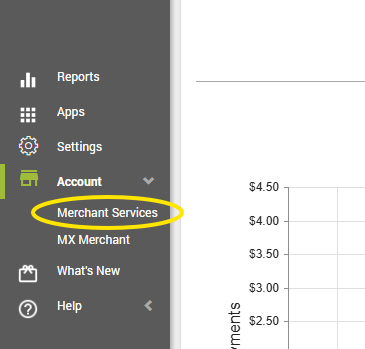
Step 3 - Navigate to Merchant Services
From the lefthand menu, select "Account", then "Merchant Services".
Step 4 - Select Statement
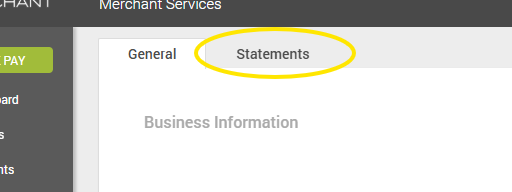
At the top of the page, select "Statements":
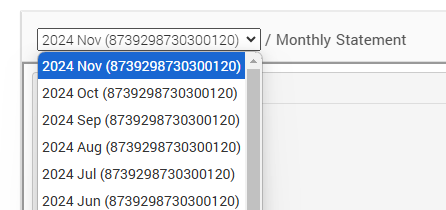
From the dropdown, you can select any month/year for which there is a statement available:
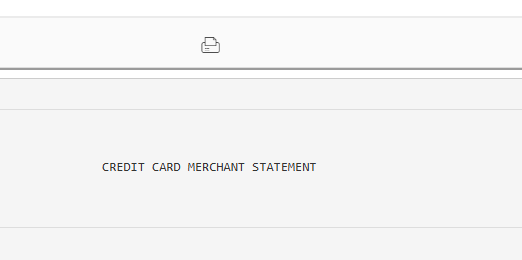
If you would like to save, download, or print your statement, select the printer icon just right of the monthly statement dropdown:

No Comments