
Handheld Portal - TransIT
Step 1 - Login
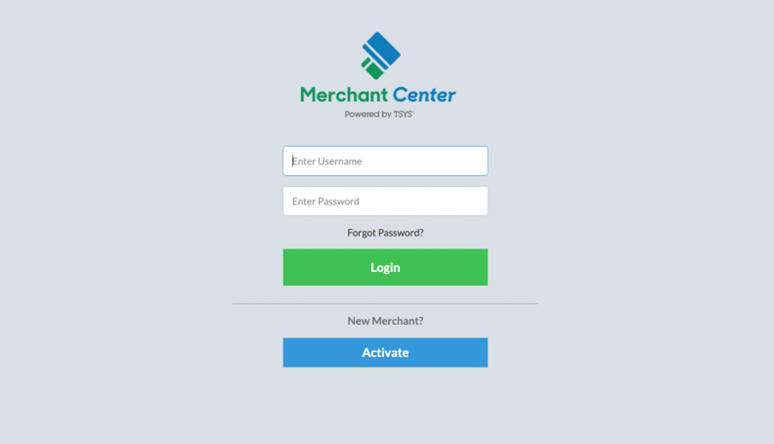
Website - https://merchantcenter.transit-pass.com/jsp/vt/logout.action
Password: Set by you first time you login
Check the “remember password on web browser” checkbox, to not need 2-step authentication for 45 days.
Step 2: Lookup Reports
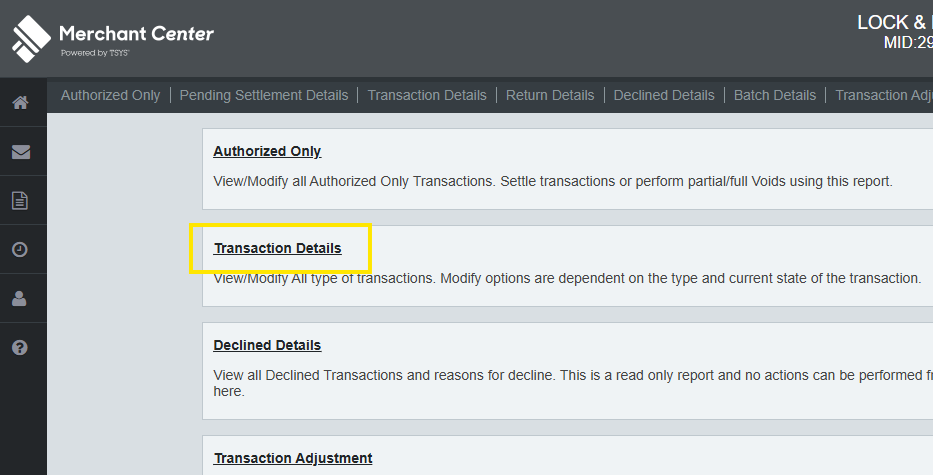
From the left-hand menu, go to “Home” Select “Reports Select “Transaction Details”
Step 3: Configure Report
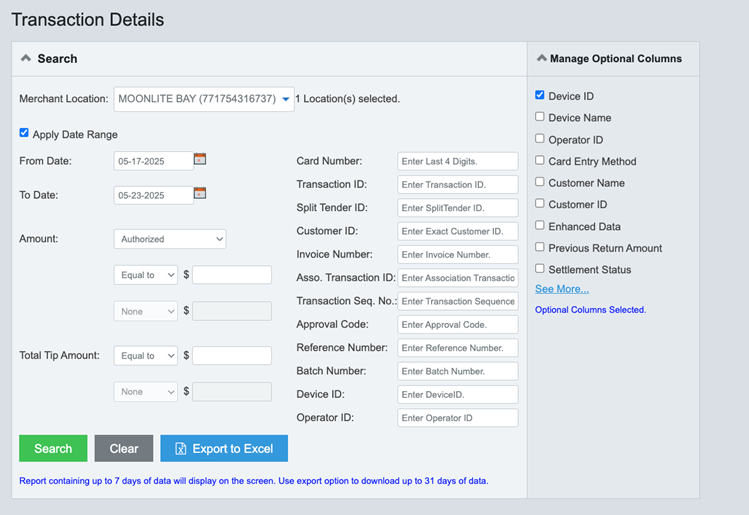
Filter by date and include “Device ID”
From: Today’s Date To: Tomorrow’s Date (to include after-midnight transactions)
Select “Device ID” checkbox under “Manage Optional Columns"
Select “Search” (green button)
Step 4: Filter Transactions
Once the screen has loaded transactions, filter both approved transactions and Device ID.
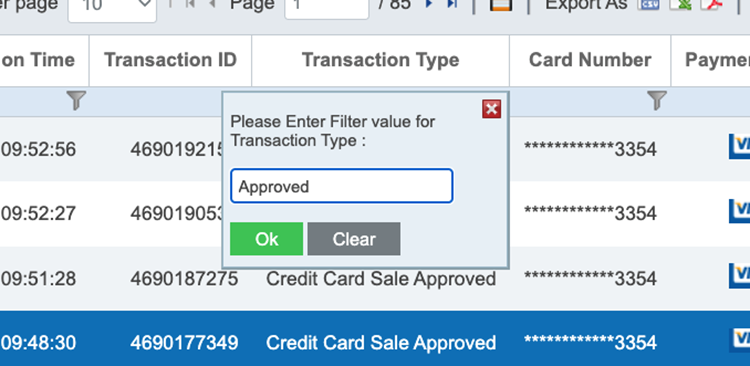
Under “Transaction Type” enter “Approved” using the filter icon.
This filters OFF voids, declines, etc. leaving only authorized transactions.
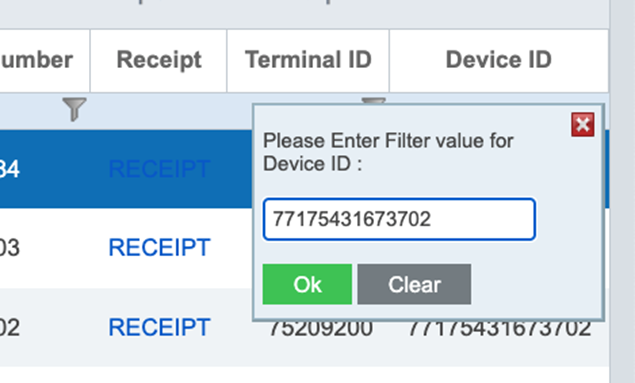
Under “Device ID” enter your Device ID for handhelds.
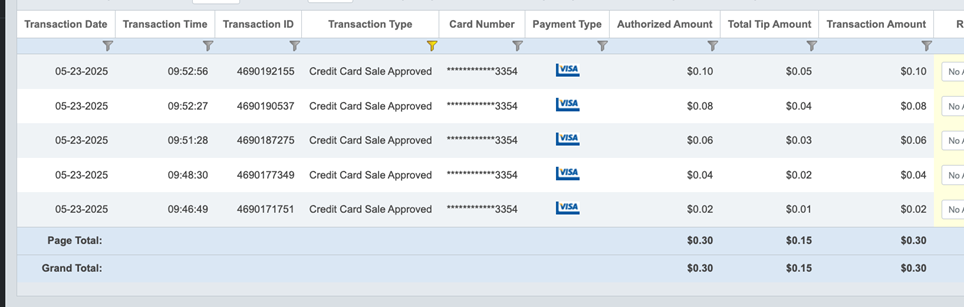
Once filtered, the “Grand Total” will show the amounts for the handhelds.
Total Tip Amount = Tips total
Transaction Amount = Total w/ tips
Step 5: Enter Info to POS
Take the “Transaction Amount” minus (-) the “Total Tip Amount” to equal = Sales Total.
Ring in the “item”: In Sail POS, enter the new Sales Total (calculated above) using the “Handheld Sales $$” button.
Tender payment: Use the Payment Button “HH Sales” to close the order to the dummy payment, enter the tip (Total Tip Amount from above) when prompted for tips.

No Comments