
Sales Period Report (Sail) vs. Monthly Credit Card Processing Statement
Introduction
Understanding Your Sales Period Report vs. Your Credit Card Merchant Statement
Why don't these two numbers match?
WhileIt's bothcommon to notice that the total on your Sales Period Report (SPR) anddoesn't exactly match the total on your monthly credit card processingmerchant statement, appeareven though both seem to representdescribe "sales" for the same data,month. theyThis actuallyis doexpected not. Follow the steps below to correctly compare— the two reports. reports are built on different logic, not different data.
ComparingThe theKey ReportsDifference
| Sales Period Report (SPR) | CC Merchant Statement | ||
|---|---|---|---|
What it includes |
|||
| Credit card activity |
|||
| Time |
The date payment batches settled with the |
SalesIn short:
- Your SPR is organized by when the sale happened.
- Your statement is organized by when the card network settled out the batch.
Why This Creates Discrepancies
A credit card sale doesn't settle instantly — it goes through a processing cycle before it appears as a "batch" on your statement. Most of the time this happens within a day, so it doesn't matter. But near the turn of the month, timing can shift a batch into a different statement period reportsthan reflectthe onlyone the sale actually occurred in.
This most often happens because of:
- Weekends — sales made on a weekend near month-end may not batch until the following business day, pushing them into the next month's statement.
- Holidays — similar delays can occur around bank holidays.
- What day of the week the month ends on — if the last day of the month falls later in the week, its batch may not settle until the 1st of the following month.
Example of How This Plays Out
- If the last few days of a month fall on a weekend, those sales may not batch until the following Monday — meaning they show up on next month's statement instead of the current one.
- Similarly, if the very last day of a month is a weekday, that day's sales might not batch until the 1st of the next month, again shifting them out of the current statement.
This is a normal part of how card processing timing works and is not an error on your account.
Where to See This on Your Statement
Every monthly statement includes a "Batch Details" section near the end. This section lists each batch by date, along with the sales count and dollar amount for that occurredbatch. You can use this section to:
- Identify which days' sales are included in the current statement
- Confirm whether any days from the prior month carried over
- See if any days from the current month rolled into next month's statement instead
How to Reconcile Your Numbers
If you want to trace your SPR total to your statement total (or vice versa), you can walk through it manually using the Batch Details section:
- Start with your statement's total volume.
- Subtract any batches at the start of the statement period that actually reflect sales from the end of the prior month (these will typically be the first 1–3 batches, often following a weekend).
- Add any sales days from the end of the current month that didn't batch until the following month (check whether the last day of the month is a weekday or weekend).
The result should reconcile to your SPR total for that same calendar month.
About the Fees on Your Statement
Your statement's Transaction Fees section shows fees calculated on the specifictotal volume and transaction count that actually batched within that statement period (not the SPR period). Any additional line items — such as processor or compliance fees — will be listed separately, with the sum of all fee categories reflected in your total Amount Due.
Quick Recap
- Different totals ≠ an error. Your SPR and statement are simply organized on two different timelines.
- The shift is usually just a few days around the start/end of the month.
- The "Batch Details" section is your source of truth for seeing exactly which days
thearereportincludedwasingeneratedafor.givenInstatement. - Fees are always calculated based on the
month in which the payment batches settle. As a result, there may be discrepancies where sales data from the end of one month carry over into the following month, since the statements do not necessarily match the daily sales periods.Retrieving Your MX Merchant StatementTo learn how to access your Statements in MX Merchant please click the link:https://help.ingageit.com/books/help-mx-merchant-and-payments/page/accessing-your-statements-in-mx-merchantRetrieving YourSales Period Report (SPR)Step 1 - Log into Back Office and Access the SPRClick on "Reporting", then "Reports":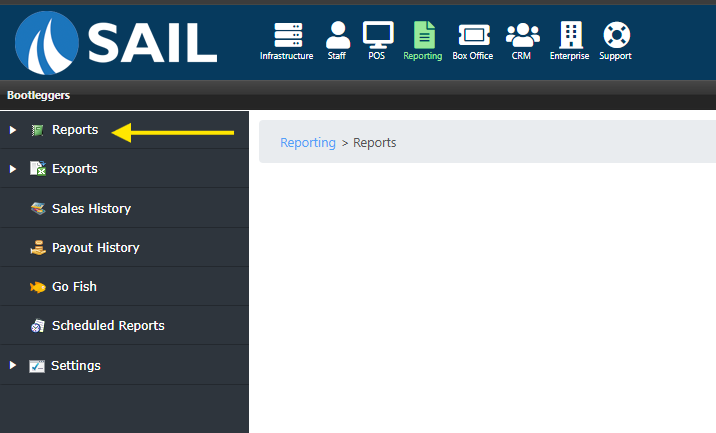
Then select "Sales" and "Sales Period Report":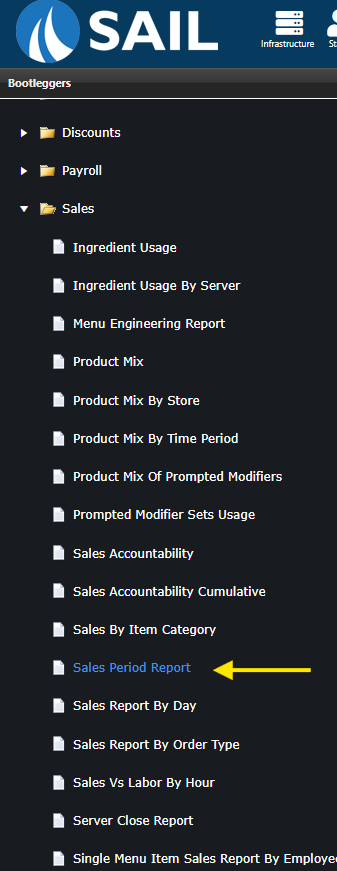
Step 2 - Select Report ParametersNext, you will need to input the report parameters. This is the start and end date for sales day which you would like the report.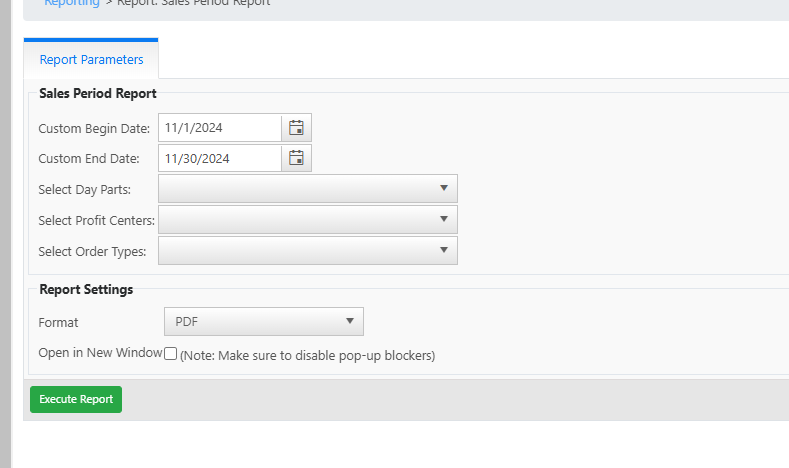
STOP:If you use these dates because you want all of November's credit card data, and want to compare it sovolume thatit matches your statement in MX Merchant, they willNOTmatch!Instead, to make sure the data matches, you will need to take into account the calendar days. MX Merchant statements are basedappears on themonthstatement,in which the payment batches settle. You cannot change the dates for which the MX Merchant statements are generated, but you can fornot the SPR.
For example: In November of 2024,If you willhave needquestions about a specific discrepancy after reviewing your Batch Details section, reach out to take intoyour account thatrepresentative with the specific dates in question — they can walk through the batch fromtiming 10/31with will settle 11/1. At the end of the month, you can see sales from 11/29 and 11/30 will settle in December, because they are weekend days. Therefore, in order to make the data from both statements match, you will need to change your "Begin Date" to 10/31/24 and your "End Date" to 11/28/24:you.
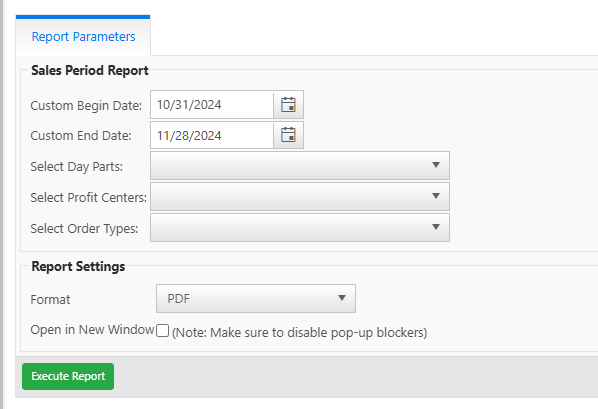
When complete, select "Execute Report" in the "PDF" format.
Step 3 - Compare Reports
You will know you have selected the correct dates if the total in the "Payment Summary: Credit" column is correct:
