
86 Item Report
The 86 Item Report shows all items that are currently on the 86/Countdown List and displays their current quantity on hand. It can be used to manage out-of-stock items, monitor limited-quantity items throughout the day, and identify items that are running low based on optional reorder points configured in Backoffice.
Where to find the report
- Backoffice --> Reporting --> Reports --> Sales folder -->
Product86MixItem--> Select Date RangeReport --> Execute
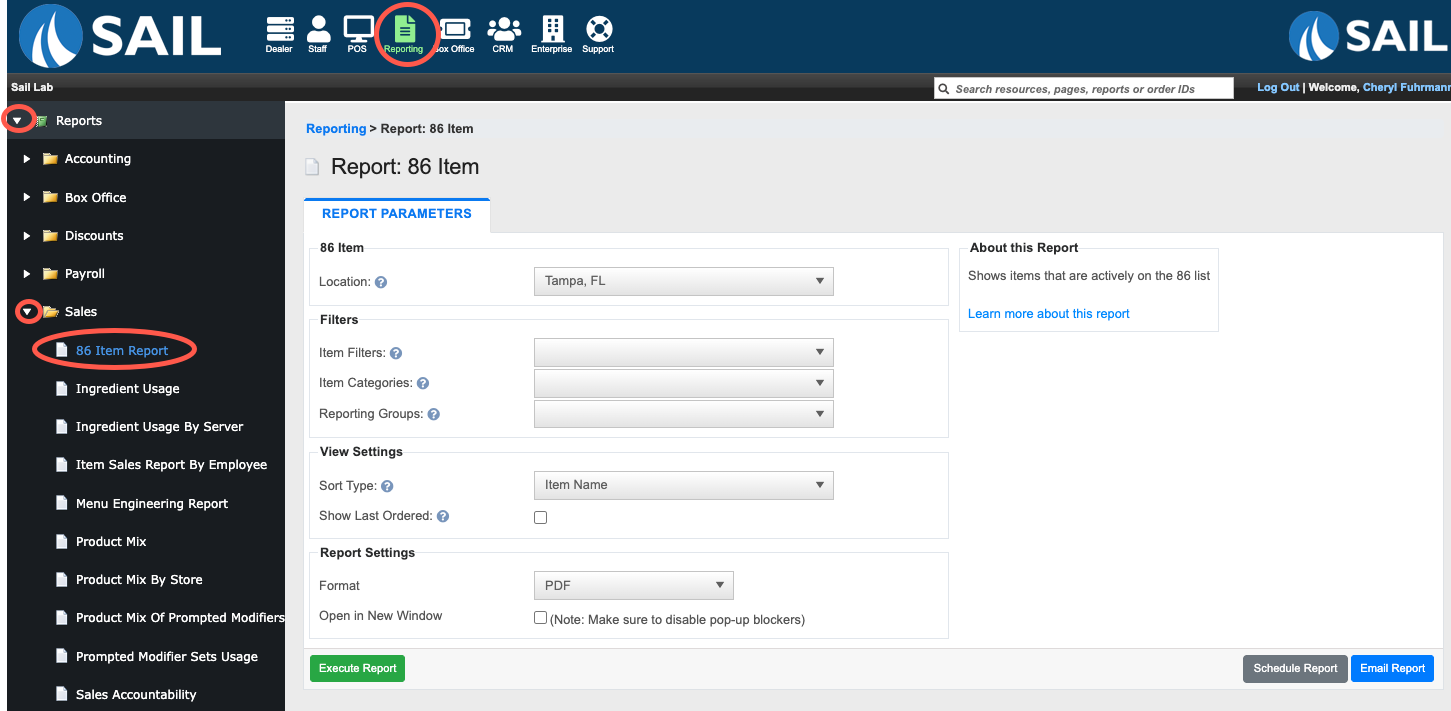
Report Options
Locations– Select one or more locations to include in the report.When multiple locations are selected, all sales are combined into a single total.Select Range / Date Range / Time Range– Choose a preset date range (e.g.,Today, Last Week, Last Month) or manually enter custom start and end dates/times.
Filters
-
Item Filters – Custom item groups configured in Backoffice (e.g., Food Specials, Top 20 Items).
-
Item Categories – Menu categories assigned to items (e.g., Appetizers, Entrees, Desserts).
-
Reporting Groups – High-level groupings such as Food, Alcohol, Merchandise.
View Settings
-
Sort Type – Determines the order of results, such as by
UnitsItemSold,Sales Amount, Profit,name, orNameQuantity on hand.. -
Show Last Ordered – Adds
What it looks like
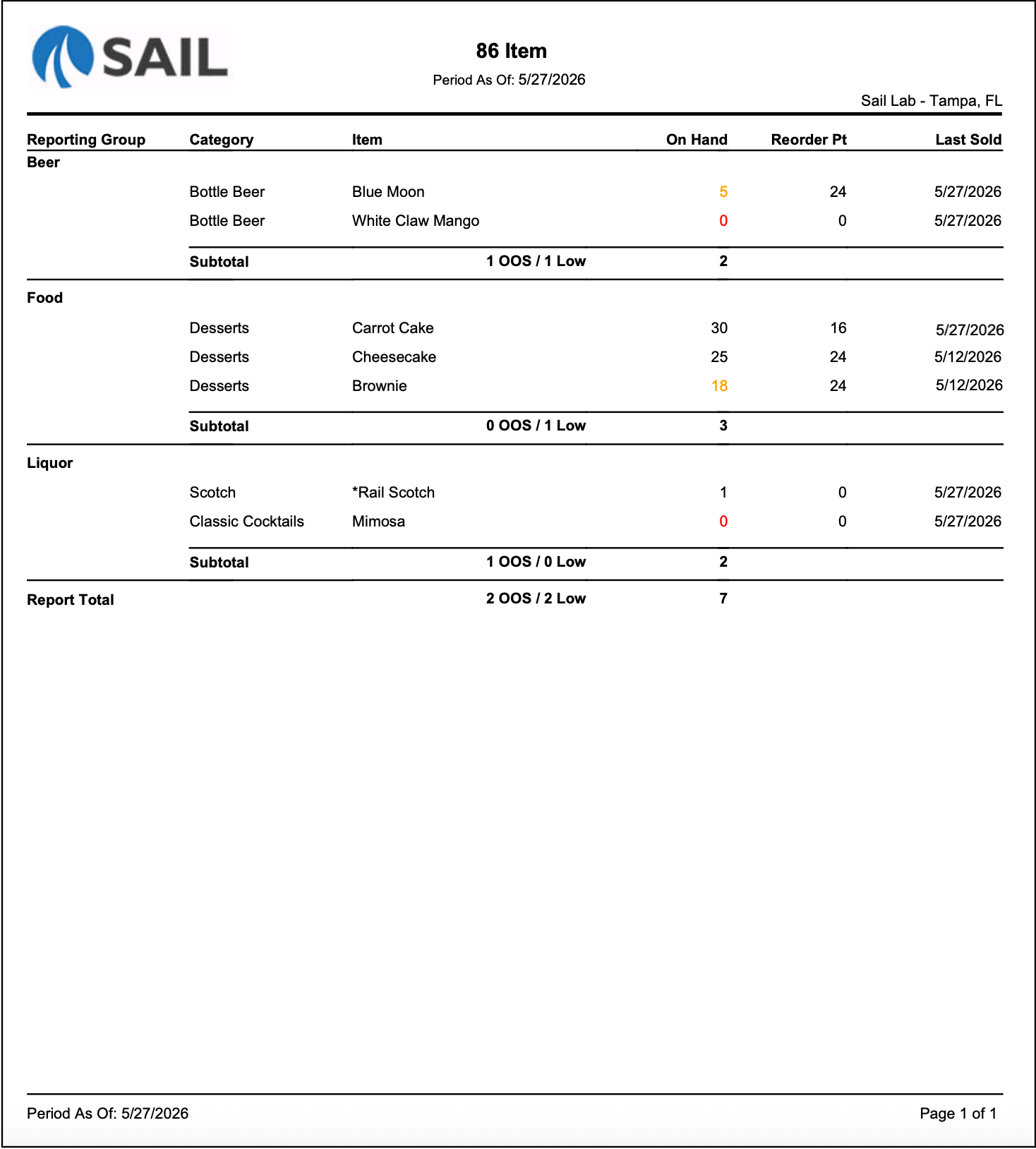
Report Parts
Report Organization
The report is organized in the following order:
- Reporting Group
- Category
- Item
Items are grouped under their Reporting Group.
The item order depends on the selected Sort Type:
- Item Name – Items are listed alphabetically.
- Quantity On Hand – Items are listed from highest quantity to lowest quantity within each Reporting Group.
Only items currently on the 86/Countdown List appear on this report.
A subtotal line appears for each Reporting Group and displays:
- Number of Out of Stock (OOS) items
- Number of Low items
- Total items in that Reporting Group currently on the 86/Countdown List
The Report Total section displays:
- Total Out of Stock (OOS) items
- Total Low items
- Total items currently on the 86/Countdown List
Columns
- Reporting
/GroupGrand-TotalsThe Reporting Group assigned to the item. - Category - The category assigned to the item.
- Item - The item currently on the 86/Countdown List.
- On Hand - The current quantity available for the item.
- The quantity is color-coded:
-
CategoryBlackTotals:–SumQuantityofisallaboveitemsthewithinreordereachpoint,category.or no reorder point has been configured. -
Yellow – Quantity is below the reorder point but greater than zero.
-
Red – Quantity is zero and the item is out of stock.
-
- The quantity is color-coded:
- Reorder Pt - The optional reorder point configured for the item.
- When a reorder point is entered, the report can identify when an item is running low.
- If no reorder point is configured, this column displays 0.
- Last Sold (Optional) - Displayed when the Show Last Ordered option is selected, and Shows the most recent date the item was sold.
Subtotals
Reorder Point
Reorder points are optional and are configured on the item in Backoffice:
POS → Item → Inventory Tab → Reorder Point
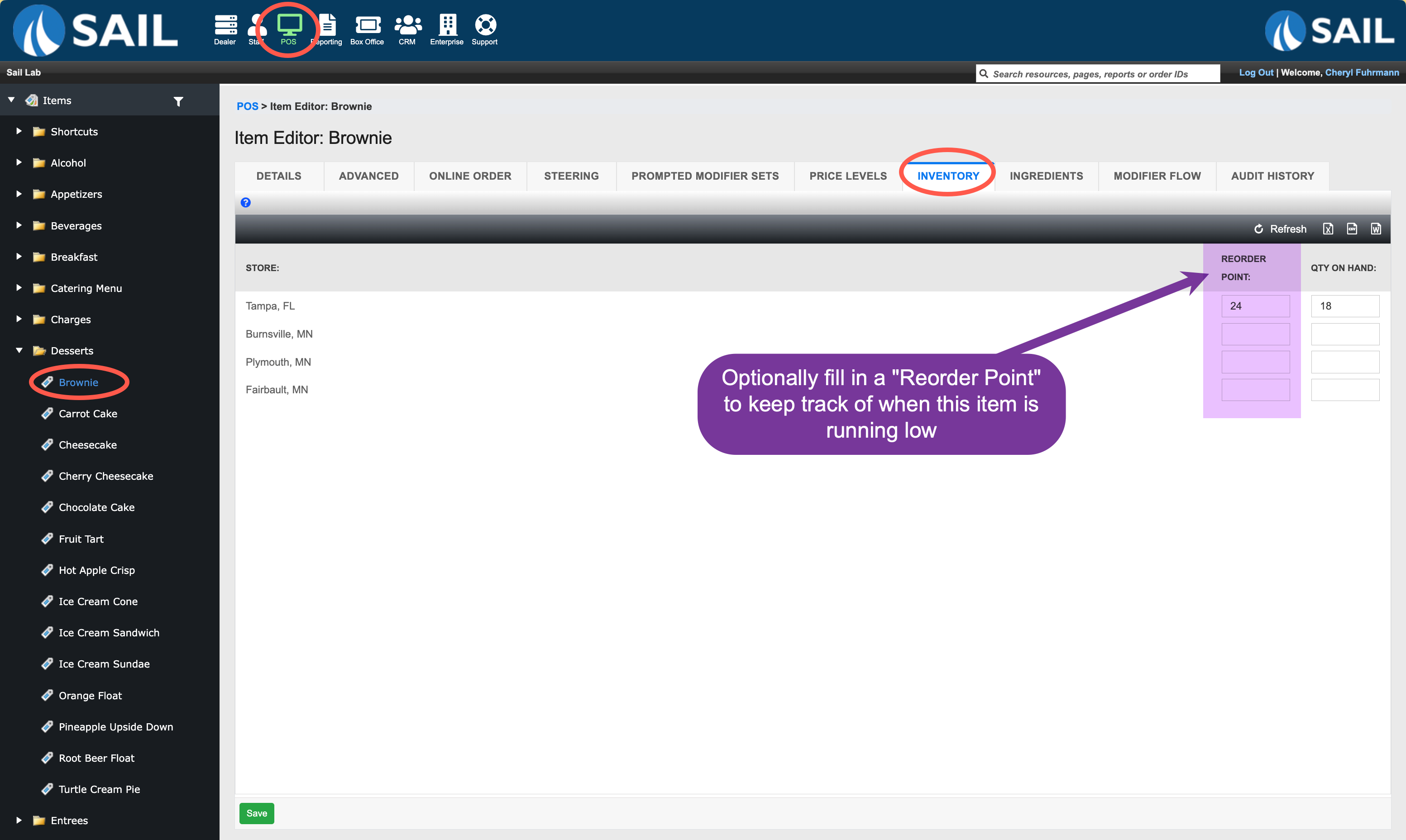
A reorder point helps identify when inventory is running low before reaching zero.
Example:
-
Qty On Hand = 30
-
Reorder Point = 10
The item remains black because inventory is above the reorder point.
Once the quantity drops below 10, the quantity changes to yellow on the report.
How to Use This Report
- Run
the report to see everything currently on the 86/Countdown List.Revie - Look for red quantities to identify items that are out of stock.
- Look for yellow quantities to identify items that are running low.
- Use reorder points to help determine when products should be reordered before they reach zero.
- Sort by Quantity On Hand to quickly see which items have the lowest remaining counts.
- Use the Last Sold column to determine how recently an item has been ordered.
- Review Reporting Group subtotals to see which areas of the menu have the most low or out-of-stock items.
- Use the report throughout the day to monitor limited quantity items and countdowns.