
Creating Customer Accounts
This page contains information on how to create customer accounts in Sail.Sail and how to change a customer's credit limit.
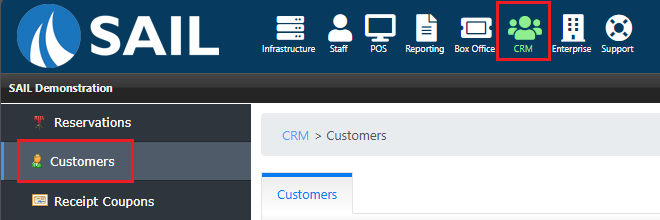
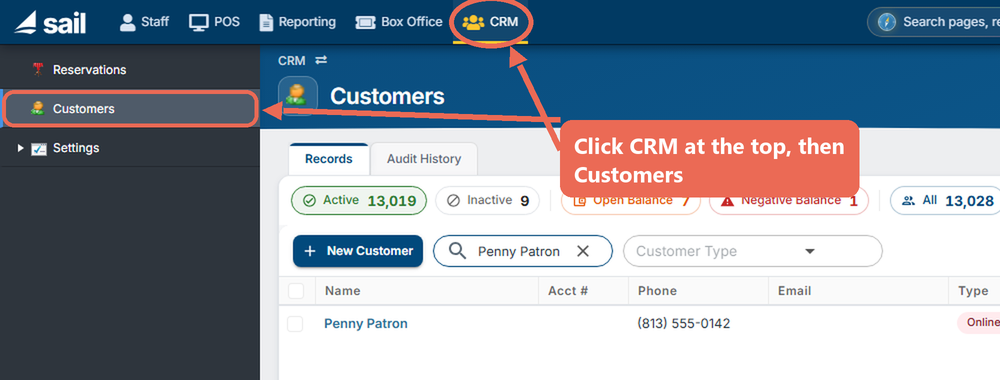
1. Navigate to Customers
2. Creating a Customer Account in Backoffice
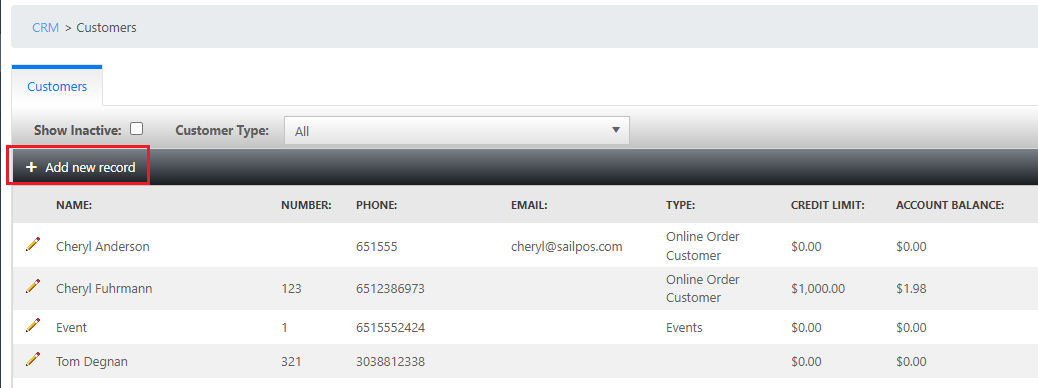
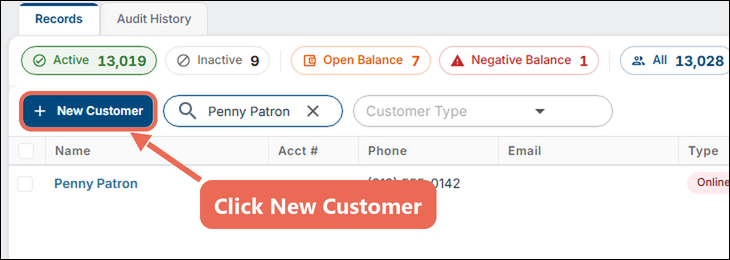
If creating a new account, click +Add New Record.Customer.
CustomerAccount Account:Details:
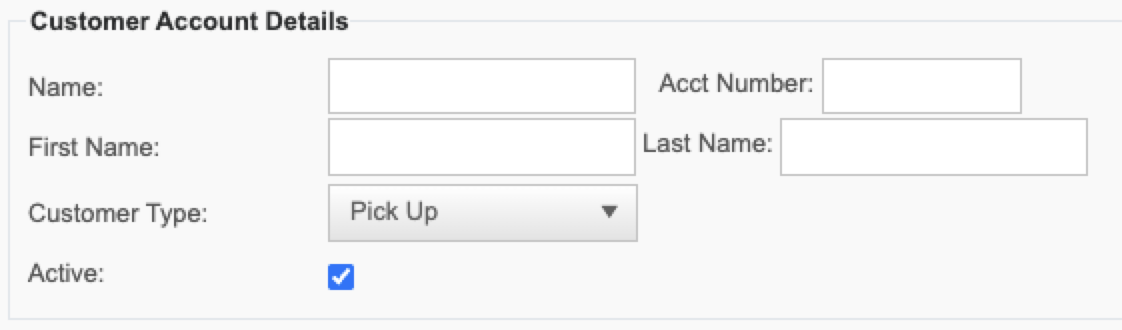

- The Full Name is required. This can be the name of the group, event, or the customers name.
- The Acct Number is optional. This could be another way to look up the customer on the terminal
- First and Last Name is the name of the customer
contact,contact. - Select the Customer Type, this is a required field.
Select theCustomer Type.This is used for filtering. To Checkadd a new type, click theActive.+ next to it.
Note: A new customer is active as soon as you save it. To make a customer inactive later, open them and turn off Active at the bottom of the page.
Contact Information:Information:
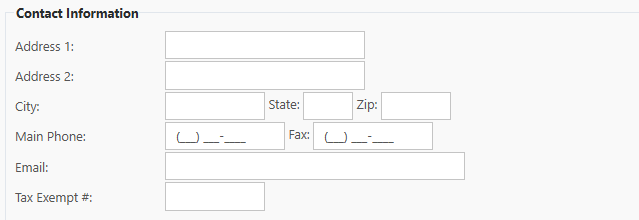
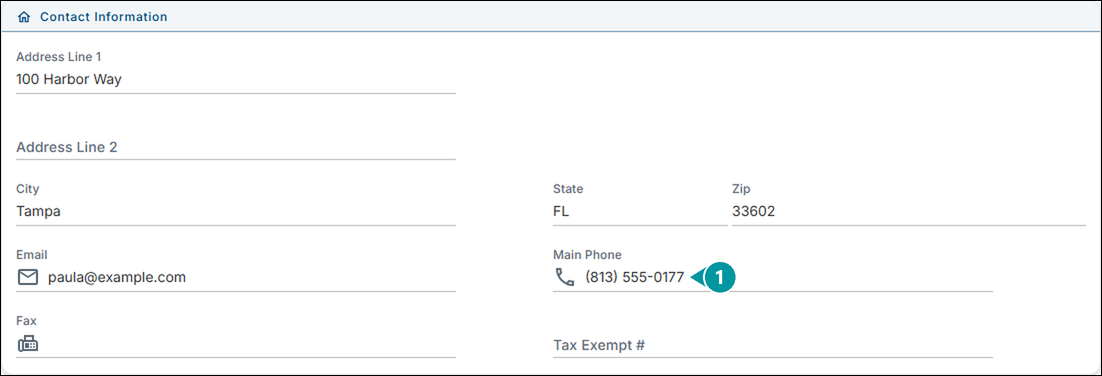
- The
mainMain PhoneNumber is required.Thisnumber can be used to search for the customer on theterminalterminal, so it's a good idea to fill it in. - Additional information in this section is optional.
Credit Information: Information:
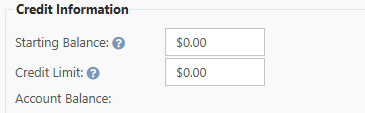
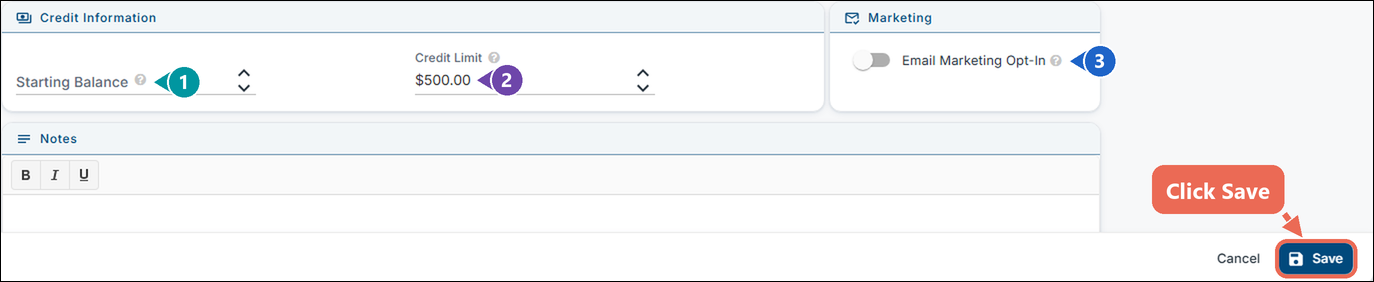
- The Starting Balance is ONLY used if there is an existing balance in your previous system.
- Note: A positive balance means the customer owes you money and a negative balance means that they already have paid a deposit and now have a credit on their account.
- The Credit Limit is ONLY used if you'd like to extend a credit to this customer so they can put orders on their account and pay for them at a later date.
- Note: It is usually set higher than what you expect the customer to spend.
- Turn on Email Marketing Opt-In only if the customer has agreed to receive marketing emails.
3.you Creatingtype ain CustomerNotes Accountshows as Internal Notes when the customer is on an order on the terminal
Log Into Terminal --> Start a new order --> Change the order type to "Customer Accounts" --> Then click on New Customer
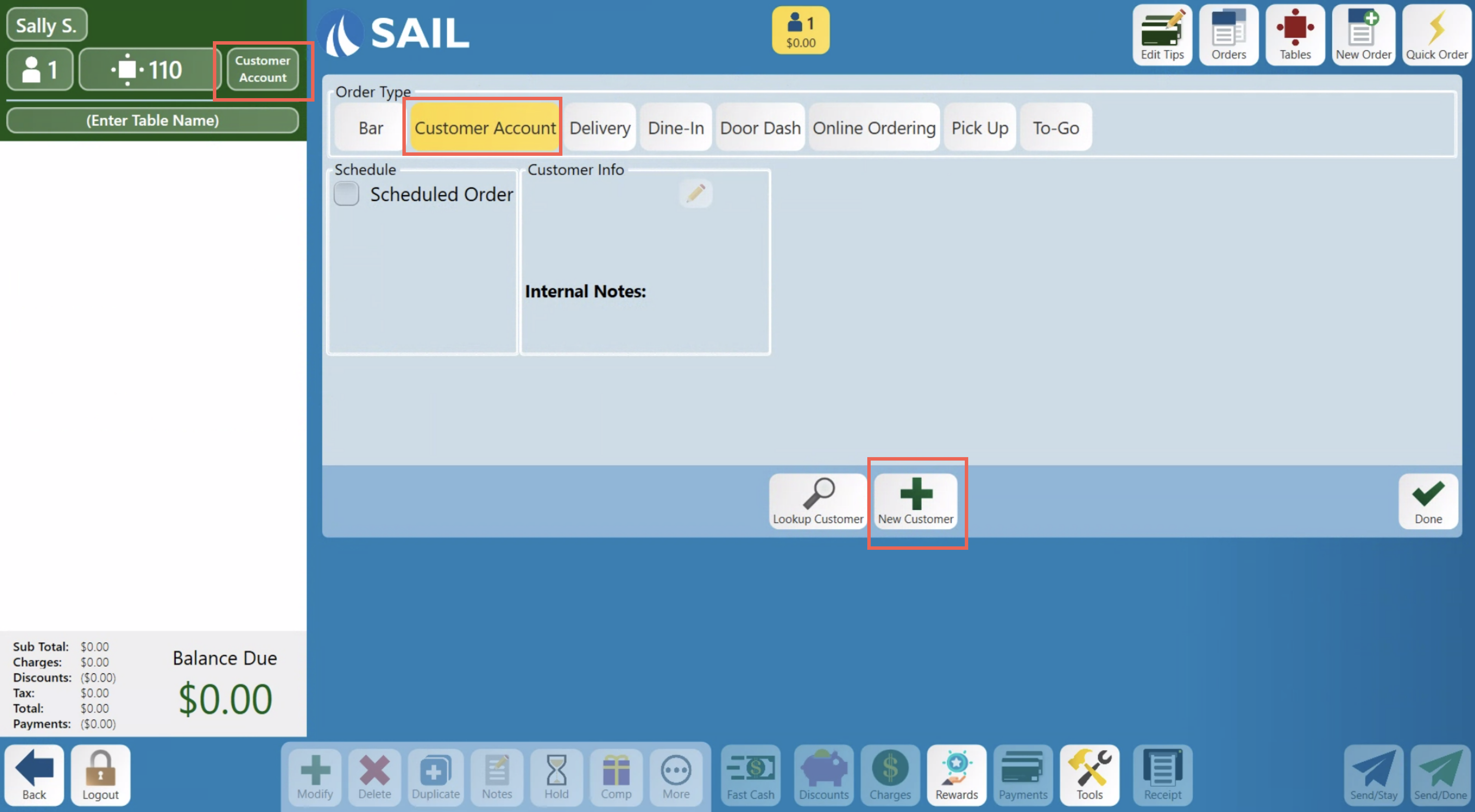
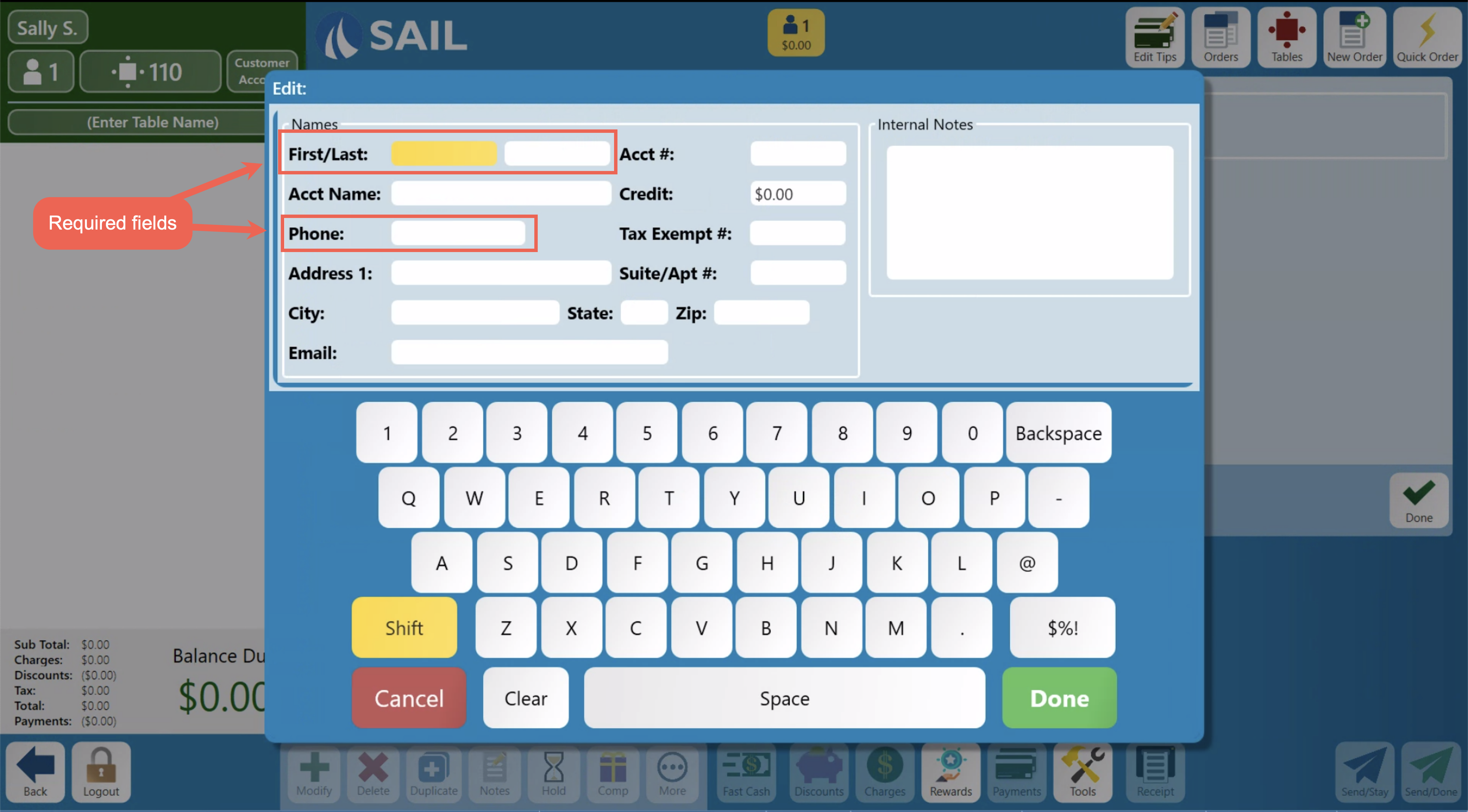
First and Last Nameis the name of the customer contact,this is a required field.Acct Name (is the same as "Name" in backoffice) This can be the name of the group, event, or the customers name. If you leave this blank here, it will automatically fill in the first and last name as the account name once you save it.The Acct # is optional. This could be another way to look up the customer on the terminalThe Credit Limit is ONLY used if you'd like to extend a credit to this customer so they can put orders on their account and pay for them at a later date.Phone numberis a required field.All other information is optional
terminal.
Once you have filled out all the information you'd like, click Save.
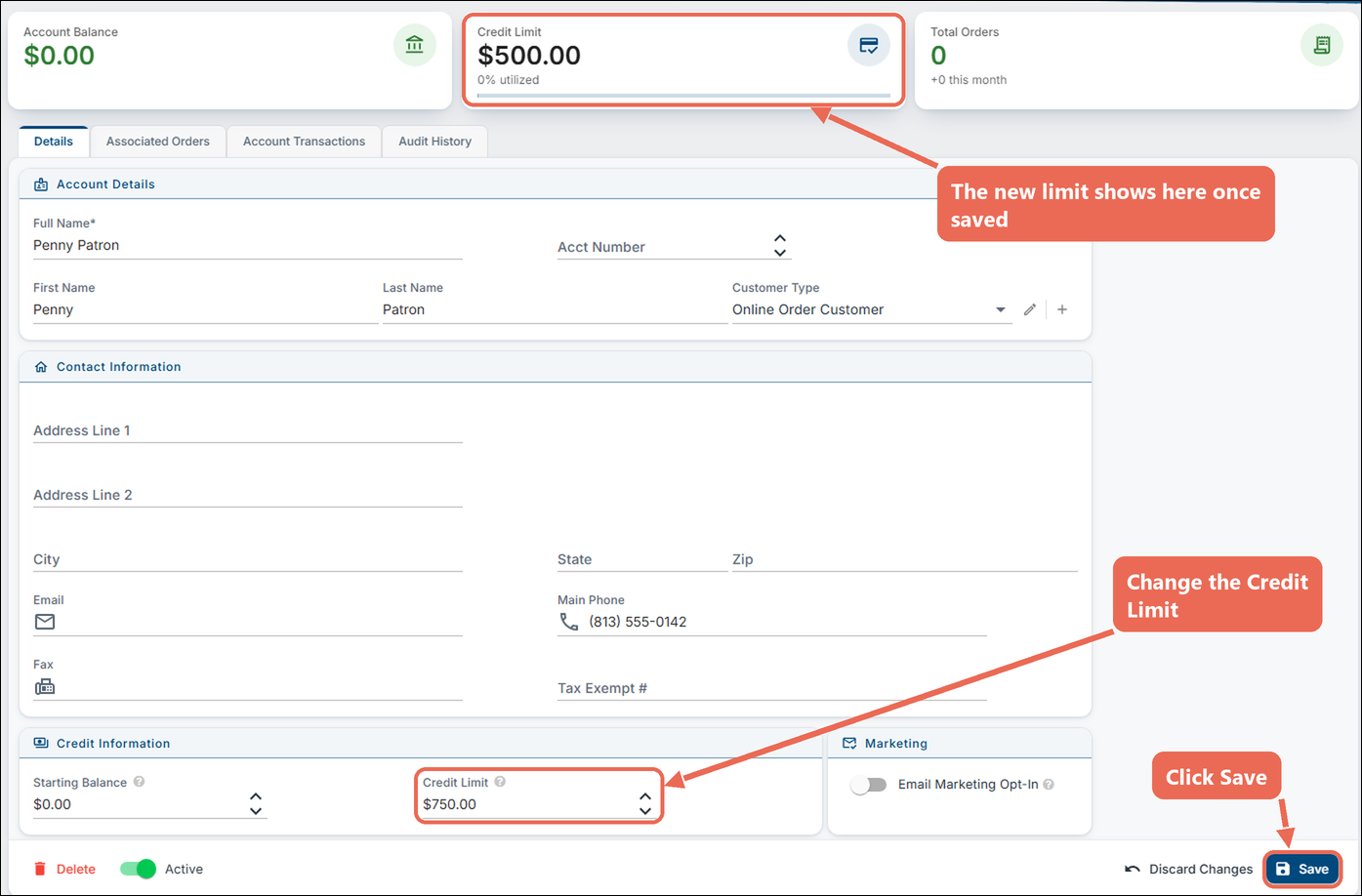
3. Changing a Customer's Credit Limit
1. In CRM --> Customers, type the customer's name, phone number or account number in the search box, then click Done,their Thenname.
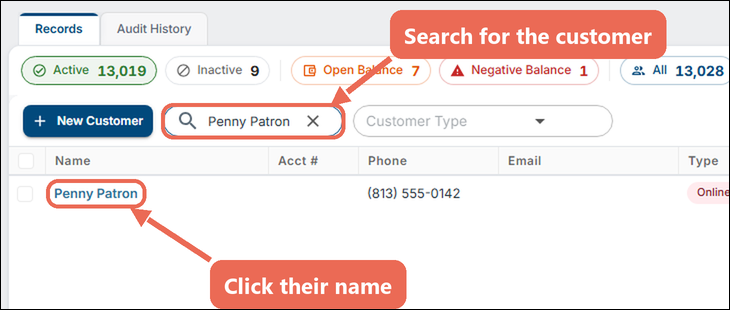
2. Under Credit Information, change the Credit Limit, then click Save. The Credit Limit card at the top shows the new limit and how much of it the customer has used.
If you'd like to learn how to create a customer account on a terminal, click here.