
Driver Report
The Driver Report tracks delivery activity for your drivers, including trip counts, delivery times, average trip duration, and total time spent on deliveries. It can be used to monitor individual driver performance, review delivery efficiency, and measure overall fleet performance.
Where to find the report
- Backoffice --> Reporting --> Reports --> Staff folder --> Driver Report --> Select Date Range --> Execute
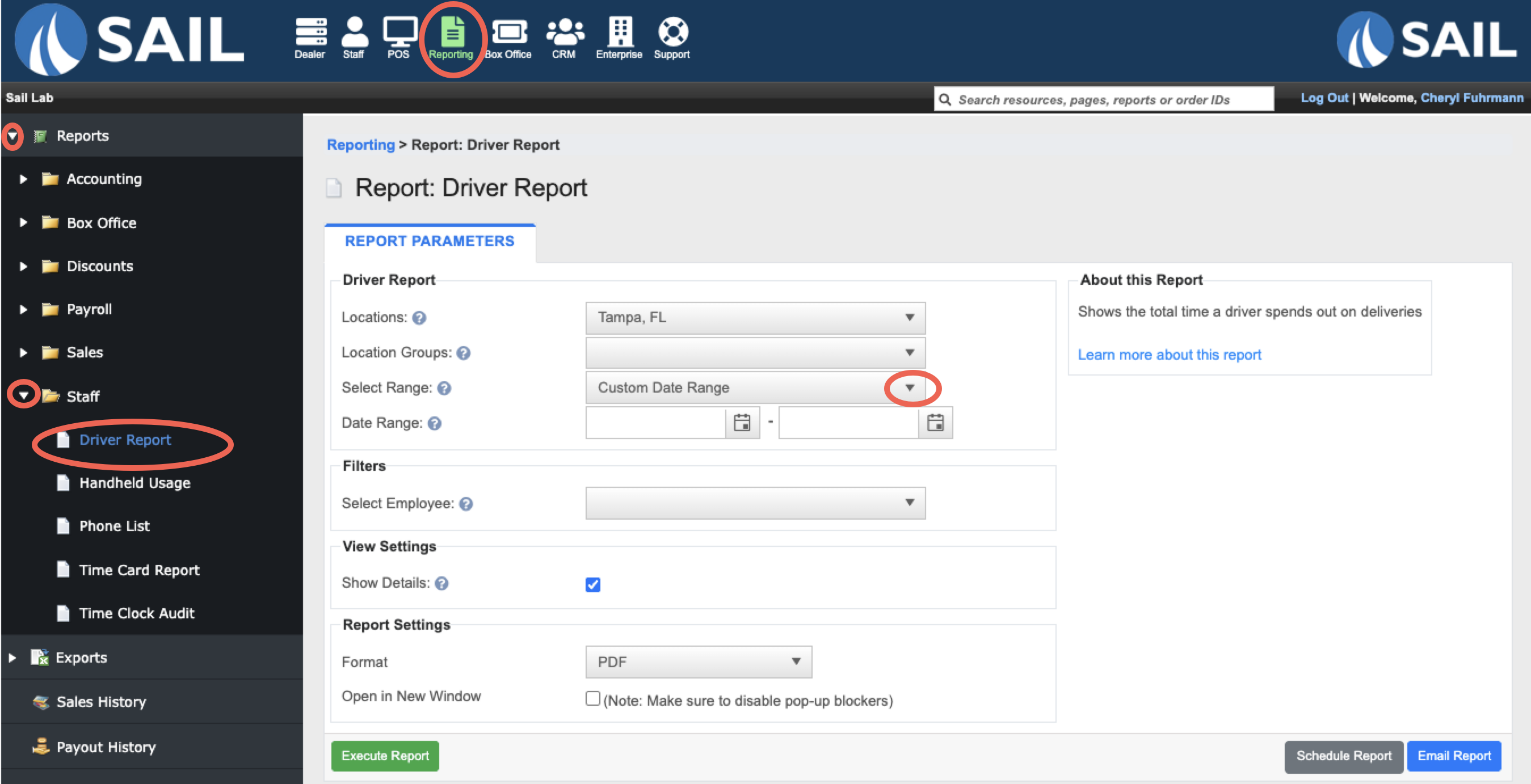
Report Options
Filters
-
Location Group – Allows you to run the report for a pre-configured group.
- Select Employee - Allows you to select individual or selected employees
View Settings
- Show Details - When enabled, each driver receives their own section showing the details of each trip
What it looks like
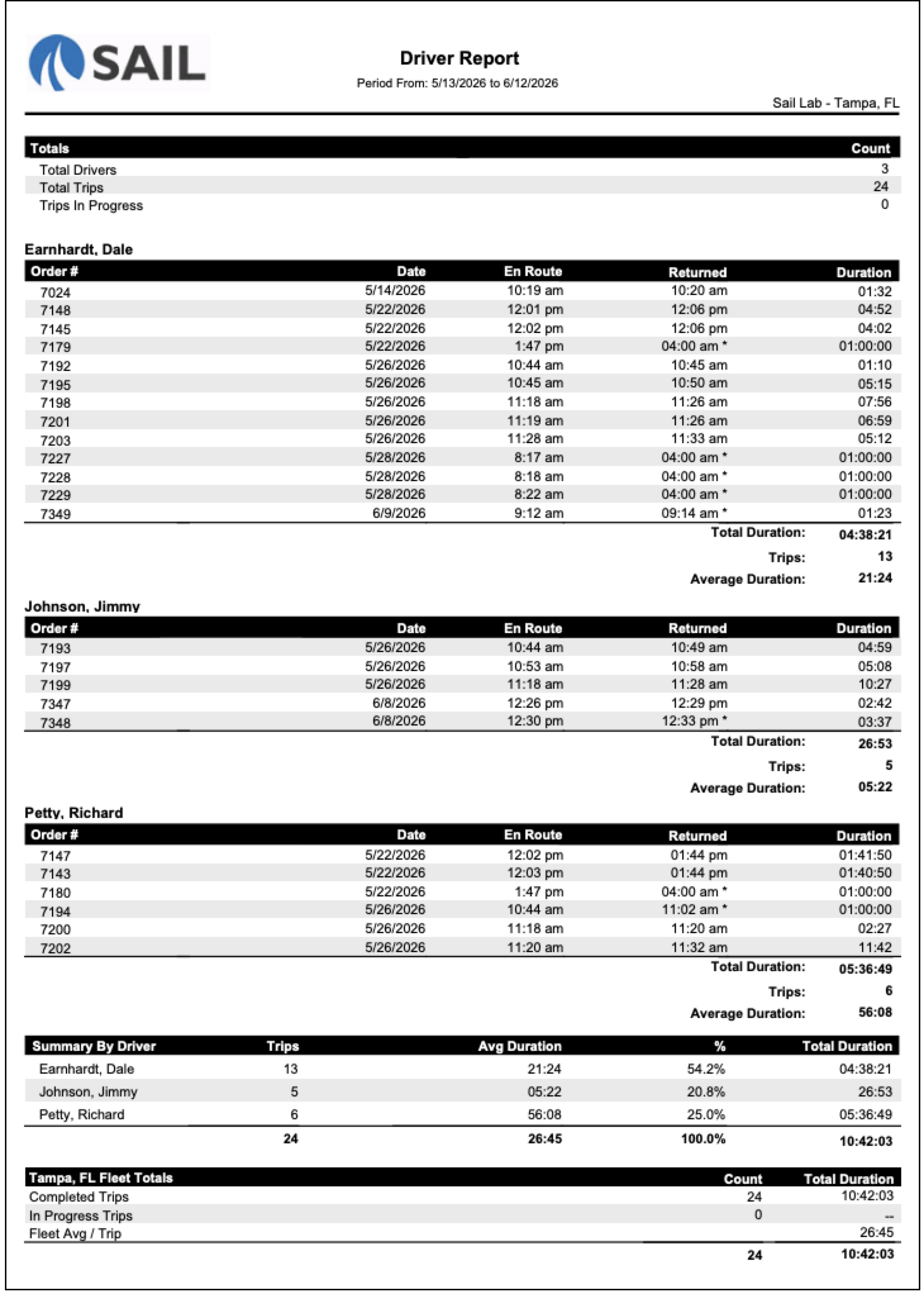
Report Parts
The report ishas organizedfour by:sections:
MonthTotalsLocationDriver Detail (one section per driver — only visible when Show Details is checked)- Trips are listed in date/time order for each driver
EmployeeSummary-ByEachDriver- Fleet
isTotals
Drivers with theirno handheldtrips andin terminalthe activityselected fordate range will not appear on the report.
Totals Section Columns —
- Total Drivers – Number of drivers with at least one trip in the selected date range.
- Total Trips
Columns include:Items (Terminal)–TheTotal number ofitemsdeliverythetripsemployeeacrossenteredall drivers.- Trips In Progress – Trips currently marked as out on
adeliveryPOS(driverterminal.not yet returned).
- Order
Items (Handheld)# – The POS order numberofassociateditemswith theemployee entered on a handheld device. Sales (Terminal) $Date – Thenetdatesalestheamounttripenteredtookon a POS terminal..- En
Sales (Handheld) $Route – Thenettimesalestheamountorderenteredwasonassignedatohandheldthedevice. HH Use % (Items)Returned-– Thepercentagetimeoftheitemsdriverenteredmarkedontheaorderhandheldasdevice.completedFormula:AnHandheld Items ÷asterisk (Handheld*)Itemsnext+toTerminaltheItems)time means the driver was never manually returned on the POS. The system automatically set the return time to the server close time for that day.
HH Use % (Sales)Duration-–TheHowpercentagelongofthesalestripdollarstook,entereddisplayedoninaMM:SShandheld device.Formula:Handheld Sales ÷ (Handheld Sales + Terminal Sales)
- Total
Location TotalsDuration –DisplaysSum of all trip durations for that driver (HH:MM:SS). - Trips – Number of trips for that driver in the date range.
- Average Duration – Total Duration ÷ number of trips (MM:SS).
- Driver – Driver name.
- Trips – Number of trips taken in the date range.
- Avg Duration – Average time per trip: Total Duration ÷ number of trips (MM:SS).
- % – That driver's share of the total trip count for the period (e.g., 13 of 24 trips = 54.2%).
- Total Duration – Cumulative time that driver was out on delivery (HH:MM:SS).
- Completed Trips – Total trips returned, with the combined duration for all
employeesof them. - In Progress Trips – Trips still out at the
location.time the report is run. Duration shows "--" if the count is zero. - Fleet
MonthlyAvgTotals/ Trip –DisplaysAveragetotalstrip duration across all drivers and trips for thereporting month. Grand Total $– Displays totals for the entire report.SeeRunwhichitemployeesafter each shift or at the end of the week to review how long drivers areactivelyspendingusing handheld devices and which employees are still relyingout onPOS terminals.deliveries.TrackLookhandheldforadoptionasteriskedafterreturnrollingtimesout—newthosehandheldtripsdevices.were Identifyneveremployeesclosedwhoon the POS and may needadditionalfollow-uphandheldwithtraining.the driver.- Compare
handheldAverageusageDuration acrossdifferentdriverslocations.to Measurespothandheld adoption based on either item countsoutliers orsalesrecognizedollars.top performers.- Use the
location%totalscolumn in the Summary By Driver section todetermineseeoverallhowhandhelddeliveryusageworkloadpercentagesis distributed across your team. - Filter by a single employee to pull one driver's history for
theastore.specific date range. SortUsebyFleetHandheldAvgUsage/%Trip(ByasItems)a baseline when planning staffing for busy delivery periods.- Toggle Show Details off when you
wantjust need a quick summary without the trip-by-trip breakdown. - Use the Schedule Report or Email Report options to
focusautomate delivery of this report to managers ontransactionavolume.regular Sort by Handheld Usage % (By Sales) when you want to focus on sales dollars processed through handhelds.cadence.
Driver Detail Columns —
AtA thesubtotal bottom,block theappears totalsbelow roweach shows:driver's trip list and displays:
Summary By Driver Columns —
A grand total row at the bottom of this section shows the combined handheldtrip count, fleet average duration, 100%, and terminaltotal activityfleet duration.