Example Deposit Payment in Backoffice and Reporting
This document will show you what it looks like in Backoffice and on Reports when a customer makes ana Deposit Payment (puts money on their account ahead of time, for example for an event)
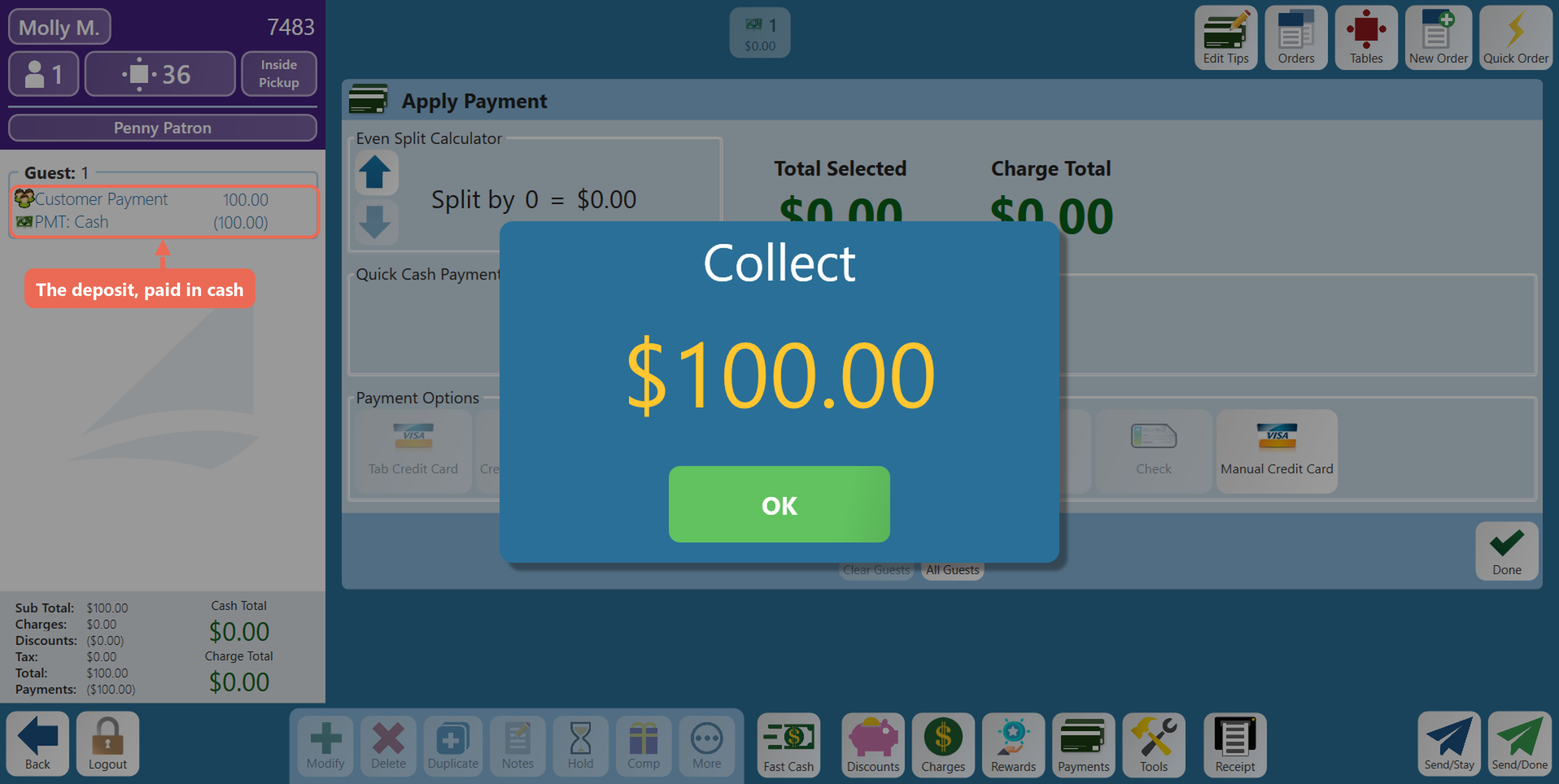
The customer is added to the order. (You can see the customerscustomer's name as the Table Name.) Click here to learn how to attach a customer to an order.
Use the "Customer Payment" button on the Charges/Misc tab (customizable per location - your store may call it "Account Deposit" or, "Deposit Payment" or "House Acct. Deposit")

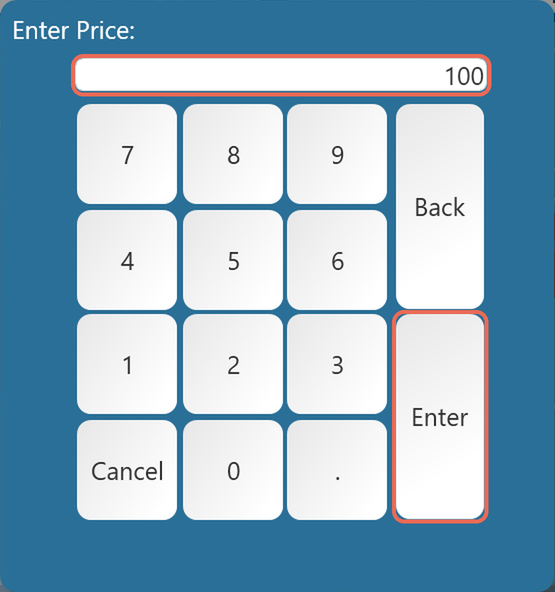
Enter in the amount of the deposit,deposit and paytap Enter
Pay it out like normal, with either Cash or Credit
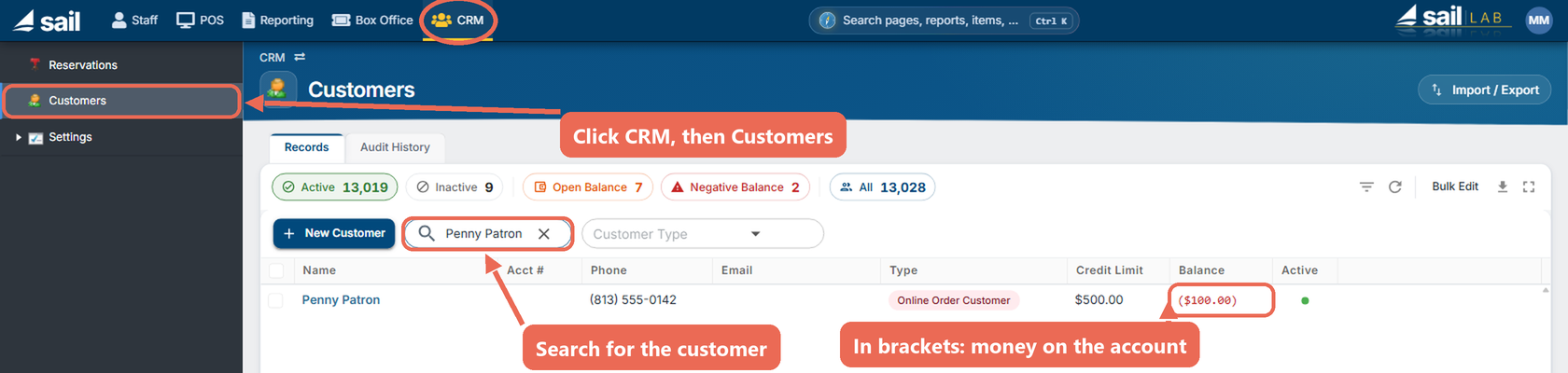
In Backoffice --> CRM --> CustomersFindSearch for the customer you are looking for
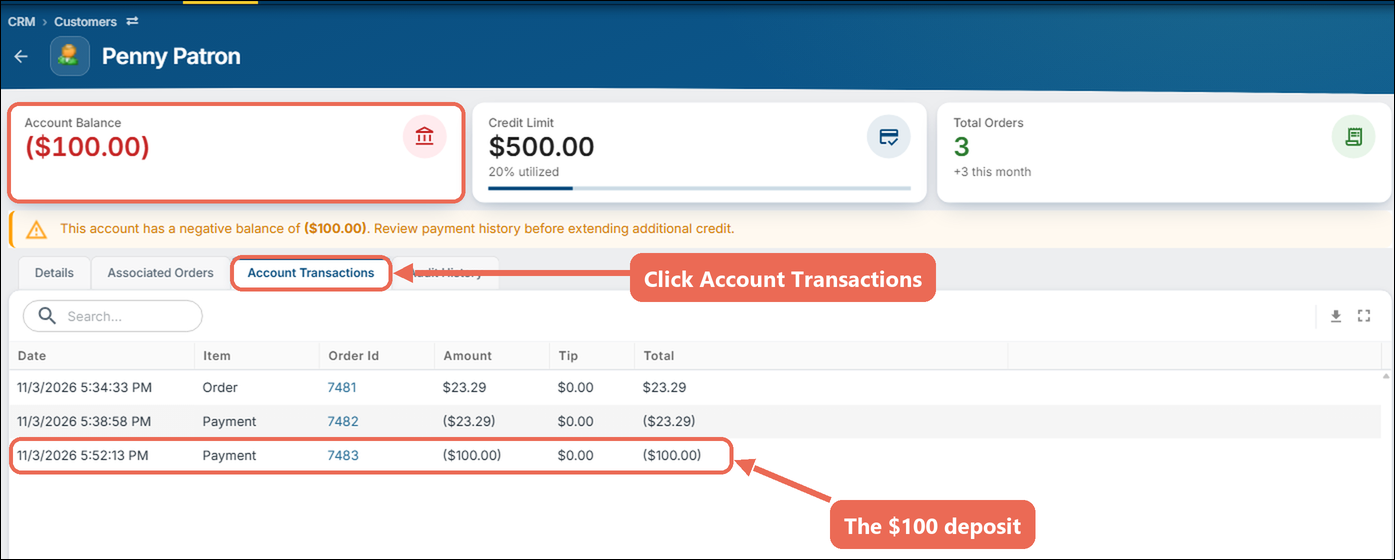
You can see in this photo that CindyPenny LynchPatron has ana Account balanceBalance of ($100.00) because she just paid the $100 deposit. So therefore her balance is negative because she put money on the account.
Click the pencil next to Cindy'customer's name to see additional information
If you go to the "Account Transactions" tab you can see the payment for $100 mademade. Her Account Balance shows at the top.
You will also see a note that the account has a negative balance - that's expected after a deposit.

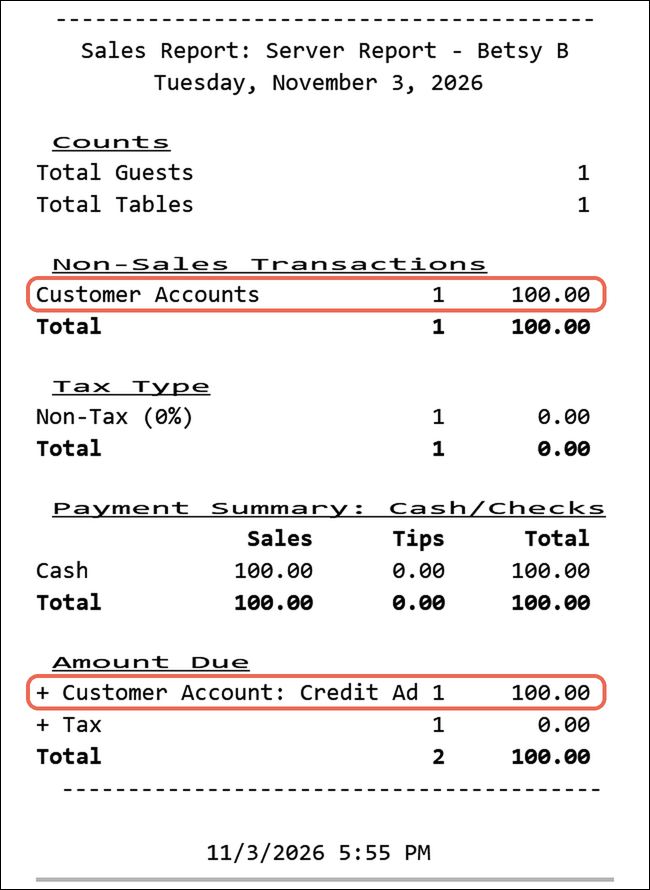
Here is what it looks like on a server report:report (on the terminal: Functions --> Server Report):
The DepositCustomer Payment button uses the reporting group "Payments" and is a Non-Sales Transaction.
So you can see the $100 deposit payment in the Non-Sales TransactionTransactions section.section, under the button's reporting group (here "Customer Accounts").
You will also see the"+ "Customer accountAccount: payment"Credit Added" in the amountAmount dueDue section at the bottom.bottom, because you took a payment towards that account