Focus to Sail Employee Export/Import
This document covers the steps to export a current employee list from Focus POS and prepare it for import into Sail.
Exporting Employees from Focus
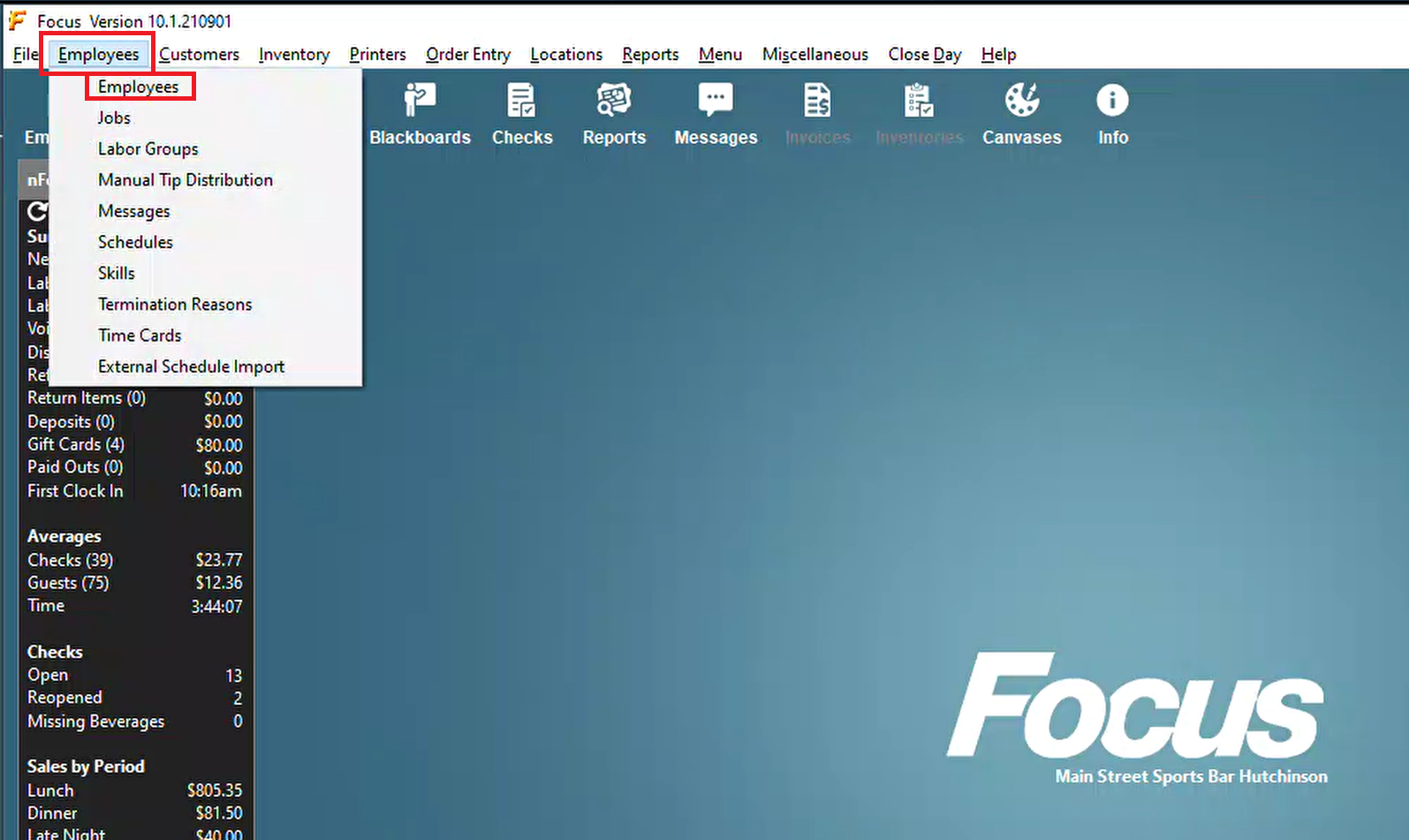
- Log into Focus and enter the Setup (wrench). Navigate to Employees -> Employees
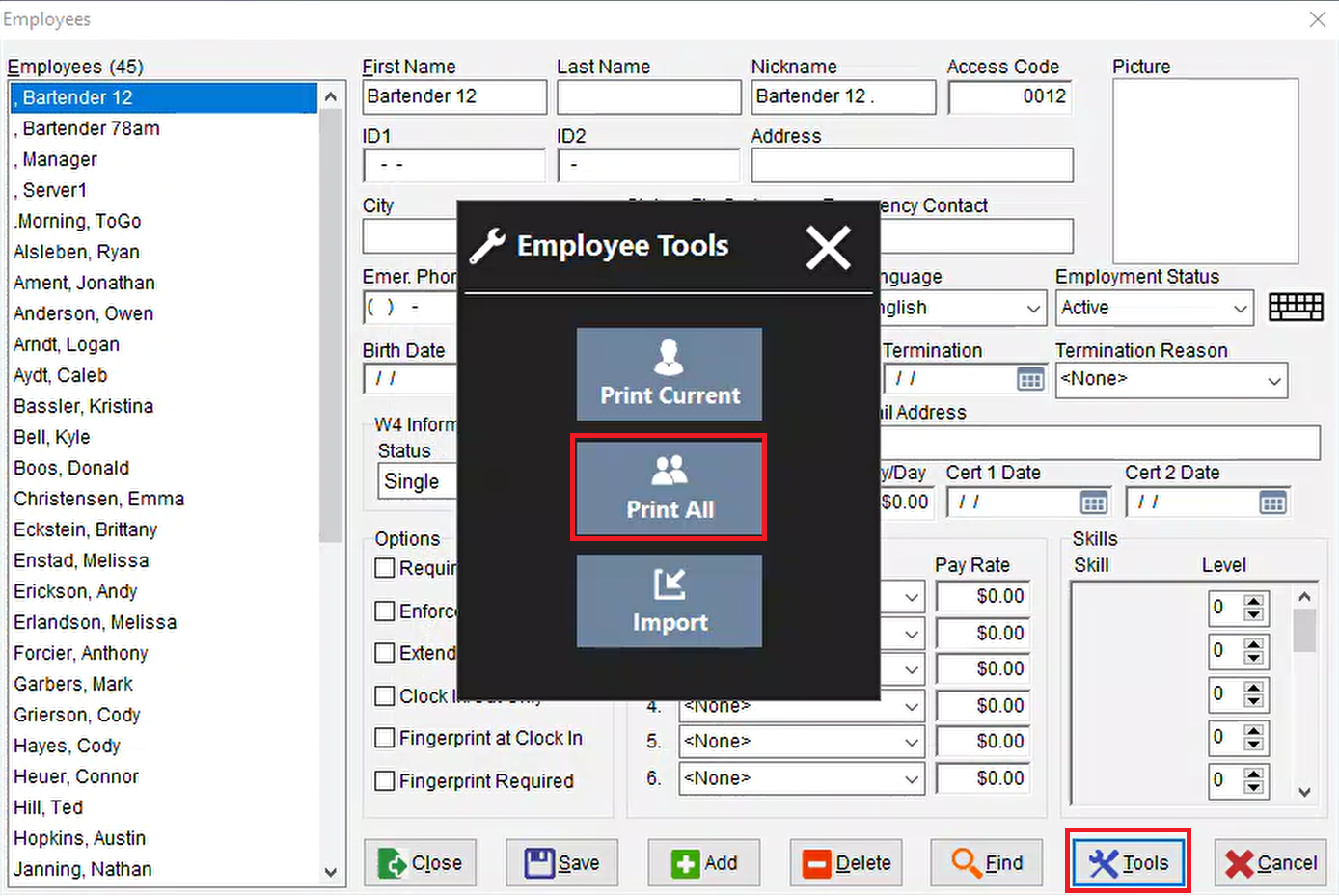
- Next hit Tools, then Print All
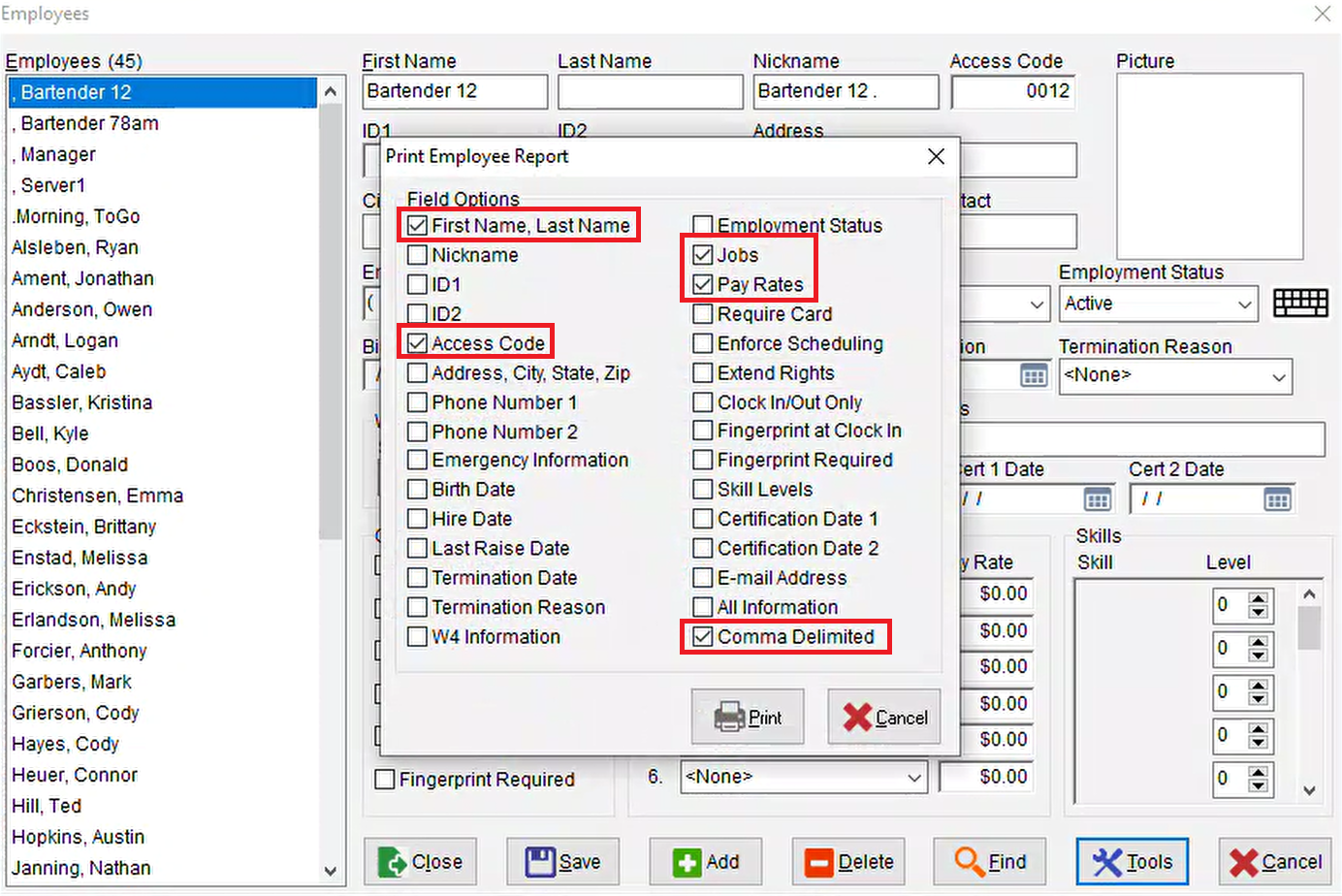
- From here we need to select which information you want to export to a .csv file which we will use to copy into Sail's Employee Import. We generally recommend "First Name, Last Name", "Access Code", "Jobs" and "Pay Rates" to keep things simple. You will also want to make sure "Comma Delimited" is selected as well.
- On the next screen, you can rename this file type to .csv. A .txt file will still be able to be used, but .csv is best practice.
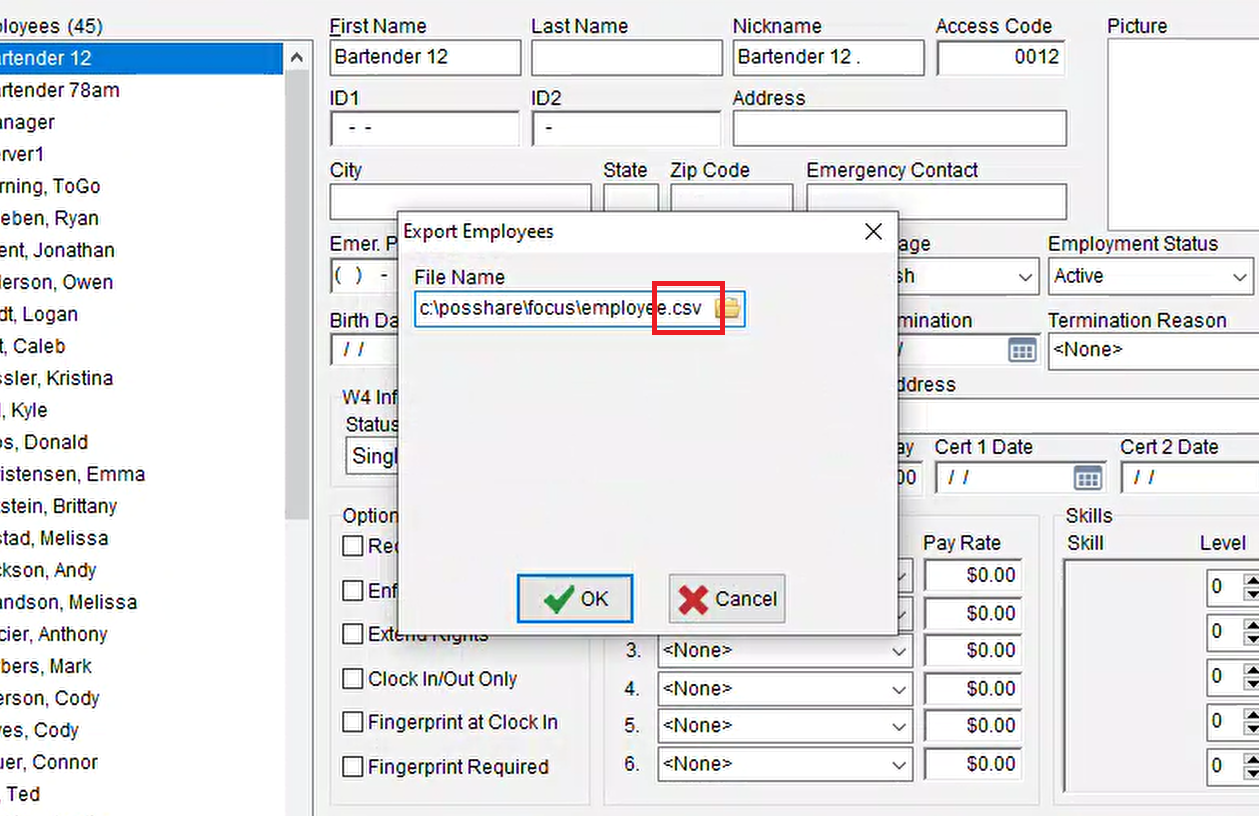
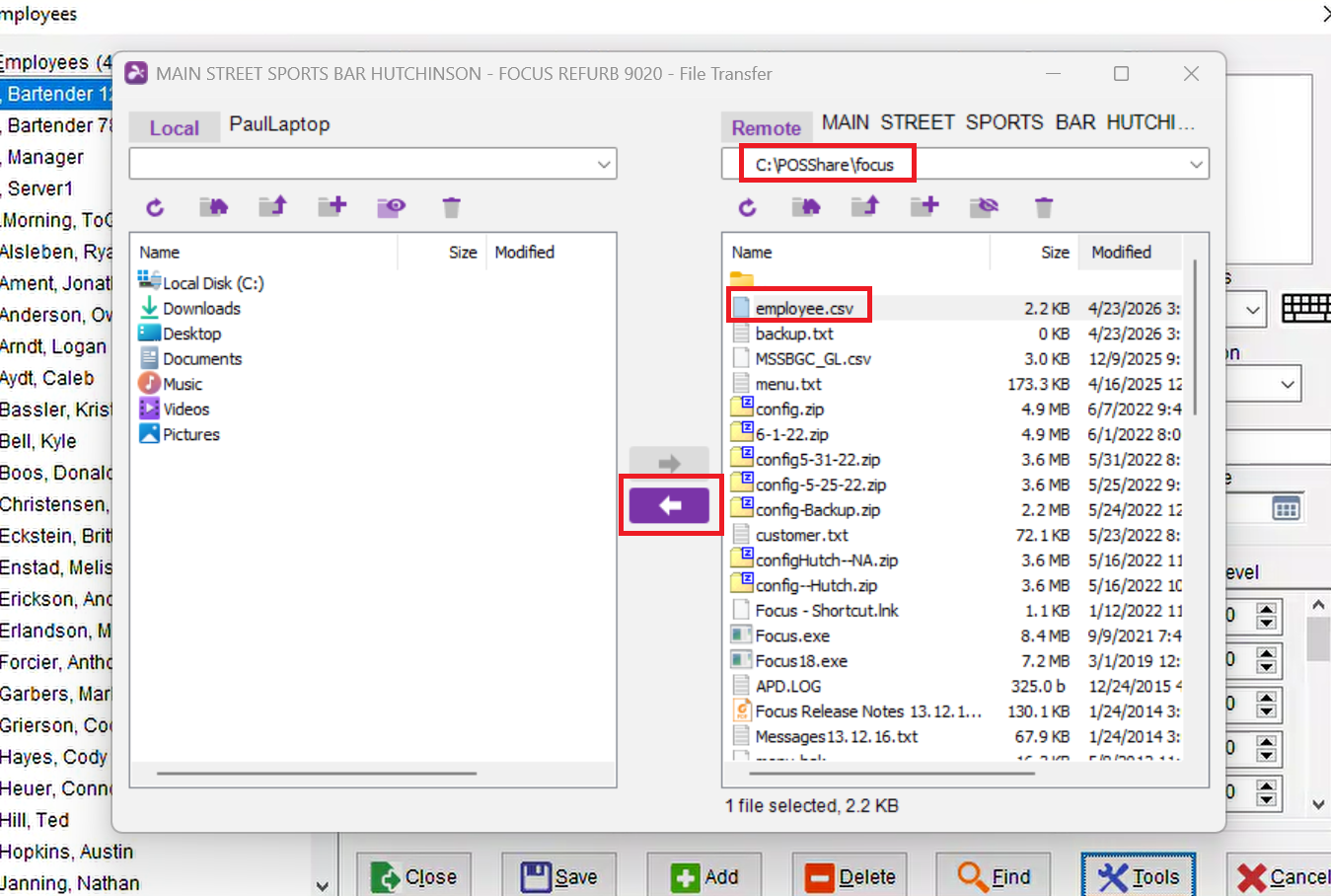
- Next we need to grab that newly created file from the Focus folder. The following example is using Splashtop for remote access and file transfers, so it may vary depending on what application you are using. Navigate to the Focus folder and find the file "employee.csv" and move it over to your computer.
Preparing the file for Import into Sail POS
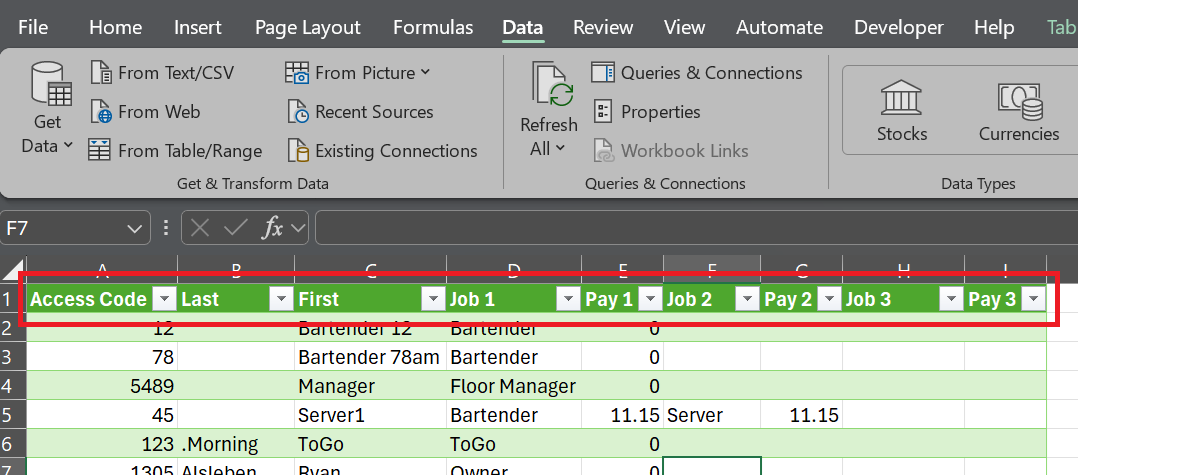
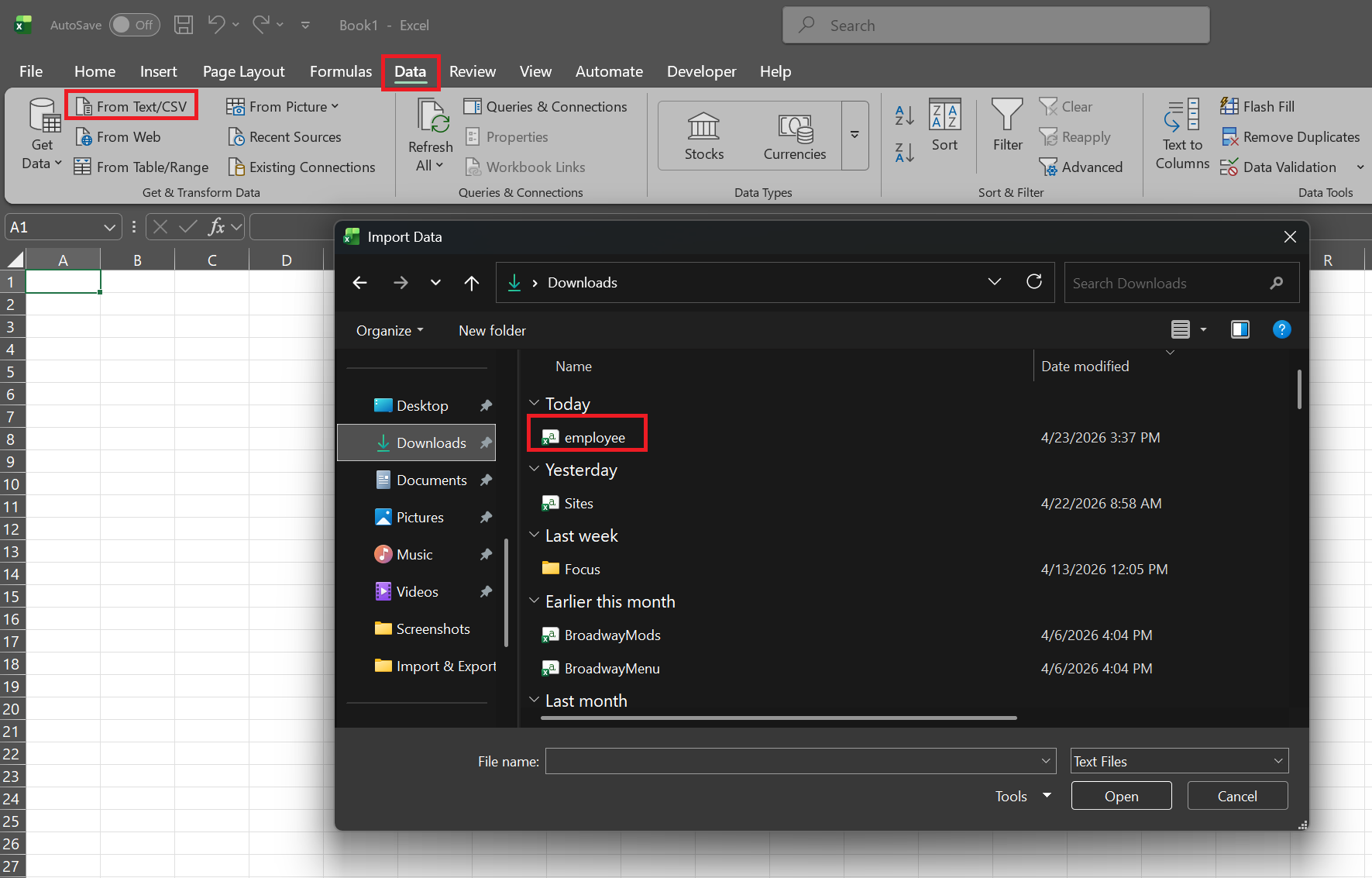
- Open up a new Excel workbook and then Navigate to Data -> From Text/CSV -> employee.csv
- On the next screen, quickly review the data to make sure it looks correct before hitting Load Data
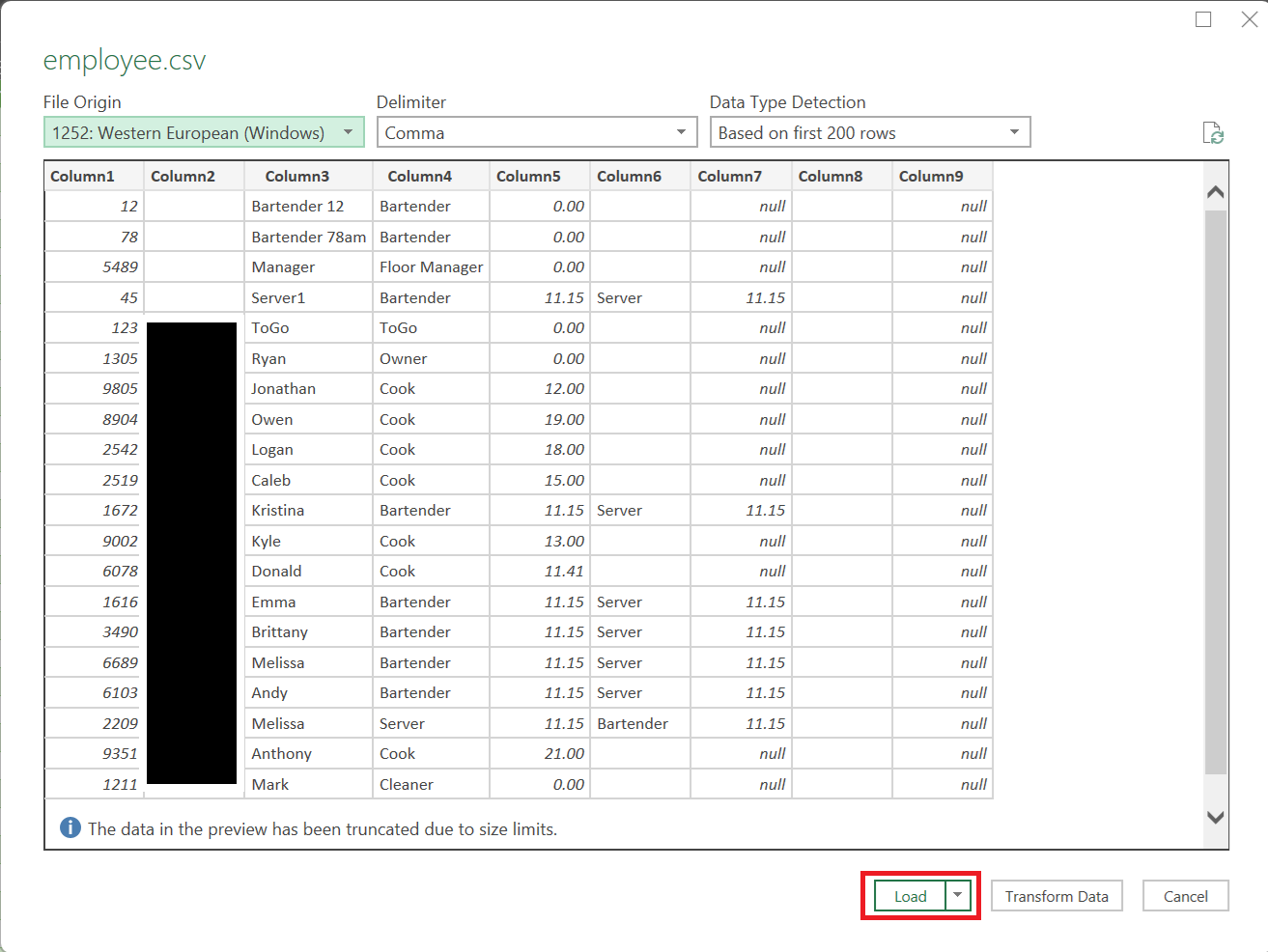
- Next part is not required, but does make copying the columns into the Sail import much easier. You can rename all columns to what their data field contains (Access Code, Last Name, First Name, Job 1, Pay 1, Job 2, etc.)