How to Activate/Inactivate an Item
This will walk through how to inactivate an item or mod item you no longer sell, and how to activate it again. An inactive item doesn't show on your terminals, handhelds or online, but it stays in Backoffice with all of its settings, so you can bring it back at any time.
Inactivating an item
- Navigate to Backoffice.
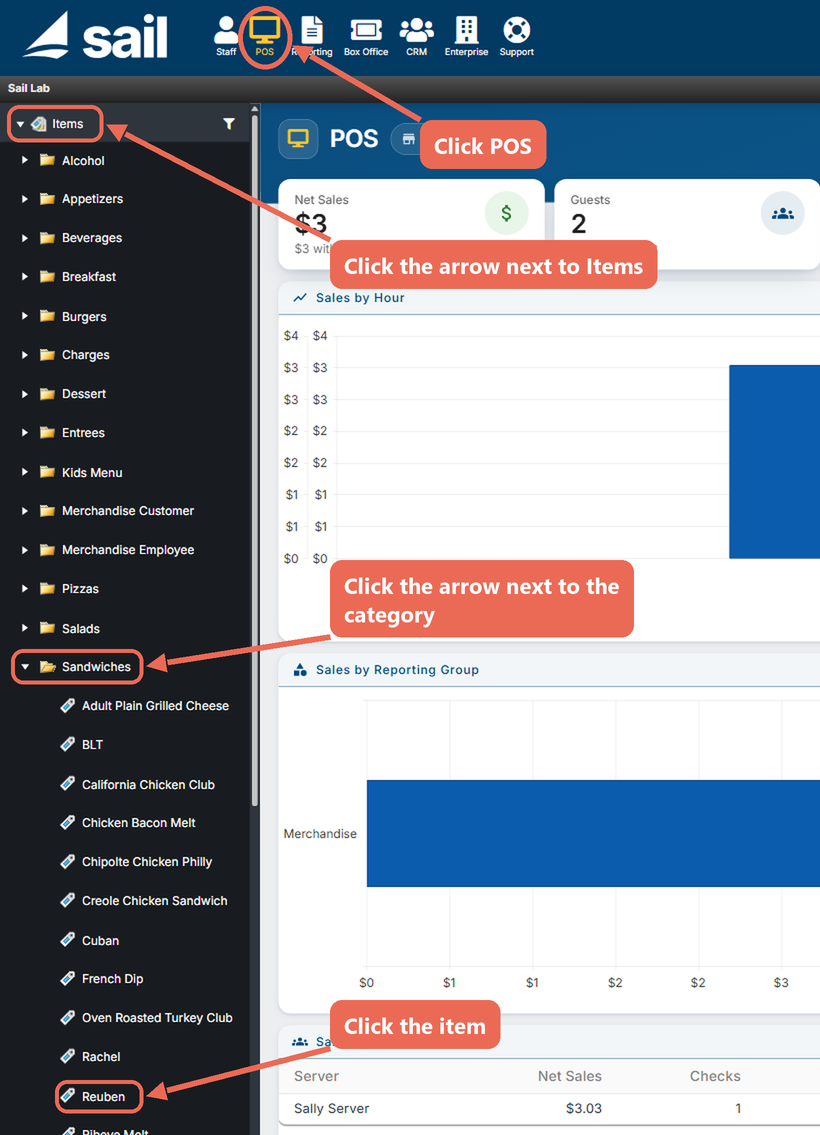
- Click POS at the top, then the arrow next to Items, the arrow next to the category, and the item you want to inactivate. (For a mod item, open Modifiers --> Modifier Items instead.) The item opens on the Details tab, where Availability & Pricing lists Default and each of your locations.
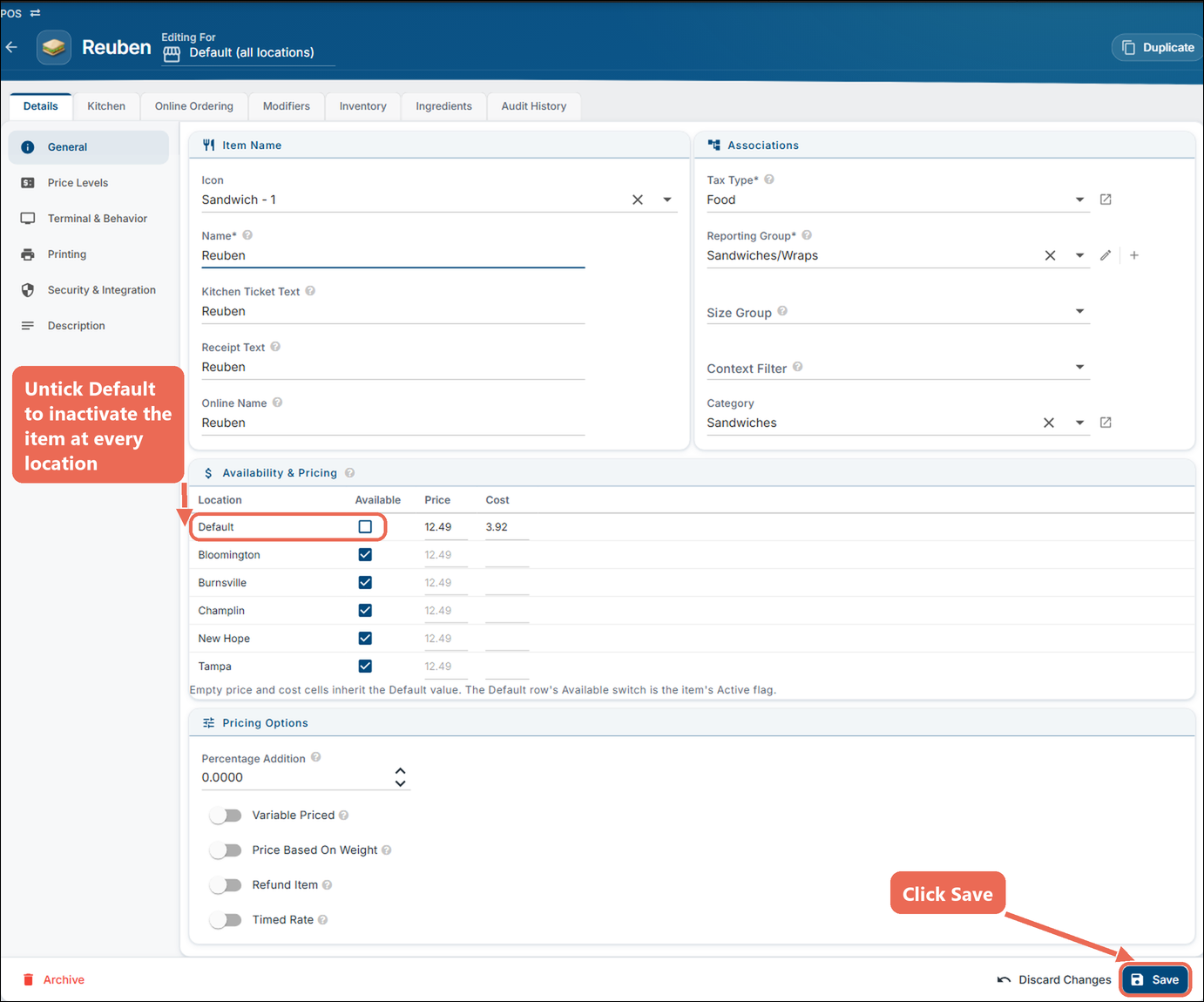
- If it is a single store location, check or uncheck Default in the Available column (checked is active, unchecked is inactive), then click Save.
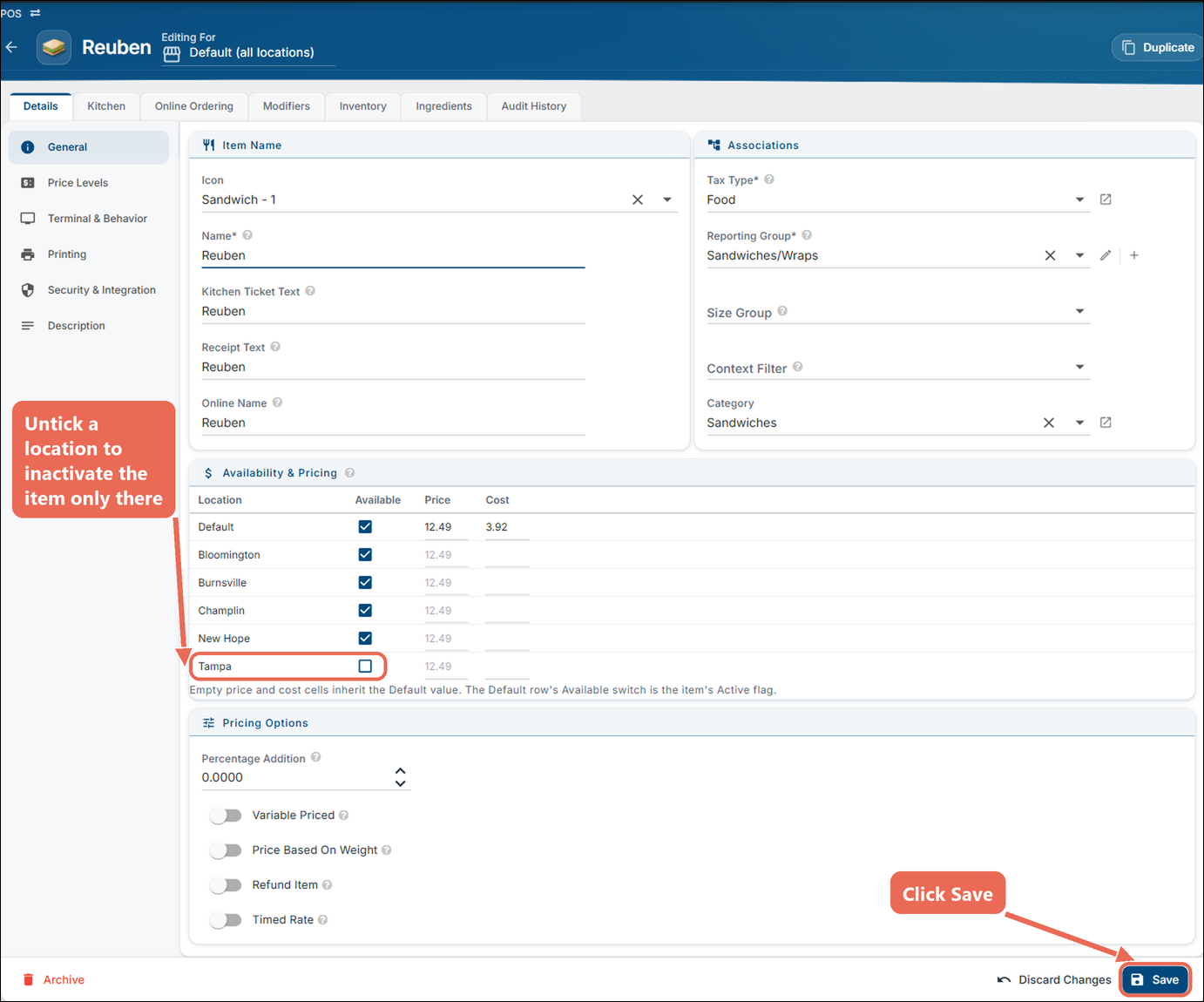
- For a multi-store location you can uncheck the default to affect all stores or check/uncheck per location, then click Save.
Note: When Default is unchecked, the item is inactive at every location, even if the location rows are still checked.
Activating an inactive item
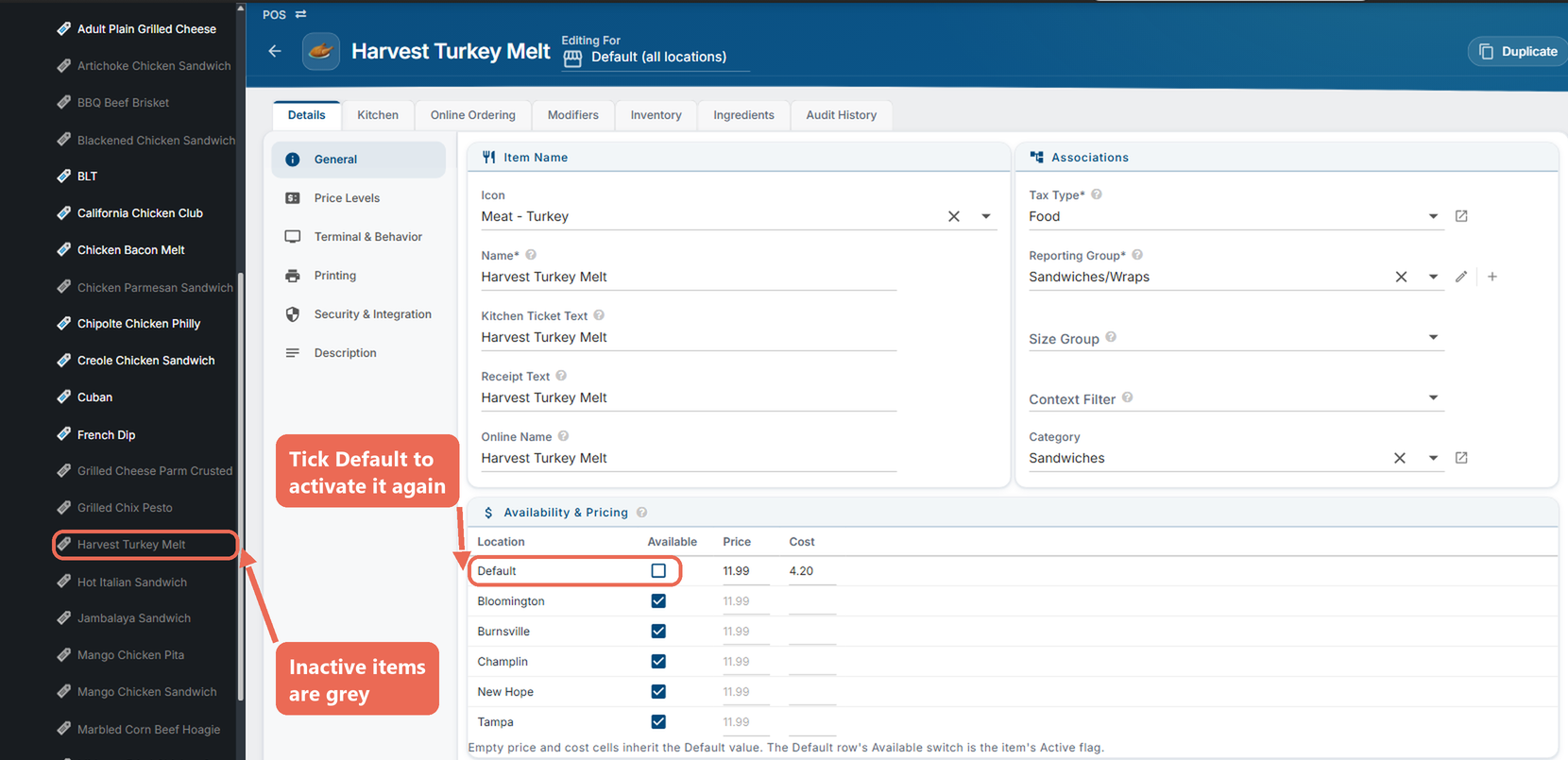
Inactive items are hidden from the list on the left. To find one:
- Click the filter icon next to Items and check Inactive. To find the item faster, type its name in Search. Click Apply Filter.
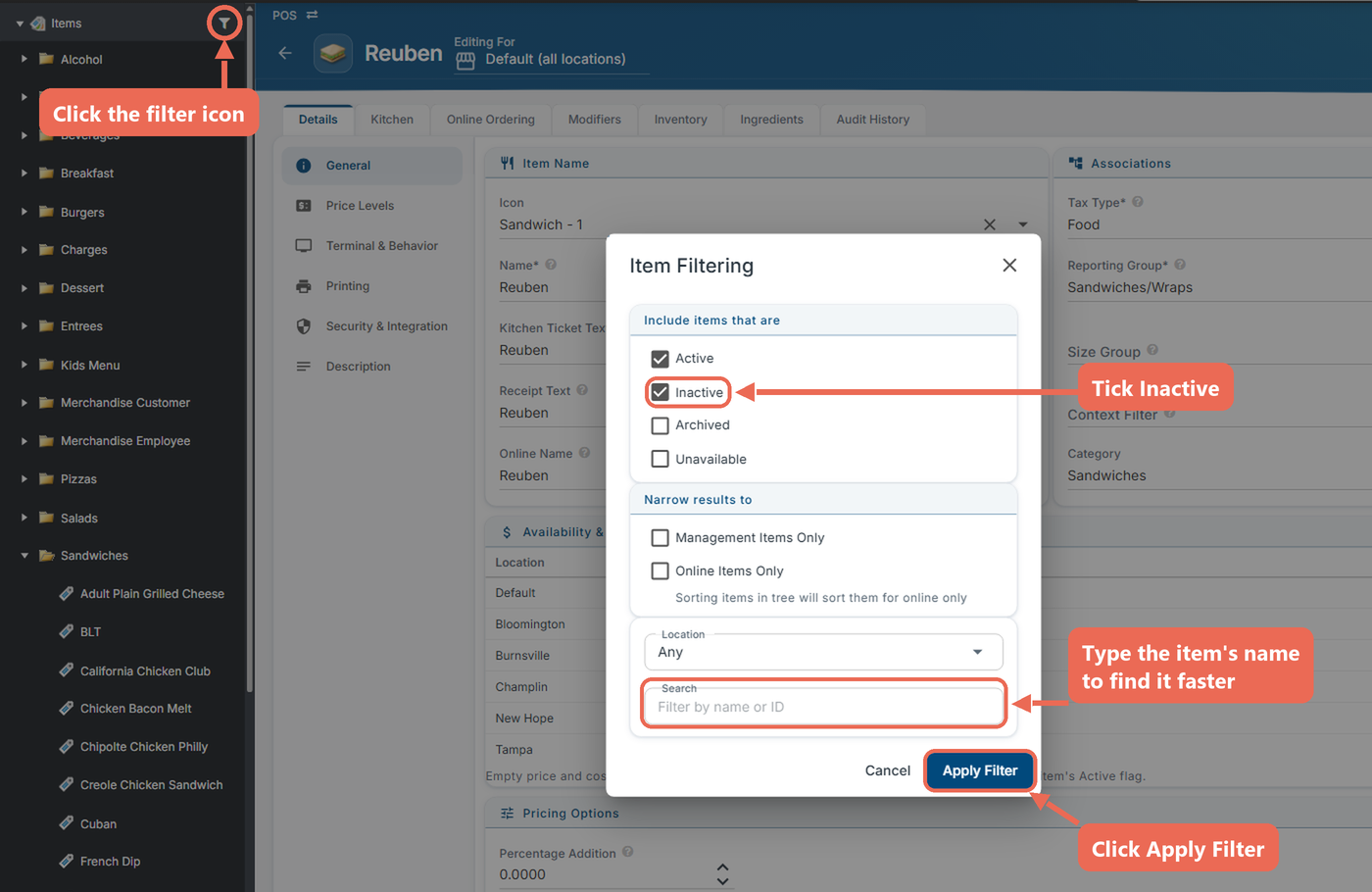
- Inactive items show in grey. Click the item, check Default (or the location) in the Available column, and click Save.