
How to change or remove a favorite report
BeingThis written.will walk through renaming a favorite report, changing what it saves, and removing it. If you haven't saved a favorite yet, see How to save a report as a favorite.
Permissions you need
- Your own favorites in My Favorites: nothing more than the report's own task.
- Reporting --> Manage Team Favorites, to change or remove a favorite in Team Favorites. Without it, a Team Favorite opens with an outline star instead of a gold one, and clicking it saves a copy to your own favorites.
Changing a favorite
- Click the favorite in the report list on the left to open it, then click the gold star at the top right of the report.

- Change what you need in the window:
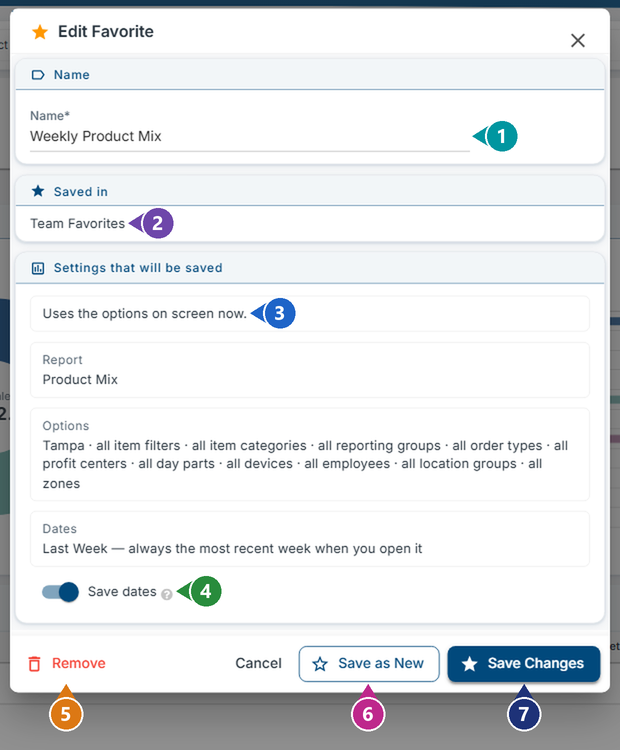
- Name: Type a new name to rename the favorite (required).
- Saved in: My Favorites or Team Favorites. This can't be changed here; to move a favorite, click Save as New and pick the other one, then remove the old favorite.
- Settings that will be saved: The location, dates and options on the screen now. To change them, close the window, change them on the report, then click the gold star again.
- Save dates: On saves the dates shown. Off opens the favorite on the report's usual date range instead.
- Remove: Removes the favorite, after you confirm (see below).
- Save as New: Keeps this favorite as it is and saves the report as a new favorite instead. The Save as Favorite window opens with the name filled in.
- Save Changes: Saves the new name and settings onto this favorite.
Removing a favorite
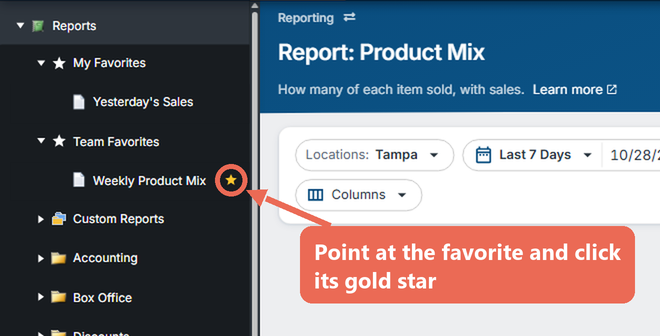
Click Remove in the Edit Favorite window, or point at the favorite in the report list on the left and click the gold star next to it.
Click Remove to confirm.
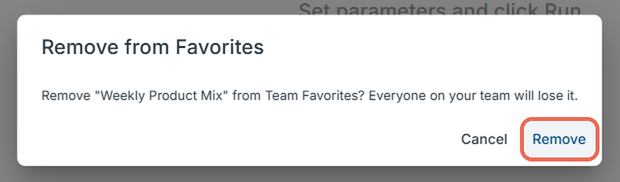
Removing a Team Favorite removes it for everyone on your team.
Note: Removing a favorite doesn't change the report itself, and doesn't change any scheduled reports.