
How to save a report as a favorite
A favorite is a report saved with its location, dates and options, so you can open it again with one click instead of setting it up each time. Save it to My Favorites, which only you see, or to Team Favorites, which everyone who can run that report sees.
Permissions you need
- The task for the report itself (for example Product Mix). Anyone who can open a report can save it to My Favorites.
- Reporting --> Manage Team Favorites, to save a report to Team Favorites. Without it, the window offers My Favorites only.
Saving a report as a favorite
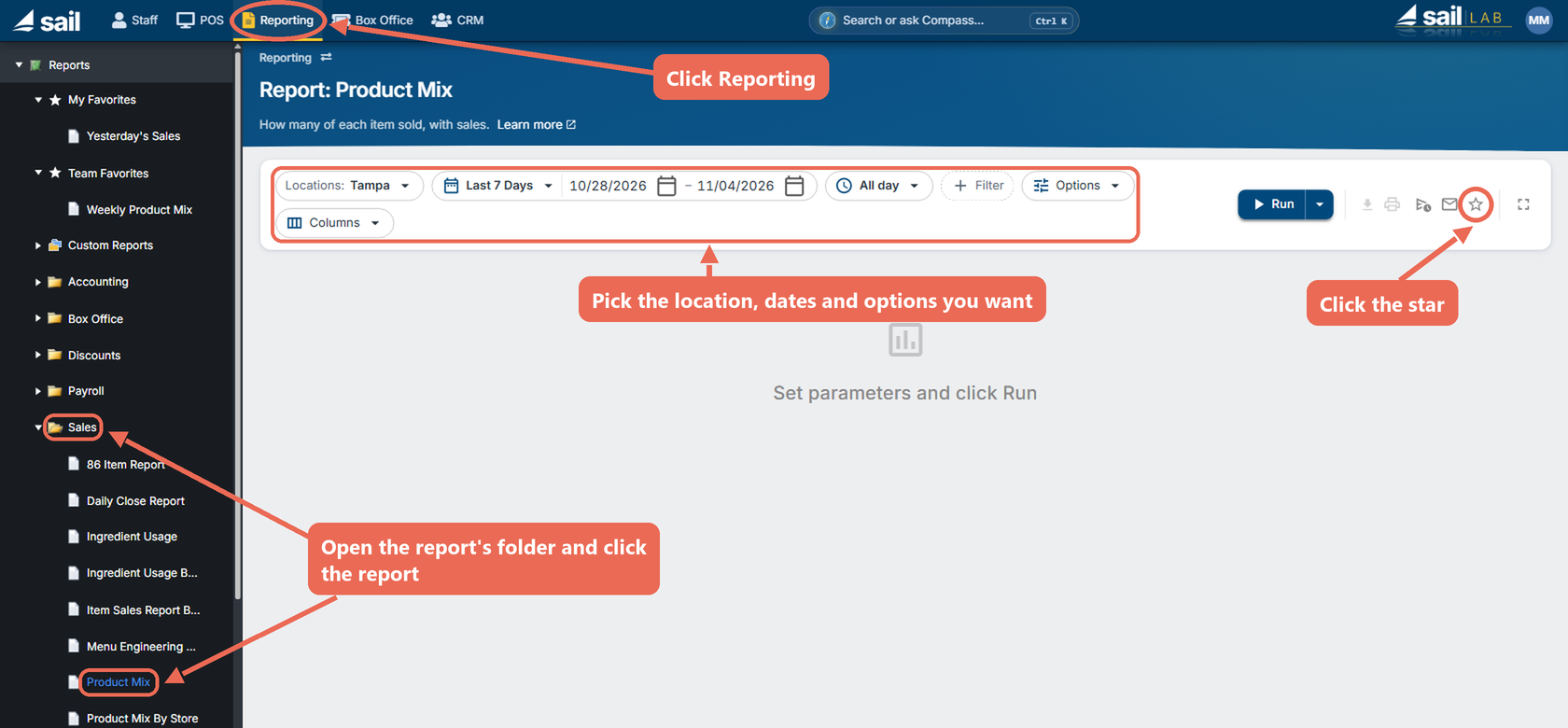
- Click Reporting at the top, open the report's folder and click the report. Pick the location, dates and options you want, then click the star at the top right of the report.
- Fill out the window:
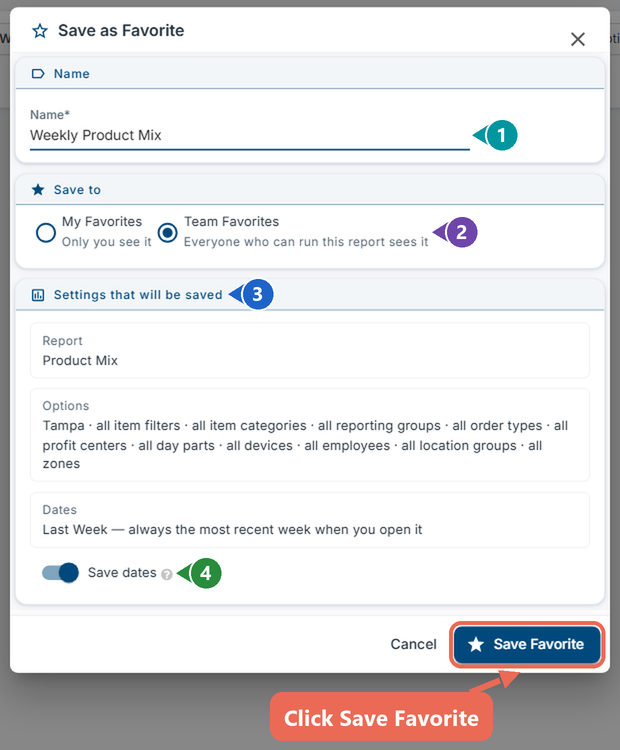
- Name: What the favorite is called in your list (required). It starts with a suggested name, such as "Product Mix · Tampa · Last Week"; type your own if you like.
- Save to: My Favorites (only you see it) or Team Favorites (everyone who can run this report sees it).
- Settings that will be saved: The report, its options and its dates, as they are on the screen now. Dates you pick from the list move with the day you open the favorite:
- Example: Last Week is always the most recent week when you open it, not the week you saved it.
- Example: Dates you pick on the calendar stay those dates (fixed dates).
- Save dates: On saves the dates above. Off opens the favorite on the report's usual date range instead.
- Click Save Favorite. The report now shows the favorite's name as its title, and the star turns gold.
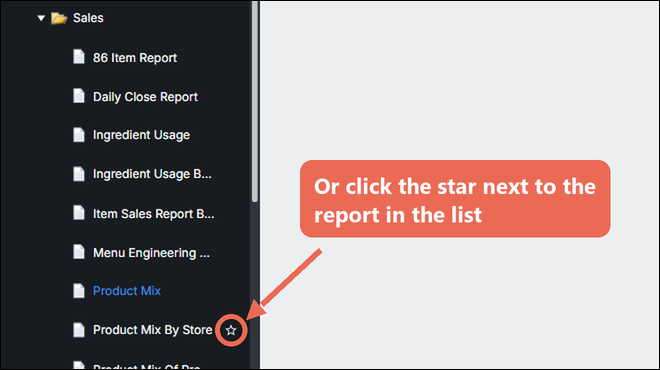
Note: You can also click the star next to a report in the list on the left (it shows when you point at the report). The report opens with the Save as Favorite window, on the report's usual options.
Opening a favorite
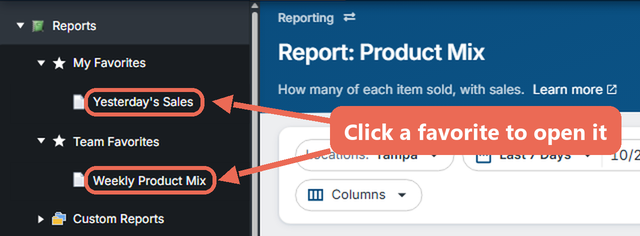
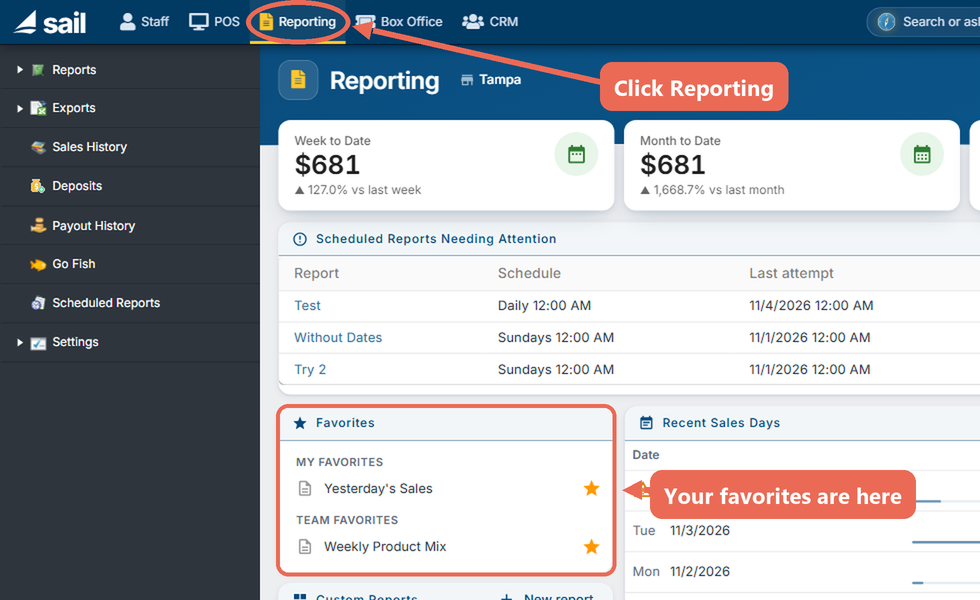
Your favorites are at the top of the report list on the left, in My Favorites and Team Favorites. Click one to open it.
They are also on the Reporting page, under Favorites.
The report opens with everything that was saved and runs right away:
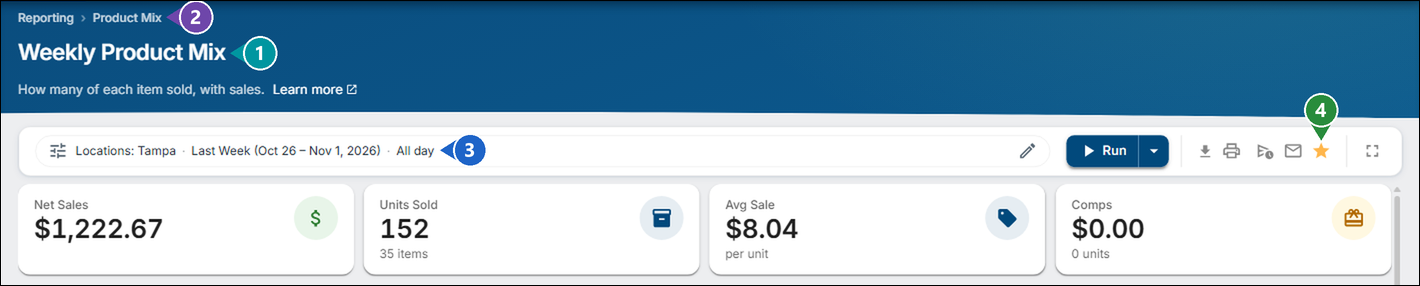
- Title: The favorite's name.
- Report: The report it comes from. Click it to open the report on its own, without the favorite's settings.
- Options: The saved location, dates and options. Change them here to look at something else; the favorite itself stays as it was saved.
- Gold star: This report is a favorite. Click it to change or remove the favorite.
Click here to learn how to change or remove a favorite report.
No Comments