
How to create a Billboard
This document will show you how to create a Billboard in Backoffice.
Billboards put a message in front of your staff on the terminals, the handhelds and the Backoffice home page. They are good for specials, rotating beers, the soup of the day, upcoming events and so much more. You choose what it says, when it shows and who sees it.
Where to find them
- Backoffice --> POS --> Billboards
- Permissions you need: your job role needs the task Manage Billboards (POS --> Back Office). Click here to learn more about job roles.
Creating a billboard
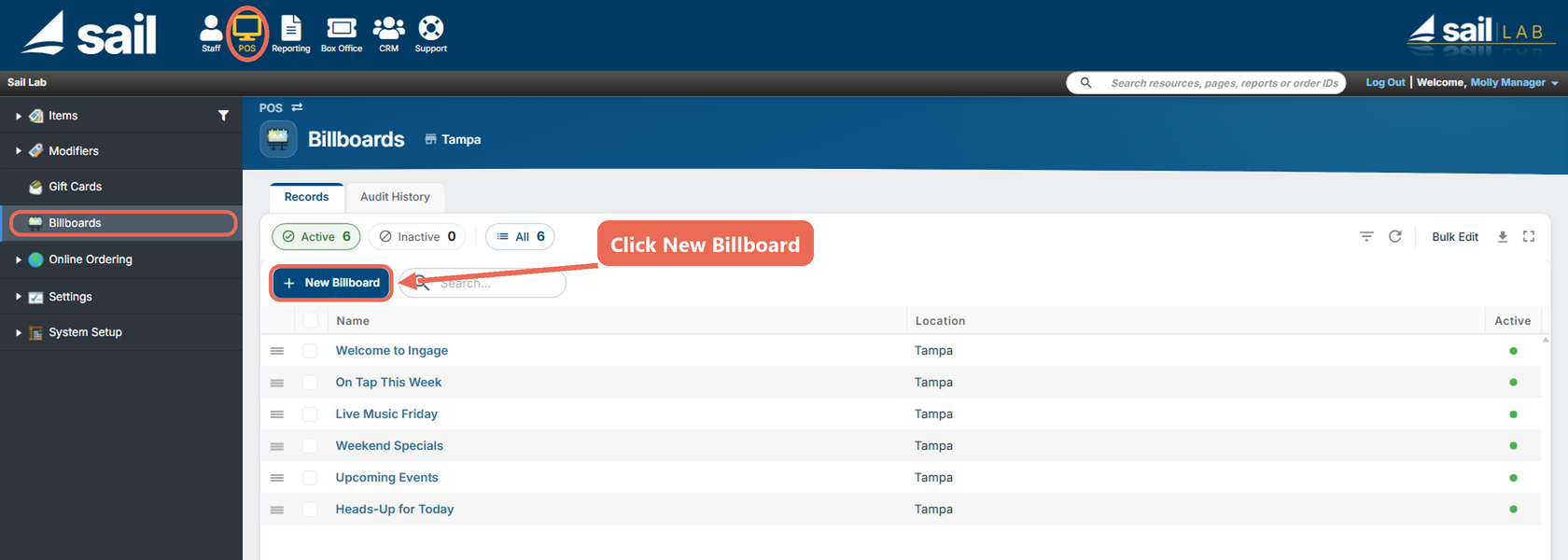
- Click POS at the top, then Billboards on the left, and click New Billboard.
- Fill out the window, then click Save:
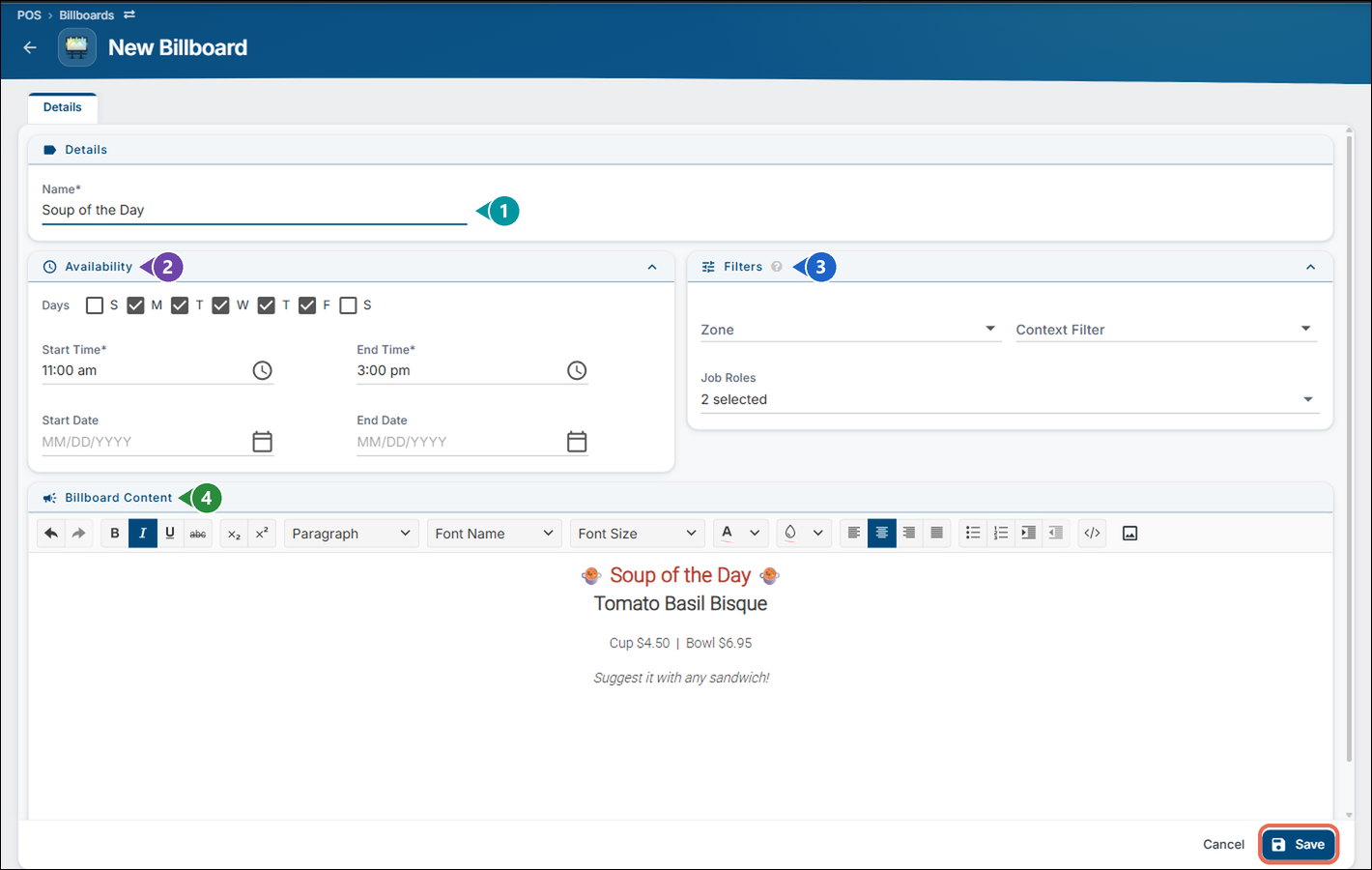
- Name (required): A name so you know what the billboard is about, up to 30 characters. Your staff don't see it - they see the message.
- Availability: When the billboard shows - days of the week, a time of day and dates. See Choosing when it shows below.
- Filters: Where and to whom it shows. Leave them blank to show it everywhere, to everyone. See Choosing who and where it shows below.
- Billboard Content (required): The message your staff will see. See Writing the message below.
Note: If you have more than one location, there is also a Location drop-down next to the Name: pick one location, or All Locations to show it at every location. With All Locations you can narrow it down further to a Brand or a Location Group.
Writing the message
Type your message in the Billboard Content box. It shows to your staff just the way it looks here.

- Bold, italic, underline and strikethrough, for the words that matter most.
- Format, Font Name and Font Size: headings, fonts and bigger or smaller text.
- Colors: the text color and the color behind the text.
- Insert Image: add a picture, like a photo of the special. Large pictures are made smaller for you.
Pro tip: Billboards support emojis too 😀! Links don't work on a billboard, so there's no button for them.
Choosing when it shows
Open Availability to choose when the billboard shows. A new billboard shows every day, all day, with no end date.
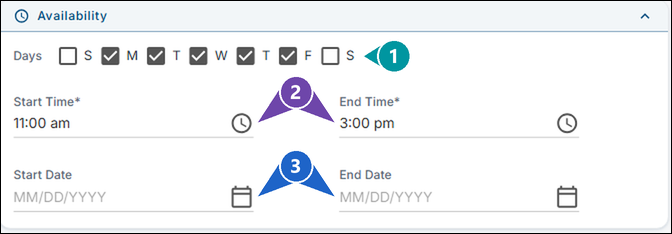
- Days: The days of the week it shows. Good for daily specials - in the example, the soup only shows Monday to Friday.
- Start Time and End Time (required): The time of day it shows, like lunch only (11:00 am to 3:00 pm) or daytime vs nighttime information.
- Start Date and End Date: The dates it shows, for weekly specials or an upcoming event. Leave them blank to keep showing it.
Choosing who and where it shows
Open Filters to show the billboard only in some places or only to some staff. Leave them blank to show it everywhere, to everyone.
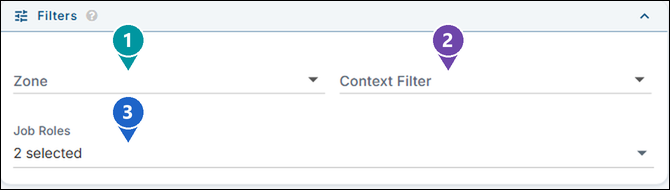
- Zone: Show it only on the devices in one area of the restaurant, like the bar.
- Context Filter: Several filters at once - locations, devices, profit centers, order types and more. Click here to learn more about context filters.
- Job Roles: Show it only to the job roles you pick. In the example, only Servers and Bartenders see the soup of the day.
Turning a billboard off and back on
When a billboard isn't needed for a while, turn it off instead of deleting it - then you can turn it back on without making it again.
- Click POS at the top, then Billboards on the left, and click the name of the billboard.
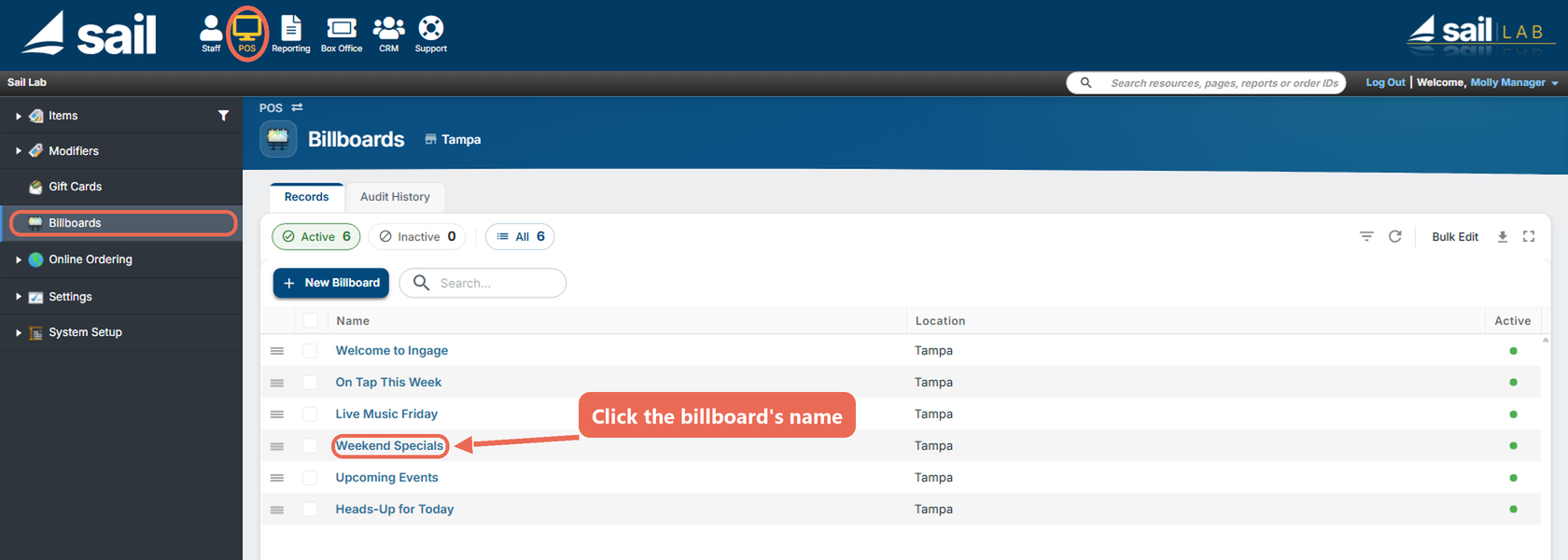
- Turn off Active at the bottom, then click Save. To show it again, turn Active back on and click Save.

Note: Billboards you've turned off are under Inactive at the top of the list.
What your staff see
On the terminal
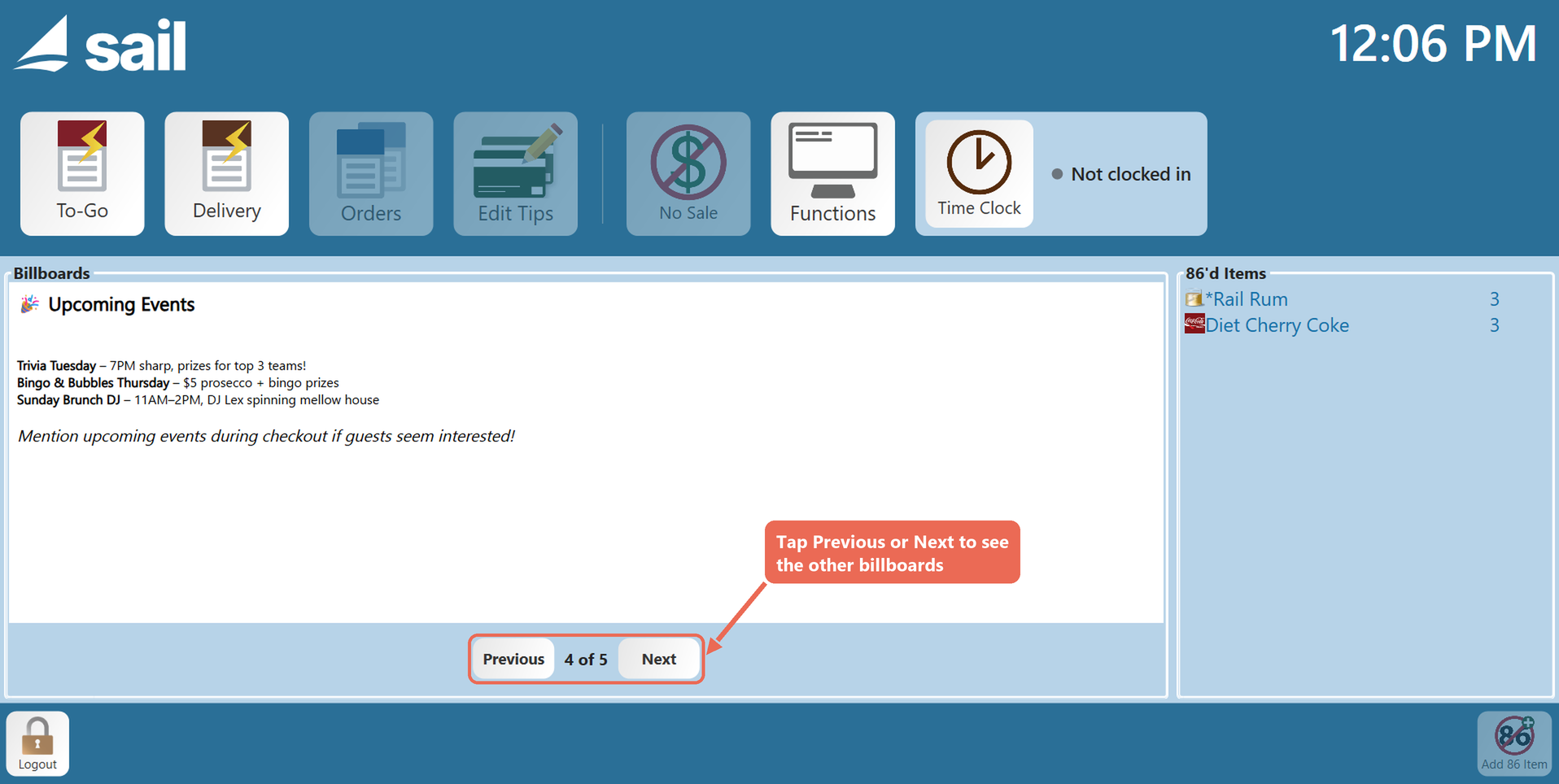
- Billboards show on the terminal's home screen as soon as someone logs in.
- They move to the next one every 10 seconds.
- Tap Previous or Next to find the one you're looking for. It then stays on that billboard until you leave the screen and come back.
On the handheld
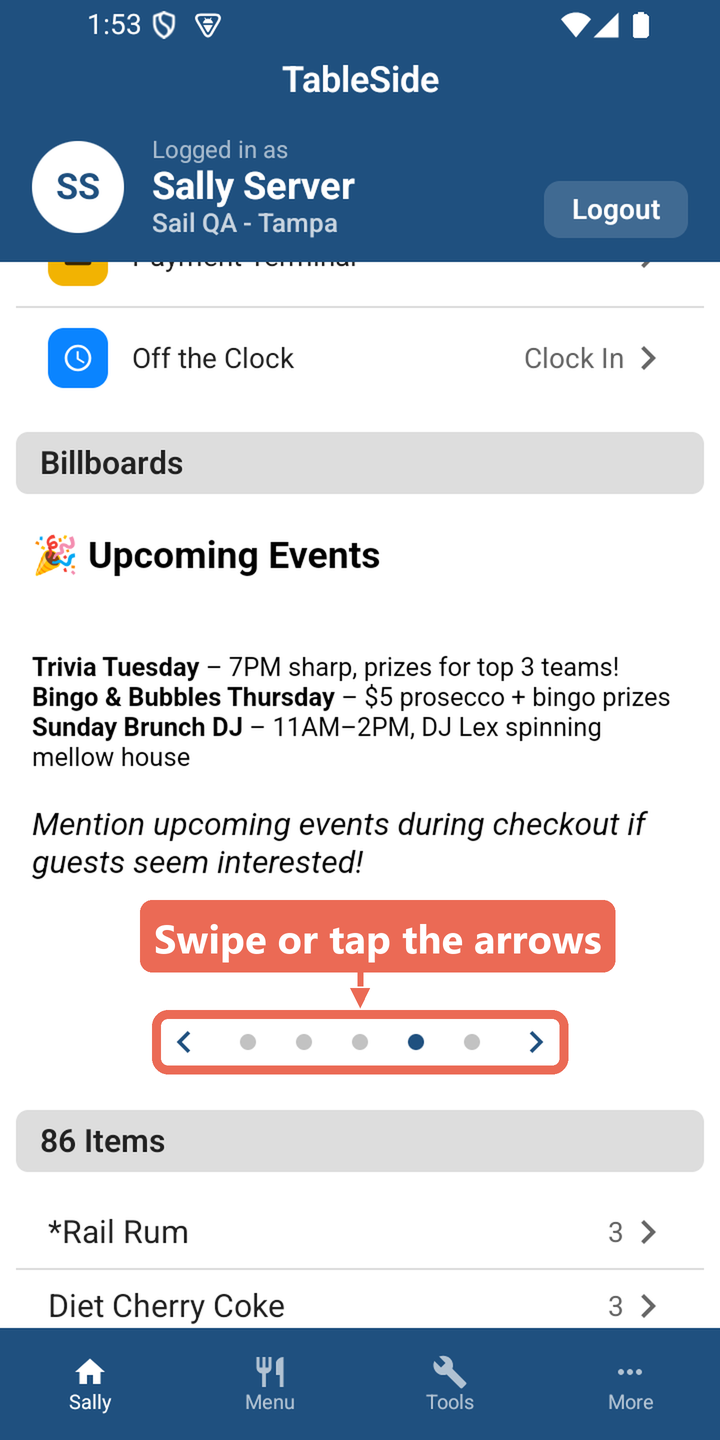
- Billboards show on the handheld's home screen, under Station Settings - scroll down to see them.
- Swipe left or right, or tap the arrows under the billboard, to move through them.
In Backoffice
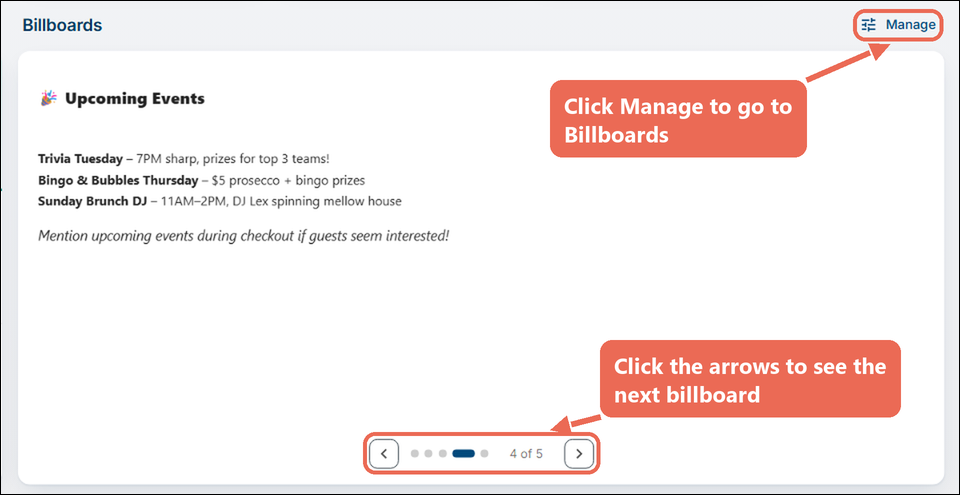
- The Backoffice home page shows the billboards for your location.
- Click the arrows to see the next one, or click Manage to go to Billboards.
No Comments