
Go Fish: searching receipts
This will walk through Go Fish in Backoffice. Go Fish finds an order when you only know part of it - the last 4 digits of a card, the guest's name, an item, a table or an amount - and shows its receipt, so you can download it, print it or open the whole order.
Permissions you need
Go Fish shows only for job roles that have the Go Fish permission (Backoffice --> Staff --> Job Roles, under Reporting).
Getting to Go Fish
Click Reporting at the top, then Go Fish on the left.
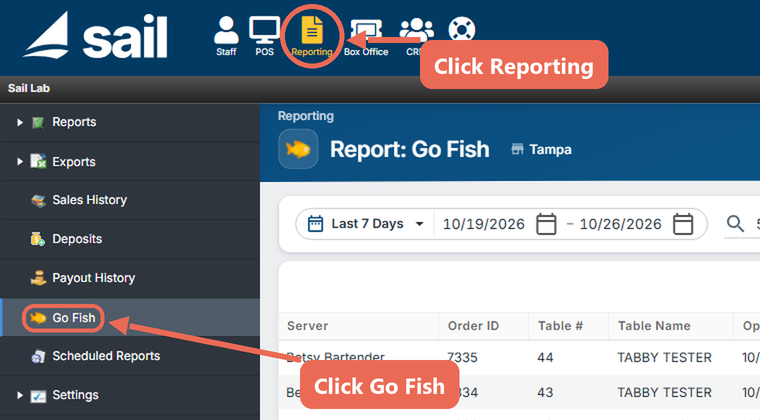
Note: An order's details page also has a Go Fish button. It opens Go Fish with the order's number filled in, searching today. For an order from another day, pick its dates and click Search.
Searching
- Fill out the search bar:

- 1. Date range: a quick pick such as Today, Yesterday, This week, Last week or the last 7, 30, 90, 180 or 365 days.
- 2. Start and end dates: type the dates or pick them on the calendar. These are business days: an order counts on the day it was closed out, and an order that is still open counts as today.
- 3. Search text: what you know about the order (see What you can search by below).
- 4. Clear: empties the search and goes back to today.
- Click 5. Search, or press Enter in the search box.
Note: With nothing in the search box, Go Fish lists every order in the dates you picked - for up to 14 days at a time. For a longer range, type something to search for.
What you can search by
Go Fish looks for what you typed in every part of the order. Part of a word is enough: "Guin" finds Guinness, and "Sally" finds every order Sally Server rang in.
| Search by | Example | Search Source shows |
|---|---|---|
| The last 4 digits of a credit card | 5454 | Credit Card Account: 5454 |
| The name on the card | Tabby | Card Holder: Tabby Tester |
| The card's expiration date | 3/33 | Credit Card Expiration: 3/33 |
| A gift card number | 1234 | Gift Card Account: … |
| How it was paid | Cash | Tender: Cash |
| An item or modifier | Guinness | Item: Guinness, or Modifier: … |
| A note on an item or modifier | birthday | Item Note: … or Modifier Note: … |
| A comp or void reason | Wait Time | Comp: Wait Time, or Void: … |
| A discount or charge | Surcharge | Discount: … or Charge: Surcharge |
| The server | Betsy | Server: Betsy Bartender |
| The table number or name | 30 | Table Number: 30, or Table Name: … |
| The order number (Order ID) - the end of it is enough | 7323 | Transaction Id: 7323 |
| An amount - the order's total or subtotal, a payment, or a payment with its tip | 48.03 | Total, Payment, or Payment w/Tip |
Pro tip: Type amounts as numbers only, without the $ sign (48.03). An amount has to match exactly.
Reading the results
Each order found shows its Server, Order ID, Table #, Table Name, Open Date and Total, newest first. Search Source tells you why the order was found - for example, the card ending in 5454 paid it. An order can show more than once when it matched in more than one way.
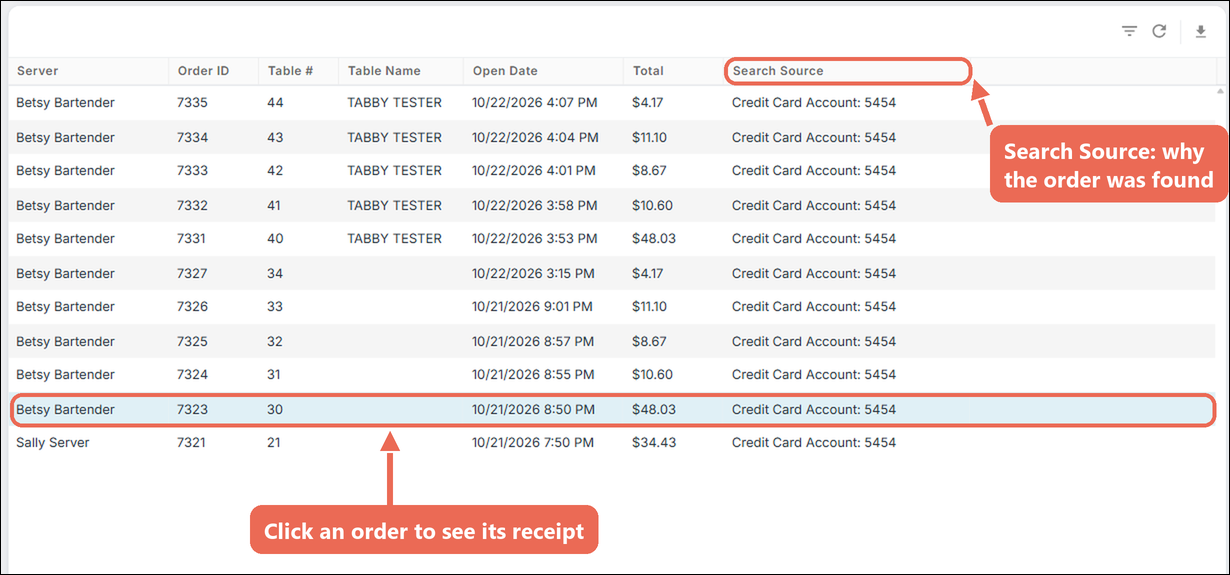
Click an order to see its receipt on the right. When only one order is found, its receipt shows right away.
Pro tip: To narrow a long list, click the filter button above the results and type in the box under a column.
The receipt
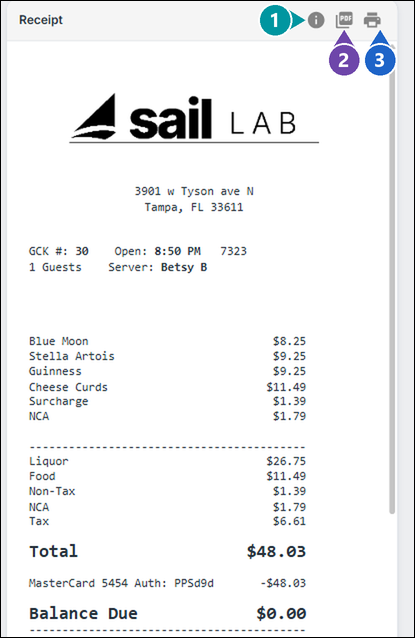
The receipt shows the order as it printed. The buttons above it work on that order:
Printing a receipt
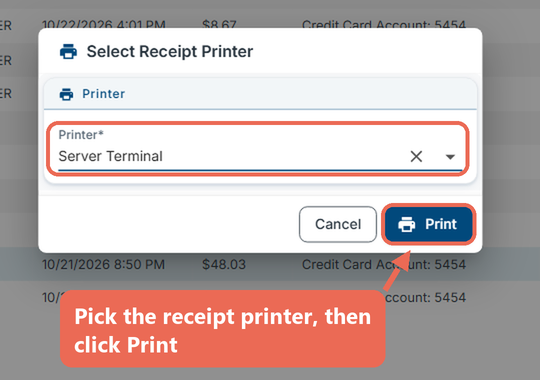
- Click the order, then the Print receipt button above its receipt.
- Pick the printer and click Print. The receipt prints at the store.
Seeing the order's details
Click the View order details button above the receipt. The order shows everything about it, from the first item to the daily close:
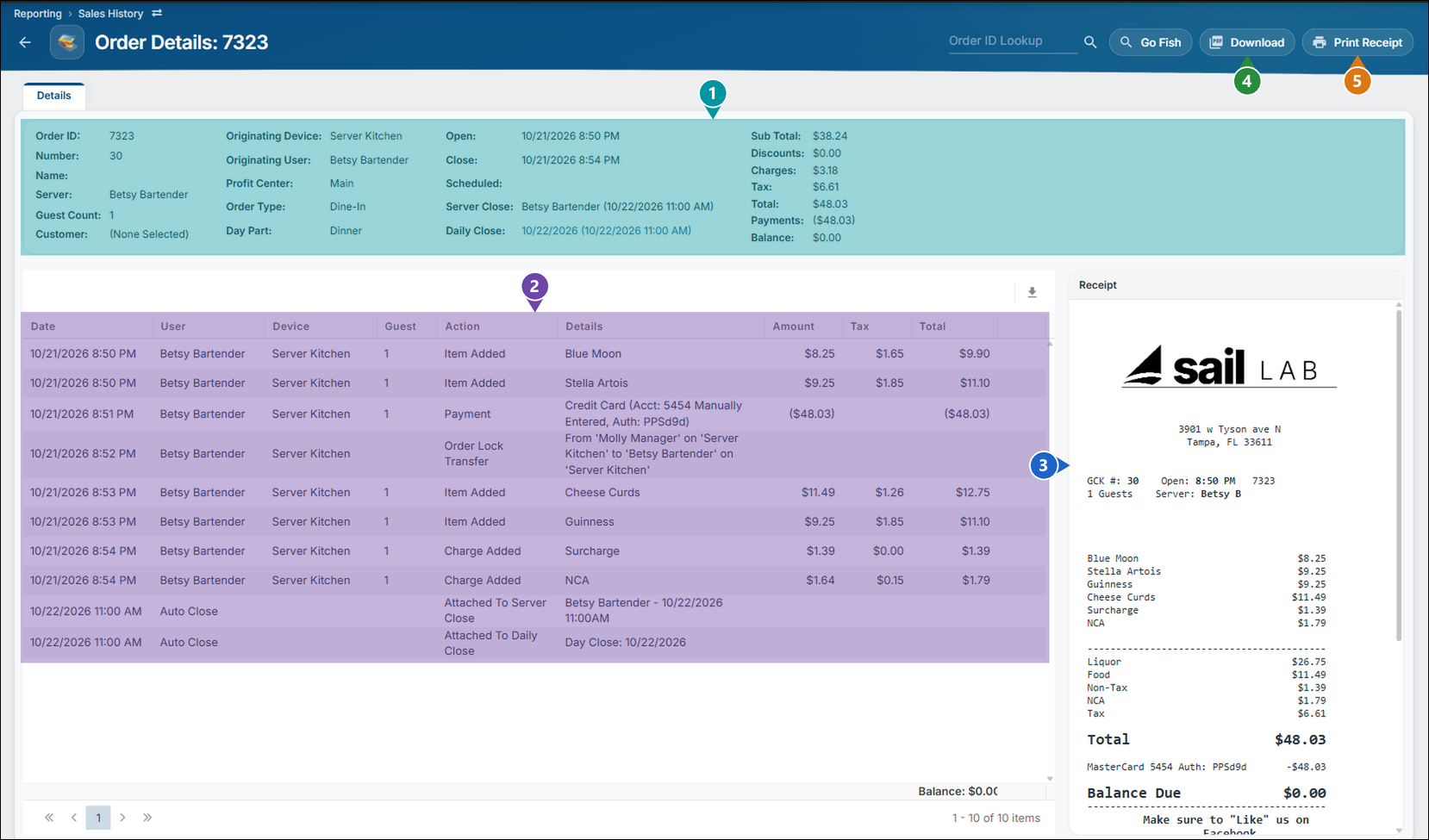
- Summary: the order's number, server, guests, order type, open and close times, the server close and daily close it belongs to, and its totals.
- History: every step on the order - items added, payments, transfers, charges - with who did it, on which device, and when.
- Receipt: the order's receipt.
- Download: saves the receipt as a PDF.
- Print Receipt: prints the receipt on one of the location's printers.
No Comments