
Payout History
This will walk through the Payout History screen in Backoffice. Payout History lists every pay-out and pay-in made on your terminals: when it was made, on which order, by whom, for how much, and the note that was typed in.
Permissions you need
Each of these is a task on the job role (Backoffice --> Staff --> Job Roles):
- Payout History (under Reporting): to open the Payout History screen.
- Sales History (under Reporting): to open the order a payout was made on.
- Edit Employee Details (under Staff --> Employees): to open the employee from the list.
- Manage Items - Management Only (under POS --> Back Office --> Items): to open the pay-out or pay-in item from the list.
Getting to Payout History
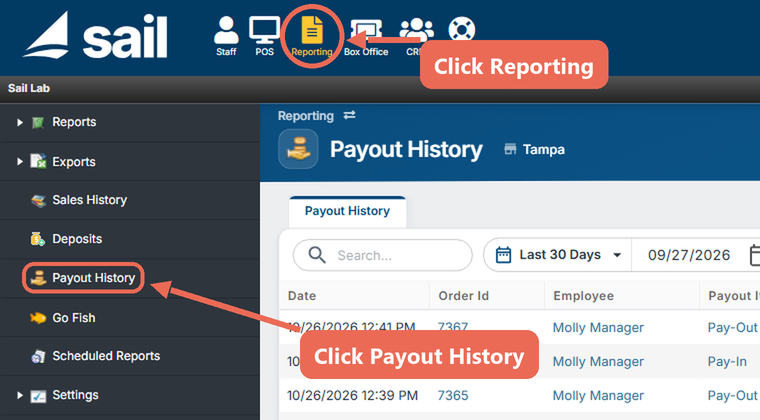
Click Reporting at the top, then Payout History on the left.
Picking the dates
Payout History opens on the Last 30 Days. To see other days, click the date range button and pick a quick choice, or type a start and end date (or pick them on the calendar):
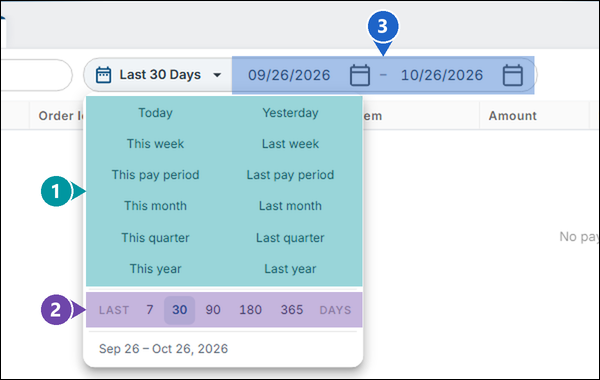
- Quick choices: Today, Yesterday, this or last week, pay period, month, quarter or year.
- Last ... days: the last 7, 30, 90, 180 or 365 days.
- Start and end dates: any days you choose.
Note: The dates are business days - the day each payout was closed in. A payout shows on Payout History once its day has been closed (Daily Close), so today's payouts show after today's close.
Reading the list
Each pay-out and pay-in is one row, newest first:

- Date: the date and time it was made on the terminal.
- Order Id: the number of the order the terminal made for it. Click it to open the order.
- Employee: who made it. Click the name to open the employee.
- Payout Item: the pay-out or pay-in button that was used. Click it to open the item.
- Amount: how much. Pay-outs (money taken out of the drawer) show in brackets, such as ($12.50); pay-ins (money put in) show without them, such as $50.00.
- Note: what the employee typed in when they made it, such as what the money was for.
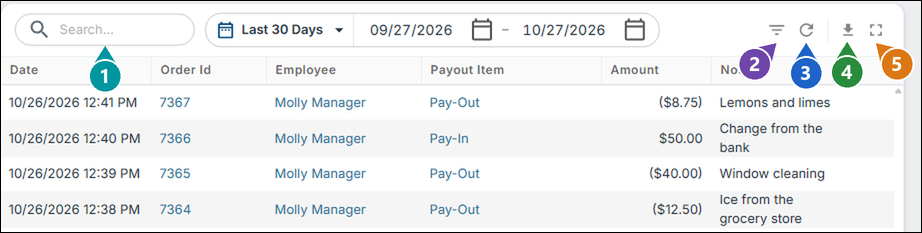
- Search: type a name, an item, an amount or a word from a note to show only the rows that have it.
- Filters: adds a filter box under each column heading.
- Refresh: loads the list again.
- Export: saves the list as an Excel or CSV file.
- Full screen: shows the list on the whole screen. Press Esc to go back.
Opening the order a payout was made on
Click the number in the Order Id column, or double-click the row. The order opens in a window:
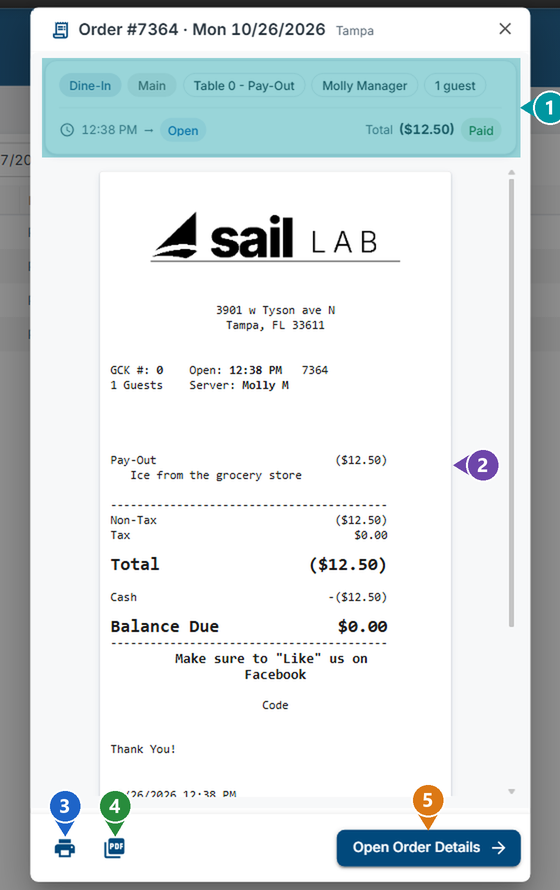
- Summary: the order type, profit center, who made it, the time and the total.
- Receipt: the payout's receipt, with its note under the item.
- Print receipt: prints the receipt.
- Download PDF: saves the receipt as a PDF.
- Open Order Details: opens the whole order in Sales History, with its history.
Good to know
- Payout History shows one location: the one next to the page title. If you have more than one location, pick another one there.
- A payout that was voided doesn't show.
- Pay-outs and pay-ins are made on the terminal under Functions --> Cash Tools.
No Comments