
How to edit Minimum Wage
This document will show you how to edit all employees' minimum wage at one time.
How to edit minimum wage
- Log into Backoffice --> Staff --> Settings: click Staff at the top, then Settings in the menu on the left.
- Scroll down to the Payroll Settings box. In the box next to Minimum Wage, update the amount to the current minimum wage.
- Click Save Settings at the bottom right of the page. It turns blue once you've changed something.
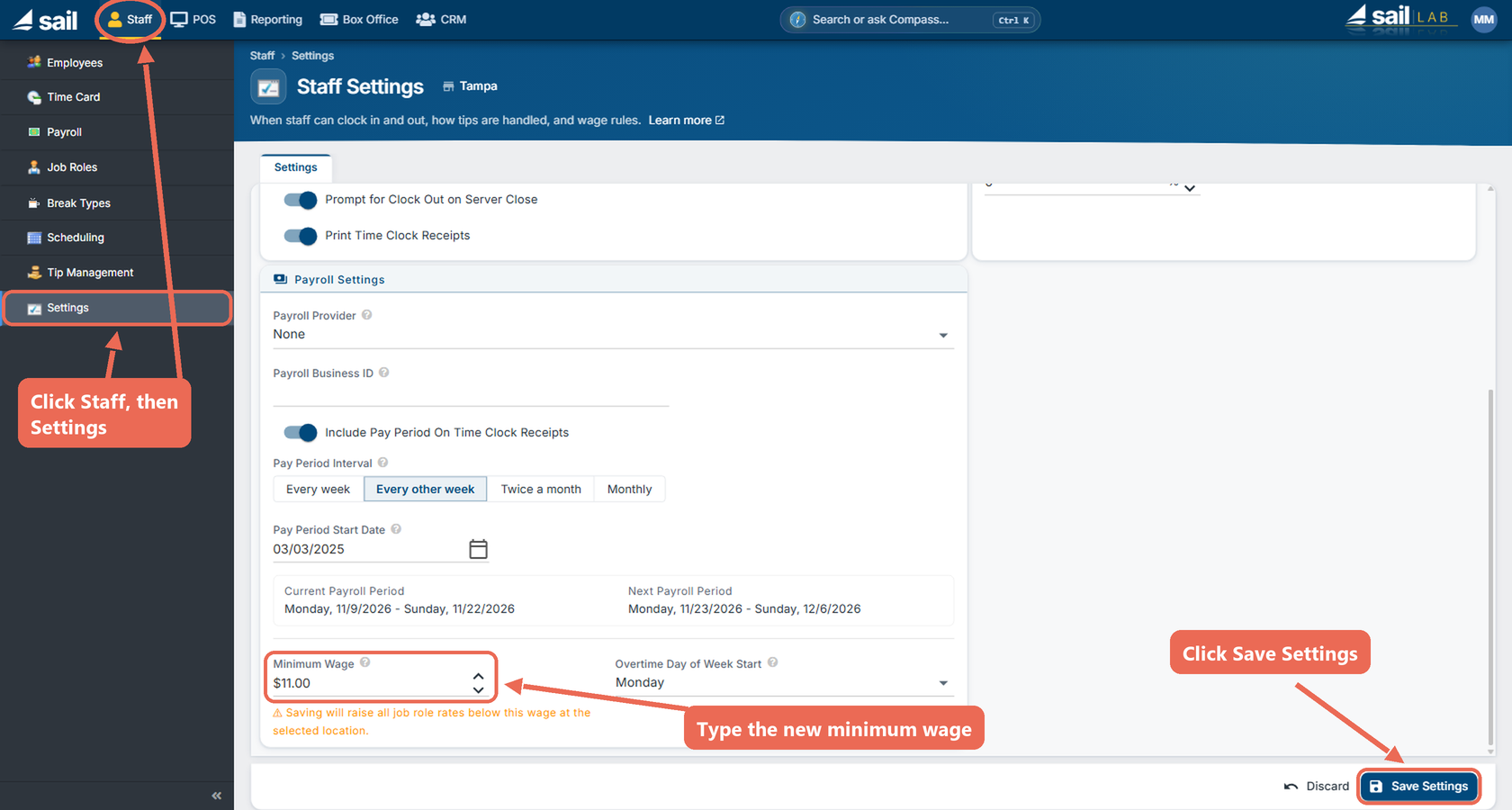
ANY employee whose job role rate is below this dollar amount will automatically change to the new dollar amount for the selected store. Once you change the amount, a reminder shows under the box:

After you save, a message at the bottom of the page tells you how many job role rates were raised.
Note: A job role rate of $0.00 is left as it is. New job roles start at the minimum wage you set here.
Note: The minimum wage is for one location. If you have more than one location, pick the location at the top of the page, next to Staff Settings, and set the minimum wage for each location.
Click here to learn how to change one employee's hourly pay rate.
No Comments