
How to put Items in alphabetical order
This will walk through putting your items in alphabetical order in Backoffice.
The order of the items in a category in Backoffice is the order they show on the terminal, the handhelds and Online Ordering. Instead of dragging each item into place, you can put a whole category in alphabetical order at once. You can do the same for your categories and for the choices in a modifier set.
Where to find it
- Backoffice --> POS --> Items
- Permissions you need: your job role needs the task Manage Items - All (POS --> Back Office --> Items). Click here to learn more about job roles.
Putting the items in a category in alphabetical order
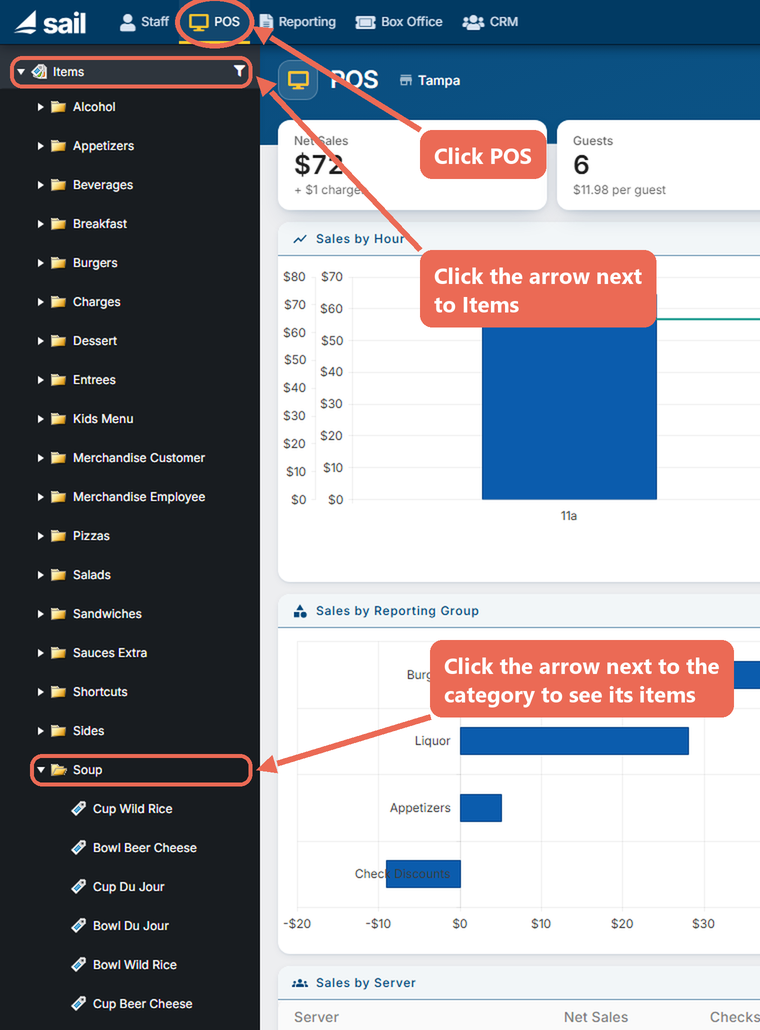
- Click POS at the top, then the arrow next to Items on the left, and the arrow next to the category to see its items.
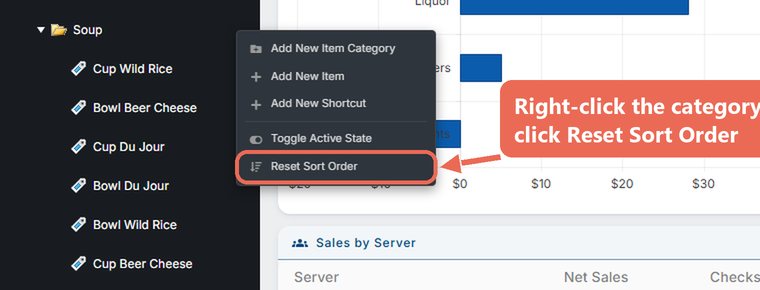
- Right-click the category and click Reset Sort Order.
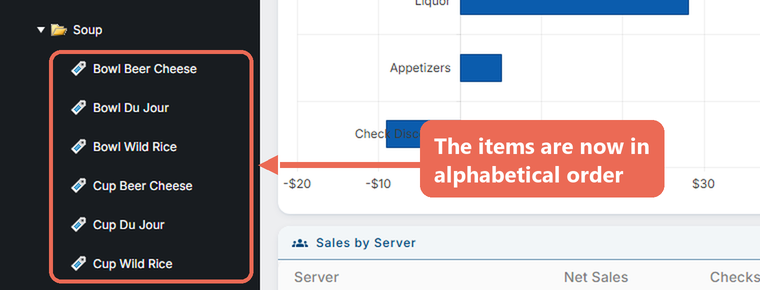
- The items in the category are now in alphabetical order. It's saved right away.
Putting your categories in alphabetical order
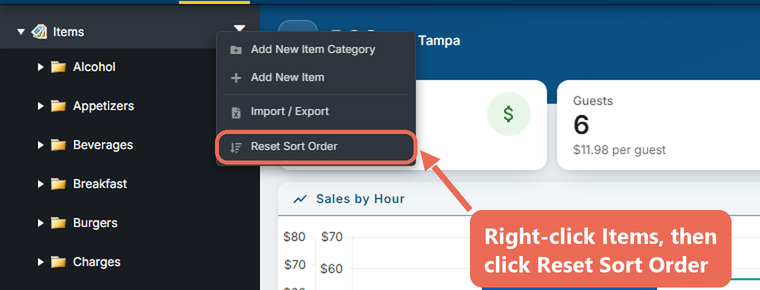
Right-click Items at the top of the list and click Reset Sort Order. Your main categories are put in alphabetical order.
Putting the choices in a modifier set in alphabetical order
This sets the order the choices show in when an item asks for them, for example the dressings for a salad.
- Click POS at the top, then the arrow next to Modifiers on the left, and click Modifier Sets. Click the name of the modifier set to open it.
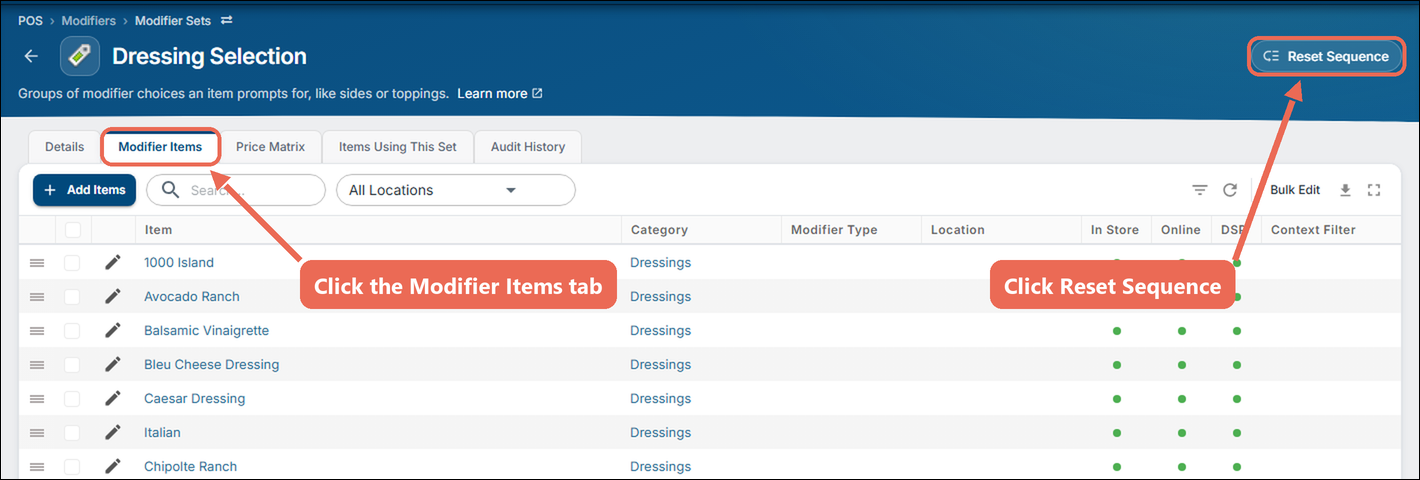
- Click the Modifier Items tab, then Reset Sequence at the top right.
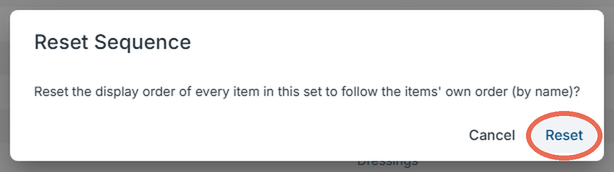
- Click Reset. The choices are now in alphabetical order.
If Online Ordering has its own order
Online Ordering shows the items in the same order as the terminal, so the steps above put it in alphabetical order too. But if someone sorted a category for Online Ordering only (by dragging items with Online Items Only checked), Online Ordering keeps that order. To put that category in alphabetical order online as well:
- Put the category in alphabetical order, as above.
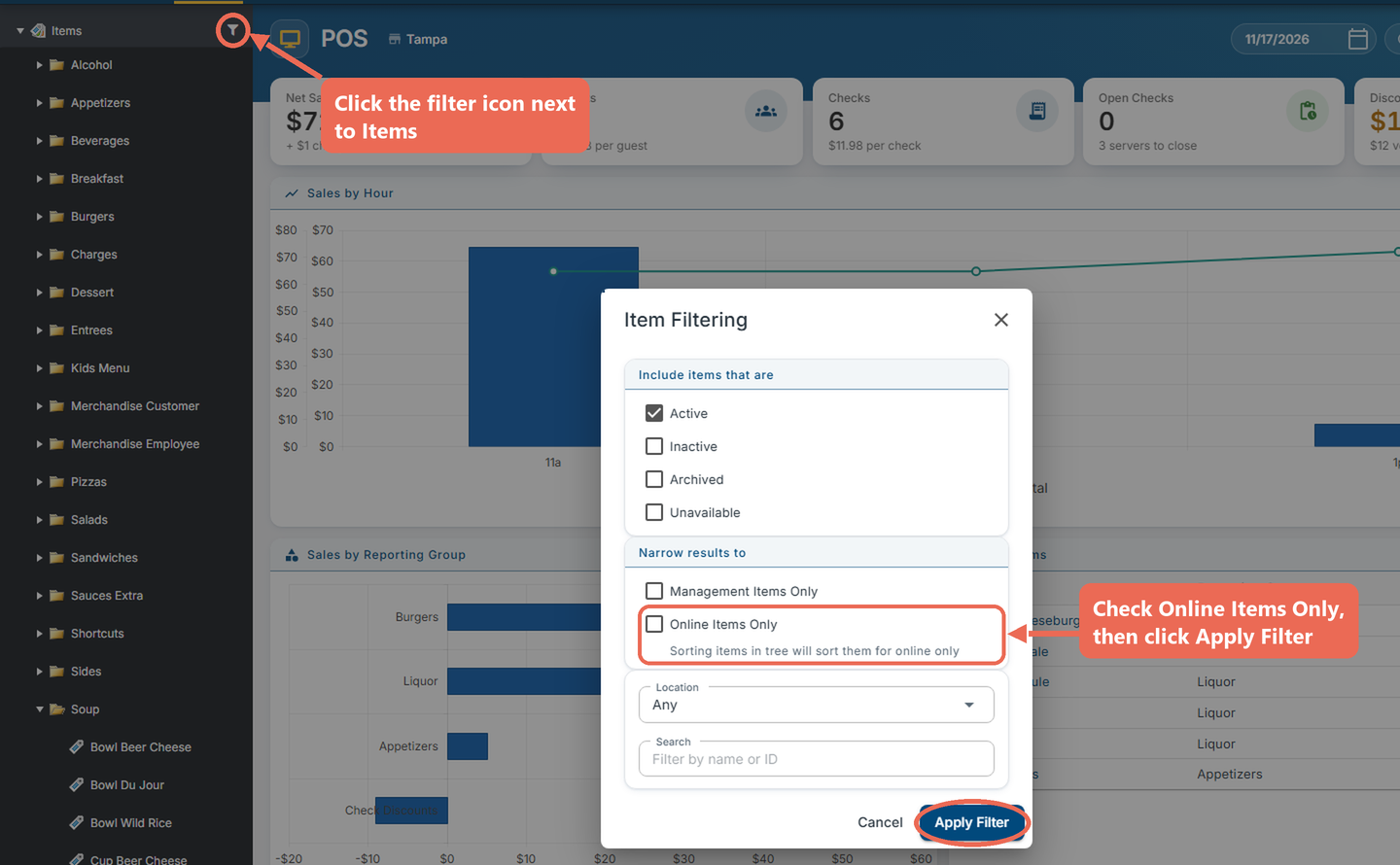
- Click the filter icon next to Items, check Online Items Only and click Apply Filter.
- Right-click the category and click Reset Sort Order again. Online Ordering now uses the same alphabetical order as the terminal.
Good to know
- Only the items and categories directly in the category you right-click are sorted. The items in the categories inside it keep their order: right-click each of those categories too.
- Any order you set by dragging items in that category is replaced.
- If you add new items later and they aren't in alphabetical order, do it again.
Click here to learn how to put items in your own order by dragging them.
No Comments