
How to set up an Auto Charge
This document will walk you through setting up an Auto Charge: a charge the system adds to an order by itself, such as a gratuity for large parties, a delivery fee or a service charge.
An Auto Charge is made of three parts, all on the same page (Backoffice --> POS --> Settings --> Charges):
- Charge Group: what kind of charge it is (for example Gratuities or Delivery) and how it counts on reports.
- Charge Type: the charge itself - how much it is, how it's taxed and how it prints on the receipt.
- Auto Charge: when the system adds the charge to an order (for example only on Dine-In orders, or only for 8 or more guests).
In this example we set up a 3% Service Charge that is added to every Dine-In order.
Permissions you need
To set up charges, your job role needs the Manage Charges task (POS --> Back Office --> Settings).
Step 1: Create a Charge Group
If you already have a charge group that fits (every account already has Gratuities, for example), you can skip this step and use that one.
-
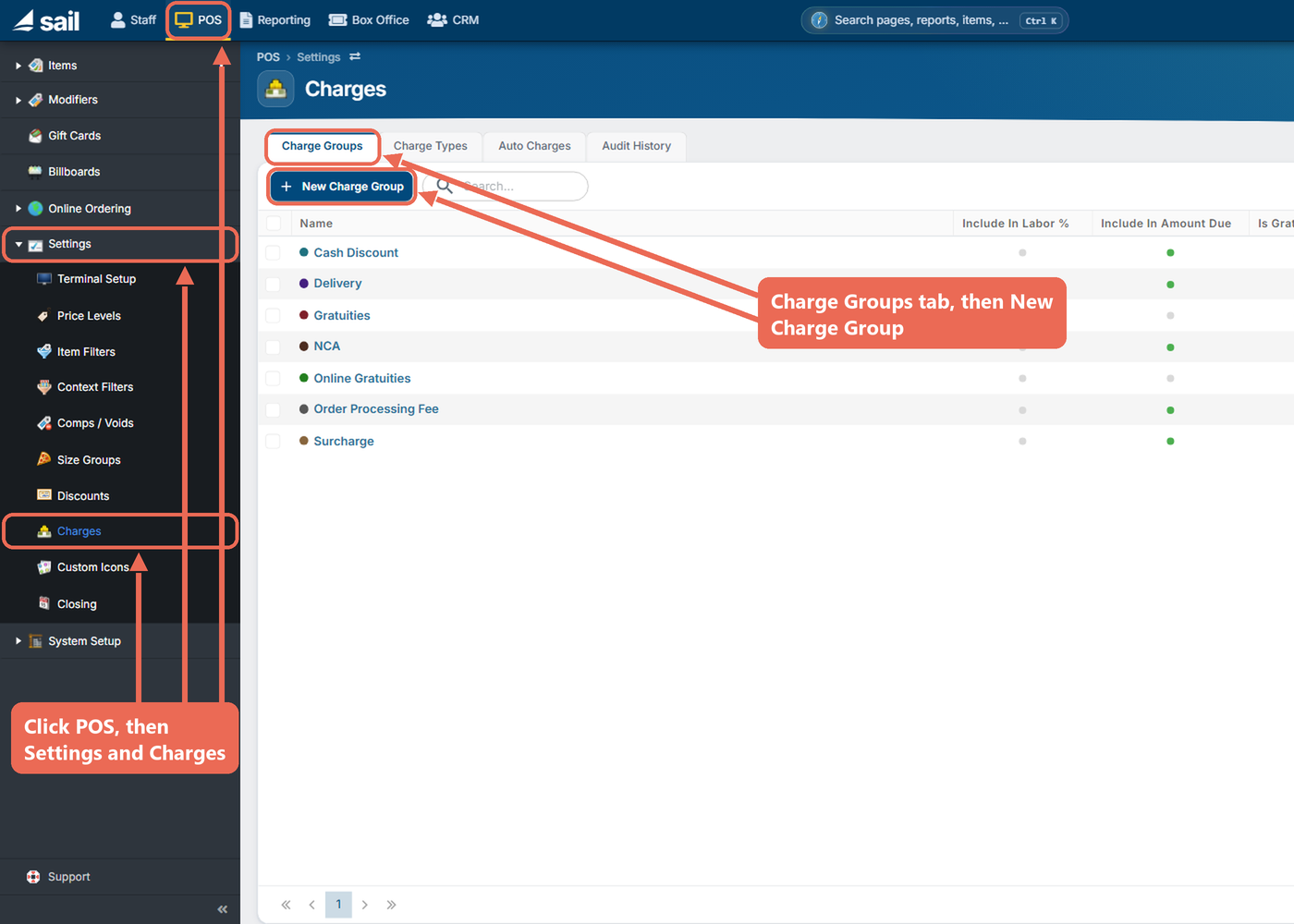
Navigate to Backoffice --> POS --> Settings --> Charges: click POS at the top, then Settings in the menu on the left, then Charges.
-
Click the Charge Groups tab, then New Charge Group.
-
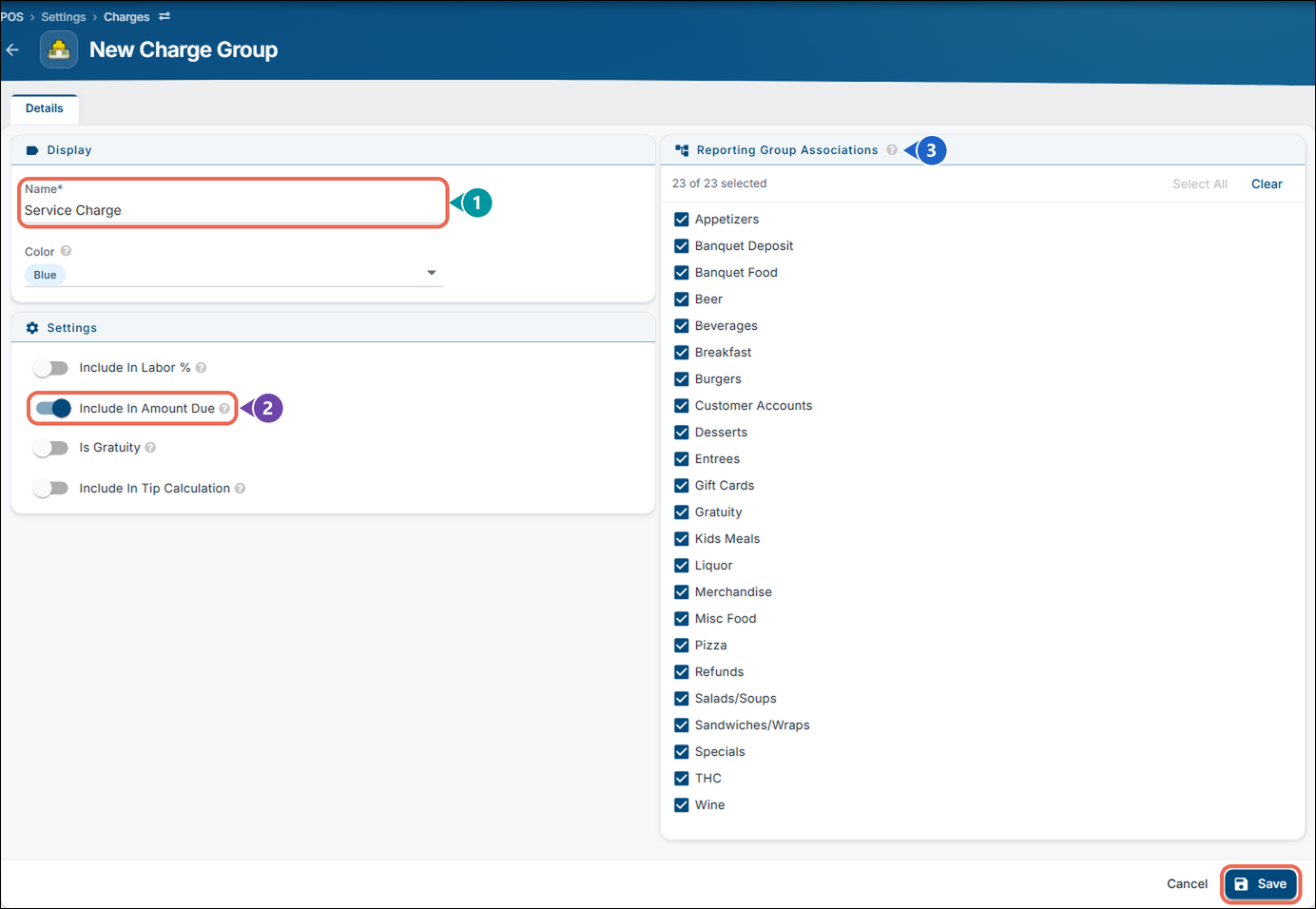
Fill in the new charge group:
-
Name (1): Required. A name your staff will recognize, for example Service Charge.
-
Settings (2):
- Include In Amount Due: turn this on so the charge is collected as part of the amount due on the check. (This is what you want for most charges.)
- Is Gratuity: turn this on only for a gratuity - the charge then counts as the server's tip income on reports.
- Include In Labor %: the charge counts as sales when the labor percentage is calculated.
- Include In Tip Calculation: the charge counts toward the amount guest tips are calculated on.
-
Reporting Group Associations (3): see Step 2.
-
-
Click Save.
Step 2: Choose the Reporting Group Associations
The Reporting Group Associations box is on the right side of the same Charge Group page. It only matters for a percentage charge: the percentage is worked out on the items from the reporting groups that are checked. A new charge group has every reporting group checked.
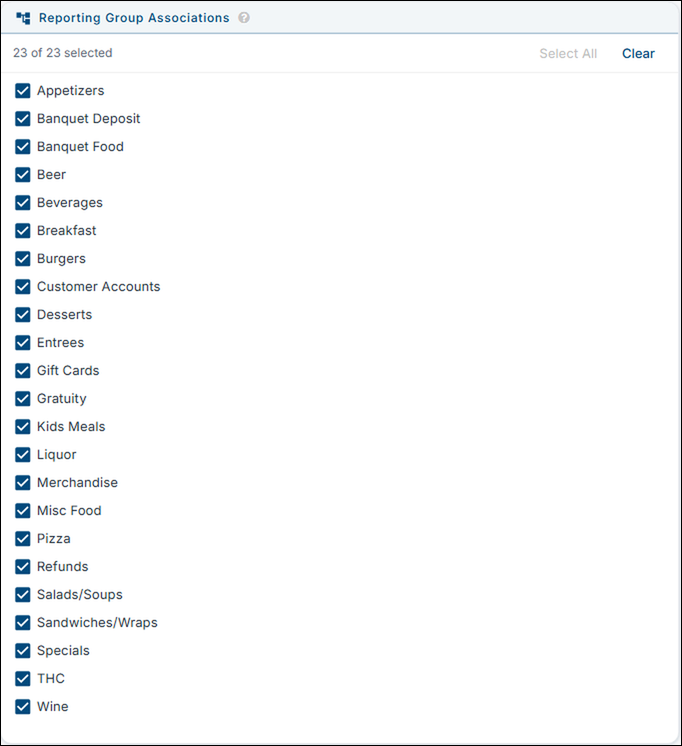
Uncheck any reporting group the charge should not be calculated on (for example, Gift Cards), then click Save. For a fixed dollar amount (like a delivery fee) you can leave this as it is.
Step 3: Create a Charge Type
-
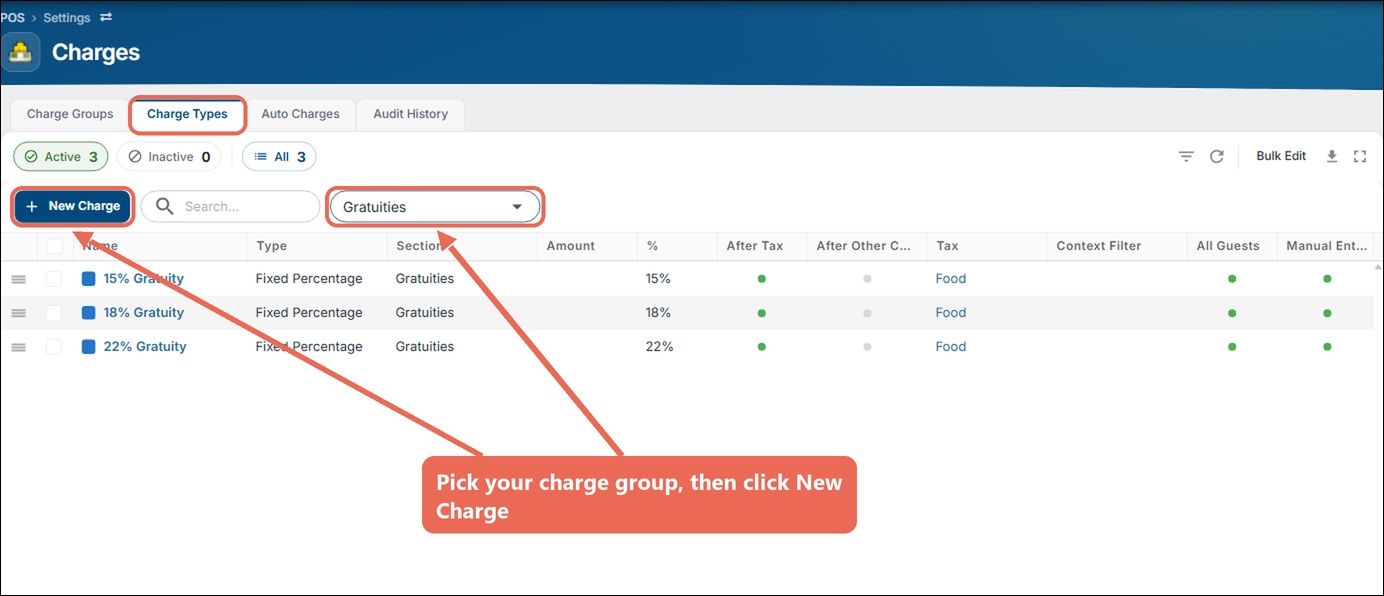
Click the Charge Types tab.
-
Use the drop-down next to the search box to pick the charge group from Step 1. The list shows the charges already in that group (here, Gratuities has its 15%, 18% and 22% Gratuity charges).
-
Click New Charge.
-
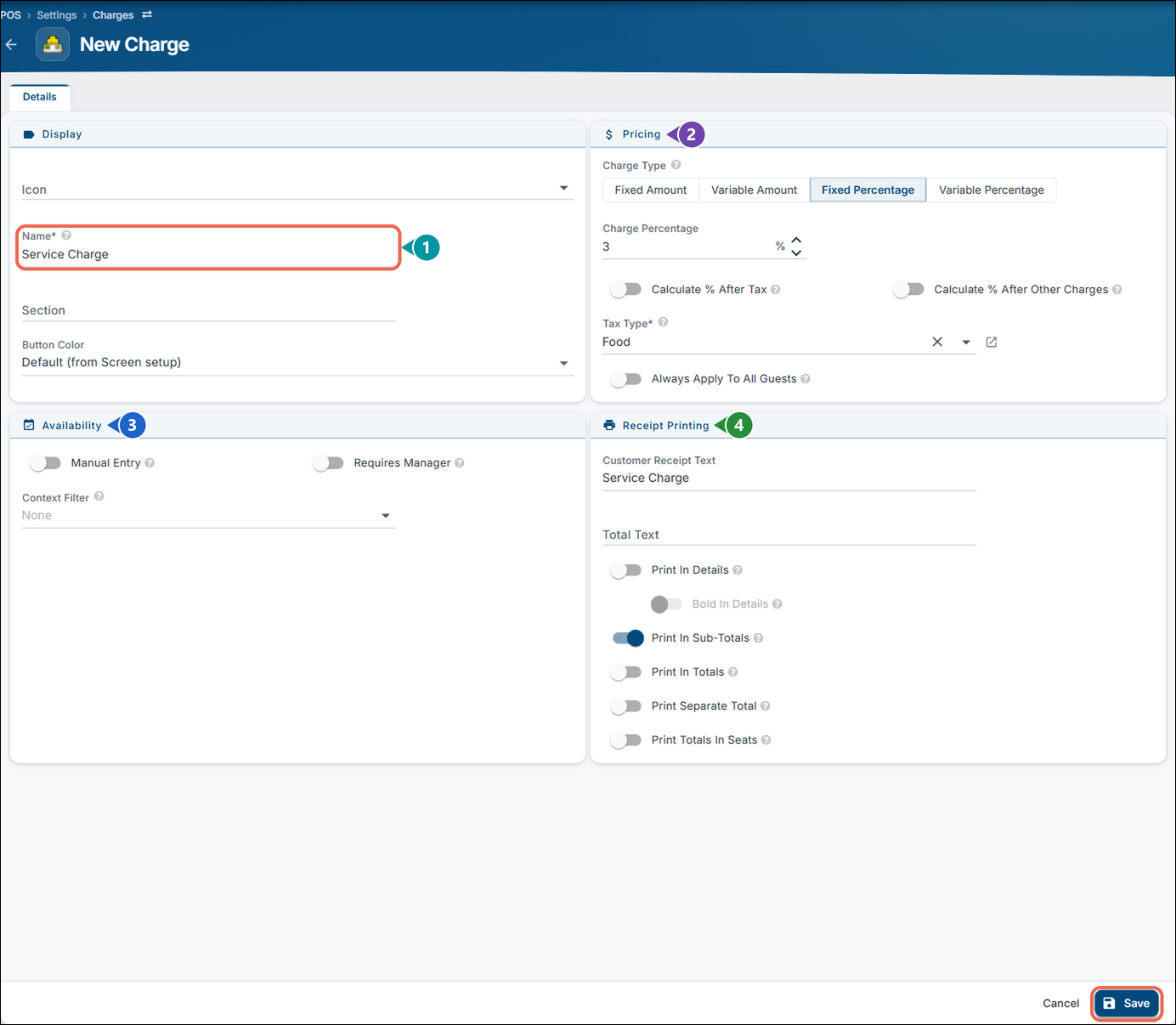
Fill in the new charge:
-
Name (1): Required. A short name for the charge, for example Service Charge.
-
Pricing (2):
- Charge Type: Fixed Amount (a dollar amount, like a $5.00 delivery fee) or Fixed Percentage (like 3% or an 18% gratuity). For an Auto Charge use one of these two; Variable Amount and Variable Percentage ask the server for the amount, up to a maximum.
- Charge Amount or Charge Percentage: how much the charge is.
- Calculate % After Tax: the percentage is worked out on the total with tax included.
- Calculate % After Other Charges: the percentage is worked out with any other charges included.
- Tax Type: Required. How the charge itself is taxed.
- Always Apply To All Guests: the charge is put on every guest at the table.
-
Availability (3): Manual Entry lets servers add the charge by hand on the terminals. Leave it off if the charge is only for an Auto Charge. Requires Manager means only a manager can add it by hand (an Auto Charge is added either way).
-
Receipt Printing (4): Customer Receipt Text is what the customer sees on the receipt. Turn on where the charge prints - for example Print In Sub-Totals.
-
-
Click Save.
Step 4: Create the Auto Charge
-
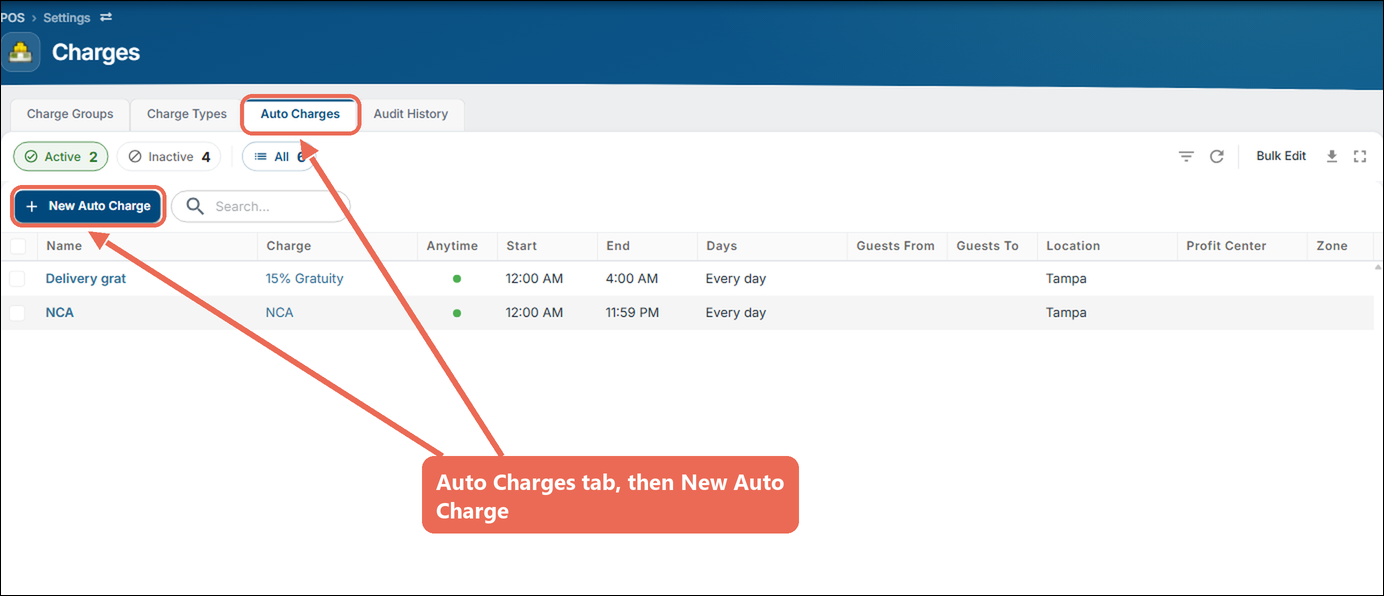
Click the Auto Charges tab, then New Auto Charge.
-
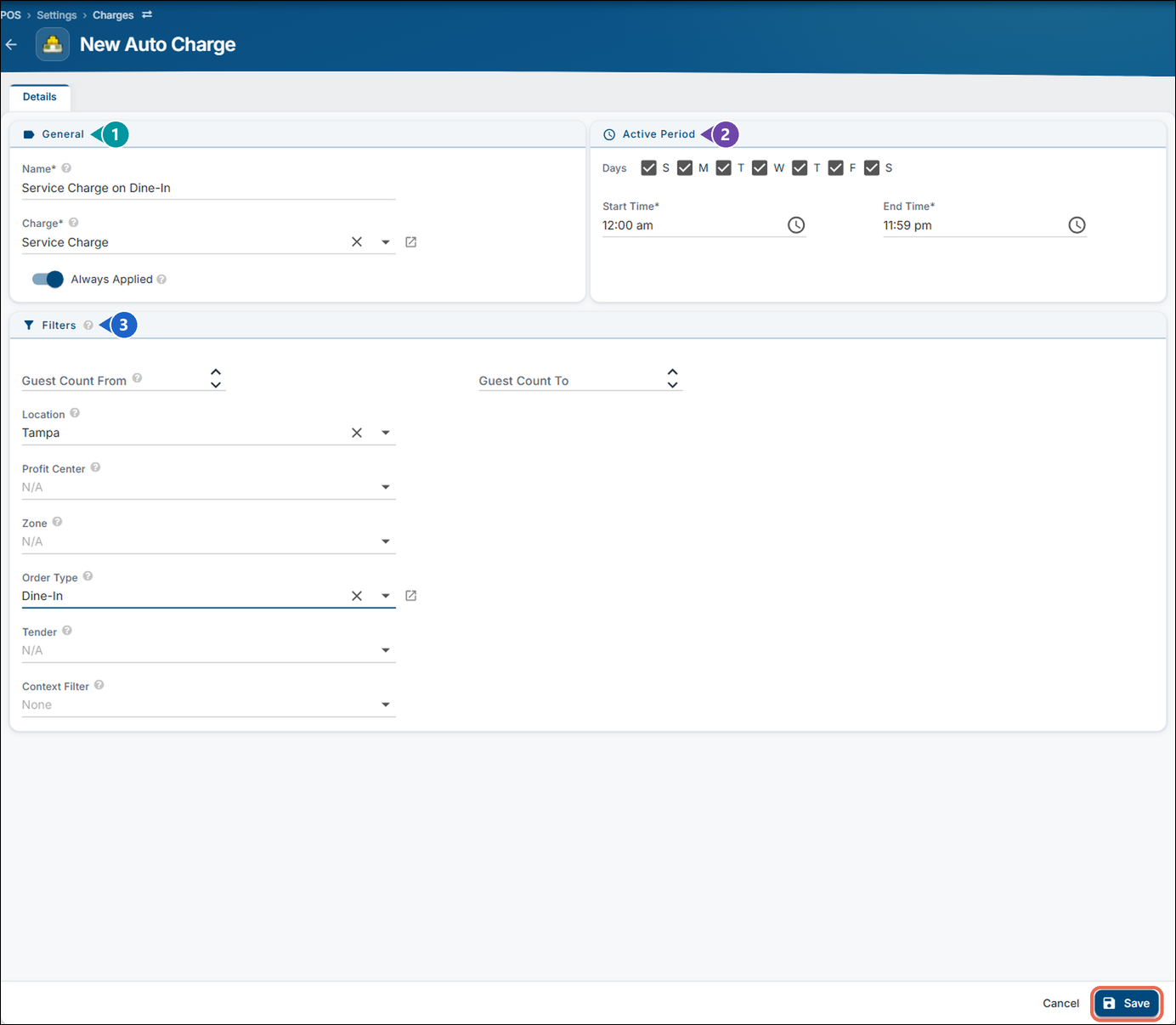
Fill in when the charge is added:
-
General (1): Name the auto charge (for example Service Charge on Dine-In) and pick the Charge you made in Step 3. Turn on Always Applied to add the charge at any time of day.
-
Active Period (2): Used when Always Applied is off. Check the days and set the Start Time and End Time when the charge is added - for example only on Friday and Saturday evenings. For a period that runs past midnight, set an End Time earlier than the Start Time (for example 9:00 pm to 2:00 am).
-
Filters (3): Use these to add the charge only to some orders. Leave a filter empty and it doesn't limit the charge.
- Guest Count From / Guest Count To: only orders with this many guests (for example From 8 for parties of 8 or more).
- Location: only at this location. Pick a location first to choose a Profit Center or Zone.
- Profit Center / Zone: only orders in this profit center or zone.
- Order Type: only this order type (for example Dine-In, To-Go or Delivery).
- Tender: only when the order is paid with this tender (for example Credit Card).
- Context Filter: only when this context filter applies.
-
-
Click Save.
Check it on a terminal
Start an order on a terminal that matches your Auto Charge (in this example, a Dine-In order) and add an item. The charge shows in the order's totals with the Customer Receipt Text you set, and prints on the customer's receipt.
If you don't see it, check that the order matches every filter you set (order type, guest count, location, days and times), and that the Auto Charge is Active on the Auto Charges tab.
Examples
Click here to learn more about setting up an auto gratuity based on guest count
Click here to learn more about setting up a delivery charge on an order type
No Comments