
How to create a pay-out/pay-in button
This will walk you through setting up the Pay-Out and Pay-In buttons. A pay-out is cash taken out of the drawer to pay for something, such as a delivery or a run to the store. A pay-in is cash put into the drawer. Each button uses an item in Backoffice with the Item Type "Payout".
Note: Your Backoffice may already have a Pay-Out item (look in the Charges category). If it does, check that it is set up as shown below.
Create a reporting group for pay-outs
-
Open Backoffice.
-
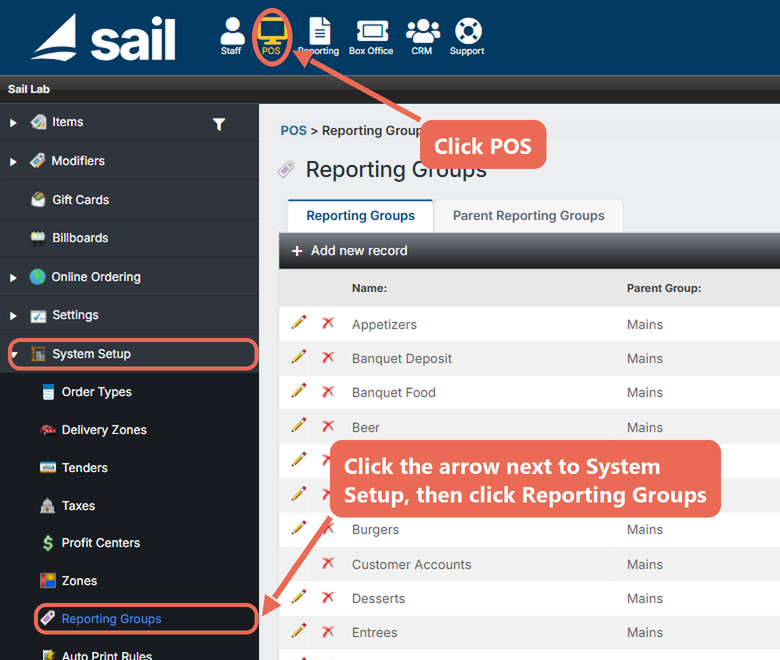
Click POS at the top of the page. Then click the arrow next to System Setup in the menu on the left and click Reporting Groups.
-
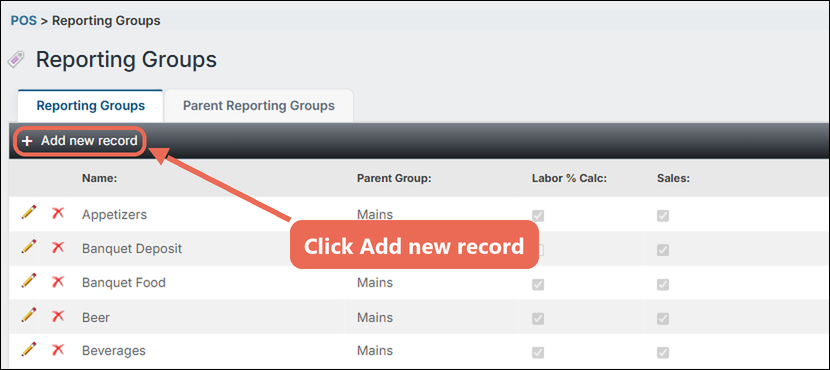
Click Add new record to create a new group.
-
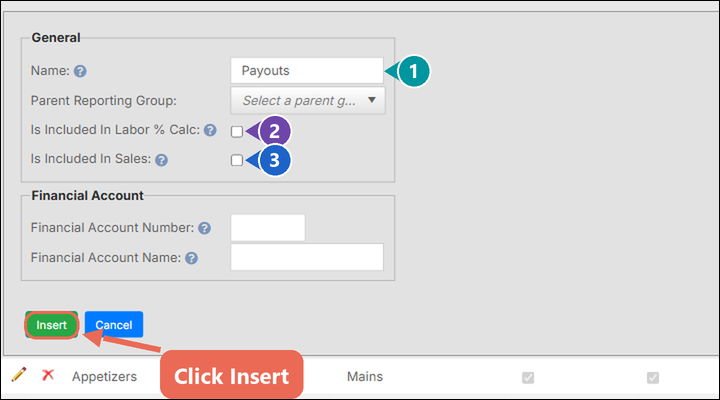
Fill in the new group, then click Insert.
-
Name the new group Payouts.
-
Do not check "Is Included In Labor % Calc".
-
Do not check "Is Included In Sales", so pay-outs and pay-ins are not counted as sales.
-
Create the Pay-Out item
-
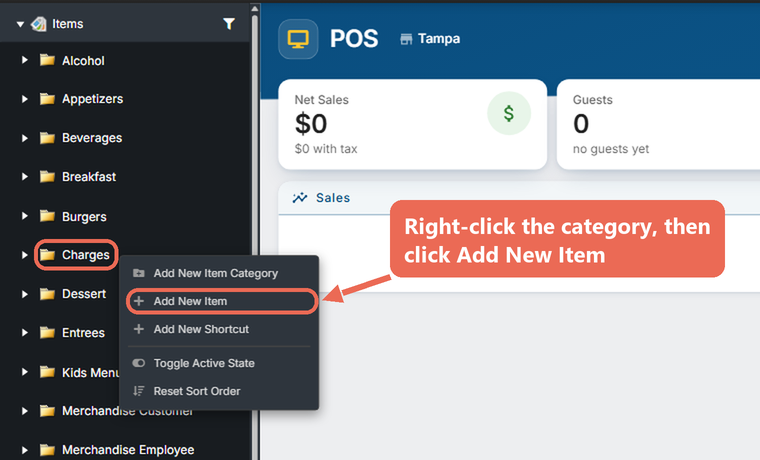
Click the arrow next to Items in the menu on the left. Right-click the category you want the item in (Charges is a good place for it) and select Add New Item.
-
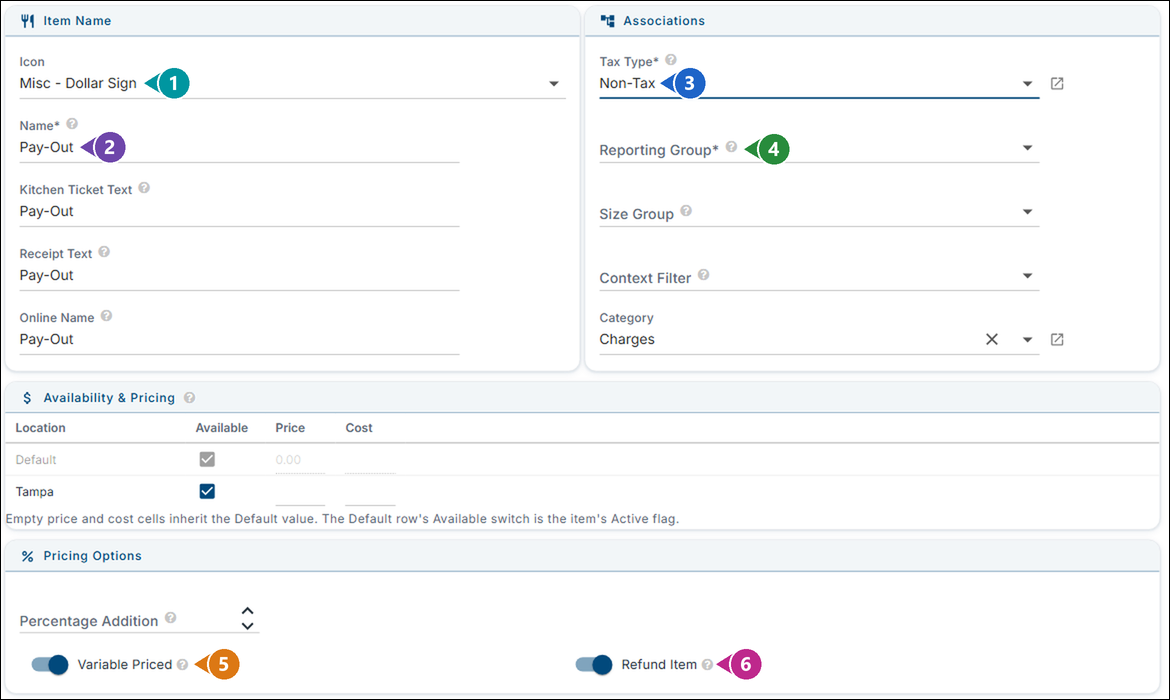
Fill in the General tab.
-
Icon: Misc - Dollar Sign.
-
Name: Pay-Out. The Kitchen Ticket Text, Receipt Text and Online Name fill in by themselves.
-
Tax Type: Non-Tax.
-
Reporting Group: Payouts.
-
Turn on Variable Priced, so the terminal asks for the amount each time.
-
Turn on Refund Item. This is what makes the item a pay-out.
-
-
Click Terminal & Behavior and set the Item Type to Payout.

-
Click Save at the bottom right.
Create the Pay-In item
-
Right-click the same category and select Add New Item again.
-
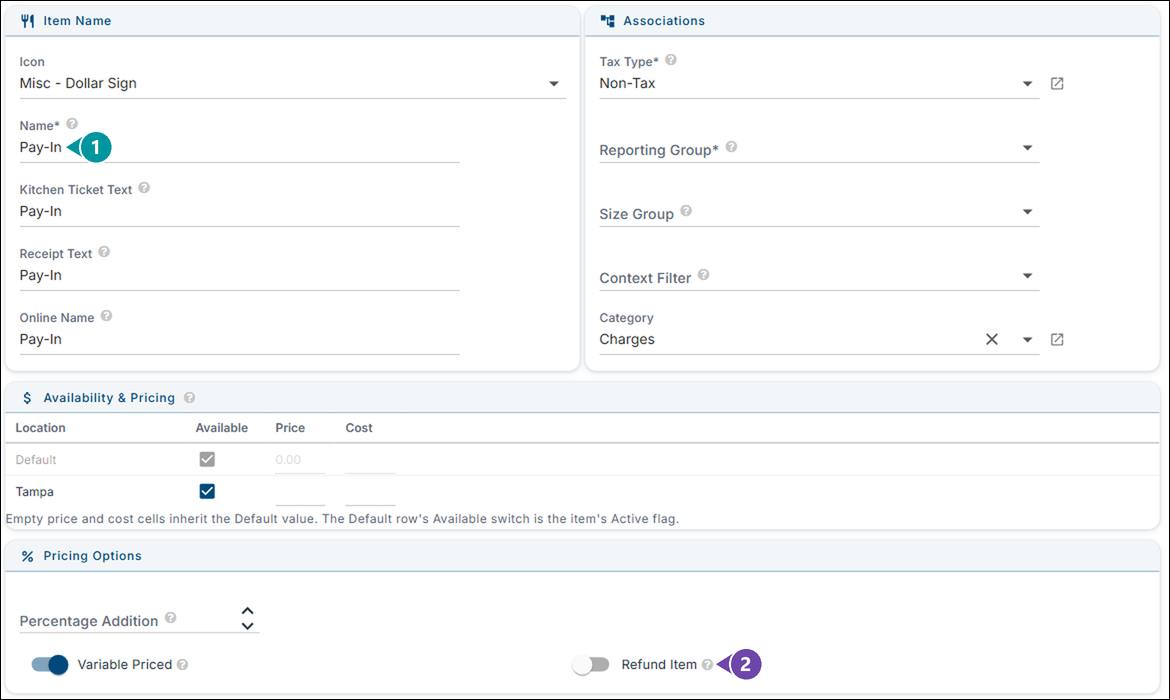
Fill in the General tab the same way as the Pay-Out item, with two differences.
-
Name: Pay-In.
-
Leave Refund Item off. This is what makes the item a pay-in.
-
-
Click Terminal & Behavior and set the Item Type to Payout (pay-ins use the Payout type too). Then click Save.
Choose who can use the buttons
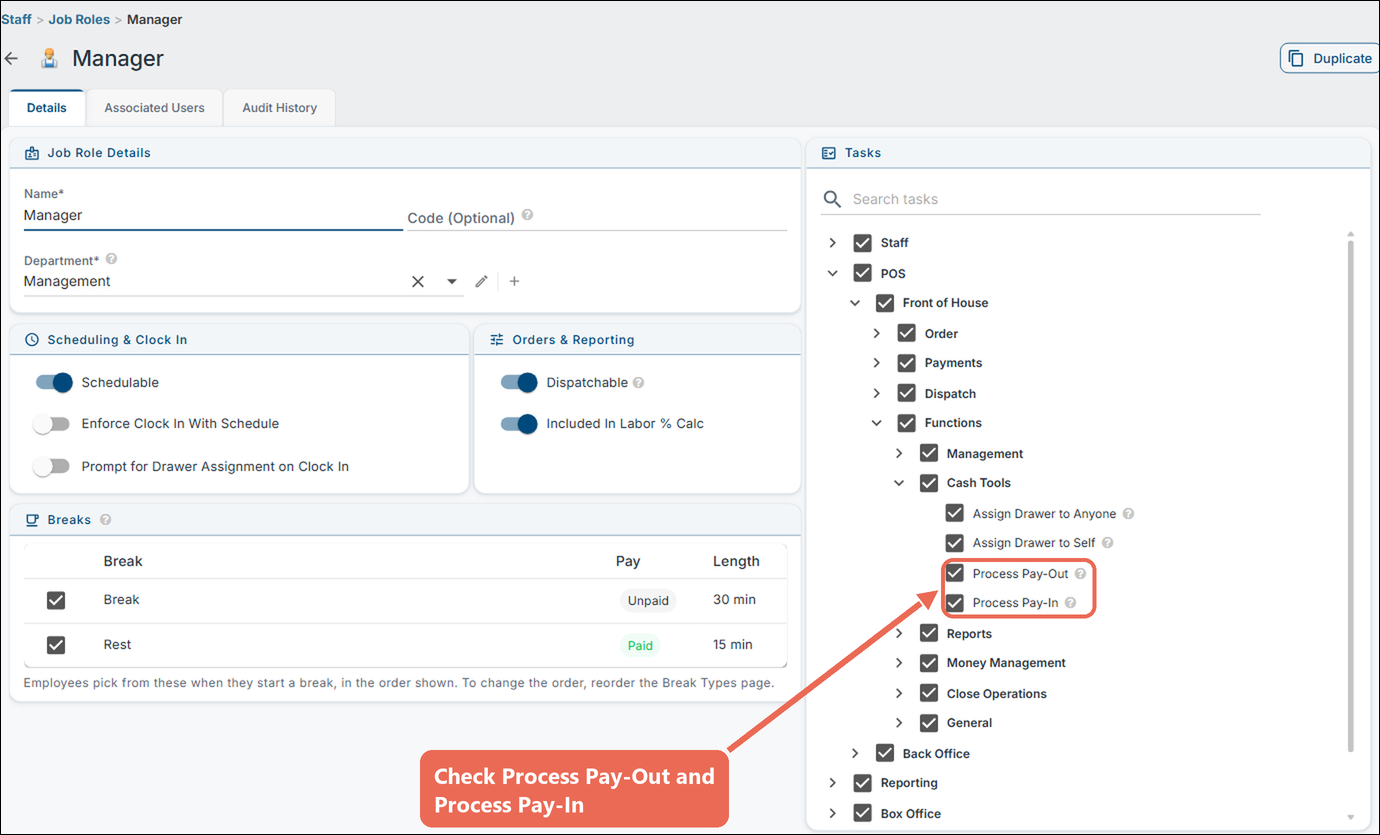
Only employees whose job role has these tasks see the Pay-Out and Pay-In buttons on the terminal. Go to Staff --> Job Roles and open the job role. Under Tasks, open POS --> Front of House --> Functions --> Cash Tools, check Process Pay-Out and Process Pay-In, and click Save.
Where the buttons are on the terminal
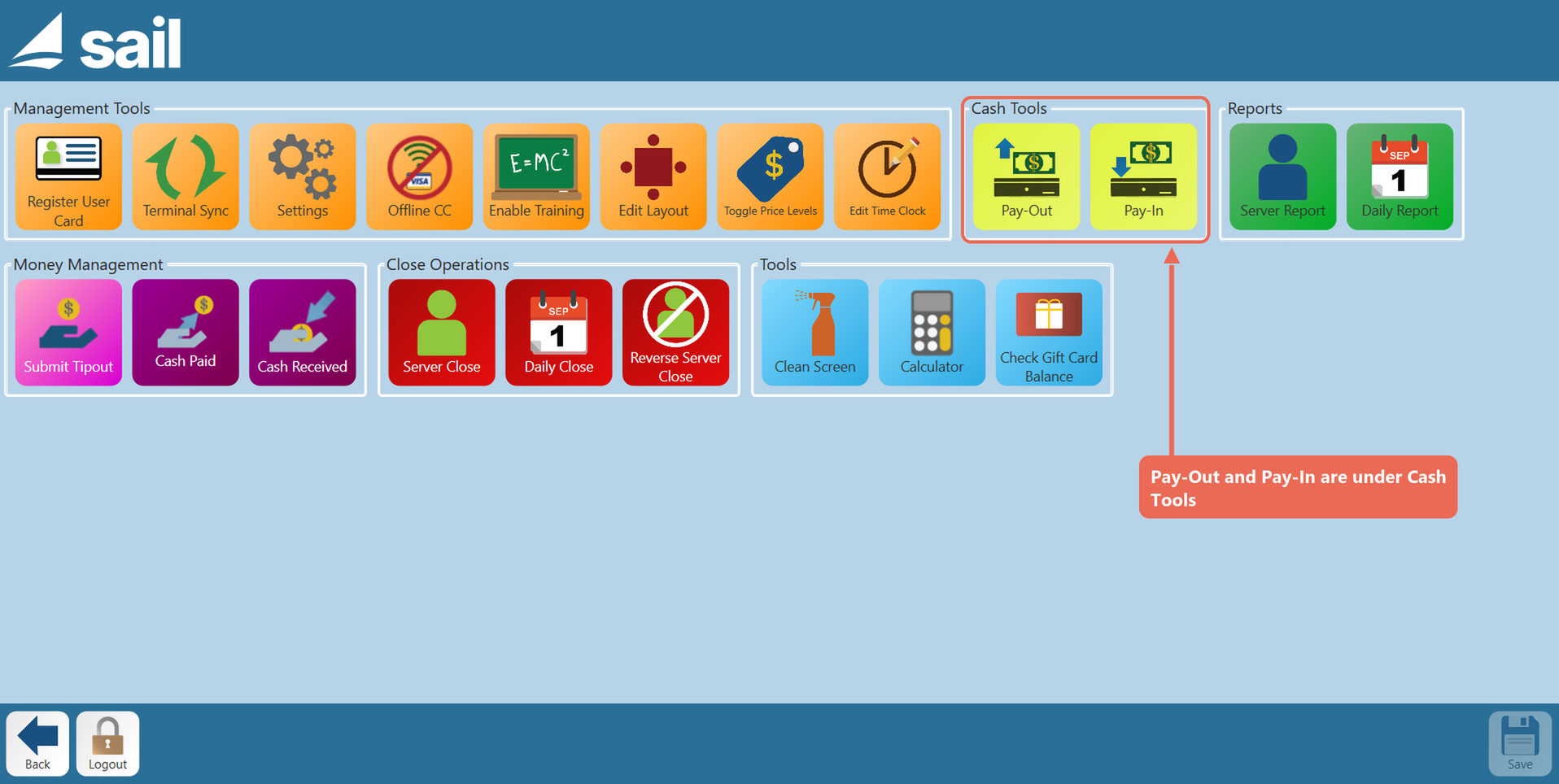
The Pay-Out and Pay-In buttons are on the Functions screen, under Cash Tools.
Pro tip: You can make more than one pay-out item, for example one for vendors and one for supplies. When there is more than one, the terminal asks which one to use.
No Comments