
How to set up a kitchen printer collection
This document will walk you through setting up a kitchen printer collection: a group of prep printers that an item's ticket prints on all at once.
Normally an item prints on one prep printer. When the same item needs to print in more than one place - for example a combo that the Grill, Fry and Pizza stations all work on - put those printers in a collection and send the item to the collection. Every printer in the collection prints the ticket. In Backoffice these are called Prep Printer Collections.
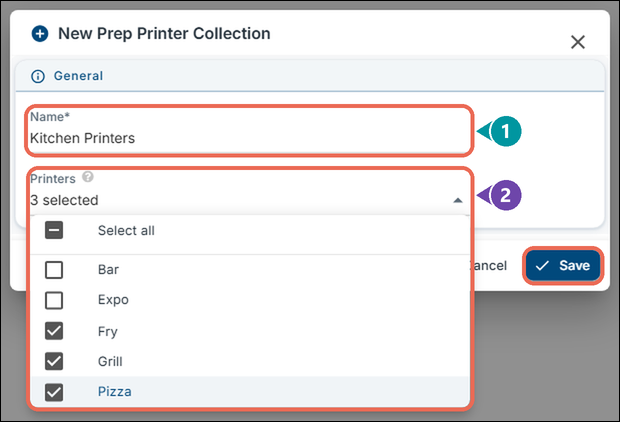
In this example we make a collection called Kitchen Printers with the Fry, Grill and Pizza printers.
Permissions you need
- Prep Printers (POS --> Back Office --> System Setup --> Devices) to set up the collection.
- Manage Items - All (POS --> Back Office --> Items) to send an item to it.
Before you start
A collection is made of prep printers that are already set up for the location. Navigate to Backoffice --> POS --> System Setup --> Devices --> Prep Printers: click POS at the top, then System Setup, Devices and Prep Printers in the menu on the left. The Prep Printers tab lists the location's printers. Check that every printer you want in the collection is there.
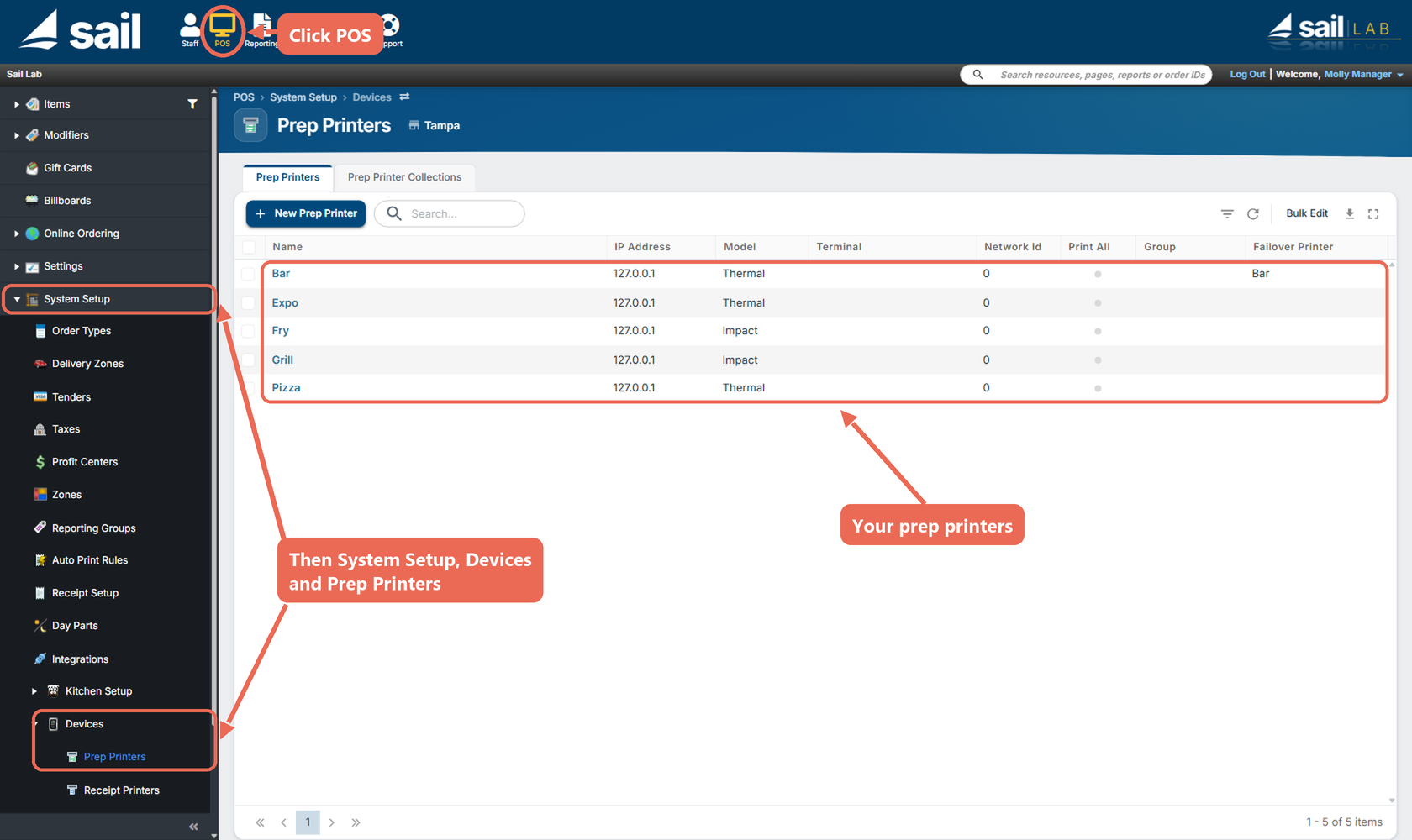
Note: Printers and collections are kept per location. A multi-store customer picks the location next to the page title and sets up each location's collections there.
How to create a printer collection
-
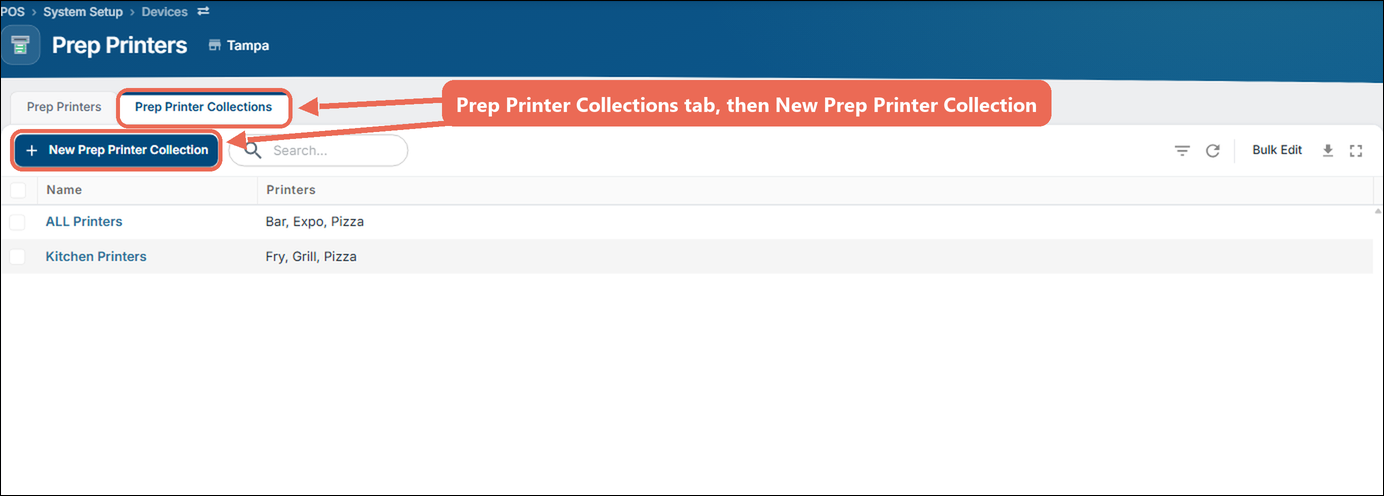
On the Prep Printers page, click the Prep Printer Collections tab, then New Prep Printer Collection.
-
Fill in the new collection:
-
Name (1): Required. A name that says where the tickets go, for example Kitchen Printers.
-
Printers (2): Click the list and check each printer the ticket should print on. Select all checks every printer at the location.
-
-
Click Save. The collection shows in the list with its printers.
How to send an item to the collection
-
Open the item in Backoffice --> POS --> Items.
-
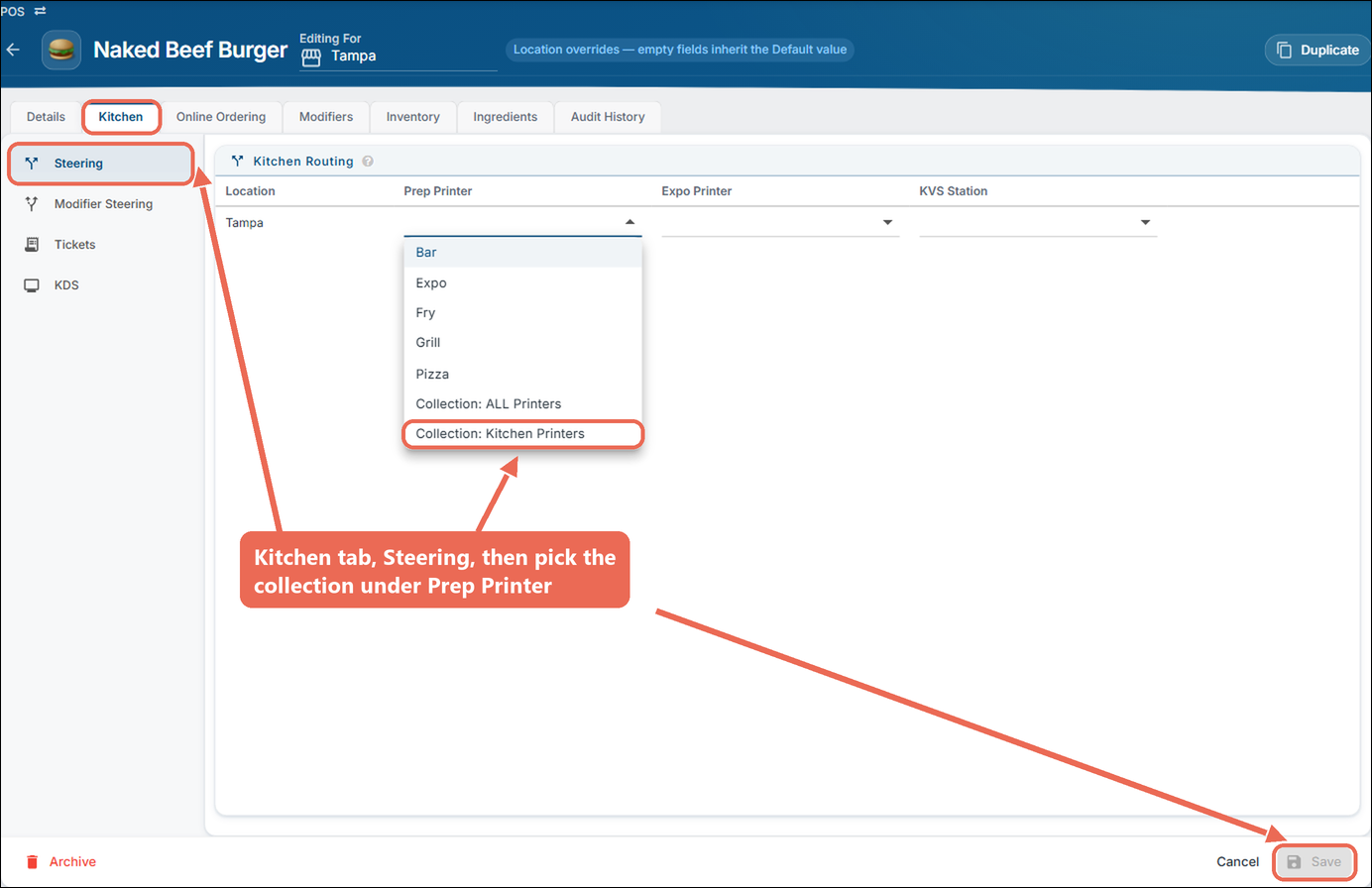
Click the Kitchen tab, then Steering.
-
Under Kitchen Routing, click the Prep Printer box for the location. Collections are at the bottom of the list, starting with "Collection:". Pick your collection (for example, Collection: Kitchen Printers).
-
Click Save.
The next time the item is sent from a terminal, its ticket prints on every printer in the collection.
Click here to learn more about the item's Kitchen tab
How to change or remove a printer collection
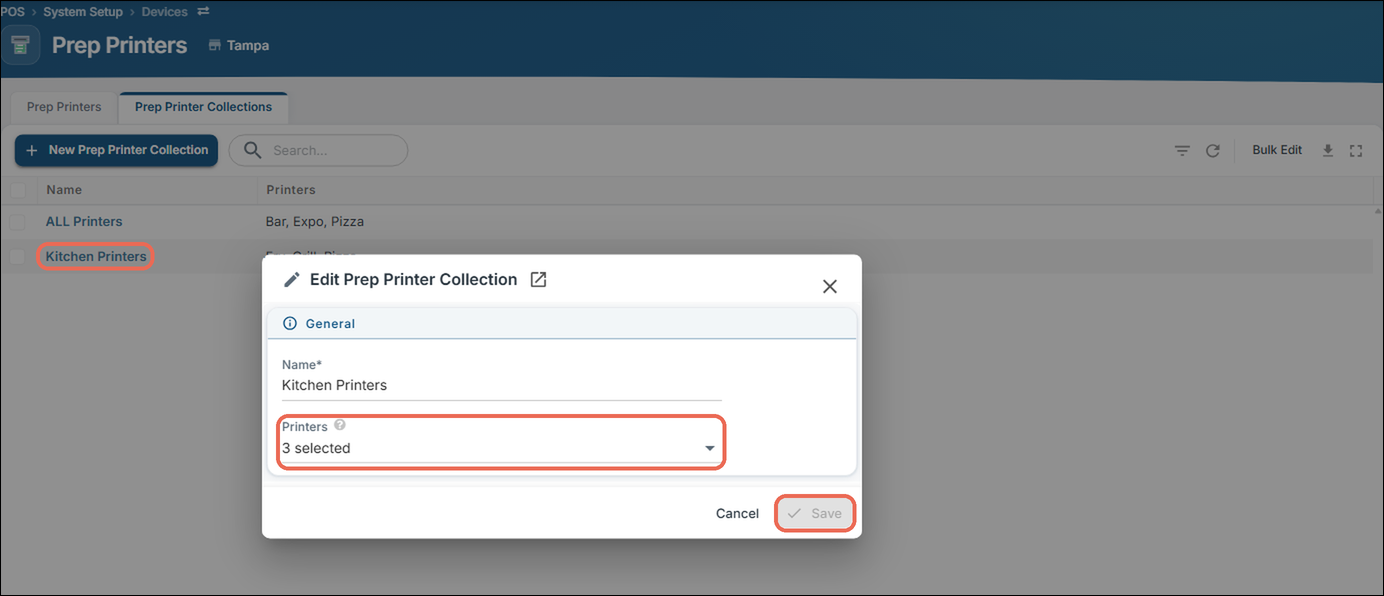
To change a collection, click its name on the Prep Printer Collections tab. Change the Name or the Printers, then click Save. Items that use the collection print on the new set of printers from then on.
To remove a collection, check the box next to it, then click Delete Selected.
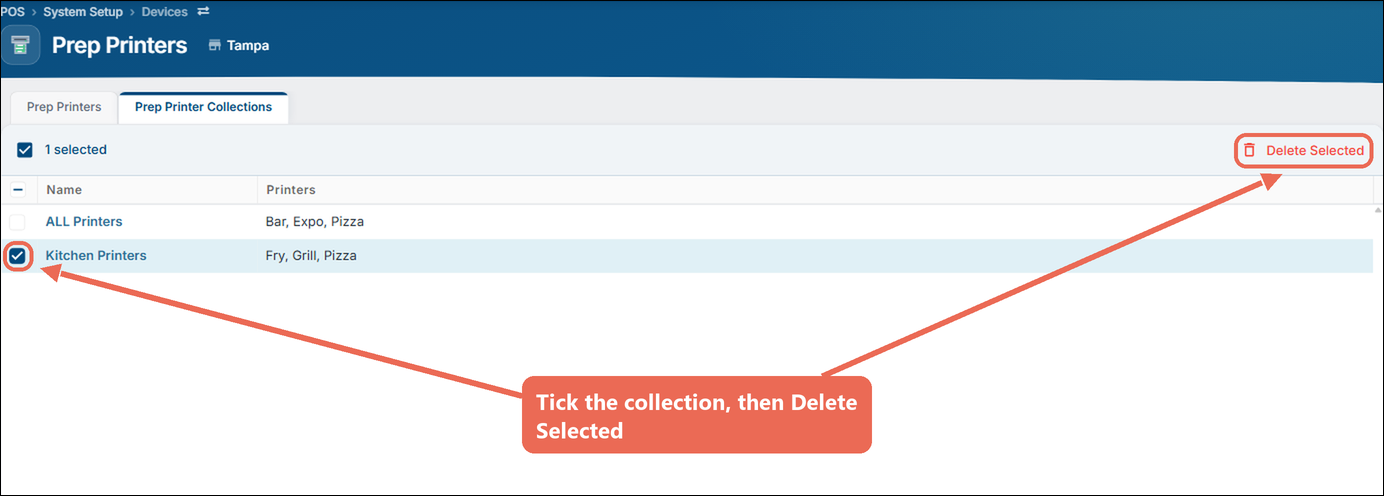
A collection that items or ticket routing rules still use can't be deleted. Backoffice says how many use it. Pick another prep printer on those items and rules first, then delete the collection.
Good to know
- The Expo Printer on an item can't be a collection - pick one printer there.
- Ticket routing rules (Backoffice --> POS --> System Setup --> Kitchen Setup --> Ticket Routing Rules) can also send tickets to a collection.
- If you delete a prep printer, it's taken out of its collections by itself.
No Comments