
How to create Job Role Departments
This document will walk you through creating and managing Job Role Departments in Backoffice.
A department is a group of job roles that work in the same area, for example Front of House (Server, Host, Bartender), Back of House (Cook, Dishwasher) and Management. Every job role belongs to one department. Your departments are shared by all of your locations.
Permissions you need
To add, rename or delete departments, your job role needs the Manage Departments task (Staff). Without it, the Departments tab doesn't show.
Add a department
-
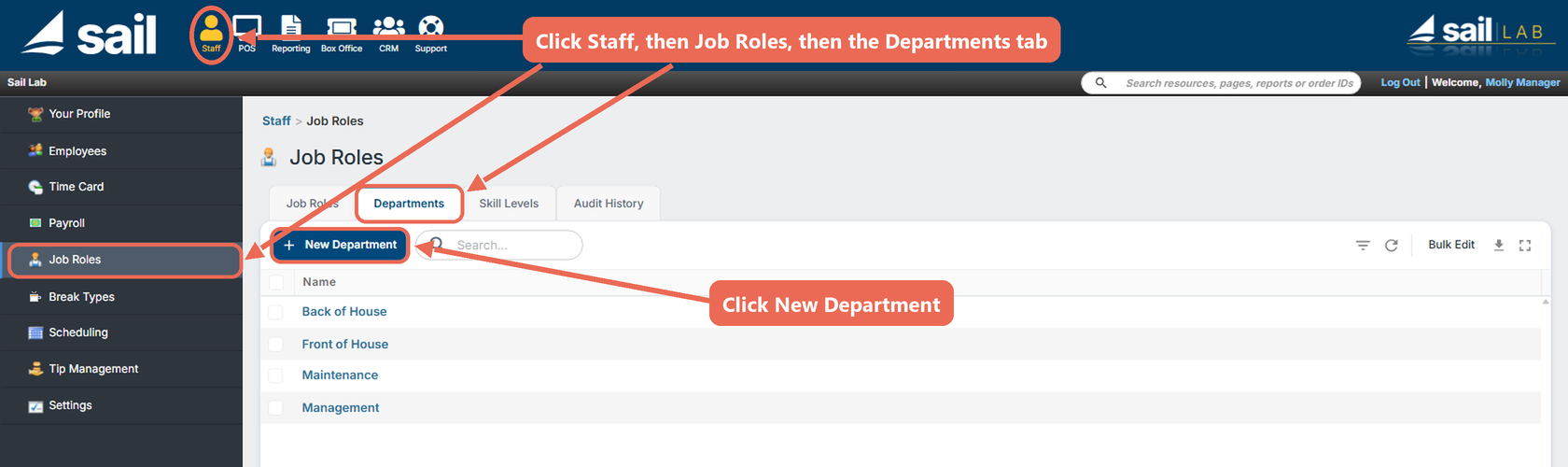
Navigate to Backoffice --> Staff --> Job Roles: click Staff at the top, then Job Roles in the menu on the left.
-
Click the Departments tab. It lists the departments you already have.
-
Click New Department.
-
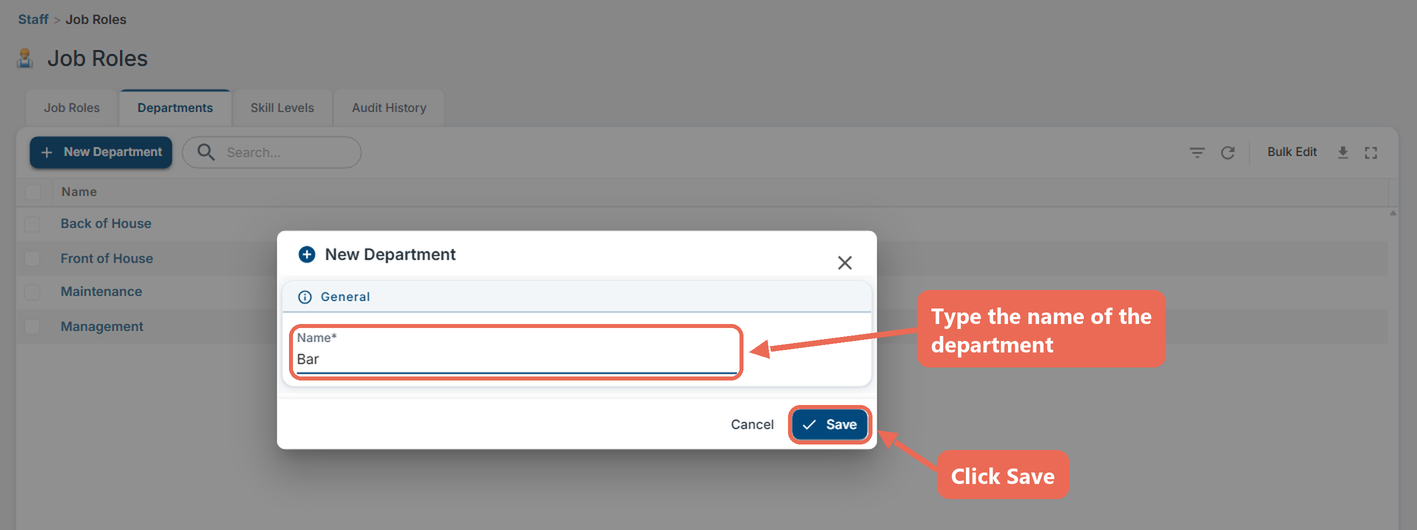
Type the name of the department, for example Bar, and click Save. The new department shows in the list.
Rename a department
-
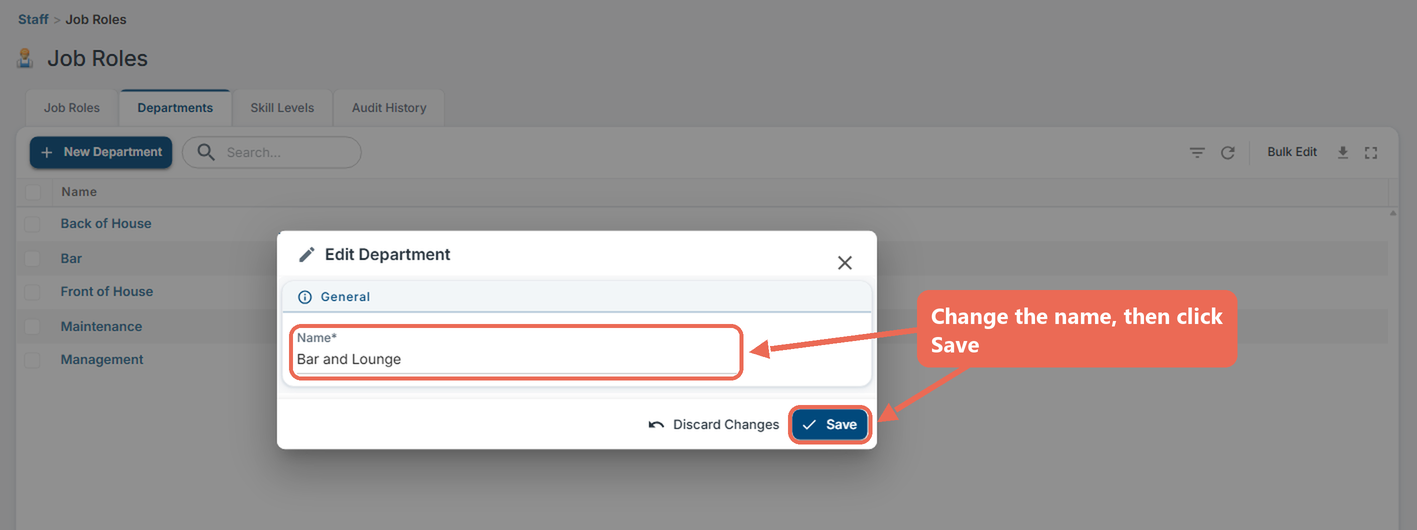
On the Departments tab, click the name of the department.
-
Change the name and click Save. The job roles in the department stay in it.
Put a job role in a department
-
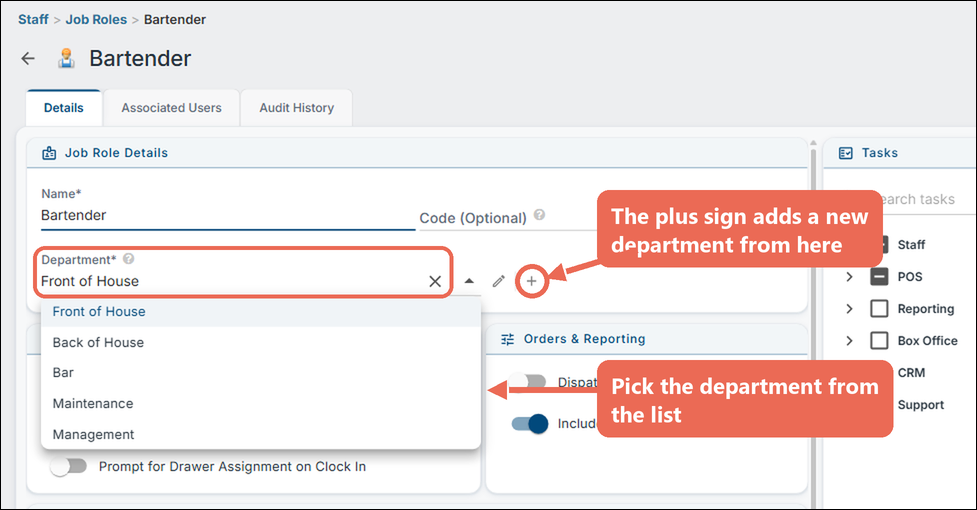
Click the Job Roles tab, then the name of the job role.
-
Pick the department in the Department box. If the department you need isn't there yet, click the plus sign next to the box to add it without leaving the job role.
-
Click Save.
Click here to learn more about creating and editing job roles.
Delete a department
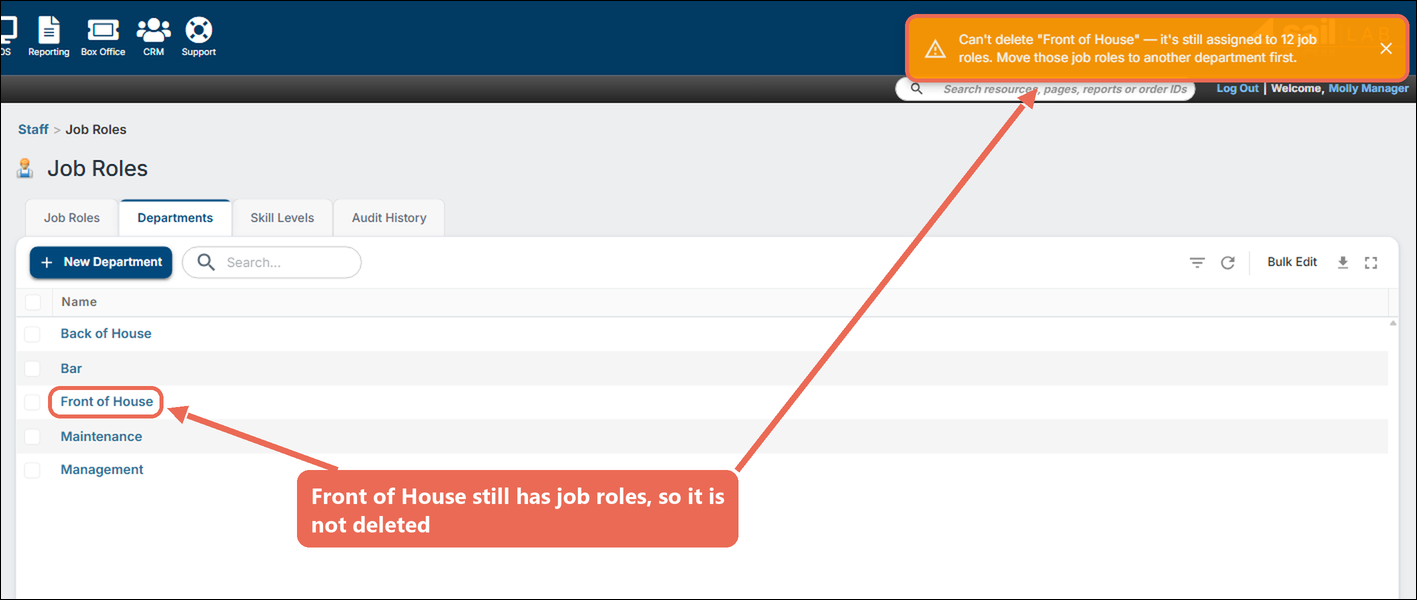
You can only delete a department that no job role uses, including inactive job roles. Move its job roles to another department first (see above).
-
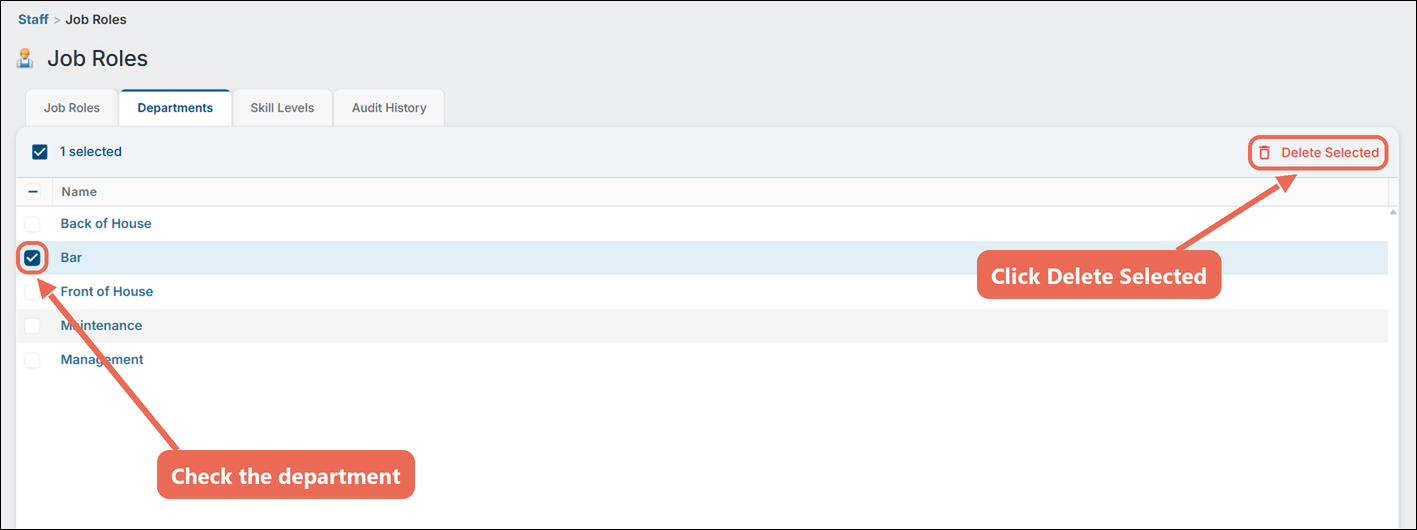
On the Departments tab, check the box next to the department, then click Delete Selected at the top right.
-
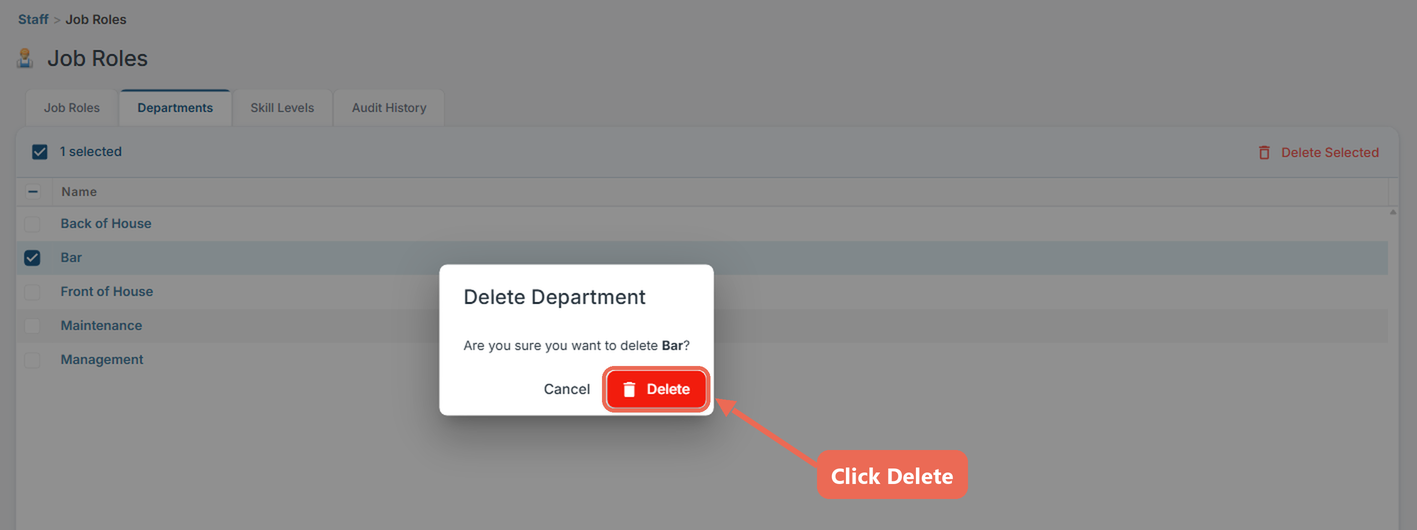
Click Delete to confirm.
If job roles still use the department, it isn't deleted. A message at the top right tells you how many job roles use it.
Good to know
- If you use Ingage Scheduling, your departments and the job roles in them are sent to it.
- Some labor and payroll reports, such as the Payroll Summary and Time Card reports, can be filtered by department.
No Comments