
Sail POS: Reset a forgotten Backoffice password
Summary. Walks through the self-service password reset flow for Sail Backoffice, plus what to do if the reset email never shows up.
Applies to. Sail POS - all current versions. Covers Backoffice login only (not terminal/POS login).
Before you start
- Confirm the caller has logged into Backoffice before and knows the email or username tied to that account. Backoffice logins are usually limited to owners/managers, since those are the accounts that typically have an email on file.
- If the caller has never had a Backoffice login, or isn't sure one exists for them, that's a different issue - Backoffice logins can only be created by support or by someone who already has an existing Backoffice login, so this isn't self-service. Skip to "When you must call" below.
Reset the password
- Go to backoffice.sailpos.com.
- Click "Forgot password?" on the login screen.
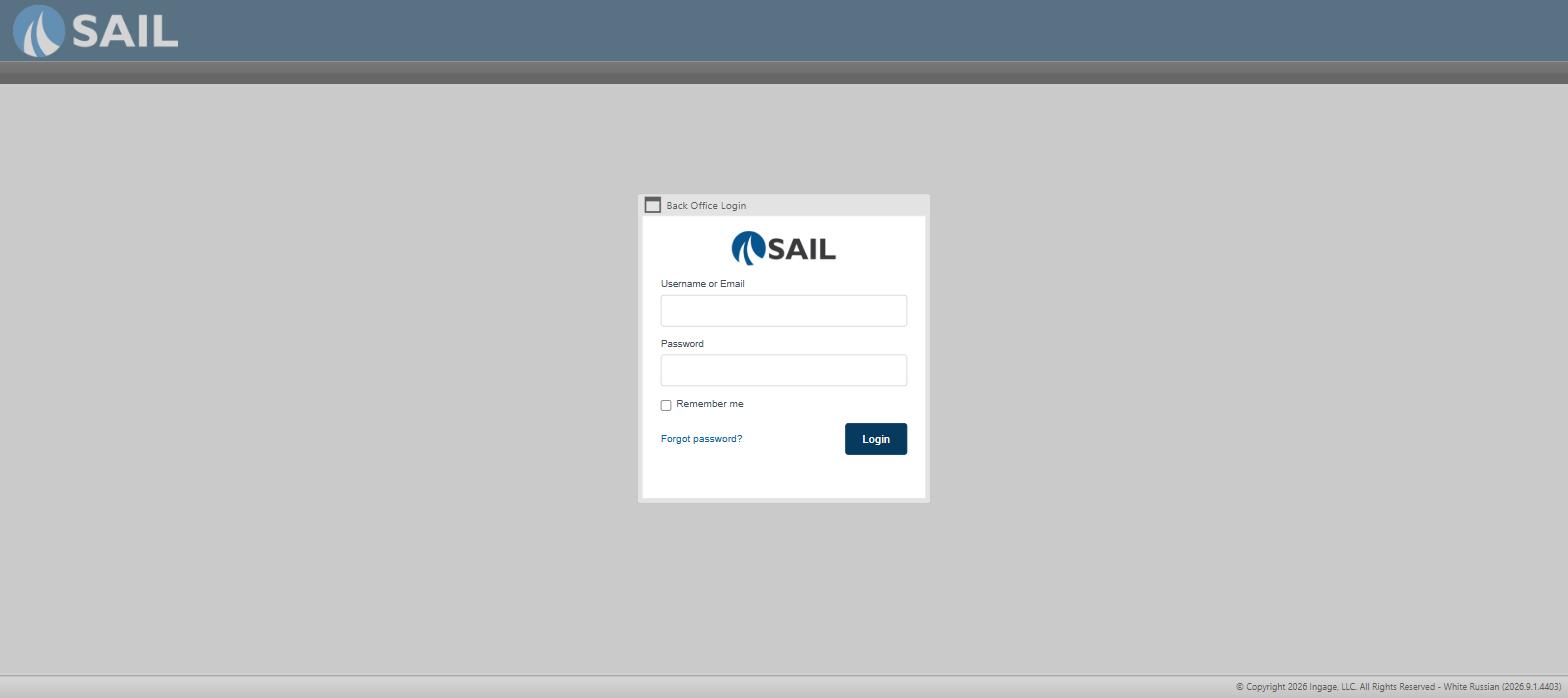
- Enter the username or email tied to the account.
- Click "Send reset link."
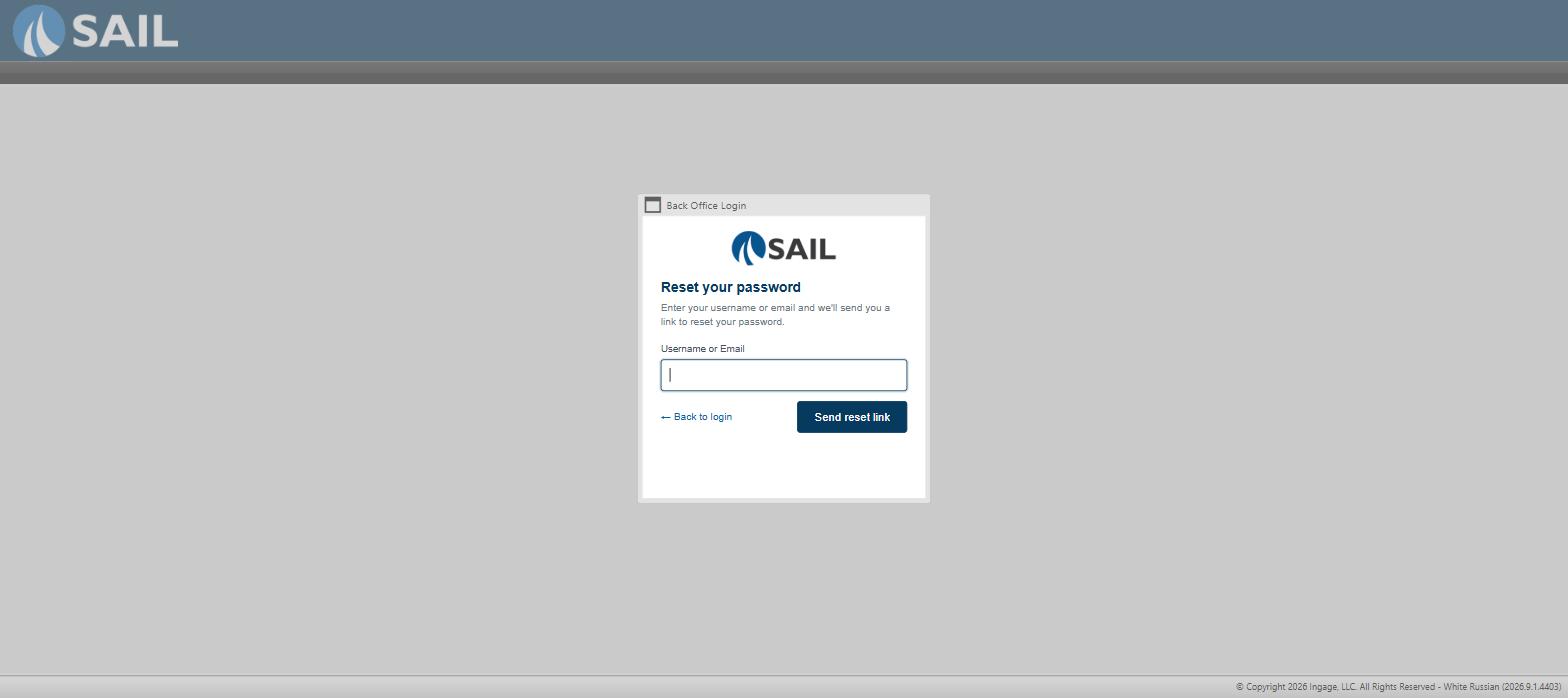
- Check email for the reset link - it usually arrives within a few minutes. If it doesn't show up right away, check spam/junk folders.
- Click the link in the email and set a new password.
Verify it worked: Log into Backoffice with the new password.
When you must call
If the reset email never arrives after checking spam, or the caller doesn't have a Backoffice login yet and needs one created.
No Comments