
How to share a custom report with your team
A custom report you build is saved in My Reports, where only you see it. To share it, publish it to Team Reports: everyone at your business who can see the report's data finds it there, and can run it, favorite it and schedule it. This will walk through sharing a custom report and taking it back.
Permissions you need
- Reporting --> Manage Team Custom Reports, to publish reports to Team Reports and to change, move or delete the reports and folders in it.
- Reporting --> Build Custom Reports, to build reports and to take one back to My Reports.
People who only run Team reports need neither: a Team report is listed for anyone who can see its data in the regular reports.
Click here to learn more about giving a job role these tasks.
Sharing a report with your team
- Click Reporting at the top, then Reports and Custom Reports, and open My Reports.
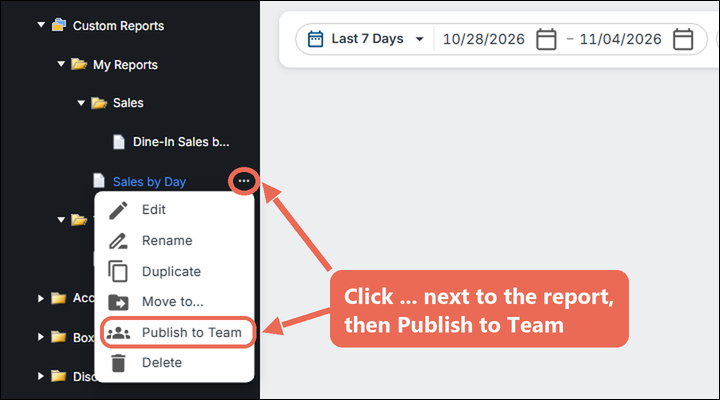
- Click the ... next to the report, then Publish to Team.
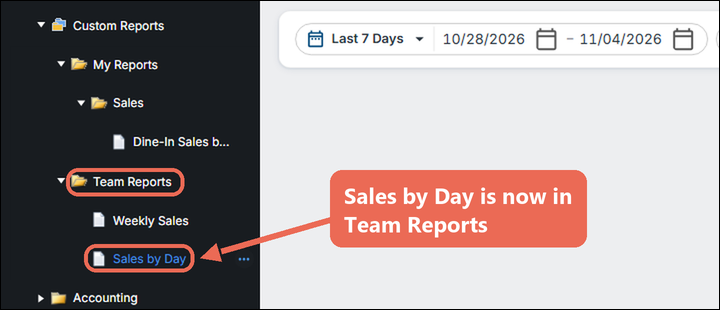
The report moves to Team Reports:
To save a new report straight to the team, pick Team Reports when you save it.
Who sees a Team report
- Everyone at your business who can see the data the report uses, in every field it shows or filters on.
- A report with pay or tip numbers is listed only for people with access to the payroll reports. Someone who can't see one of its fields doesn't see the report at all, rather than a report with columns missing.
Taking a report back to My Reports
- Click the ... next to the report in Team Reports, then Move to My Reports.
- Click Move to My Reports to confirm.
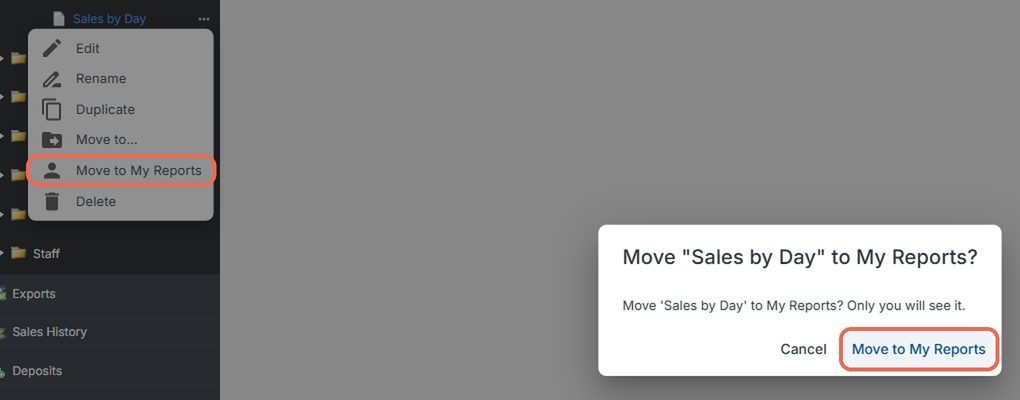
Note: Only you will see the report after that. If other people had favorited or scheduled it, the question tells you how many, and their favorites and schedules are removed.
Click here to learn more about organizing custom reports in folders.
No Comments