
Example of putting an order on their customer account in Backoffice and Reporting
This document will show you what it looks like when a customer puts their bill on their customer account to pay for at a later date.
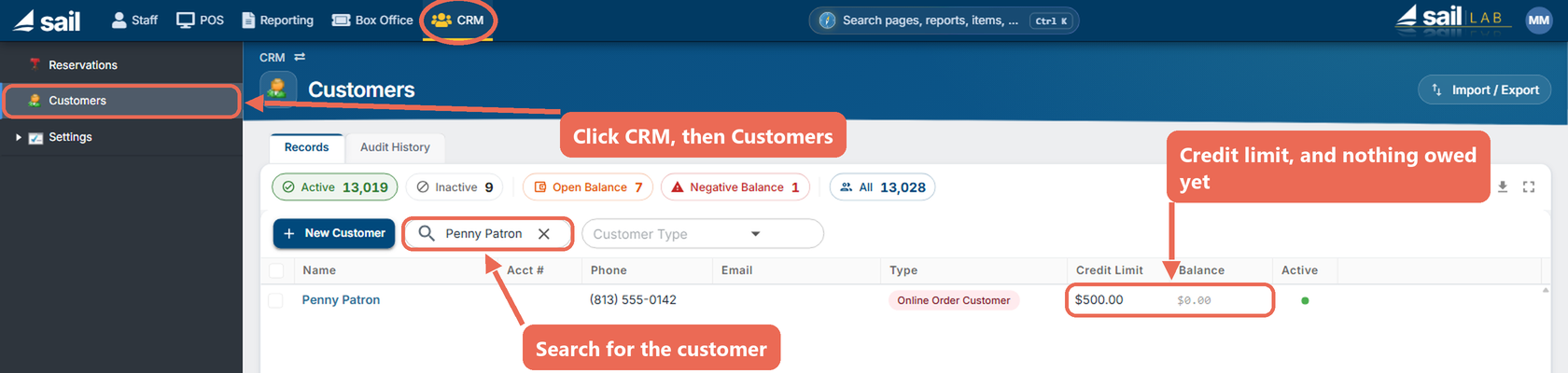
Backoffice --> CRM --> Customers
Search for the customer you are looking for
You will notice that Penny Patron has a credit limit of $500
This will allow her to spend up to $500 before the system stops her.
On the Terminal
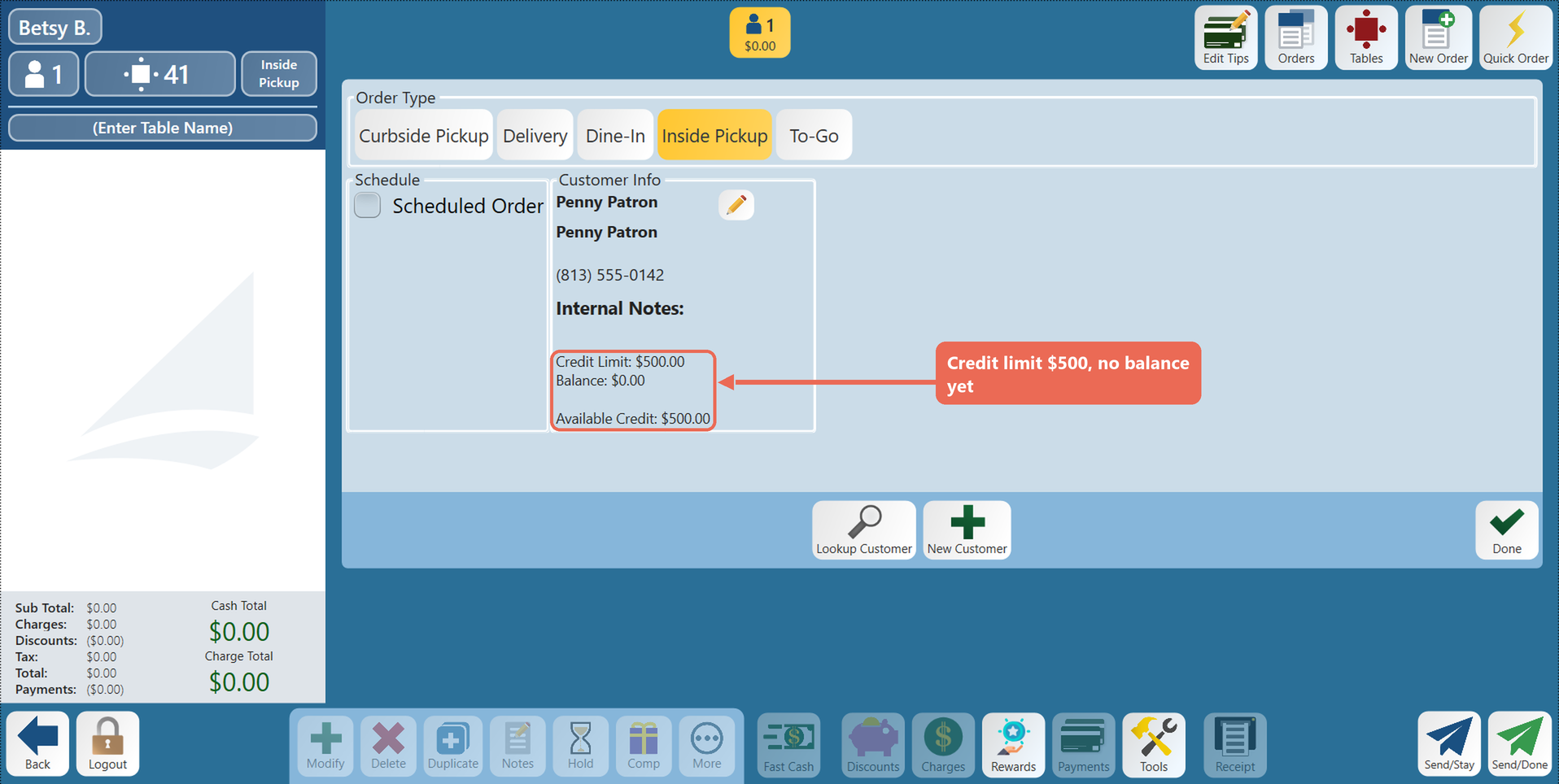
Look up the customer and attach them to the order. Click here to learn how to attach a customer to an order.
You will see that Penny Patron has a credit limit of $500 and no balance as of right now.
Ring in all the items for their event (as long as it's not over $500)
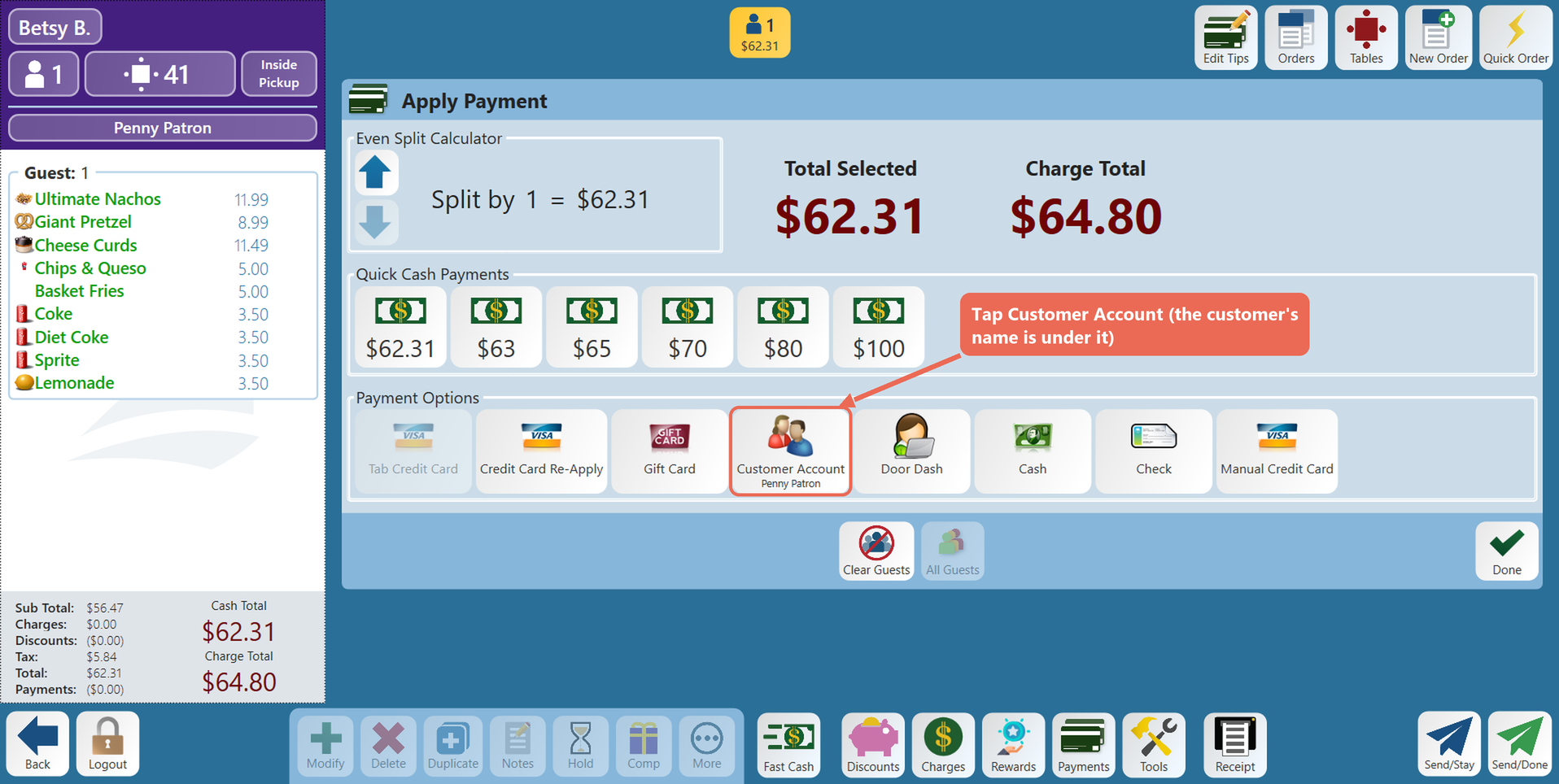
Then go to the payment screen and use the "Customer Account" payment option to pay for this order (your store may call it "Customer Payment"). The customer's name shows under it.
This will put the full balance on the account and not expect you to collect any money for it at this time
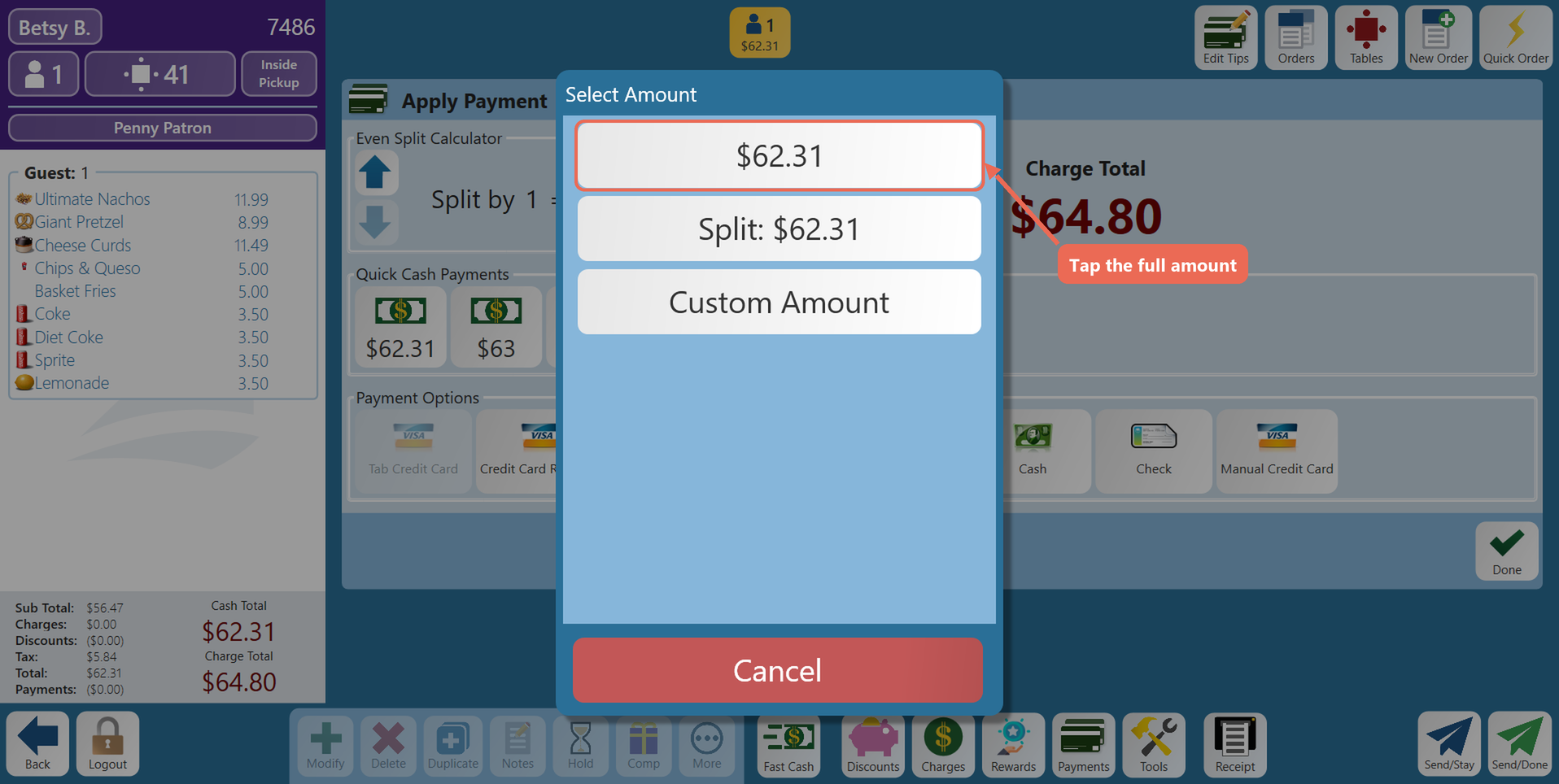
Tap the full amount of the order
When you go back to Backoffice and look up the customer, you will see that Penny now has a balance of $62.31
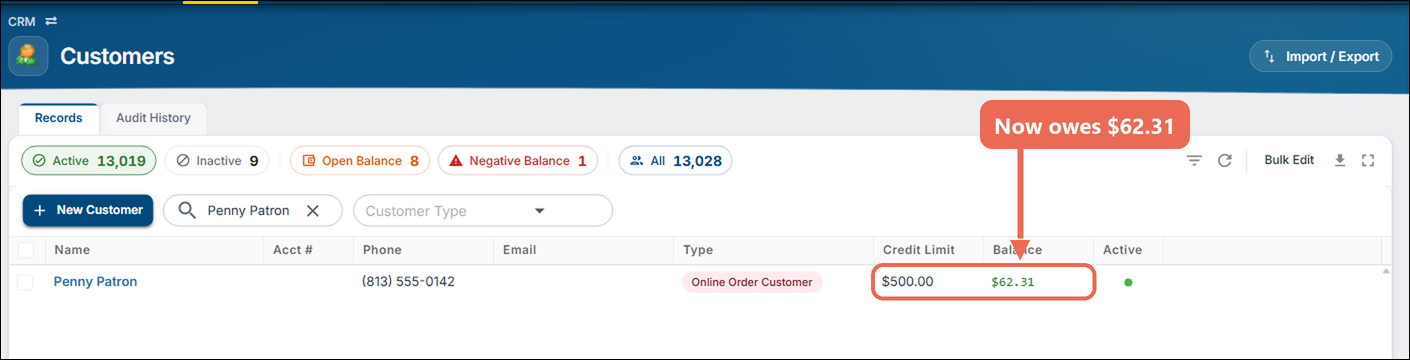
You can click on Penny's name to see more details.
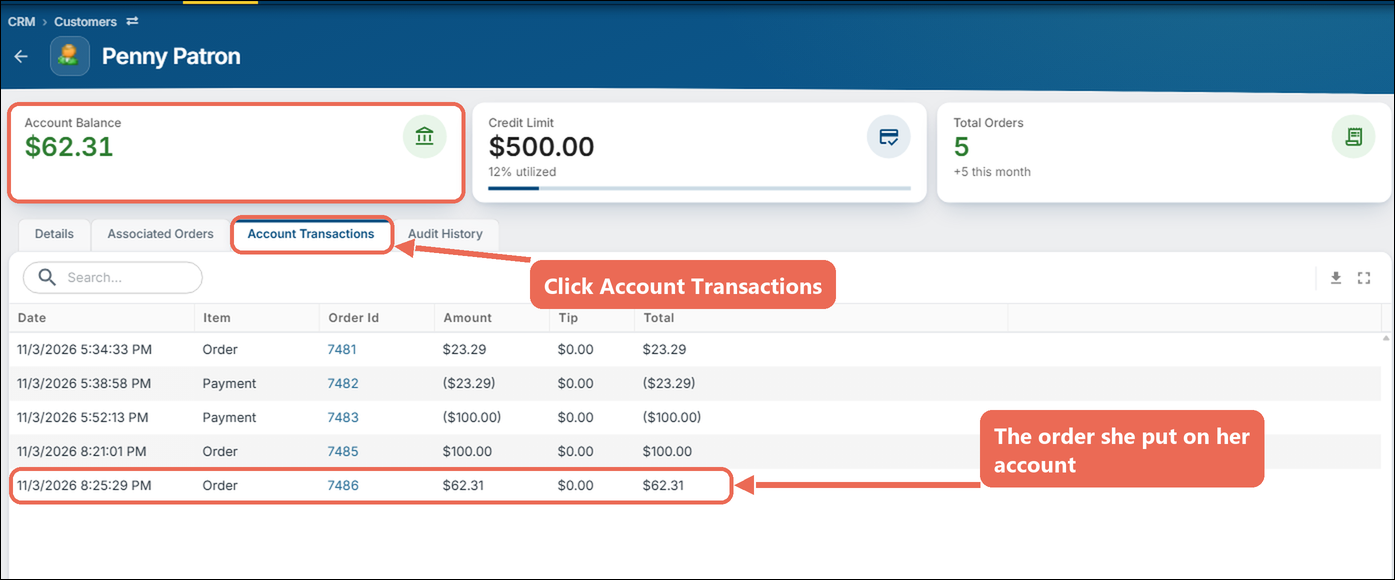
On the "Account Transactions" tab you can see the order for the $62.31. Her Account Balance shows at the top.
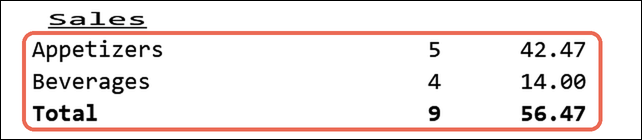
Here is what that looks like on the server's report (on the terminal: Functions --> Server Report):
You will notice that all the food and drinks rung in are in the Sales section.
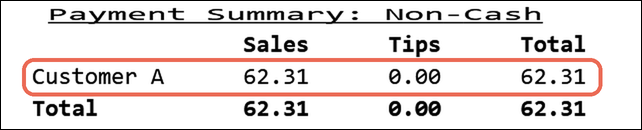
And the payment is in the "Payment Summary: Non-Cash" section and says "Customer Account" (the printed report shortens it to "Customer A")
This is because they used the account AS THE TENDER
No Comments