
How to set up the Online Ordering Order Tracker
The Order Tracker lets guests who order online follow their order as the store works on it: from Order Received to ready, or out for delivery. This document will walk you through turning it on in Backoffice and choosing which order types show it.
Once it's on, guests see the tracker in three places: on the order complete page after they order, in their confirmation email (with a Track Your Order button), and on a live tracker page that moves on by itself.
Click here to learn more about what guests see on the Order Tracker and what moves each step.
Before you start
- The site needs online ordering hours. Only the order types the site offers online, with hours on its Schedule tab, are listed on the Order Tracker tab. A site with no hours yet shows "This site has no order types available online with hours yet."
- The steps a guest sees depend on two switches on each order type (Backoffice --> POS --> System Setup --> Order Types):
- Is Dispatchable: the order is delivered, so the tracker ends with Out for Delivery (click here to learn more about Delivery & Dispatch)
- Specify Vehicle Type: the order is picked up curbside, so its ready step reads Ready for Curbside
- To show when the kitchen starts and finishes an order, the location needs Kitchen Video with an active Expo station. Without one, guests see Order Received, and Out for Delivery for delivery orders. (Click here to learn more about setting up Kitchen Video)
Turning on the Order Tracker
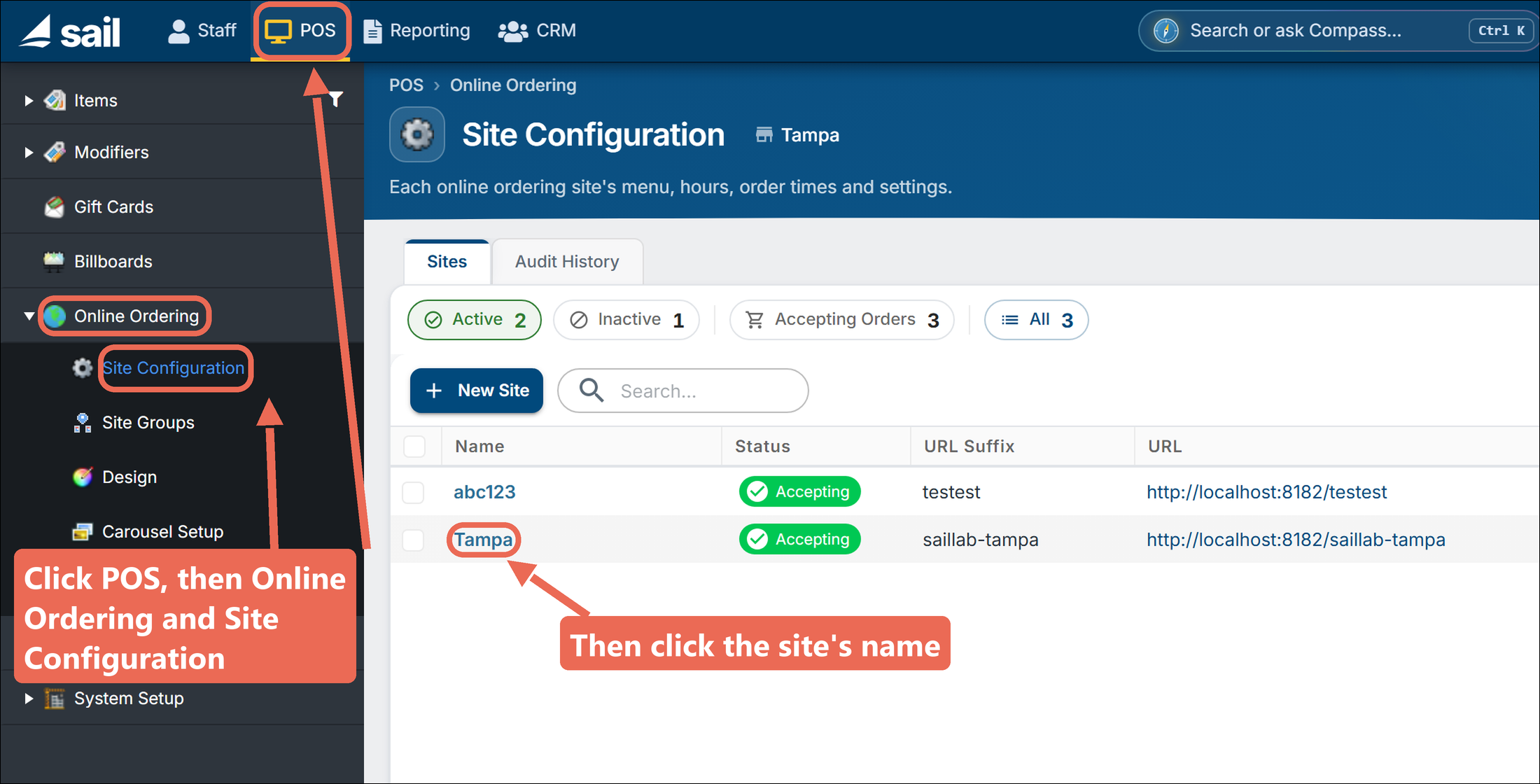
Click POS at the top, then Online Ordering and Site Configuration, and click the site's name
Click the Configuration tab, then Order Tracker
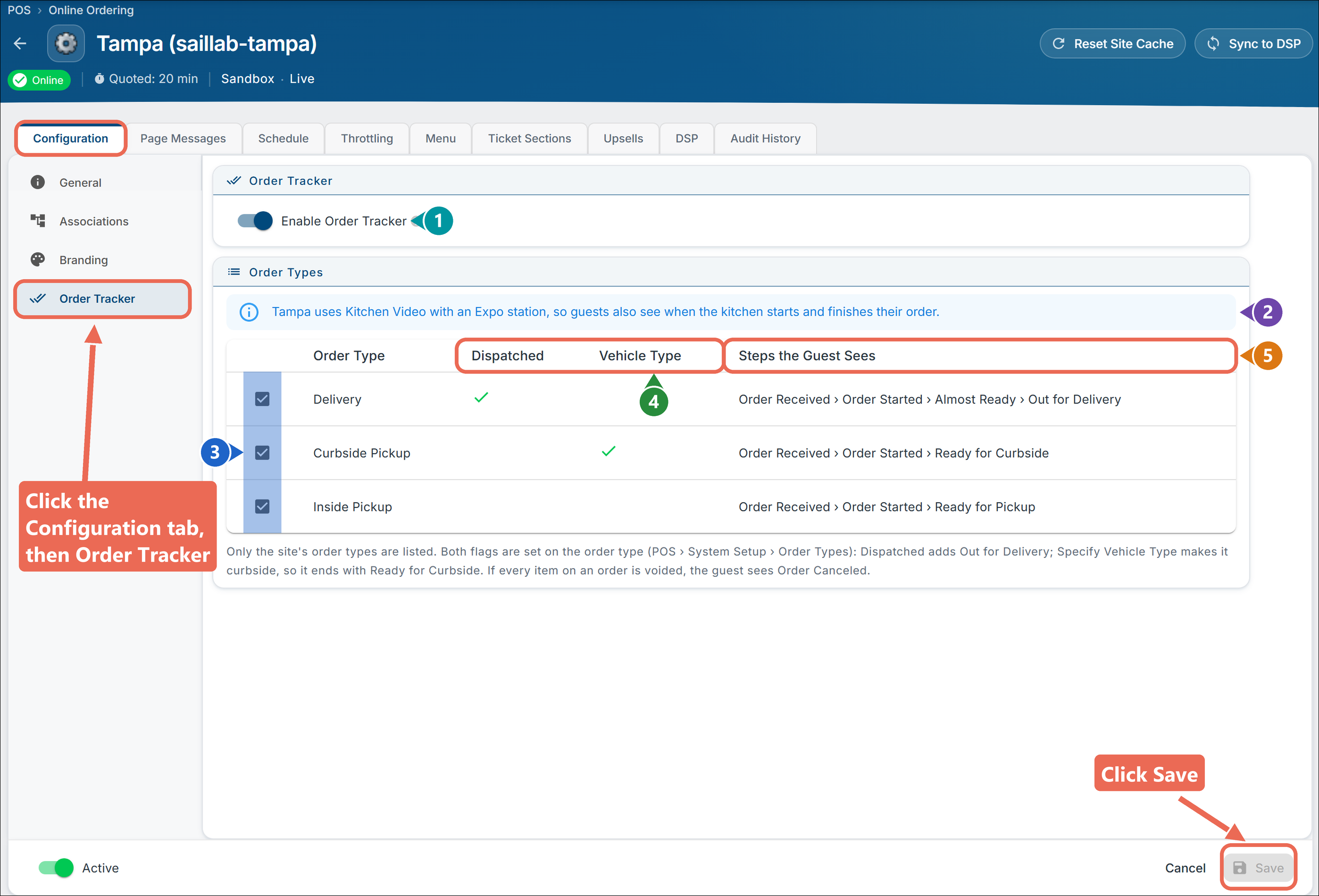
- Enable Order Tracker: Turn it on to show the tracker to guests. The first time you turn it on, every order type in the list is ticked for you.
- The note says whether the location has Kitchen Video with an Expo station, and so whether guests also see when the kitchen starts and finishes their order.
- Tick each order type that should show the tracker. Guests who order with an order type that isn't ticked don't see a tracker.
- Dispatched and Vehicle Type: A check mark shows the order type has Is Dispatchable or Specify Vehicle Type turned on. These are changed on the order type, not here.
- Steps the Guest Sees: The steps the tracker shows for that order type, in order.
Click Save
Note: Changes to the Order Tracker, who made them and when, are kept on the site's Audit History tab.
The steps
| Step | When the guest sees it | Which orders |
| Order Received | As soon as the order is placed | Every order |
| Order Started | When a cook clicks Fire on one of the order's items on a Kitchen Video station | Locations with a Kitchen Video Expo station |
| Ready for Pickup Ready for Curbside Almost Ready |
When Expo bumps the order. Ready for Curbside is for order types with Specify Vehicle Type, and Almost Ready for delivery order types | Locations with a Kitchen Video Expo station |
| Out for Delivery | When a driver is assigned to the order on the Dispatch screen | Order types with Is Dispatchable |
| Order Canceled | When every item on the order is voided | Every order |
No Comments