
How to change modifier prices
This will walk through changing a modifier's price, its price in a modifier set (an override price), and its price for each size.
Changing a modifier price
Locate the Modifier item you want to update the price of: click POS at the top, then Modifiers and Modifier Items in the menu on the left, the modifier's category, and the modifier
Enter in the new price of the modifier in the Default row
Click Save
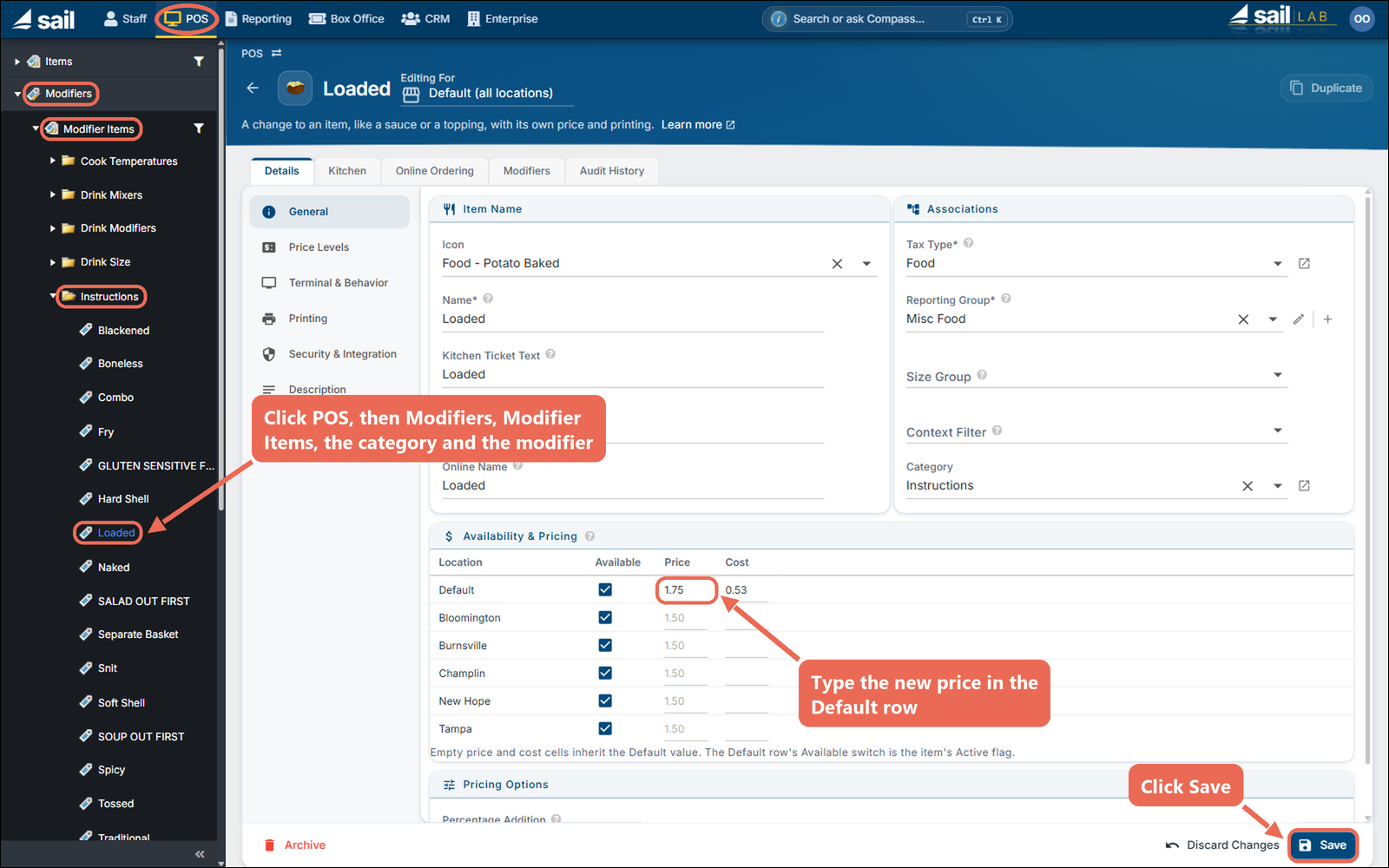
Note: If the modifier is in a modifier set with a price override, this change won’t affect that override price.
Note: If you have more than one location, each location has its own row under Default. A location left blank uses the Default price; type a price in a location's row to give that location its own price.
Changing a modifier price with an override price
In the modifier item
Click the Modifiers tab, then Associated Sets
If there’s a price override, a value will appear in the Price Adjustment column.

To change the override price
Click on the modifier set that’s associated with the override price

Click the Price Matrix tab
Change the override price
Click Save
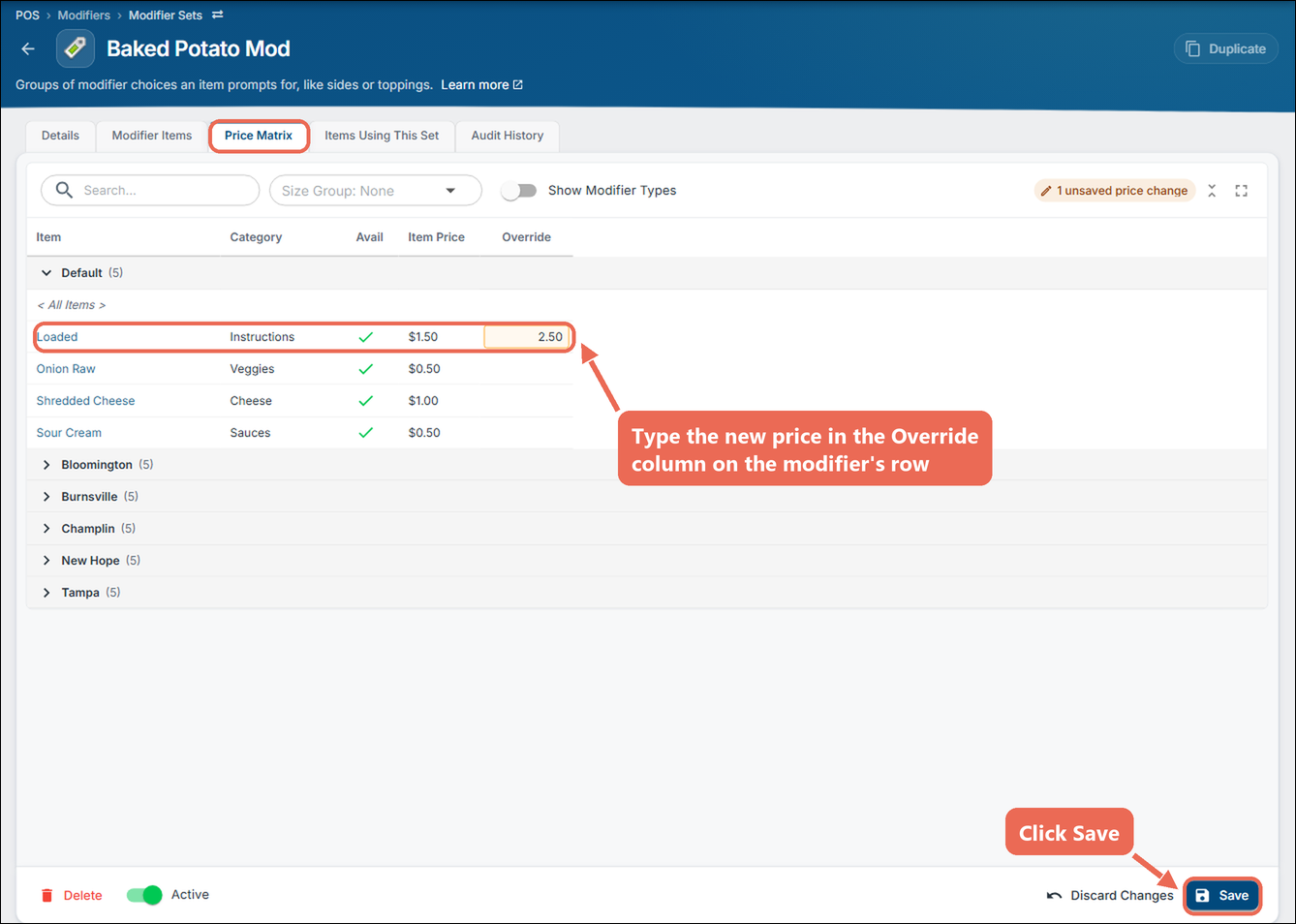
Note: A price in the < All Items > row is the override price for every modifier in the set; a price on a modifier's own row is used instead of it. If you have more than one location, open a location's group under Default to give that location its own override price.
Changing a modifier price with an override price and a size group
Usually this is only for pizza toppings and drink items
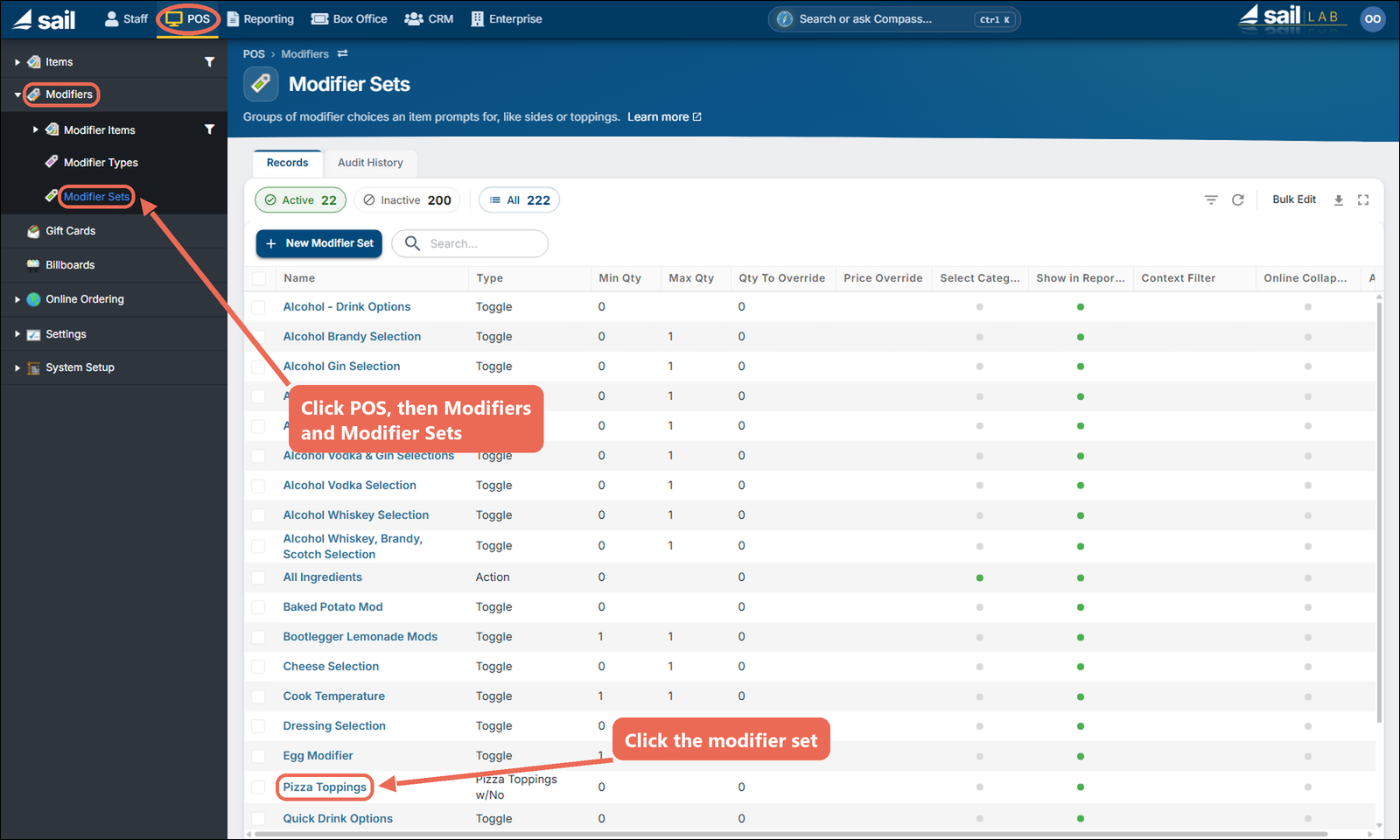
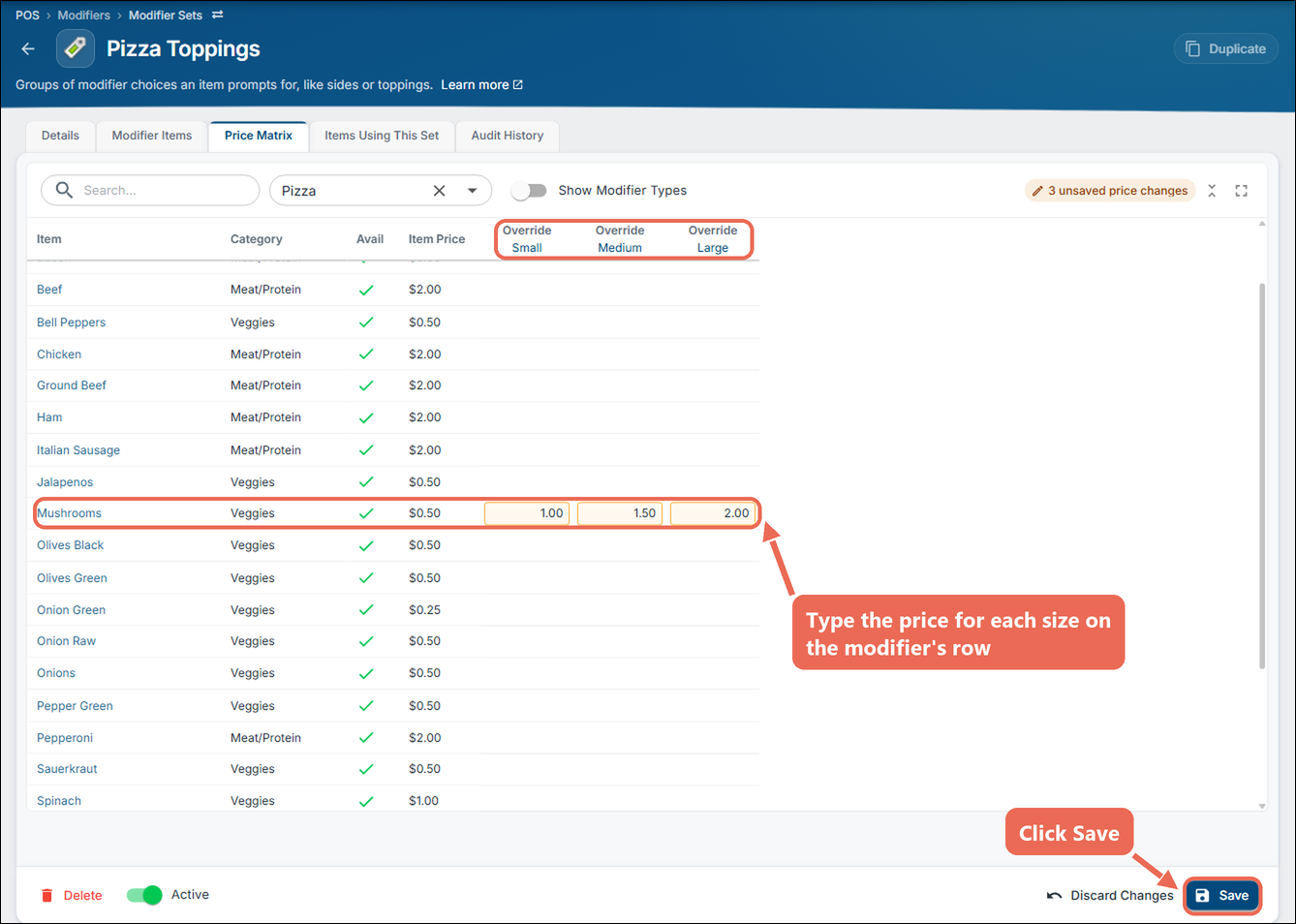
Locate the Modifier Set that has the modifier item that needs the price change: click POS at the top, then Modifiers and Modifier Sets, and click the modifier set (you can also open it from the modifier item's Associated Sets, as above)
Click the Price Matrix tab
Click the Size Group box
Choose the size group of the items the modifier goes on (Pizza for pizza toppings)
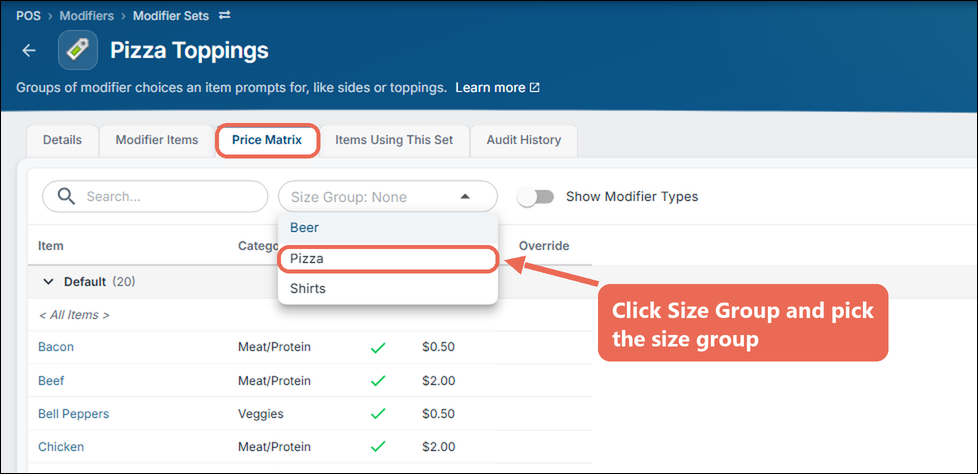
Change the override price of each size
Click Save
Note: A size left blank uses the < All Items > price for that size if there is one. If not, it uses the override price without a size group (above), or the modifier's own price if there is no override.
No Comments