
Staff Settings
This document will walk you through the Staff Settings page in Backoffice: when your staff can clock in, what they must finish before they clock out, how tips are handled, and your payroll settings.
Note: These settings are for one location. If you have more than one location, pick the location at the top of the page, next to Staff Settings, and set each location - they can be different at every location.
Permissions you need
To open and change Staff Settings, your job role needs the Manage Staff Settings task (Staff).
Get to Staff Settings
-
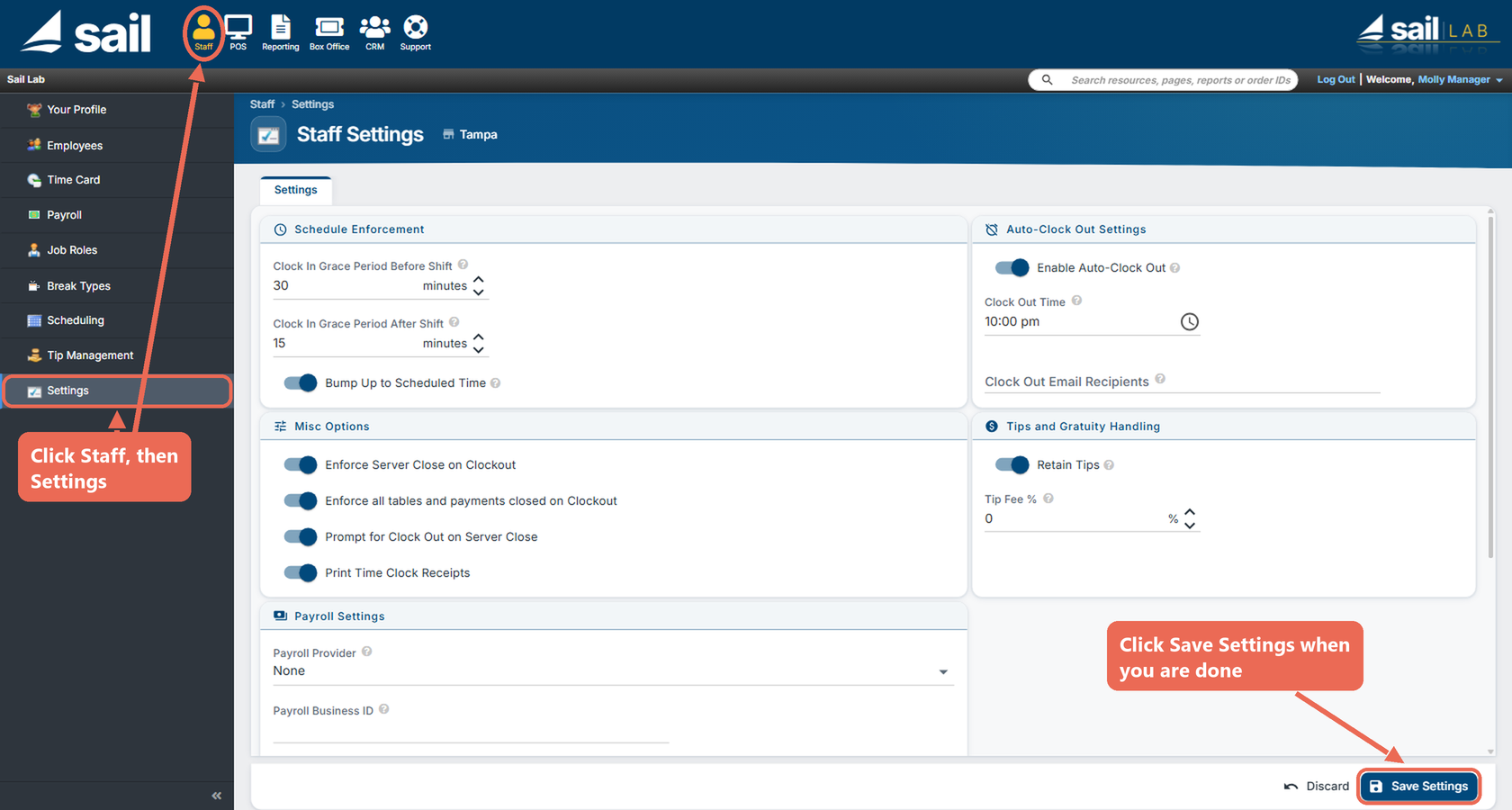
Navigate to Backoffice --> Staff --> Settings: click Staff at the top, then Settings in the menu on the left.
-
Change the settings you need (each box is explained below).
-
Click Save Settings at the bottom right of the page. It turns blue once you've changed something. Nothing is kept until you click it; Discard puts everything back the way it was.
Pro tip: Hover over the ? next to a setting to see what it does.
Schedule Enforcement
These settings only apply to job roles that have Enforce Clock In With Schedule turned on. Employees in those job roles can only clock in close to the start of a scheduled shift; otherwise a manager has to override.
-
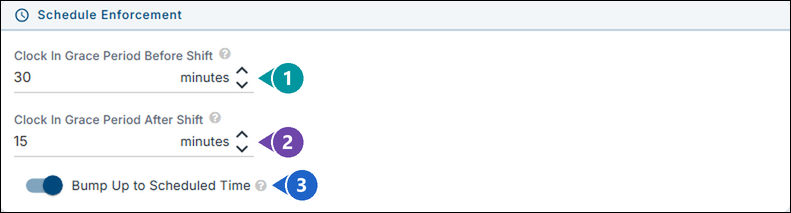
Clock In Grace Period Before Shift: how many minutes before their scheduled start an employee can clock in on their own.
-
Clock In Grace Period After Shift: how many minutes after their scheduled start an employee can still clock in on their own. Anyone later needs a manager.
-
Bump Up to Scheduled Time: decides what happens when an employee clocks in early, within the grace period before their shift.
- Off: they're clocked in right away, at the time they clocked in. Their time card starts early, so they're paid for the extra minutes.
- On: the terminal tells them when their shift starts and asks if they'd like to clock in at that time. Yes clocks them in at their scheduled start time, so their time card starts then, not early. No doesn't clock them in; they can clock in again closer to their shift.
Example: Sally Server is scheduled at 5:00 pm, with 30 minutes before and 15 minutes after, so she can clock in from 4:30 pm to 5:15 pm. She clocks in at 4:45 pm:
- With Bump Up to Scheduled Time off, she's clocked in at 4:45 pm and paid from 4:45 pm.
- With Bump Up to Scheduled Time on, the terminal says "You are not scheduled to start until 5:00 PM, would you like to clock in at that time?" If she taps Yes, she's clocked in at 5:00 pm and paid from 5:00 pm, even though she clocked in at 4:45 pm.
Auto-Clock Out Settings
Auto clock out clocks out every employee who is still clocked in at a set time each day.
-
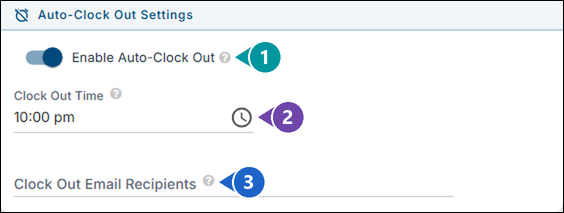
Enable Auto-Clock Out: turns auto clock out on.
-
Clock Out Time: the time employees are clocked out.
-
Clock Out Email Recipients: who gets an email listing the employees who were auto clocked out.
Click here to learn more about setting up auto clock out.
Clock out options
The Misc Options box decides what an employee must finish before they can clock out on a terminal.
-
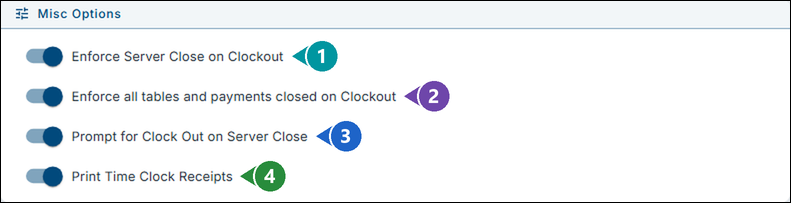
Enforce Server Close on Clockout: an employee can't clock out until they've run a server close for their orders of the day. The terminal says "You must run a server close before clocking out".
-
Enforce all tables and payments closed on Clockout: an employee can't clock out while they have an open table that isn't paid, or a credit card payment with no tip entered yet.
-
Prompt for Clock Out on Server Close: after an employee runs their server close, the terminal asks if they'd like to clock out.
-
Print Time Clock Receipts: a receipt prints when an employee clocks in and when they clock out, on terminals and handhelds.
Tips and Gratuity Handling
-
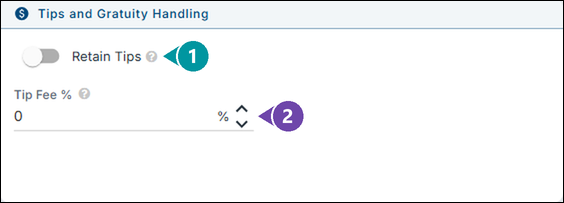
Retain Tips: credit card, house account and gift card tips, and charged gratuities, are kept by the house and paid to the employee through payroll, instead of being paid out of the drawer at server close.
-
Tip Fee %: the tip refund. This percentage is taken off employees' credit card tips on their server close, to cover the card fees. Enter 0 for no fee.
Example: with a Tip Fee of 3%, Sally Server's $50.00 in credit card tips pays out $48.50 at her server close.
Payroll Settings
-
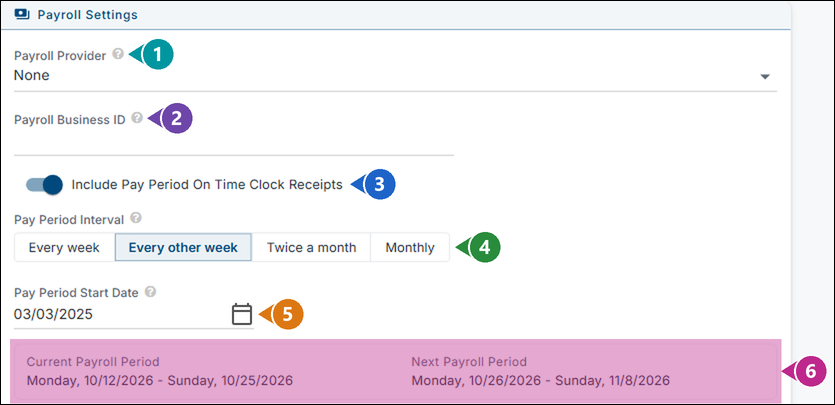
Payroll Provider: where your payroll goes when you process a pay period. Choose None to keep using the Payroll Download export only.
-
Payroll Business ID: the business ID your payroll provider gave you. It's included on payroll exports.
-
Include Pay Period On Time Clock Receipts: the clock out receipt also lists the employee's other shifts in this pay period. It only matters when Print Time Clock Receipts is on.
-
Pay Period Interval: how often you pay - every week, every other week, twice a month or monthly. With twice a month, pick the day the second pay period starts in 2nd Monthly Period Start Day.
-
Pay Period Start Date: the first day of any one pay period. Backoffice counts every pay period from it.
-
Current Payroll Period and Next Payroll Period: the dates Backoffice works out from your settings, so you can check they're right.
Minimum Wage and Overtime

-
Minimum Wage: when you save a new minimum wage, every job role rate below it at this location is raised to it.
-
Overtime Day of Week Start: the day your overtime week starts. Overtime is counted from this day each week.
Click here to learn more about editing minimum wage.
No Comments