
Understanding Tax Types
This will walk you through the four ways Sail can charge tax - Exclusive, Included In Price, Included If Quick Sale and Smart Tax - what each one means for the price your guest pays, and how to set each one up in Backoffice.
What a tax type is
A tax type is a group of items that are taxed the same way, such as Food, Liquor or Non-Tax. Every item has one tax type, and every tax type has, for each of your locations:
- Rate: the tax percentage, for example 7%.
- Details: how the tax is charged - one of the four choices below.
In the examples on this page, a Margarita costs $7.00 and the tax rate is 7%.
Exclusive
The tax is added on top of the price. The menu says $7.00, and the guest pays $7.00 + $0.49 tax = $7.49. This is how most restaurants charge tax on food.
Included In Price
The tax is already in the price. The menu says $7.00, and the guest pays $7.00: $6.54 is the sale and $0.46 is the tax. This is handy for drinks or tickets with an even price.
Included If Quick Sale
The tax is in the price only when the order is a quick sale: rung in and paid right away, without being saved first. If the order is saved (sent, or put on a table or tab) and paid later, the tax is added on top.
- Paid right away: the guest pays $7.00.
- Saved and paid later: the guest pays $7.49.
Use it at a bar where drinks paid on the spot have an even price, and drinks on a tab get the tax added.
Smart Tax
The tax is in the price only when every item on the order has its tax in the price. If the order also has an item whose tax is added on top (Exclusive), the tax is added on top for the Smart Tax items too, so the whole check is figured the same way.
- A Margarita on its own (or with other drinks that have tax in the price): the guest pays $7.00.
- A Margarita and a $10.00 burger (Food, Exclusive): the Margarita is $7.49 and the burger $10.70, so the guest pays $18.19.
Use it for drinks that should have an even price at the bar, but have the tax added on top when they are on a check with food.
The four side by side
| Details | Margarita, paid right away | Margarita, saved and paid later | Margarita and a $10.00 burger (Exclusive) |
|---|---|---|---|
| Exclusive | $7.49 | $7.49 | $18.19 |
| Included In Price | $7.00 | $7.00 | $17.70 |
| Included If Quick Sale | $7.00 | $7.49 | $17.70 paid right away, $18.19 saved first |
| Smart Tax | $7.00 | $7.00 | $18.19 |
How to set up a tax type
-
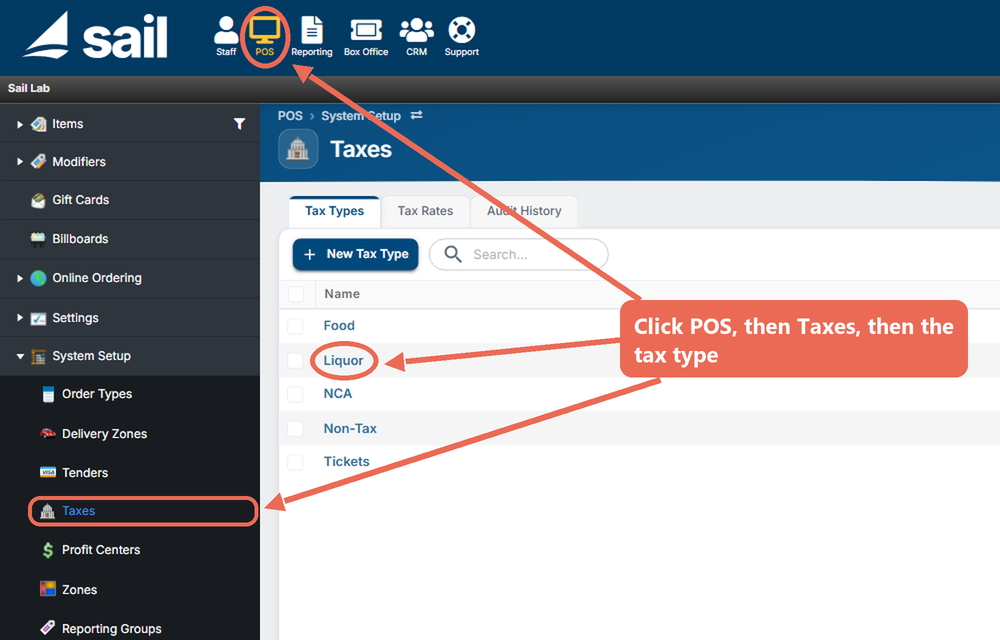
Navigate to Backoffice --> POS --> System Setup --> Taxes: click POS at the top, then Taxes in the menu on the left, and click the tax type you want to change. To make a new one, click New Tax Type instead.
-
In the Tax Rates box, find your location's row:
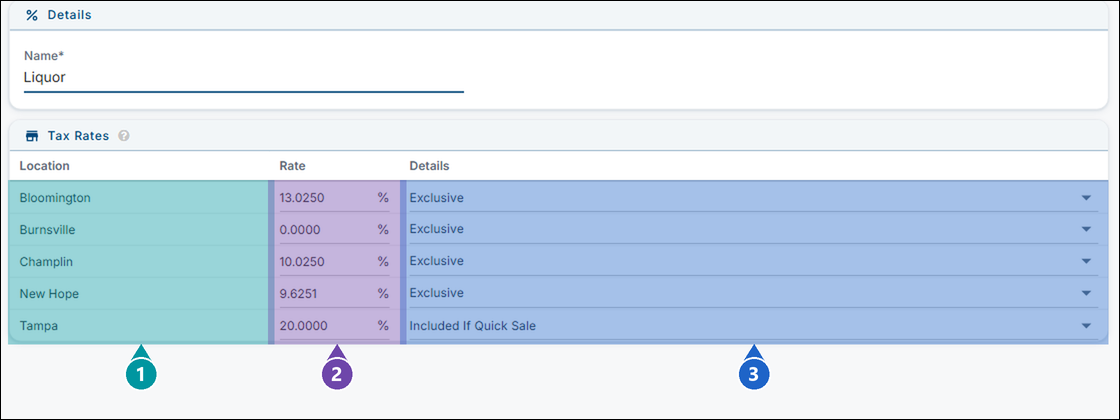
- Location: each of your locations has its own row.
- Rate: type the tax percentage, for example 7.375. The % sign is already there.
- Details: how the tax is charged at that location.
-
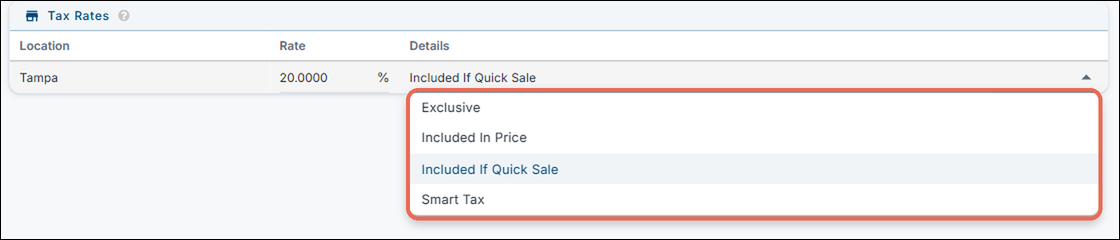
Click the Details drop-down and pick Exclusive, Included In Price, Included If Quick Sale or Smart Tax.
-
Click Save at the bottom right. It turns blue once you change something; nothing is kept until you click it.

How to change the rates of every tax type at once
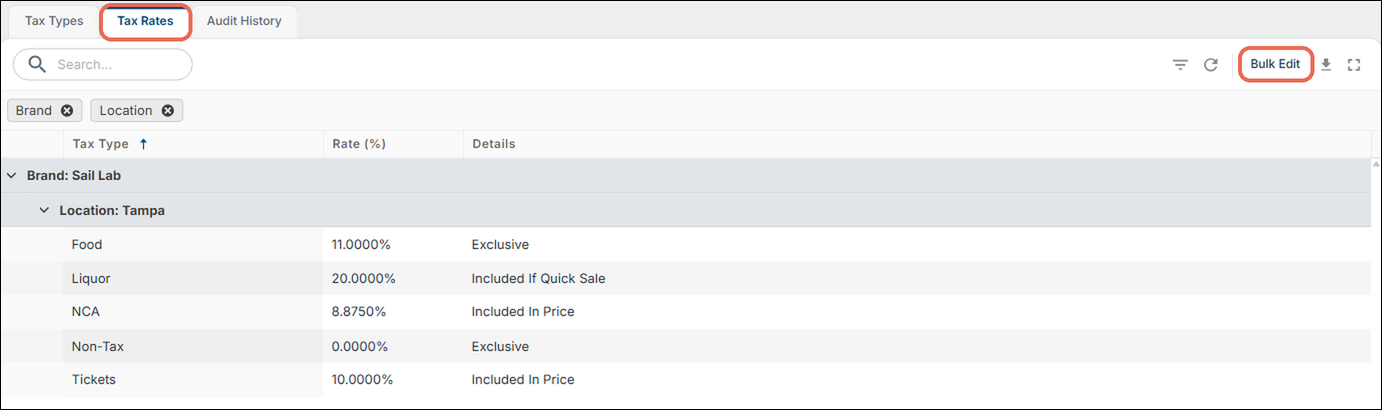
The Tax Rates tab lists every tax type's rate and Details, store by store, so you can check or change them all on one screen.
-
Navigate to Backoffice --> POS --> System Setup --> Taxes and click the Tax Rates tab, then click Bulk Edit at the right.
-
Make your changes in the list:
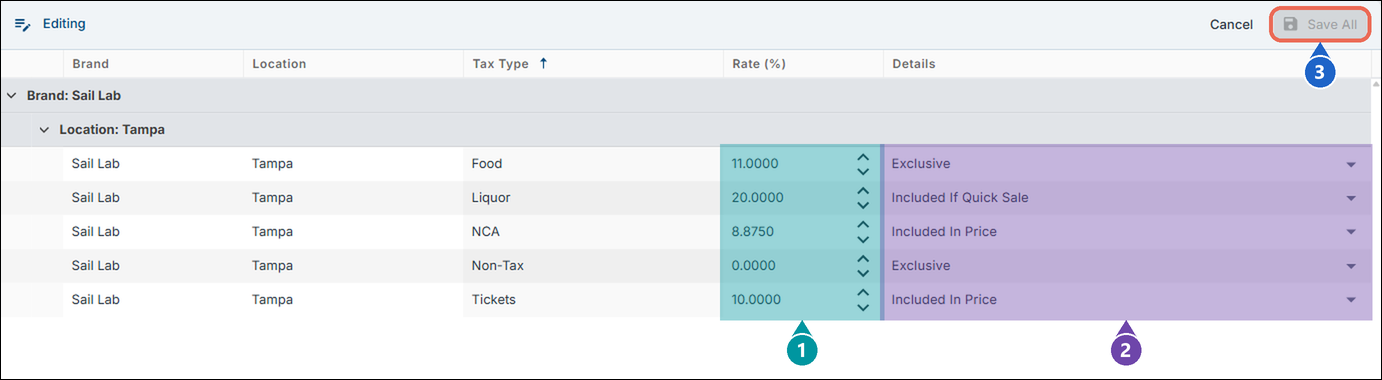
- Rate (%): type the tax percentage. It must be between 0 and 100.
- Details: pick Exclusive, Included In Price, Included If Quick Sale or Smart Tax.
- Save All: saves every change at once. Click Cancel next to it to leave without saving.
*Any and all inputs, modifications, and/or updates to tax rates, prices, costs, wages, other variables, and/or other information into the business systems is the sole responsibility of the Company. Should you wish to receive assistance with any changes, please contact your customer service or sales representative. A waiver and Fees may be required to receive this service. This help guide is not tax or legal advice and should not be used in lieu of professional assistance.
How to give an item its tax type
-
Navigate to Backoffice --> POS --> Items and click the item.
-
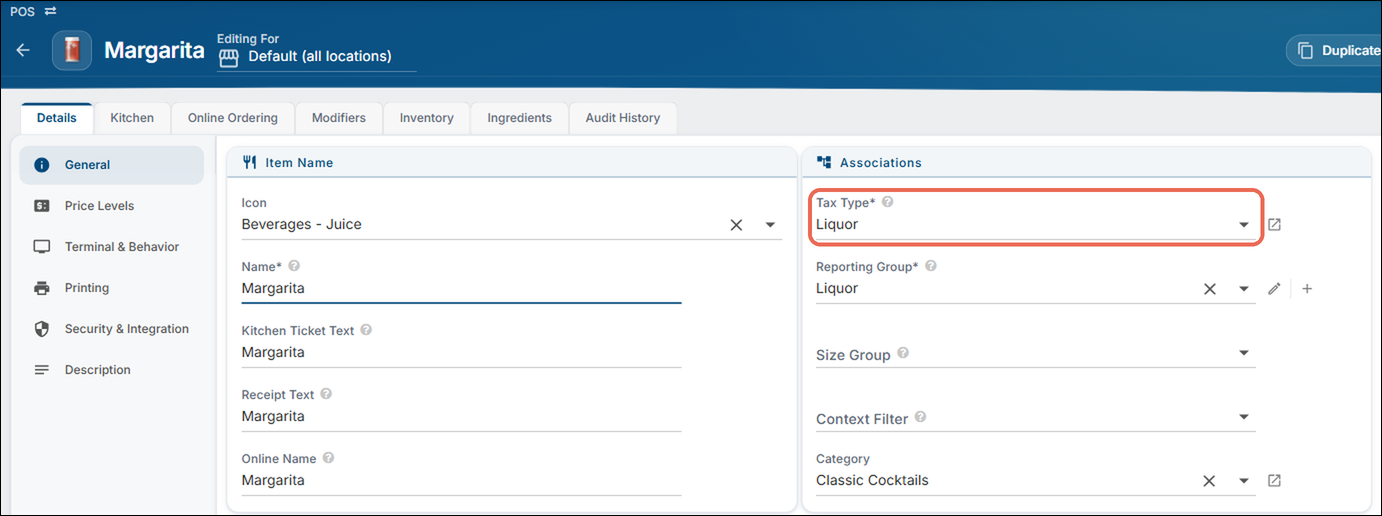
On the Details tab, pick the tax type in Tax Type (under Associations).
-
Click Save at the bottom right.
Click here to learn more about making a menu item.
Good to know
- Each location has its own rate and its own Details, so a business with several stores can charge tax differently at each one. The Tax Rates tab groups them by brand, then by location, and shows only the active stores you have access to.
- On the terminal, the order's Tax line shows only tax added on top. Tax that's in the price isn't listed there: a quick sale of a $7.00 Margarita shows Tax $0.00 and Total $7.00.
- A tax-exempt order has no tax, whichever choice the items use.
- Inclusive tax lowers your net sales: on a $7.00 Margarita with the tax in the price, your net sale is $6.54.
Click here to learn more about how exclusive and inclusive tax show on your reports.
No Comments