
How to make an Item Category
This document will show you how to make an Item Category in Backoffice.
Item categories are the folders your items live in, like Appetizers, Burgers or Desserts. They keep your item list in Backoffice organized, become the category buttons on the terminal and the handheld, group the menu in Online Ordering, and show up in the Sales by Item Category Report. A category can also hold other categories - for example, Beer with Draft and Bottles inside it.
Where to find them
- Backoffice --> POS --> Items
- Permissions you need: your job role needs the task Manage Items - All (POS --> Back Office --> Items). Click here to learn more about job roles.
Making a new item category
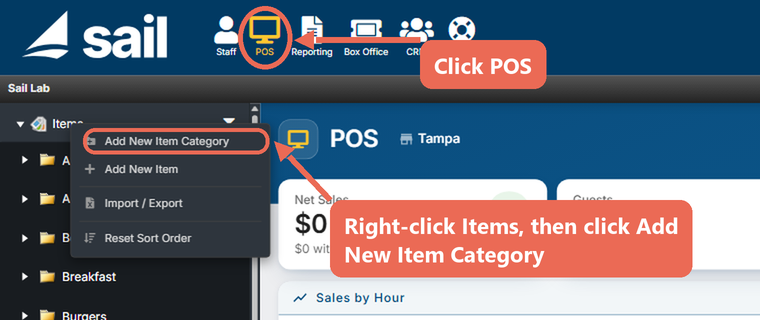
- Click POS at the top, then right-click Items on the left and click Add New Item Category. The new category is added to the main list of categories.
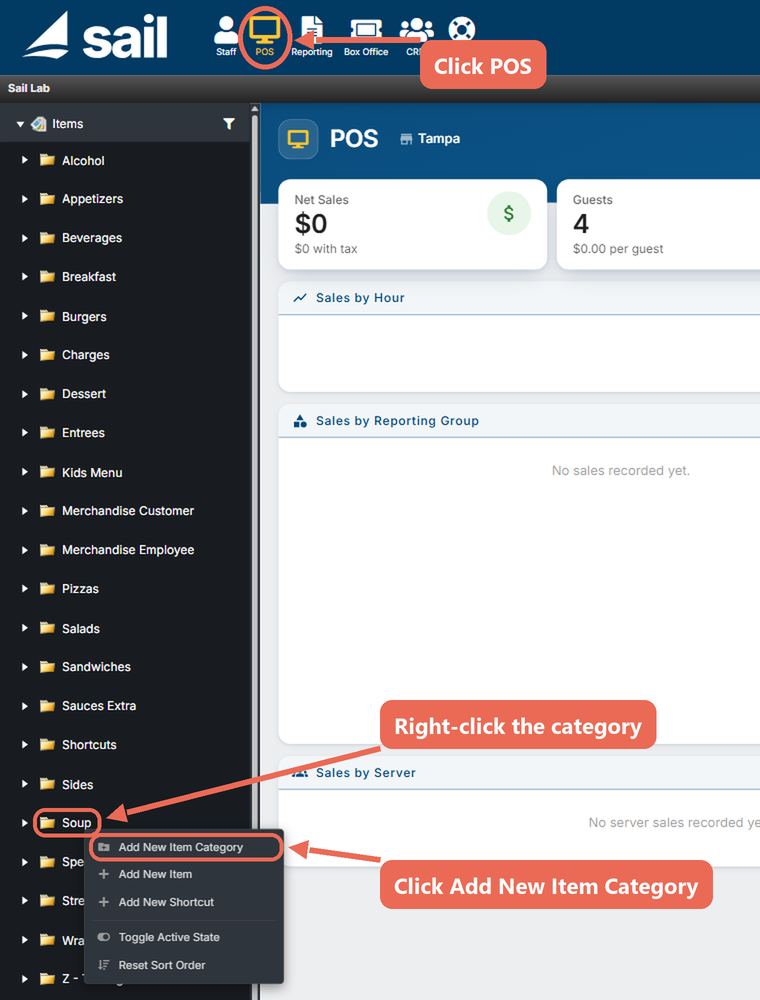
Note: To put the new category inside one you already have, right-click that category instead of Items and click Add New Item Category.
Filling out the category
The New Item Category page opens. Nothing is made until you click Save.
- Fill out the Category Name box:
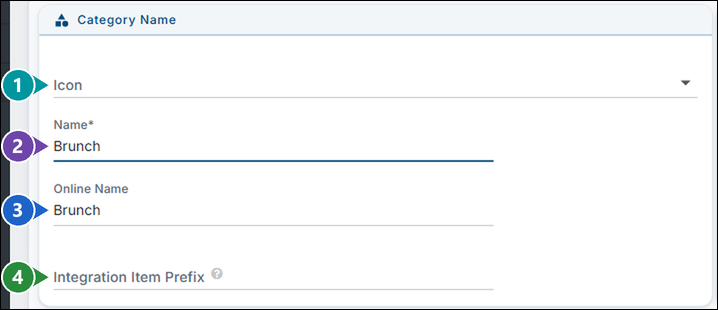
- Icon: The picture shown on the category's button on the handheld and the terminal (you'll mostly see it on the handheld). Click the arrow to browse the list, or type to filter it.
- Name (required): The category's name, as it shows in Backoffice, on the terminal and on the handheld.
- Online Name: The name your guests see in Online Ordering. It fills in with the Name as you type; change it if you'd like guests to see something different.
- Integration Item Prefix: Only if you send sales to another system (like an accounting system). Whatever you type here is added to the front of the name of each item in this category when it's sent there. Most places leave it blank.
- Fill out the Security / Availability box and the Online Order Description, then click Save:
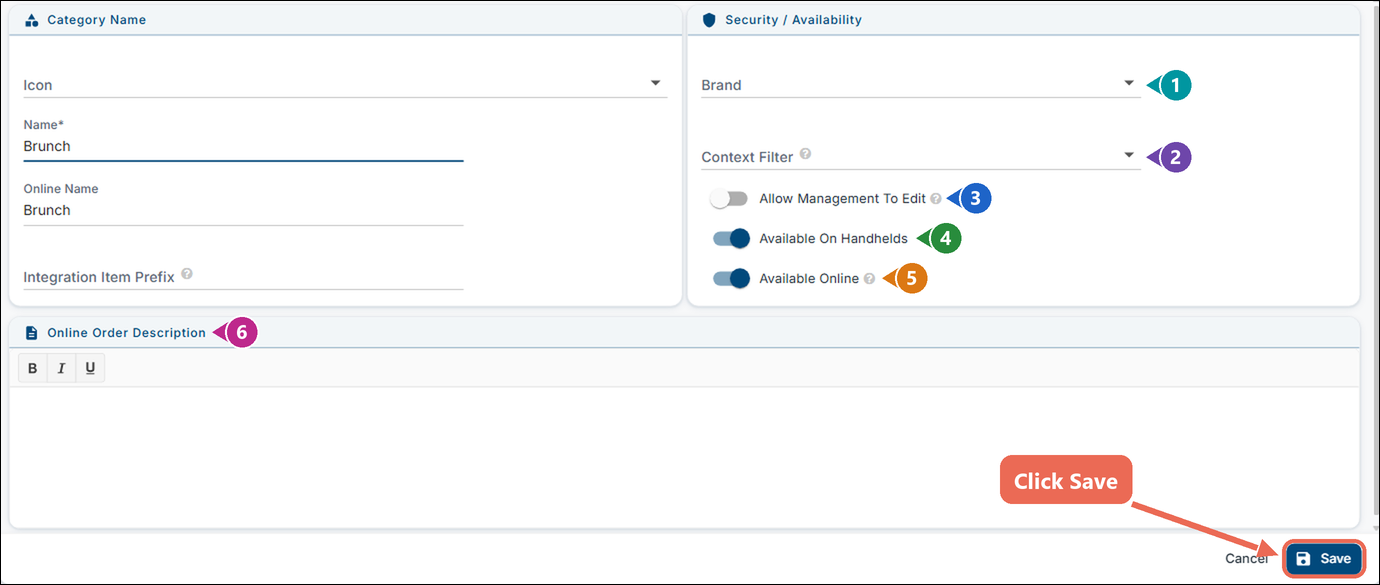
- Brand: Only shows when you have more than one brand. Pick the brand the category belongs to.
- Context Filter: Optional. Limits where and when the category shows - for example, only at some locations, on some devices or for some order types. Leave it blank to show it everywhere. Click here to learn more about context filters.
- Allow Management To Edit: Turn it on to let managers whose job role has the task Manage Items - Management Only edit this category. The items in it need this turned on too.
- Available On Handhelds: Turn it on to show the category on the handhelds.
- Available Online: Turn it on to offer the category in Online Ordering. Changing it also changes every category inside this one.
- Online Order Description: A few words your guests see under the category in Online Ordering, like "Served until 2:00 pm". Optional.
Note: Online Name, Integration Item Prefix, Available Online and Online Order Description only show if you have Online Ordering.
Adding items to the category
Right-click your new category in the item list and click Add New Item. The category is filled in for you on the new item.
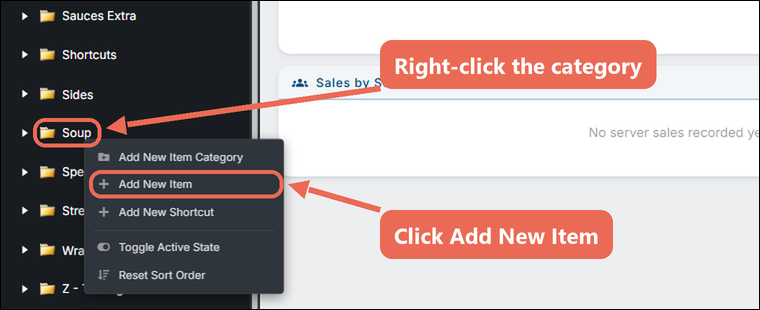
Click here to learn more about making a menu item.
Showing the category on the handhelds and the terminal
Handhelds: There's nothing to do. If you turned on Available On Handhelds, the new category shows on the handhelds right away.
Terminal: A new category doesn't show on the terminal by itself: add it to your order screen as an item category button. Once it's there, every item you add to the category shows up on its own after the terminal logs out and back in.
Click here to learn how to add an item category to a terminal order screen.
No Comments