
Gift Card Liability Report
The Gift Card Liability Report shows the total outstanding balance owed on gift cards, broken down by gift card type. It reflects the store's liability as of the date the report is run and includes an aging breakdown to show how long that liability has been sitting based on each card's last activity.
Where to find the report
- Backoffice --> Reporting --> Reports --> Accounting folder --> Gift Card Liability Report --> Execute
- No need to select a date on this report because it just shows you the liability as of the date you're running the report.
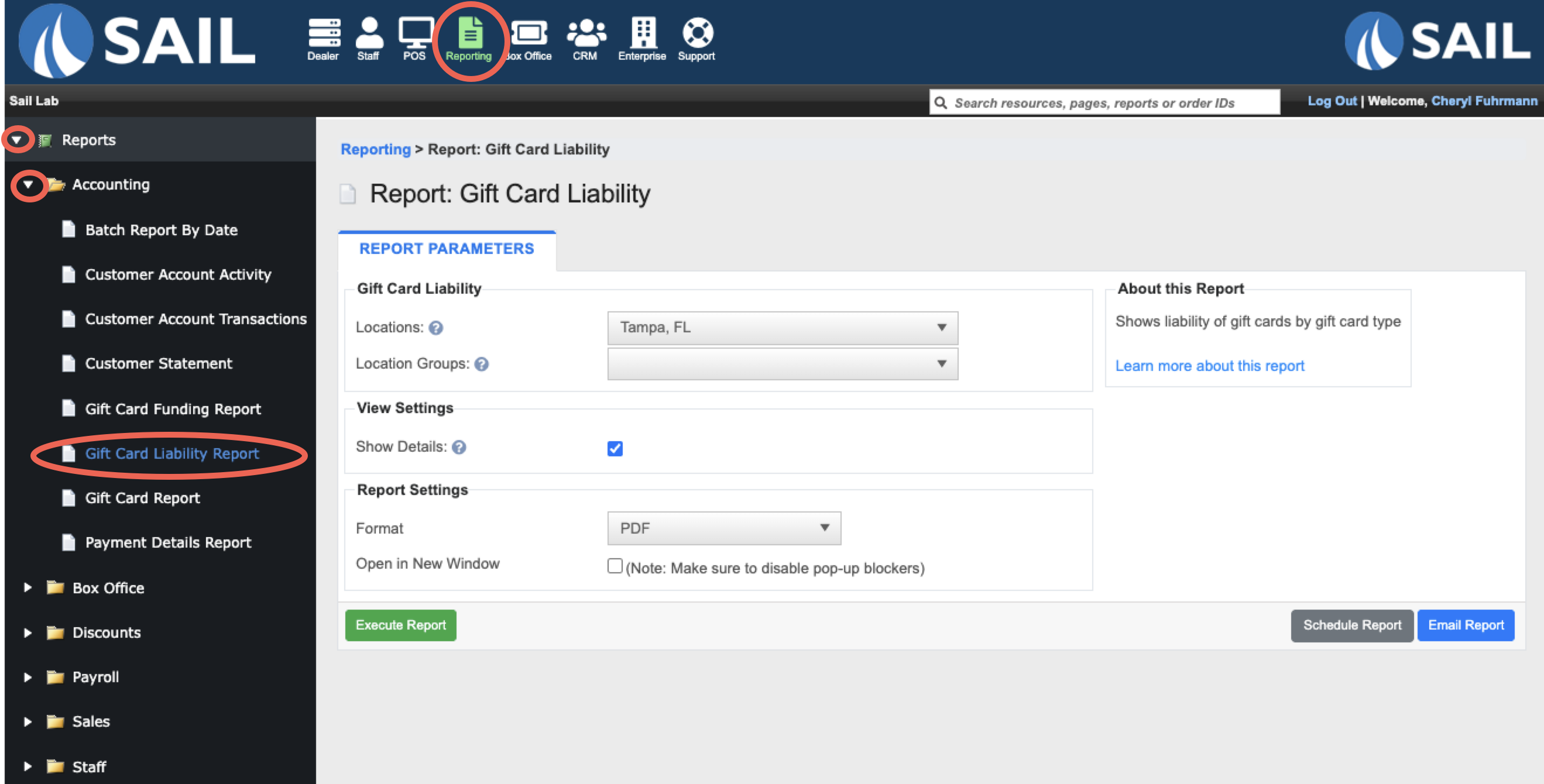
Filters
- Location Group – Allows you to run the report for a preconfigured group of locations.
View Settings
- Show Details – When enabled, adds the Outstanding Liability Detail section, which lists EVERY card with an outstanding balance, grouped by gift card type.
What it looks like
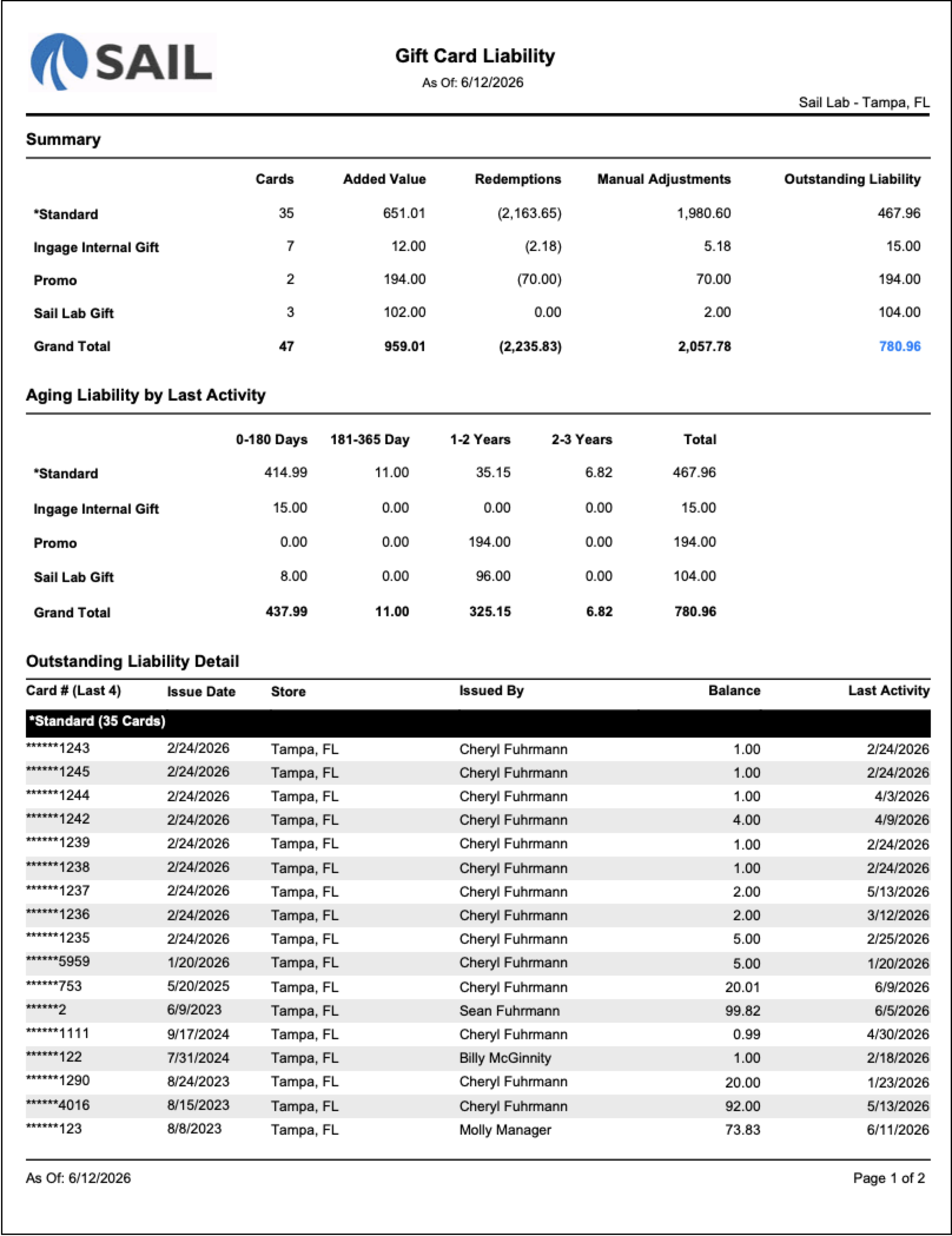
Report Parts
The report always includes two summary sections. A third section is added when Show Details is enabled:
- Summary
- Aging Liability by Last Activity
- Outstanding Liability Detail (only visible when Show Details is checked)
The report reflects data as of the date it is run. There is no option to select a specific date range.
Gift card types are preconfigured in the system. Each type appears as its own row in the summary sections.
Summary Columns —
- Gift Card Type – The preconfigured gift card type (e.g., Standard, Promo, Sail Lab Gift). Types are listed alphabetically
- Cards – Number of cards with an outstanding balance for that type.
- Added Value – Total amount loaded onto cards of that type.
- Redemptions – Total amount redeemed from cards of that type. Displayed in parentheses as a negative value.
- Manual Adjustments – Total of any manual balance adjustments made in Backoffice by someone with the appropriate permissions.
- Outstanding Liability – The current total balance owed on cards of that type.
- Formula: Added Value − Redemptions + Manual Adjustments = Outstanding Liability
- Example: $651.01 − $2,163.65 + $1,980.60 = $467.96
- The Grand Total Outstanding Liability is displayed in blue.
Aging Liability by Last Activity Columns —
This section breaks down each gift card type's outstanding liability into age buckets based on when each card was last used.
- 0–180 Days – Outstanding liability from cards with activity within the last 180 days.
- 181–365 Day – Outstanding liability from cards last active between 181 and 365 days ago.
- 1–2 Years – Outstanding liability from cards last active between 1 and 2 years ago.
- 2–3 Years – Outstanding liability from cards last active between 2 and 3 years ago.
- Total – Total outstanding liability for that gift card type across all aging buckets. Matches the Outstanding Liability column in the Summary section.
A Grand Total row at the bottom shows the combined outstanding liability across all gift card types and all aging buckets.
Outstanding Liability Detail Columns —
Visible only when Show Details is checked.
Cards are grouped under their gift card type. Each group header shows the type name and card count (e.g., Standard (35 Cards)). A subtotal row appears at the bottom of each group.
- Card # (Last 4) – The gift card number, masked to show only the last 4 digits (e.g., ******1243).
- Issue Date – The date the card was first issued.
- Store – The location where the card was issued.
- Issued By – The employee who issued the card.
- Balance – The card's current outstanding balance.
- Last Activity – The most recent date the card was used (loaded, redeemed, or adjusted).
The section ends with a Grand Total showing the total number of cards and total outstanding liability across all types.
How to Use This Report
- Run it regularly to monitor your total gift card liability and understand what your store owes to cardholders.
- Use the Aging section to identify how much liability is tied to cards that haven't been used in a long time — older buckets may signal cards that are unlikely to ever be redeemed.
- Enable Show Details to get a card-by-card breakdown — useful for auditing balances or looking up a specific card for a customer.
- Review the Manual Adjustments column regularly to confirm that balance corrections are authorized and accurate.
- Compare the Outstanding Liability total across reporting periods to track whether liability is growing or shrinking over time.
- Use the Schedule Report or Email Report options to send this report to your accounting team on a regular cadence.
No Comments