
How to Edit Comps & Voids
This document will show you how to create new Comps & Voids and edit your current ones in Backoffice.
Note: Comps and voids are shared by all your locations. To limit one to certain locations or job roles, use its Context Filter.
Whats the difference between Comps & Voids?
- Void – Used when an item was ordered but never made or will not be made.
Example: A customer changes their mind before the kitchen starts making the dish, or a server entered the wrong item by mistake.
➝ Since the item was never produced, it’s removed from the order and does not appear in sales or inventory counts. - Comp (Complementary) – Used when the item was made or delivered but the customer will not be charged.
Example: A meal had a problem (quality issue, long wait, guest dissatisfaction), or management decides to cover the cost as goodwill.
➝ The item stays in the sales record for inventory and reporting, but the restaurant absorbs the cost instead of the guest paying.
Key Differences:
- A void means the item didn’t exist in reality, so it doesn’t count toward sales or food cost.
- A comp means the item was produced and must be accounted for, but the guest isn’t charged—so it affects food cost and profitability.
Where to find them
- Backoffice --> POS --> Settings --> Comps / Voids
- Use the Comp Reasons or Void Reasons tab depending on which one you're working on
- Permissions you need: your job role needs the task Manage Voids/Comps (POS --> Back Office --> Settings)
How to add a new Comp
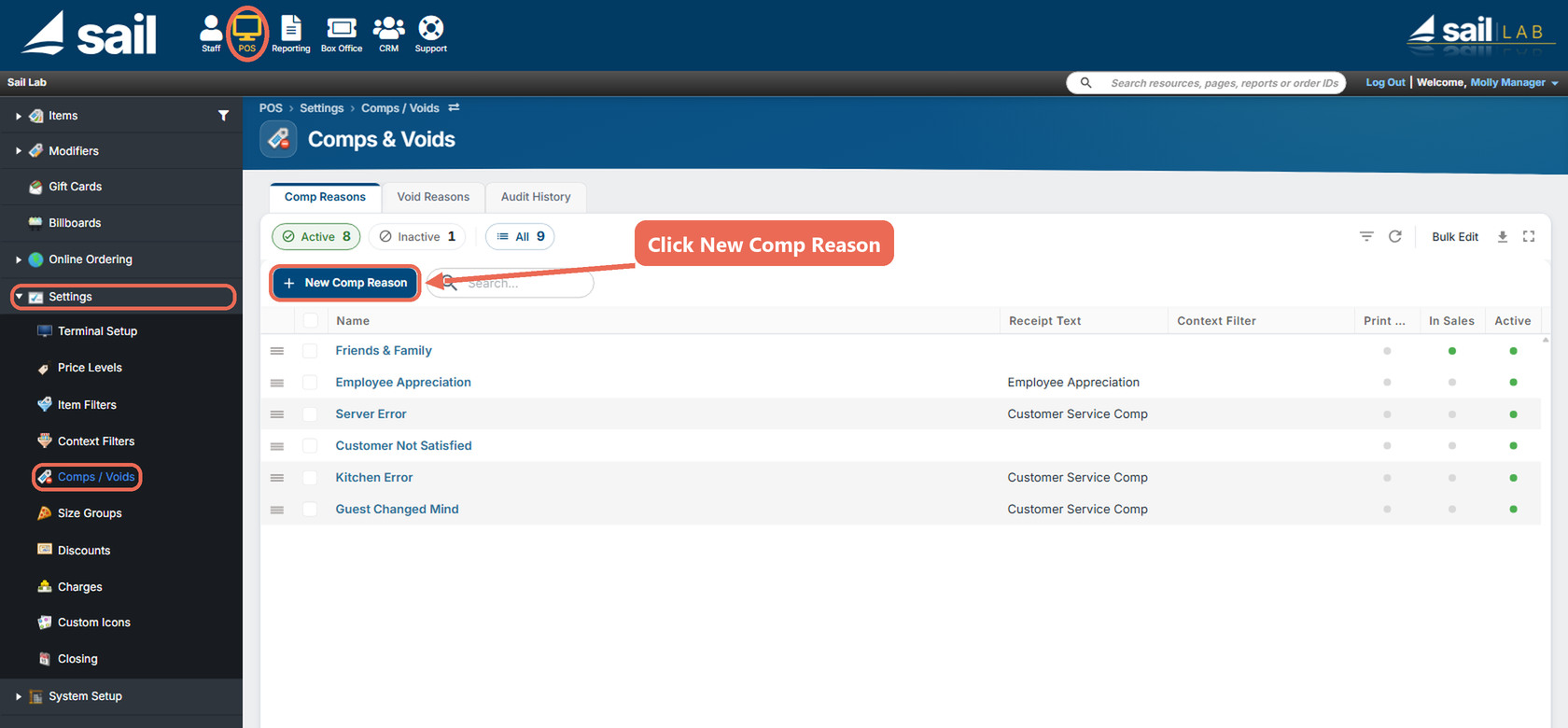
- Click POS at the top, then Settings and Comps / Voids on the left, and click New Comp Reason.
- Fill out the window, then click Save:
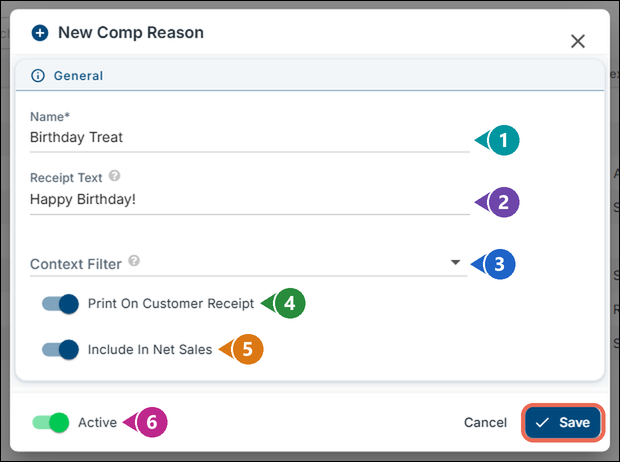
- Name (required): The name that will appear in the list when you click the Comp button.
- This is how staff will identify the comp reason during use.
- Receipt Text: If you choose to print the comp on the customer's receipt, you can optionally add a custom message that will appear below the item.
- Example: For a birthday comp, you might display: “Happy Birthday!”
- Context Filter: Optionally apply a context filter to limit where or by whom this comp reason can be used—such as specific locations or job roles. Click here to learn more about context filters.
- Print On Customer Receipt: Turn this on if you want the comp to show on the guest's receipt.
- Use this when: The comp is a positive gesture (e.g., a free appetizer, birthday drink, or a manager’s treat) and you want the customer to know they’re not being charged.
- Leave it off when: The comp is due to an internal issue (e.g., server or kitchen error) and you prefer not to draw attention to it on the guest’s receipt.
- Include In Net Sales: Do you want this item to appear on reports in your Net Sales?
- Include in Net Sales when: The item was prepared and given to the customer (even if it was complimentary). Example: A birthday drink that was comped but still consumed—usage tax is still owed.
- Exclude from Net Sales when: The item was never served (e.g., dropped, burned, or misrung), and thus not consumed by the customer. No usage tax is owed.
- Active: On means this comp reason is available for staff to select. It's on for a new comp.
How to edit a Comp
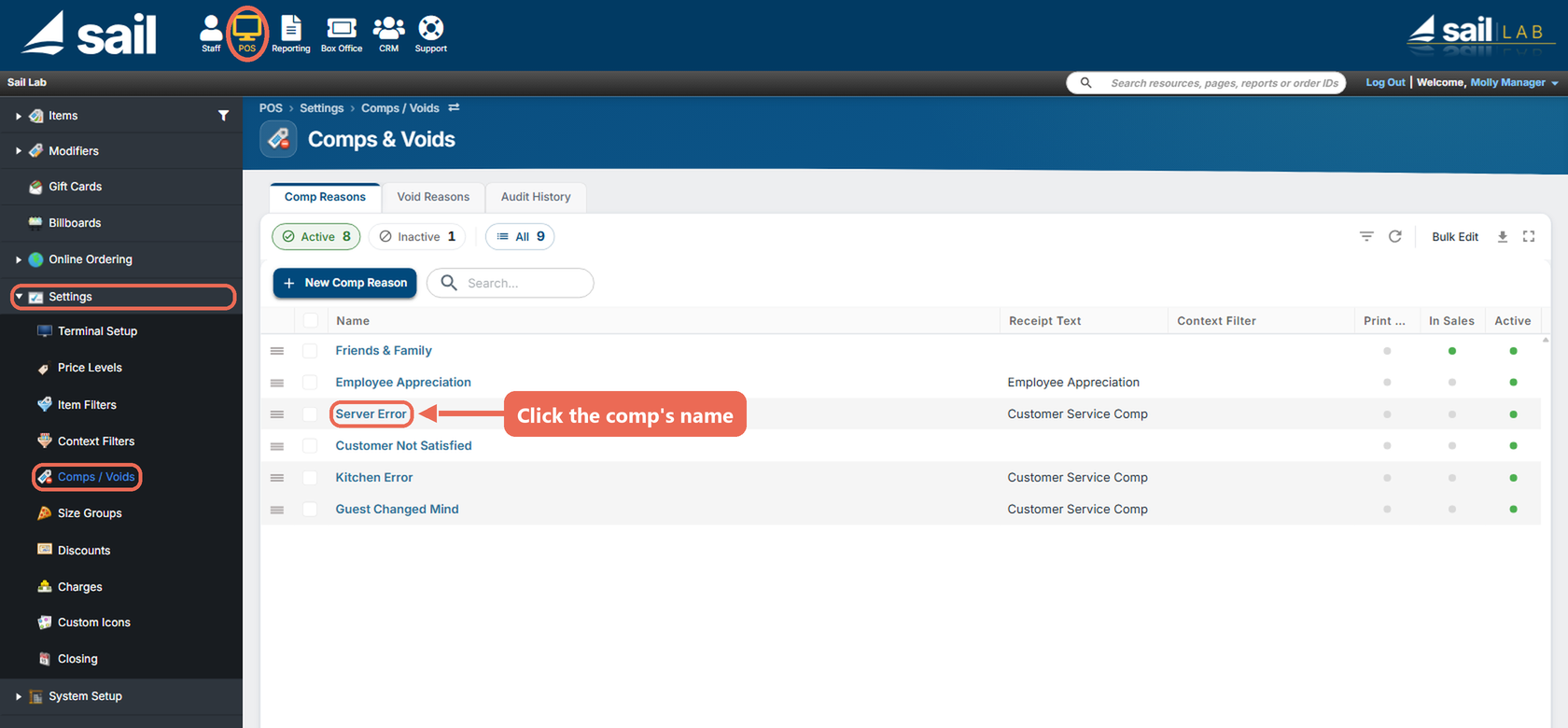
- Click POS at the top, then Settings and Comps / Voids on the left, and click the name of the comp you'd like to edit.
- The Edit Comp Reason window has the same settings as a new comp (above). Change what you need, then click Save.
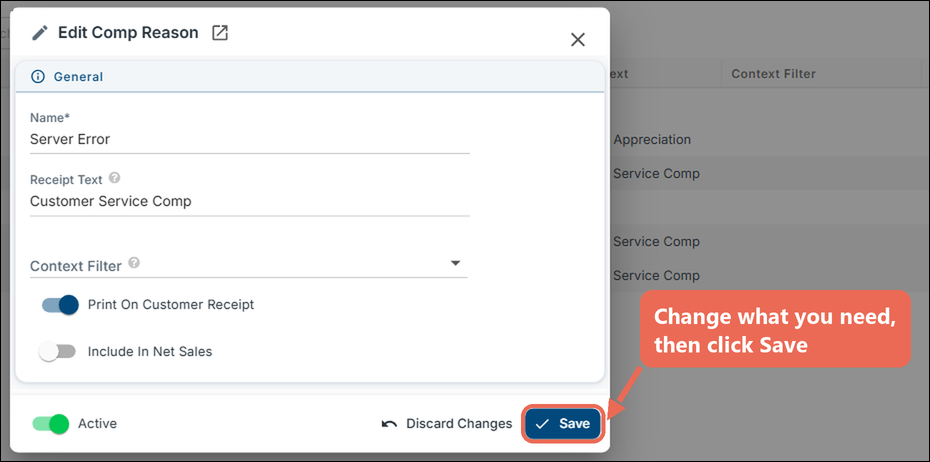
Note: To stop staff from using a comp, turn off Active and click Save. A comp that has been used on past orders can't be deleted, because it's kept for reporting - turn it off instead.
Comps in Reporting
- Comps Included in sales - These will still be in your sales numbers for the day and taken out later in the amount due section
- Comps Not included in sales - These will not be included in your sales numbers and will show in the comp column in the sales with details section
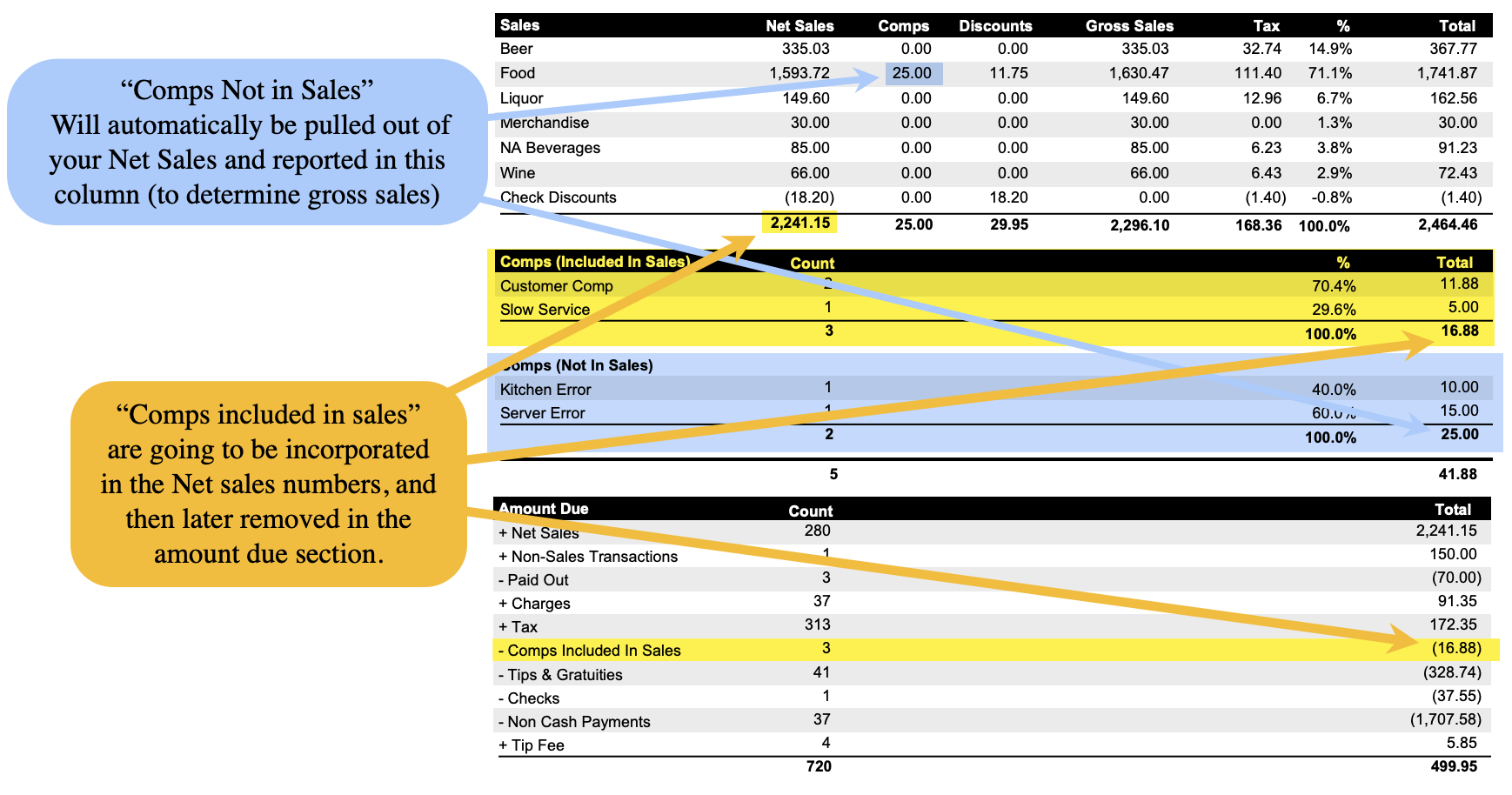
Net Sales: When to Include or Exclude Items
Including an item in Net Sales is important when usage tax (or use tax) applies. Even if the guest doesn’t pay for the item, your business may still owe tax—because it was prepared, served, and consumed.
(In many jurisdictions, tax is owed on items consumed, not just sold - consult your CPA for guidance).
Include in Net Sales When:
-
The item was made and given to the customer, even if it was complimentary.
-
Your business is responsible for paying tax on complimentary or comped items.
Example:
A guest receives a free birthday dessert or drink. Even though they didn’t pay for it, the item was consumed, so its value must be reported in Net Sales and the applicable usage tax is owed.
Exclude from Net Sales When:
-
The item was never served or consumed.
-
It was removed for internal reasons (e.g., kitchen error, item dropped, wrong order that had to be remade).
-
No usage tax is due because the guest never received the item.
Example:
A pizza burns in the oven and is replaced. Since the burned pizza is never served, it does not count toward Net Sales and does not trigger usage tax.
How to add a new Void
- Click POS at the top, then Settings and Comps / Voids on the left. Click the Void Reasons tab, then New Void Reason.
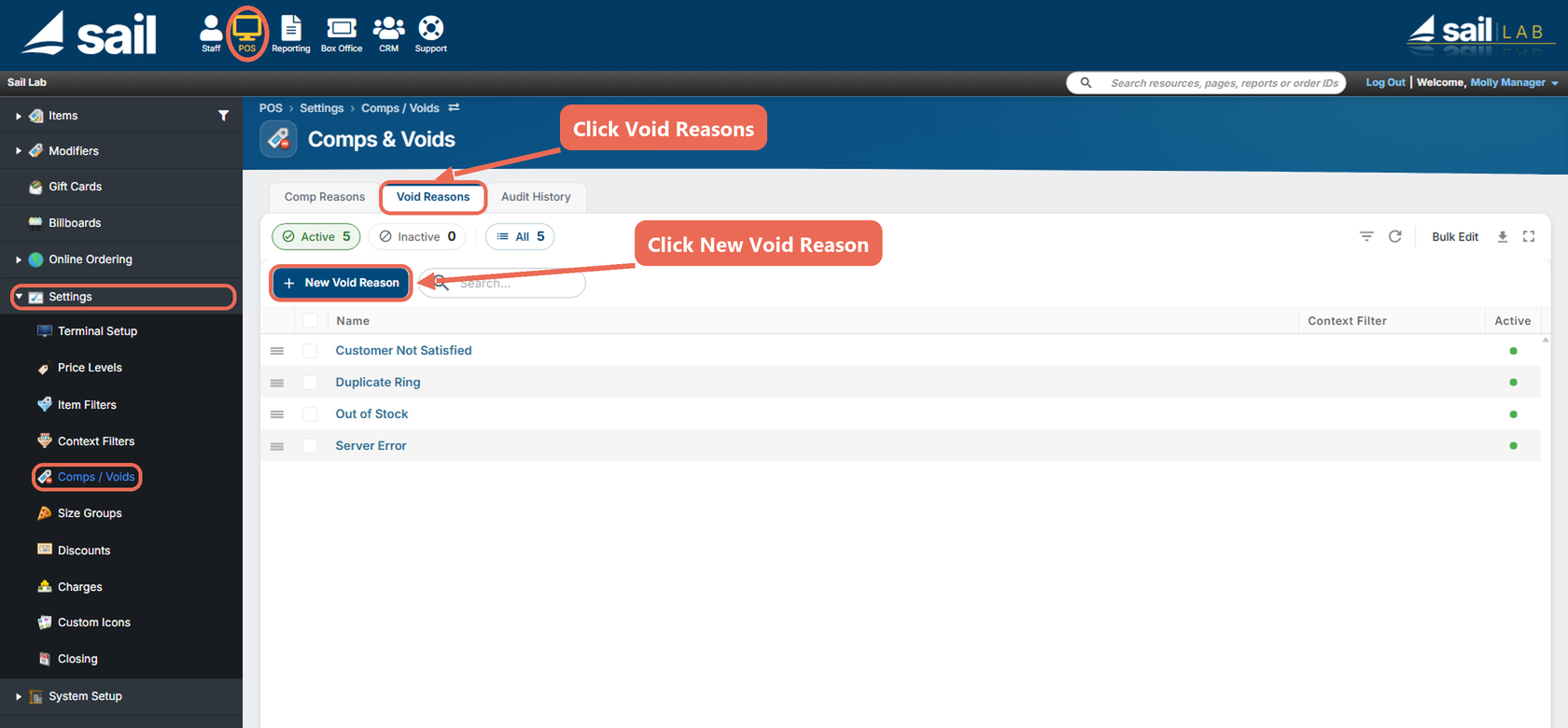
- Fill out the window, then click Save:
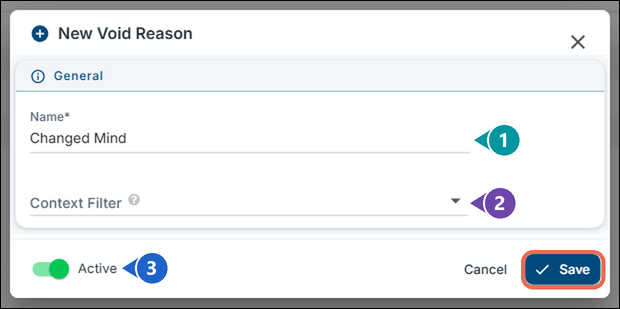
- Name (required): The name that will appear in the list when you click the void button.
- This is how staff will identify the void reason during use.
- Context Filter: Optionally apply a context filter to limit where or by whom this void reason can be used—such as specific locations or job roles.
- Active: On means this void reason is available for staff to select. It's on for a new void.
How to edit a Void
- Click POS at the top, then Settings and Comps / Voids on the left. Click the Void Reasons tab, then the name of the void you'd like to edit.
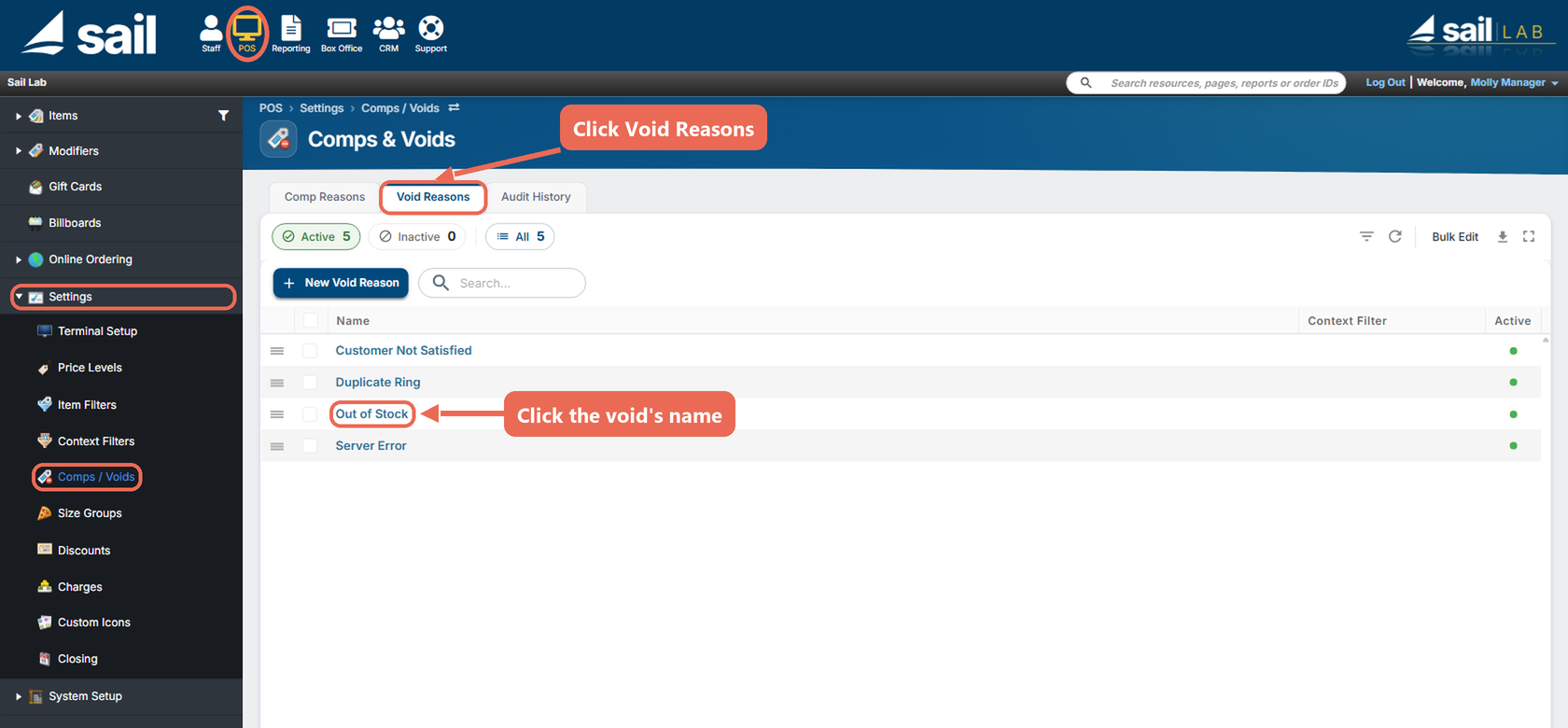
- The Edit Void Reason window has the same settings as a new void (above). Change what you need, then click Save.
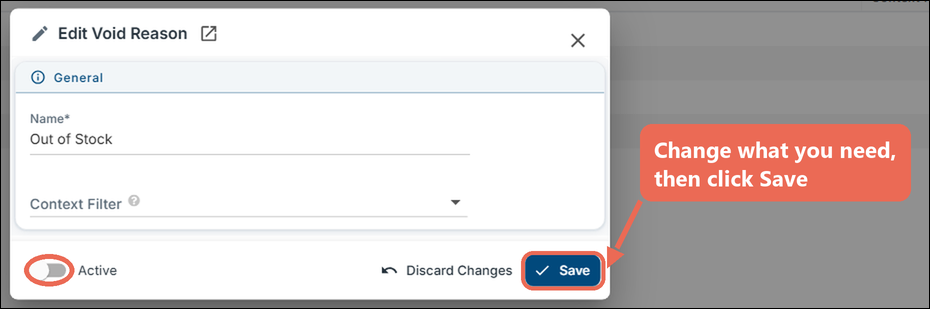
Note: To stop staff from using a void, turn off Active (as in the picture) and click Save. A void that has been used on past orders can't be deleted, because it's kept for reporting - turn it off instead.
Voids in Reporting
- A void means the item didn’t happen, so it doesn’t count toward sales

No Comments