
How to add Auto Gratuity to a CC Receipt
This document will walk you through how to change the customer's CC receipt so that it shows when an auto gratuity was added.
There are two options you can change on the receipt.
- You can have just the tip line change to "Additional Tip" if a gratuity is added but have the payment amount stay the same.
- You can have the payment amount change to the "Sub-total plus Gratuity equals the payment amount" if a gratuity is added.
Most stores use both options together. If there is no gratuity on the order, the receipt prints like normal.
Click here to learn how to set up an Auto Charge for the gratuity itself.
Permissions you need
To edit receipts, your job role needs the Manage Receipt Setup task (POS --> Back Office --> System Setup).
How to edit the Credit Card Receipt
- Log into Backoffice
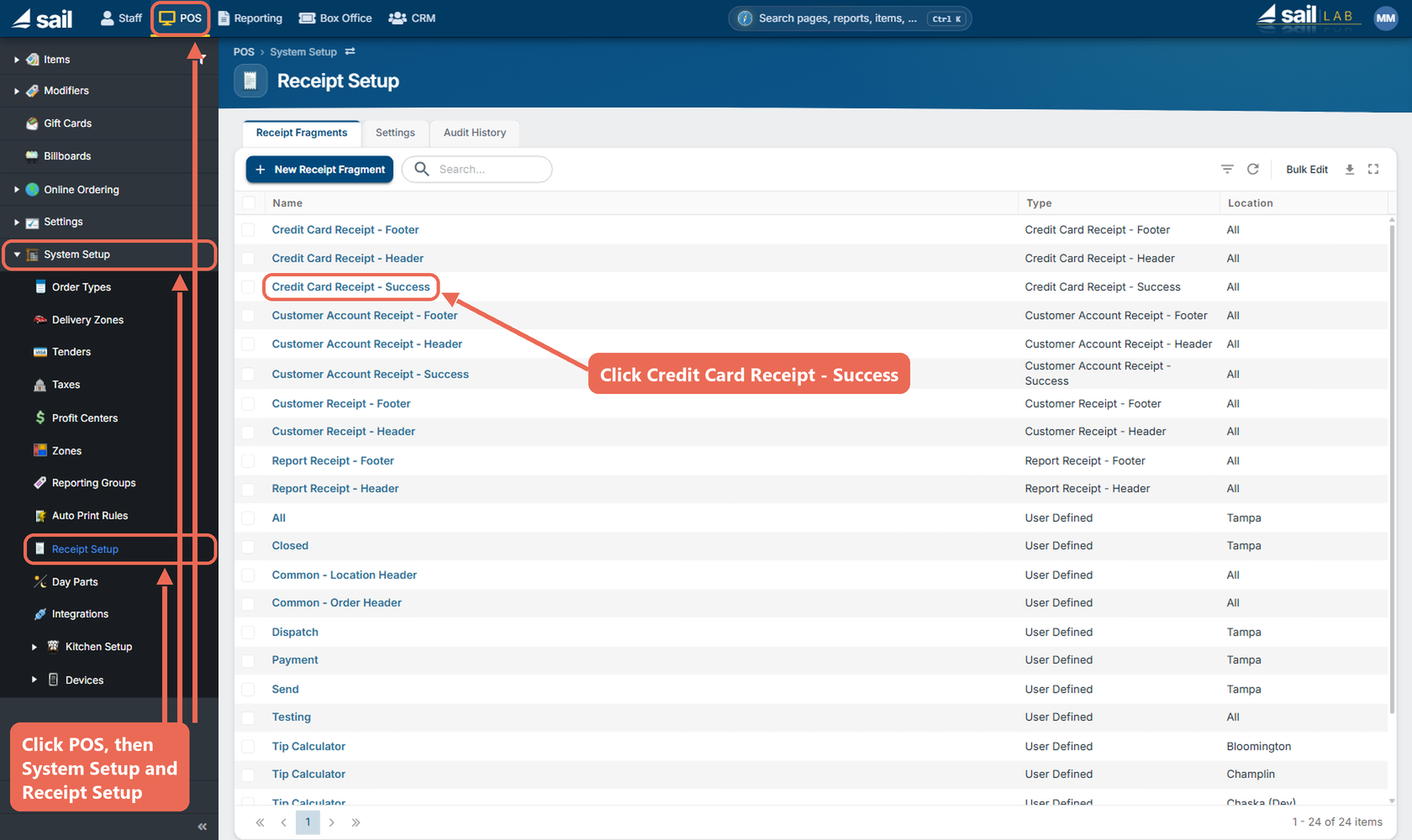
- Click POS at the top, then System Setup and Receipt Setup in the menu on the left, and click Credit Card Receipt - Success.
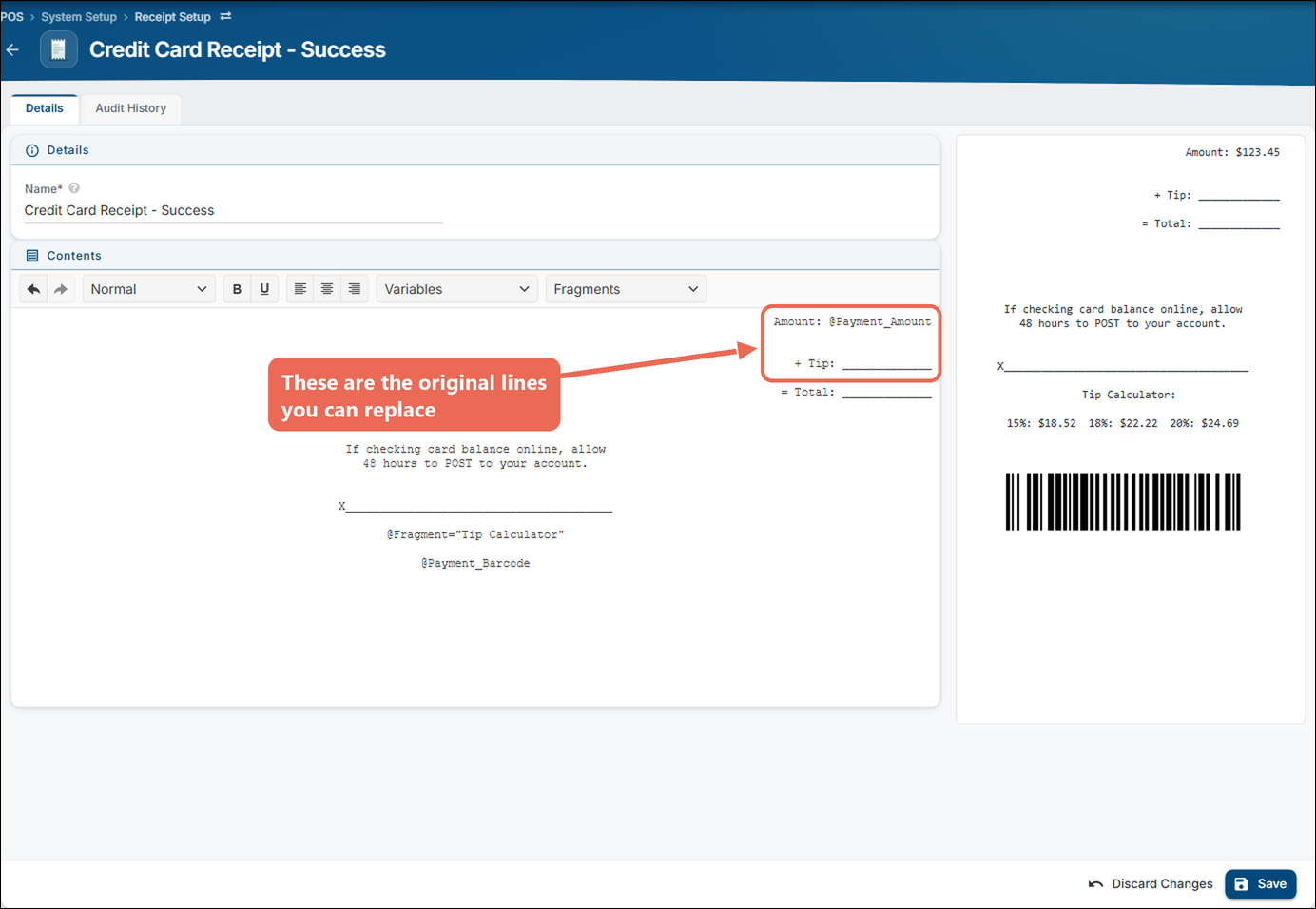
These are the original lines you have the option of replacing: Amount: @Payment_Amount and + Tip:.
Note: If your receipt already shows @Payment_DynamicPaymentAmount and @Payment_DynamicTipWording instead, both options are already on and there is nothing to change.
Option #1 - Only change the "+ Tip" line
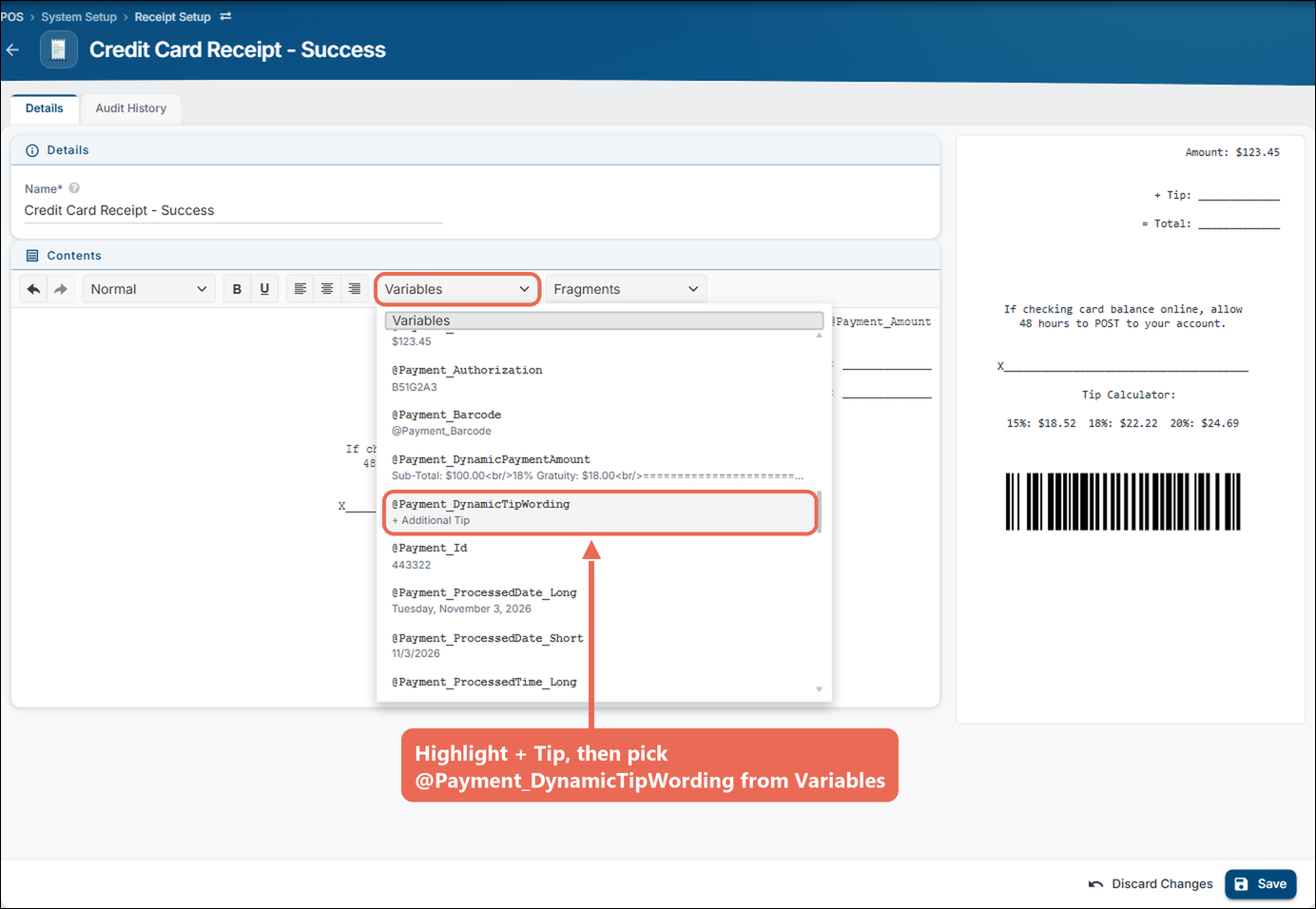
- Highlight + Tip in the editor (leave the colon and the line after it).
- Click Variables and pick @Payment_DynamicTipWording. It replaces the highlighted words.
- Click Save.
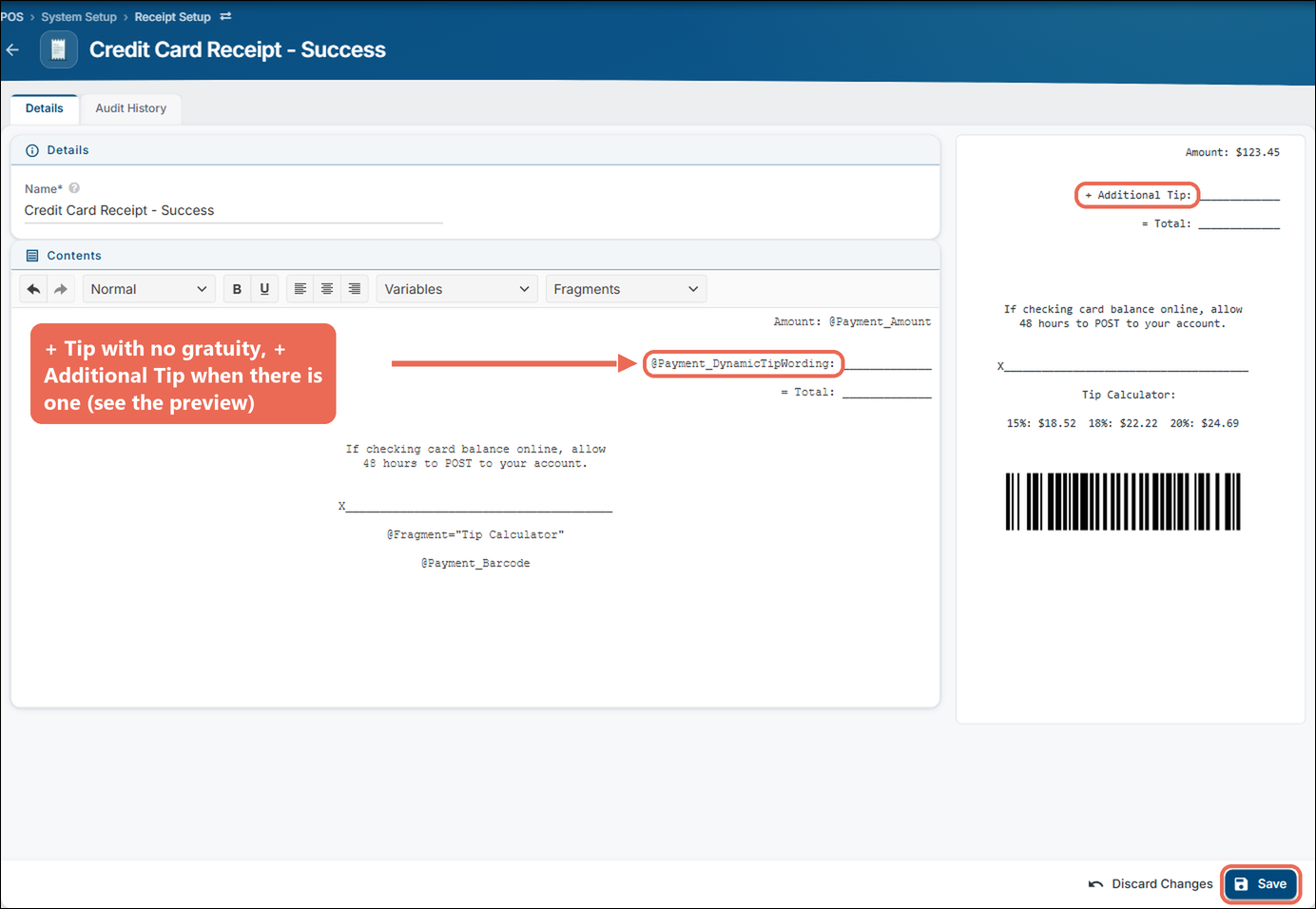
It is dynamic: it will say + Tip if there is no gratuity added, and + Additional Tip if there is a gratuity added.
Option #2 - Change the payment amount to reflect the gratuity
- Highlight the whole Amount: @Payment_Amount line, including the word Amount: (the new variable prints its own "Amount:").
- Click Variables and pick @Payment_DynamicPaymentAmount.
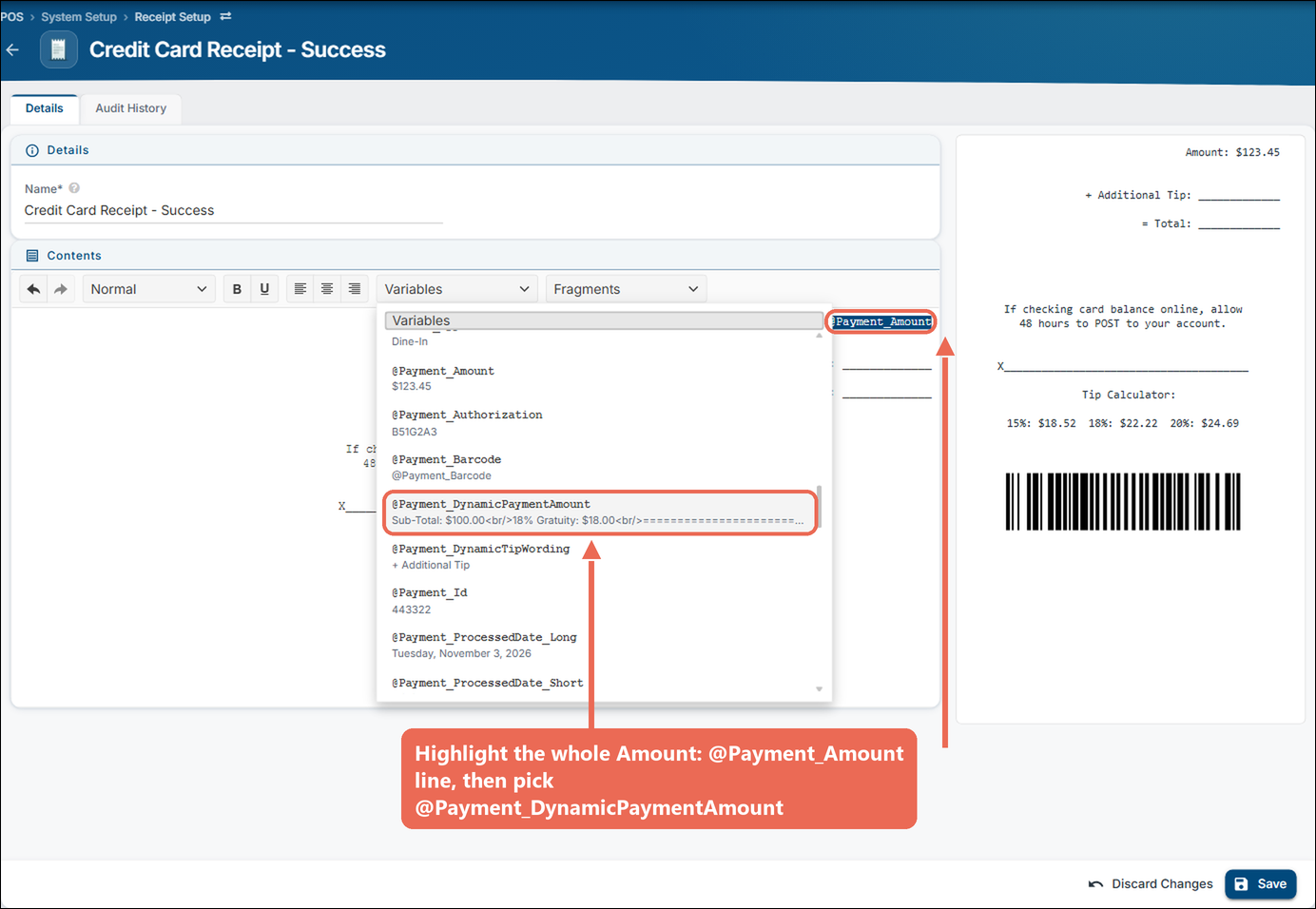
- Click Save.
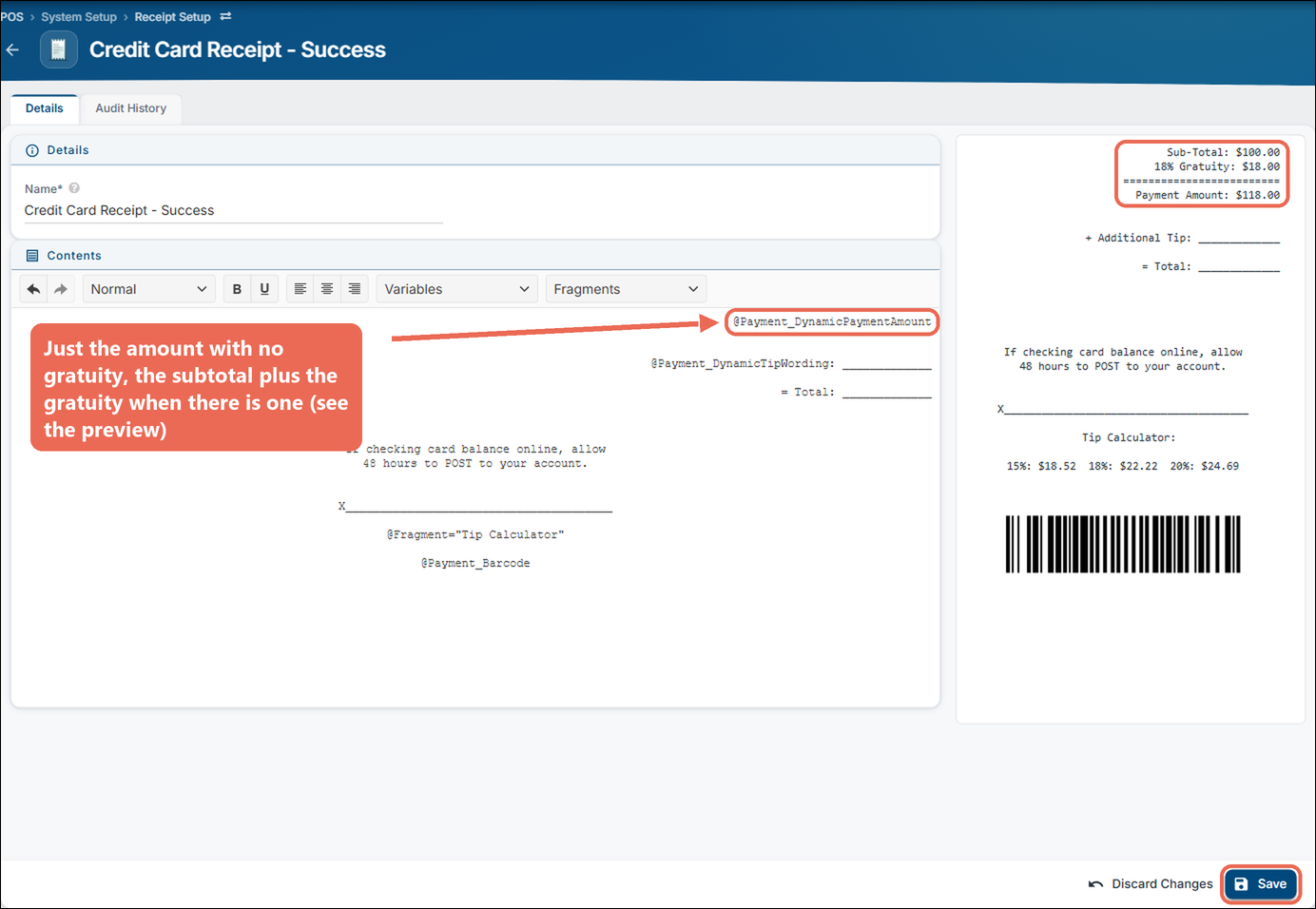
It is dynamic: it will say just the payment amount if there is no gratuity added, and the subtotal plus the gratuity if there is a gratuity added.
What the receipt looks like
Here is a receipt with both options and an 18% gratuity added. The amount section lists the subtotal and the gratuity, and the tip line changes to "Additional Tip".
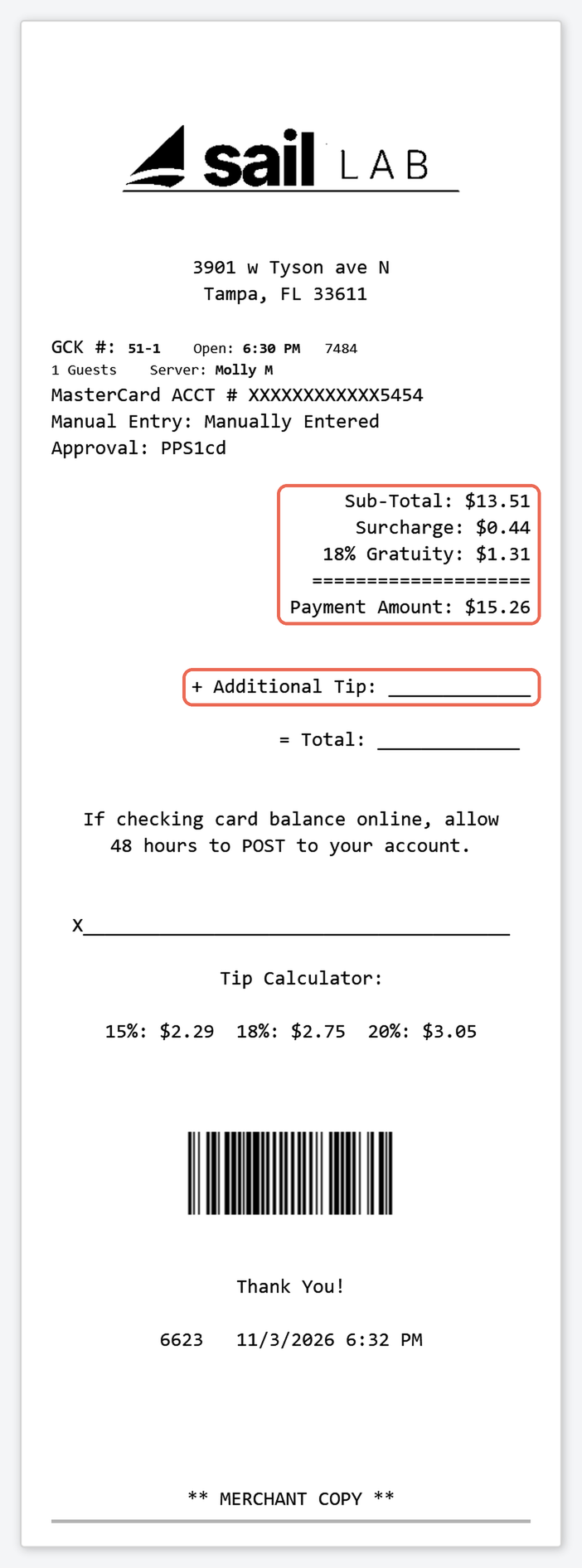
Note: The gratuity line uses the gratuity's receipt text (here "18% Gratuity"). If your store adds a surcharge to card payments, the surcharge shows in this section too.
No Comments