
Sales History
This will walk through the Sales History screen in Backoffice. Sales History shows every day you closed, with its sales, orders and guests, and lets you open the orders, receipts, credit card payments, server closes and credit card batches behind each day.
Permissions you need
Each part of Sales History shows only for job roles that have its permission (Backoffice --> Staff --> Job Roles, under Reporting):
- Sales Period Report (Reports --> Sales): the Daily Closes tab and the Daily Close Report.
- Server Close Report (Reports --> Sales): the Server Closes tab and each server's close report.
- Sales History: the CC Batches tab, Order ID Lookup, and opening a day's orders and credit cards.
- Batch Report By Date (Reports --> Accounting): the batch report in a day's details.
Getting to Sales History
Click Reporting at the top, then Sales History on the left.
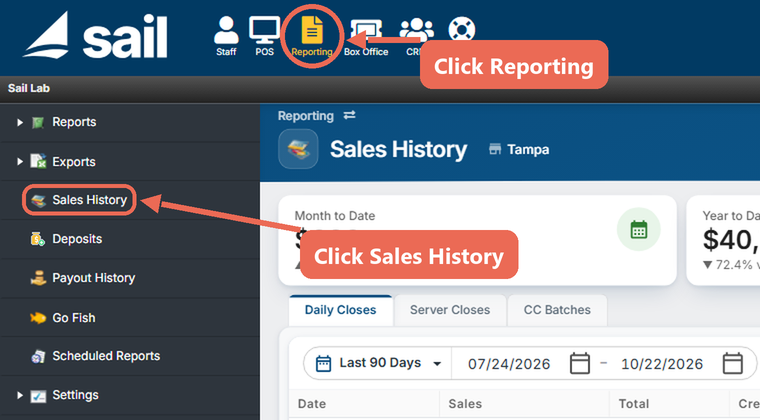
The top of the screen

- Location: the location you are looking at. If you have more than one location, pick another one here.
- Totals: Month to Date, Year to Date and Last 7 Days sales, each compared with the same time before, and the Average Check this month.
- Order ID Lookup: type an order's number and press Enter (or click the magnifying glass) to open that order.
- Tabs: Daily Closes, Server Closes and CC Batches.
Daily Closes Tab
The Daily Closes tab lists every business day, newest first. The Current row at the top is today's open day, until it is closed.
- Pick the days you want to see:
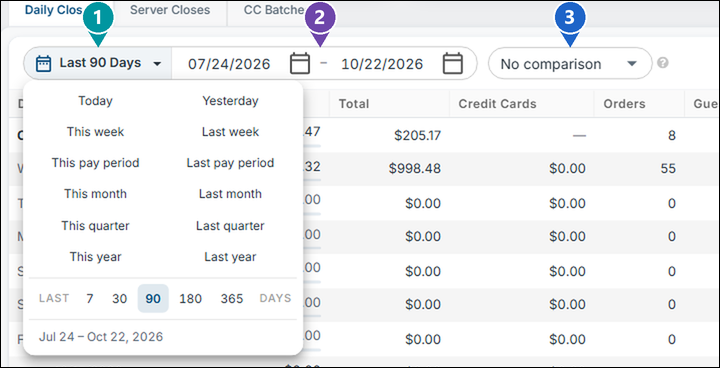
- 1. Date range: a quick pick such as Today, Last week, This month or the last 7, 30, 90, 180 or 365 days.
- 2. Start and end dates: type the dates or pick them on the calendar.
- 3. Comparison: vs Previous Week, vs Previous Month or vs Last Year shows how each day's sales changed against the same day of the week 1, 4 or 52 weeks earlier. Point at the change to see that day's sales.
- To see a day's credit card batches, click the batch count in its Credit Cards column. Click a batch to see its payments.
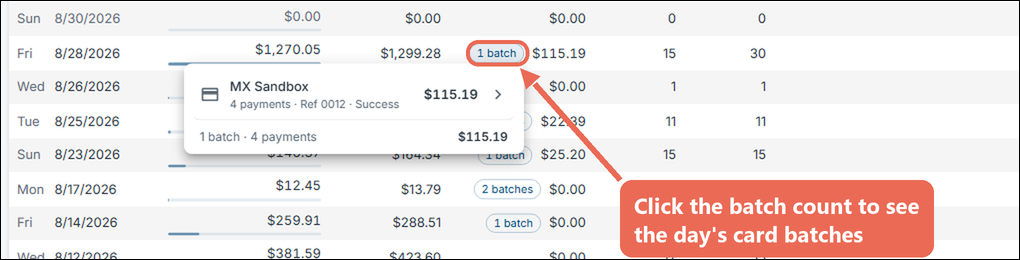
- Read the list. Each day shows its Sales, Total (with tax and charges), Credit Cards, Orders and Guests, and the Total row at the bottom adds up the days shown. Point at a day to see its buttons:
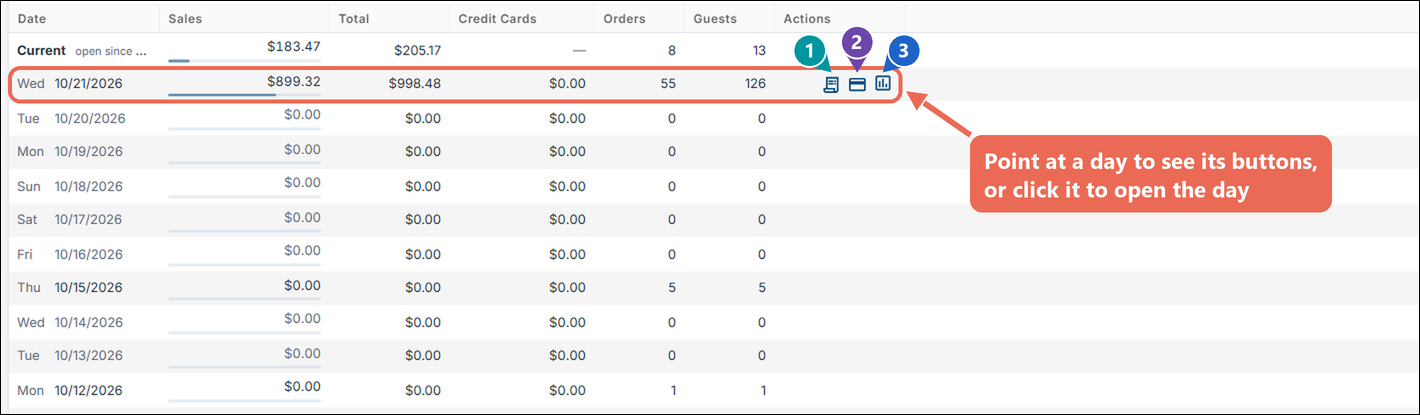
- 1. Orders: every order in that day.
- 2. Credit cards: every credit card payment in that day.
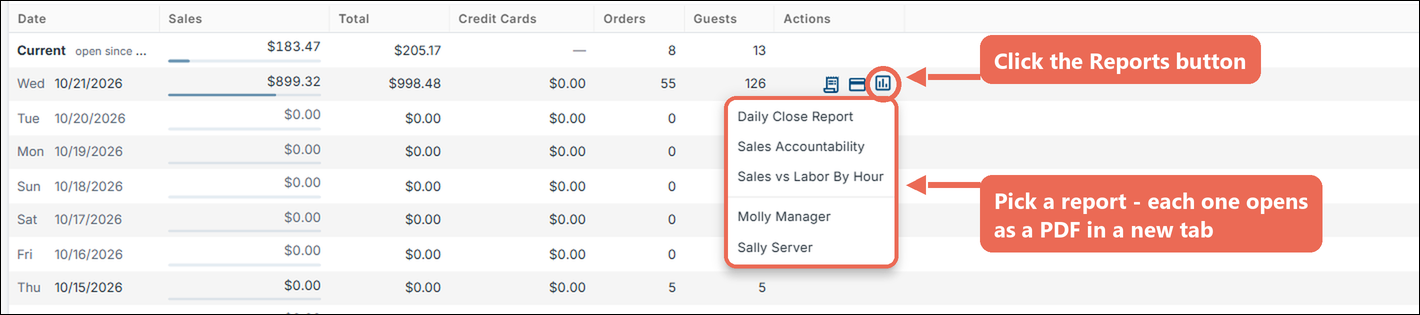
- 3. Reports: that day's reports.
Note: The Current day shows a dash for credit cards: card batches are made when the day is closed.
Orders 
Click View Orders in a day's details, or the Orders button on its row. Every order in that day is listed:
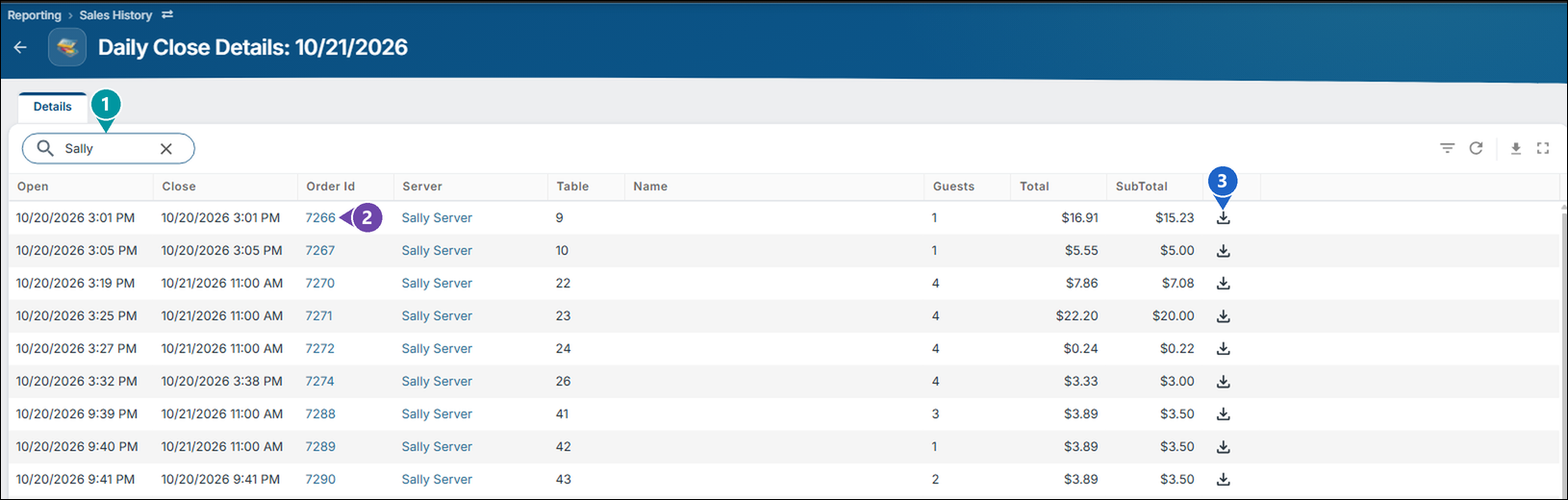
- Search: type a server's name or an order number to narrow the list.
- Order Id: click it to open the order.
- Download receipt: saves the order's receipt as a PDF.
Finding a credit card payment by the last 4 digits 
When a guest asks about a charge, you can find it by the last 4 digits of their card.
- Click the Credit cards button on the day's row in Daily Closes, or Credit Cards in the day's details.
- Type the last 4 digits of the card in the search box. Only that card's payments stay in the list.
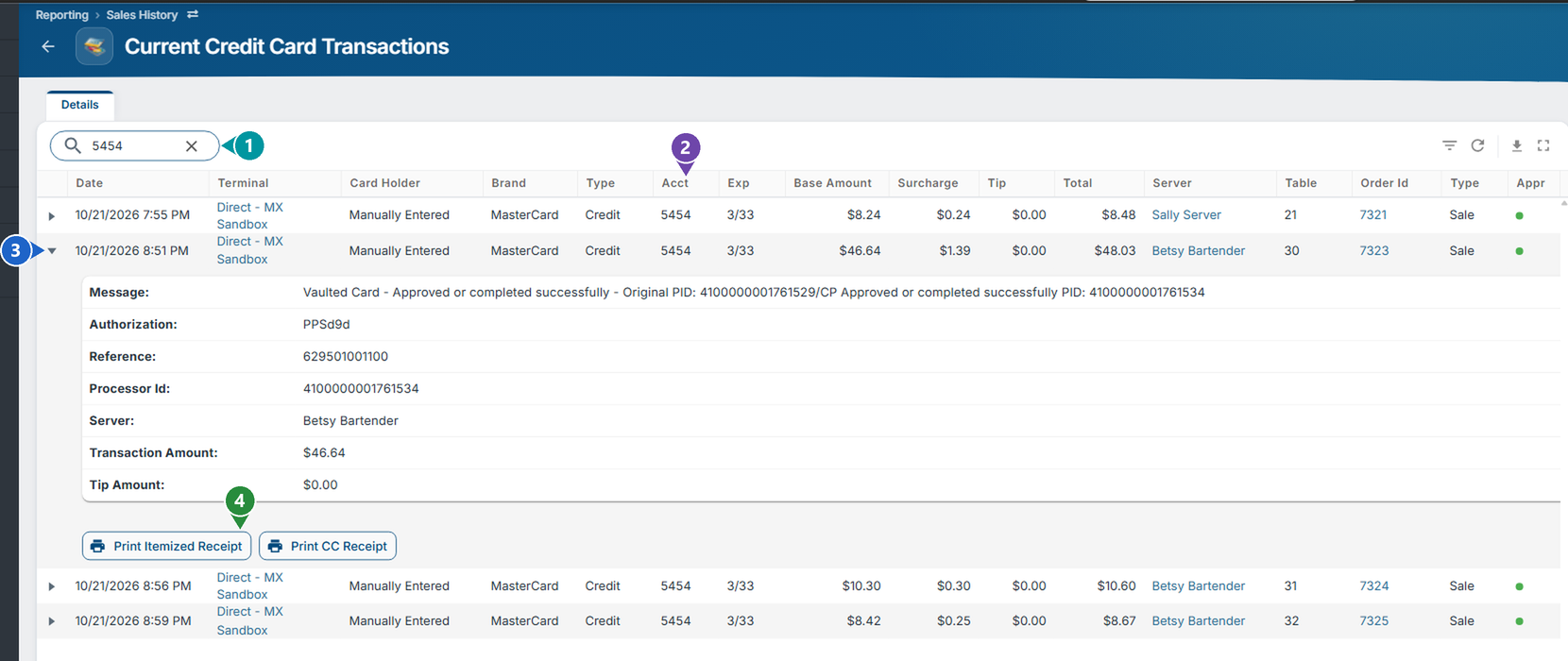
- 1. Search: the last 4 digits of the card.
- 2. Acct: the last 4 digits of the card used for each payment.
- 3. Arrow: opens the payment's details - its authorization, reference, server, amount and tip.
- 4. Print Itemized Receipt or Print CC Receipt: prints the receipt or the credit card slip again.
- Click the payment's Order Id to open its order.
Reports for a day 
Point at a day in Daily Closes and click its Reports button. Pick a report and it opens as a PDF in a new tab. The servers at the bottom of the list open each server's Server Close Report.
Click here to learn more about the Sales Accountability Report
Click here to learn more about the Sales vs Labor by Hour Report
A day's details
Click a day in the Daily Closes list. Its details open on the right:
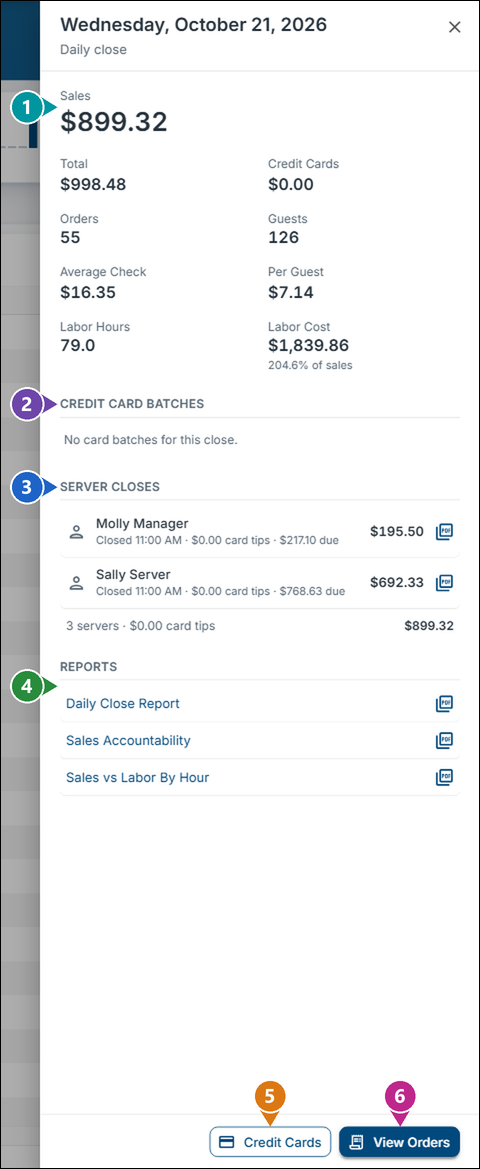
- Totals: sales, total, credit cards, orders, guests, average check, sales per guest, and labor hours and cost (with labor as a percent of sales).
- Credit Card Batches: the day's batches; click one to see its payments, or the PDF button to open the Batch Report By Date.
- Server Closes: each server's close for the day; the PDF button opens their Server Close Report.
- Reports: the day's Daily Close Report, Sales Accountability and Sales vs Labor By Hour, each as a PDF in a new tab.
- Credit Cards: every credit card payment in the day.
- View Orders: every order in the day.
Server Closes Tab
The Server Closes tab lists every server's close, newest first, with their credit card tips, reported tips and sales.

- Search: type a server's name to see only their closes.
- Date range: the days to show, as on Daily Closes.
- Server: click the name to open the employee.
- Server Close Report: point at the row and click this button to open the server's close report as a PDF.
Click here to learn more about the Server Close Report
CC Batches Tab
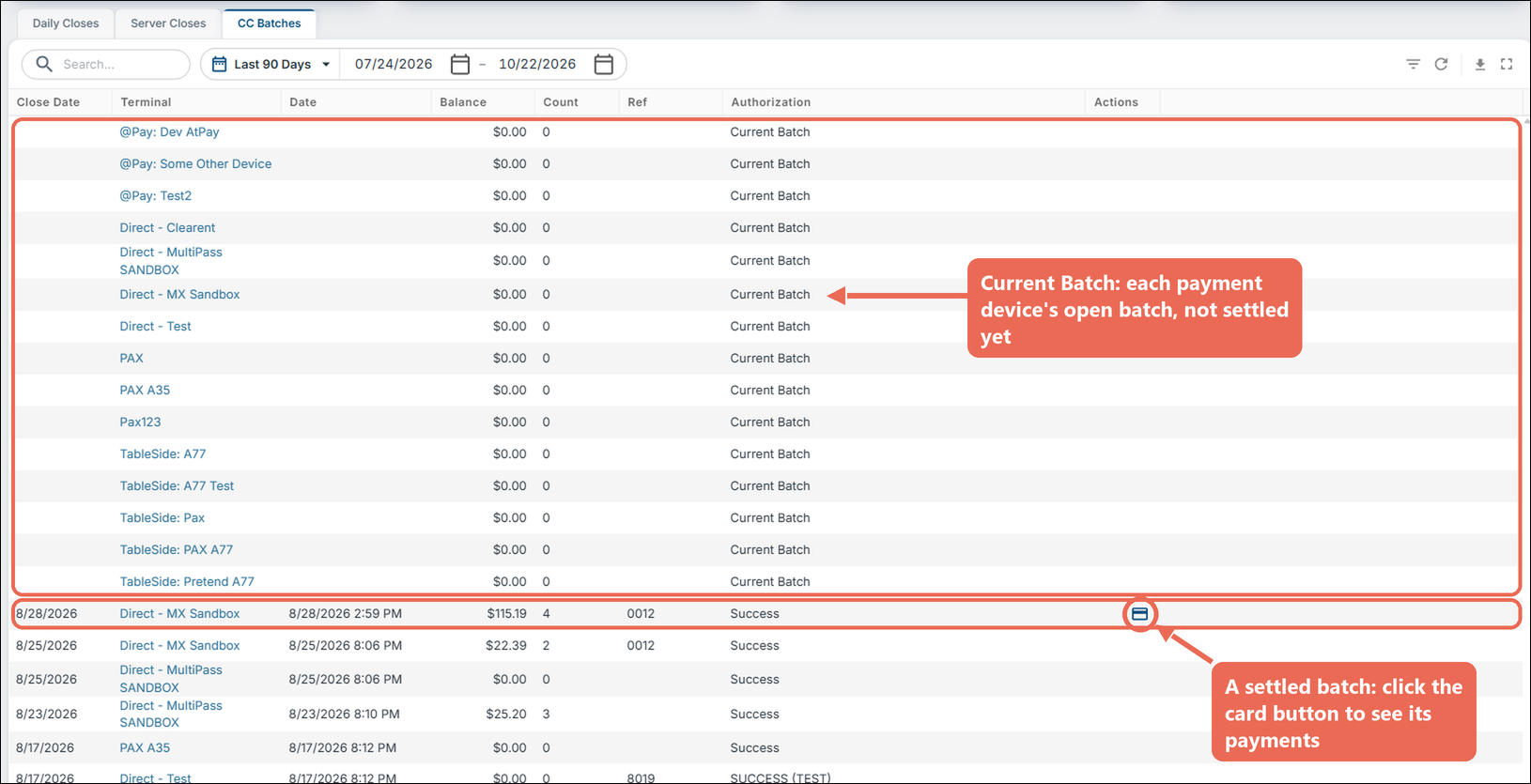
The CC Batches tab lists the credit card batches for the days you pick. At the top, a Current Batch row for each payment device shows what is waiting to be settled. Below them, each settled batch shows its close date, payment device, balance, number of payments, reference and result. Point at a settled batch and click its card button to see its payments.
No Comments