How to configure Order Processing Fee
This document will show you how to configure an order processing fee in BackofficeBackoffice. The fee is a percentage added to each guest's check, with its own tax type so it shows as its own line on the receipt.
Permissions you need
To set up the order processing fee, your job role needs these tasks:
- Manage Taxes (POS --> Back Office --> System Setup)
- Manage Charges (POS --> Back Office --> Settings)
Set up a tax for Order processing fee
-
Backoffice --> POS --> System Setup -->
Taxes
Taxes. Click New Tax Type.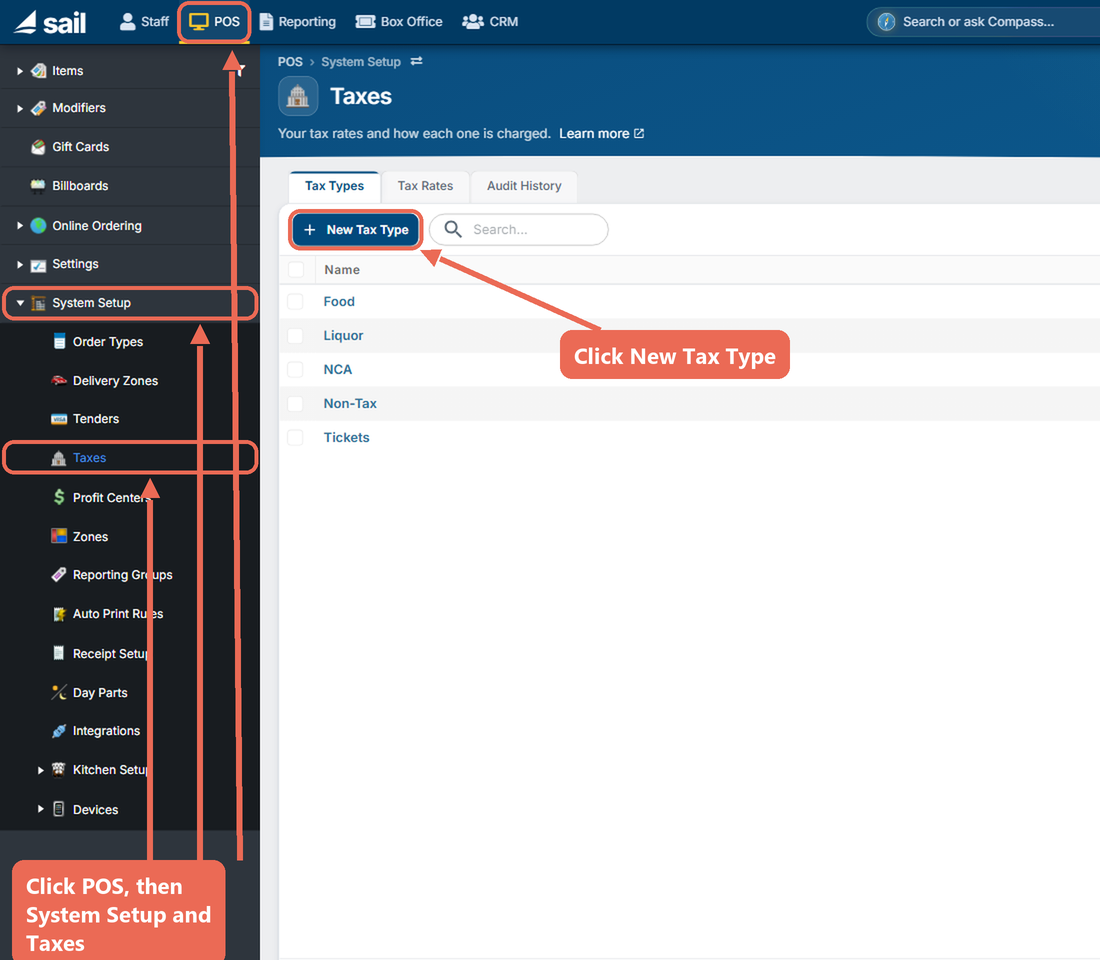
CreateaFill
taxouttypethenamedwindow: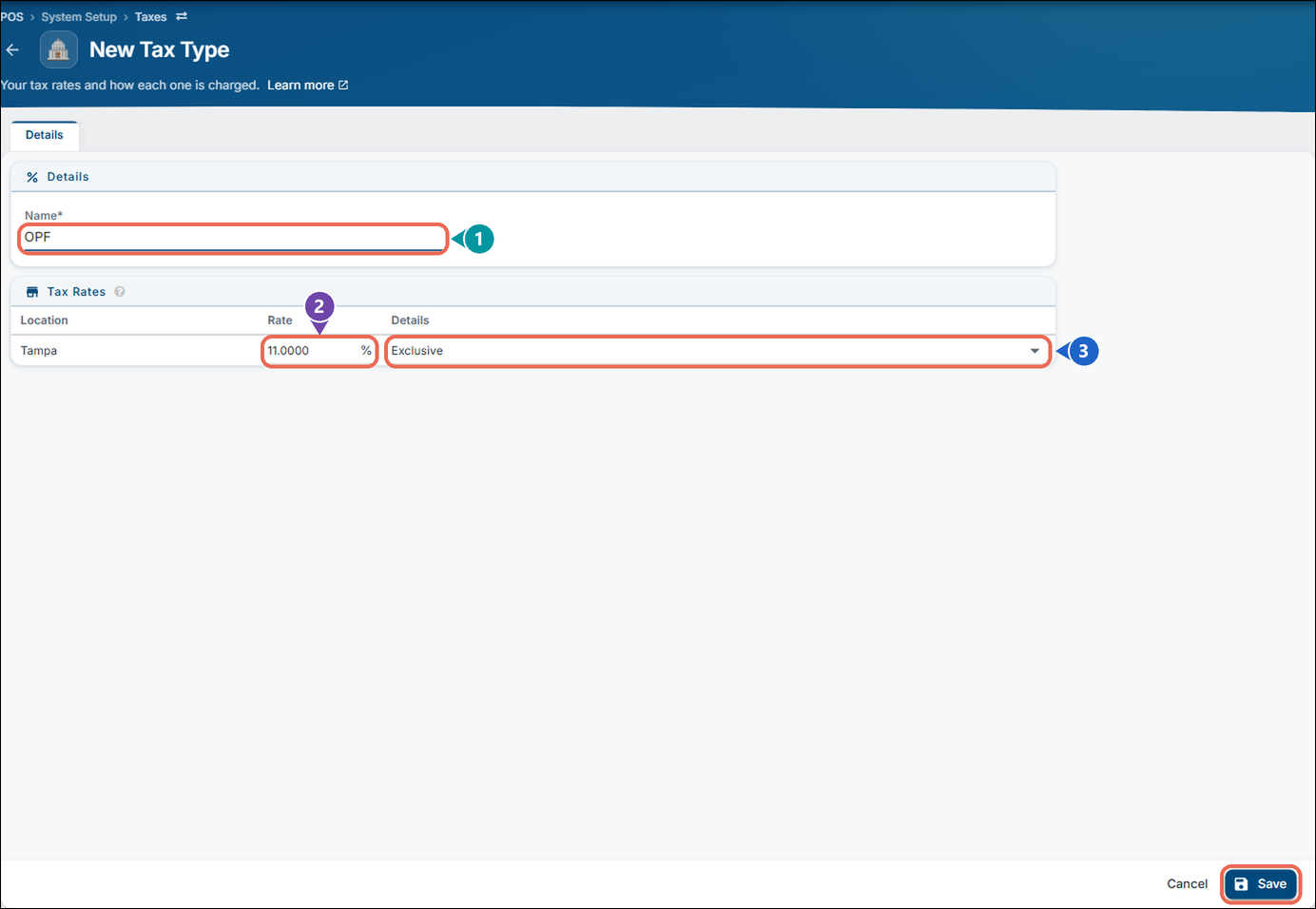
- Name (1): Name it "OPF" or "Order Processing Fee"
- (required).
ThenRateon(2):the Tax rates tab putPut in the same rate as their food or salestaxtax.andDetailscheck(3):the box forPick "Exclusive".
- Name (1): Name it "OPF" or "Order Processing Fee"

Set up the charge type
OntheBackoffice
"--> POS --> Settings --> Charges --> ChargeGroups"Groupstab,Tab.addClickaNewnewChargerecordGroup.and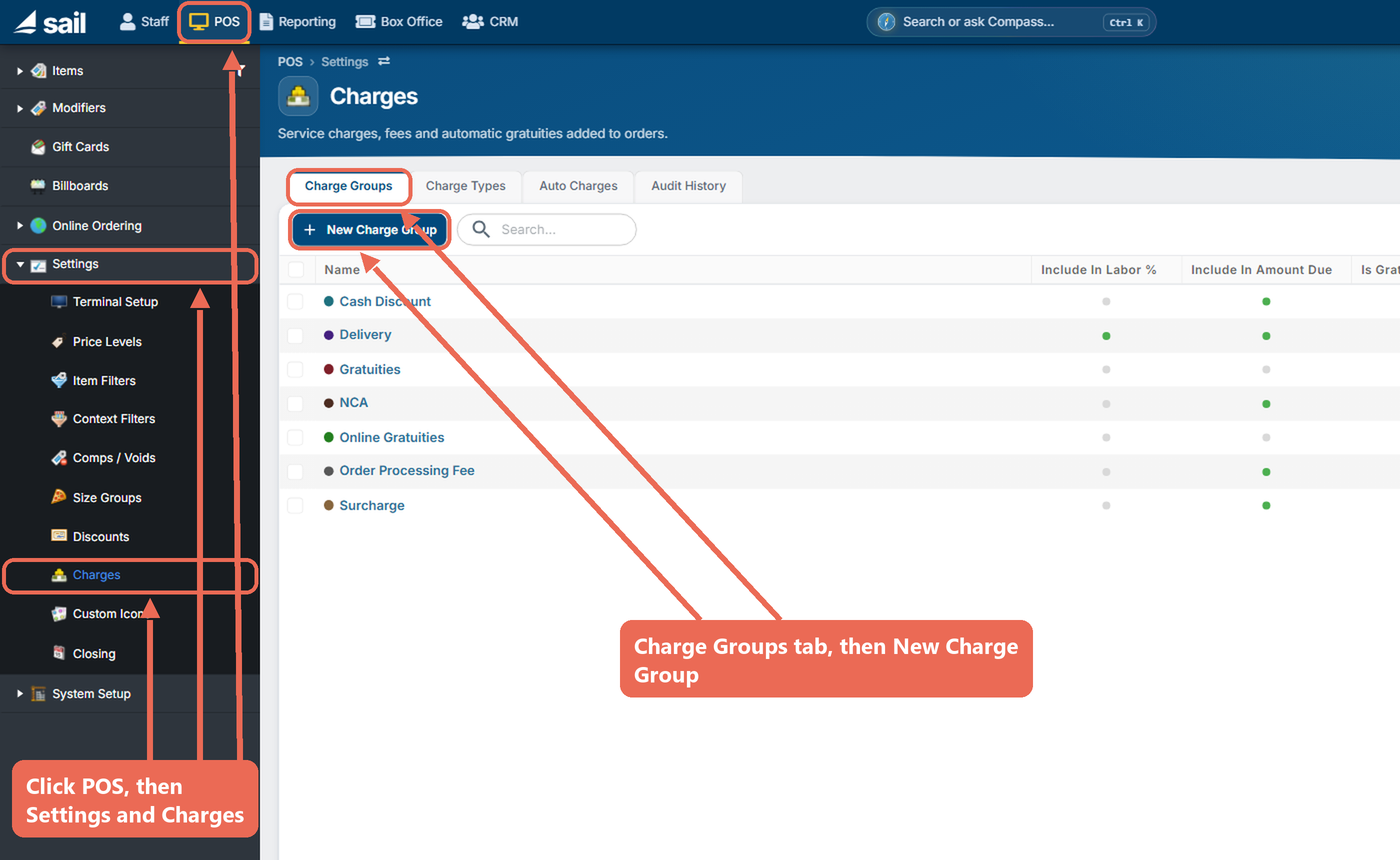
name-
Name it "Order Processing Fee"
- (1),
andturn on Include In Amount Due (2), check theboxreportingforgroups"Includethe fee is charged on under Reporting Group Associations (3) and click Save.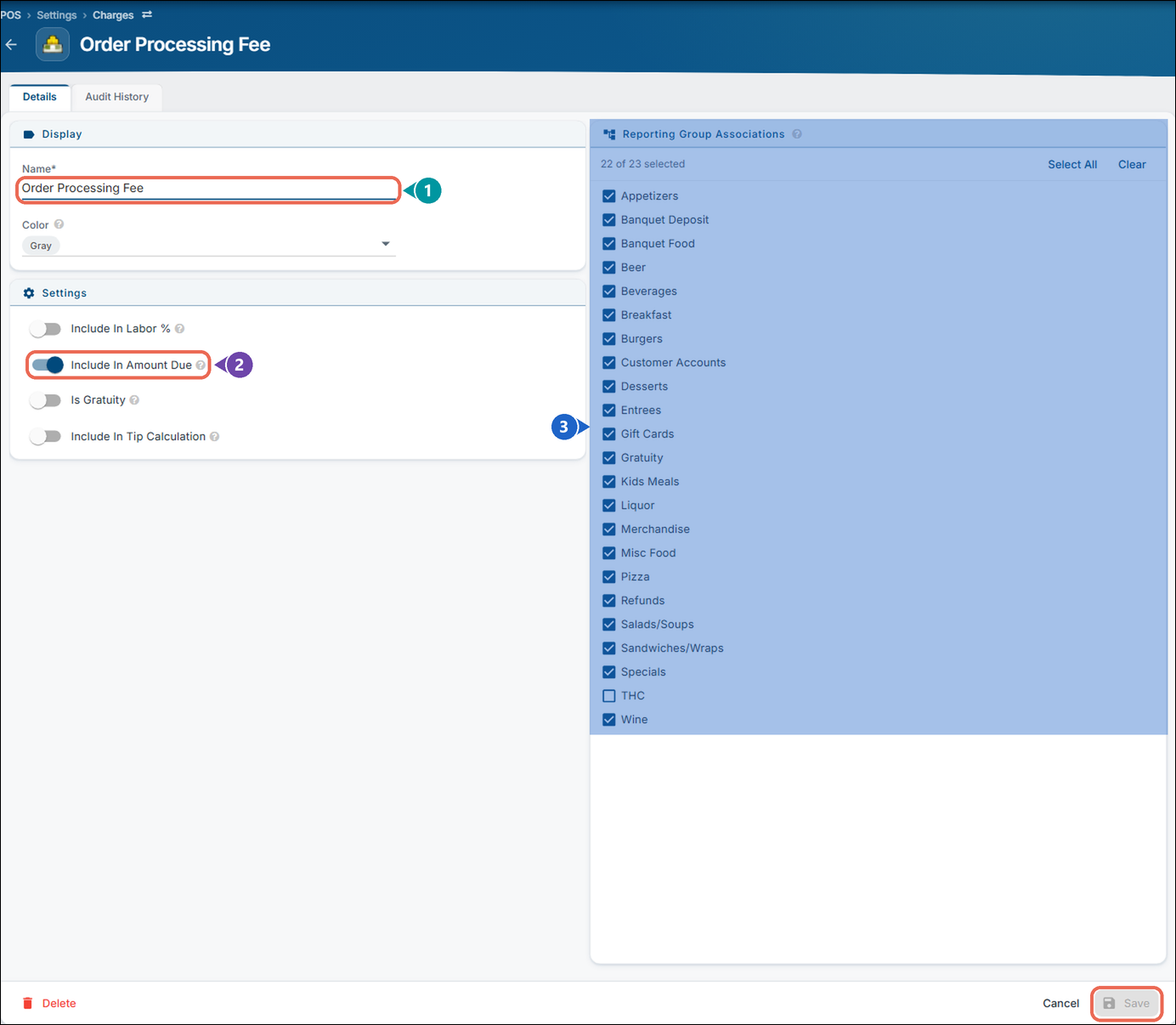
Note: The fee is only figured on items in
AmounttheDue"
reporting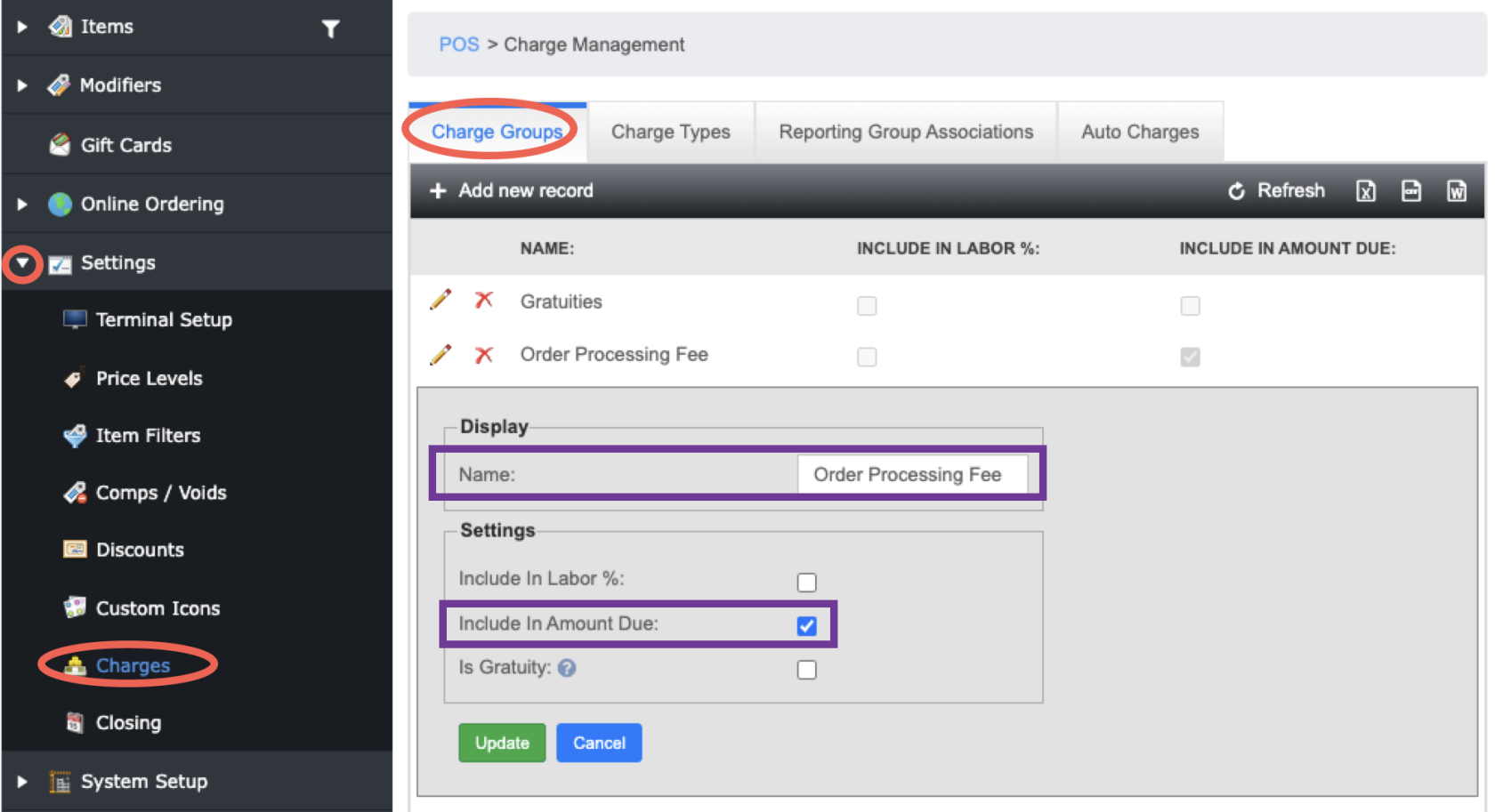
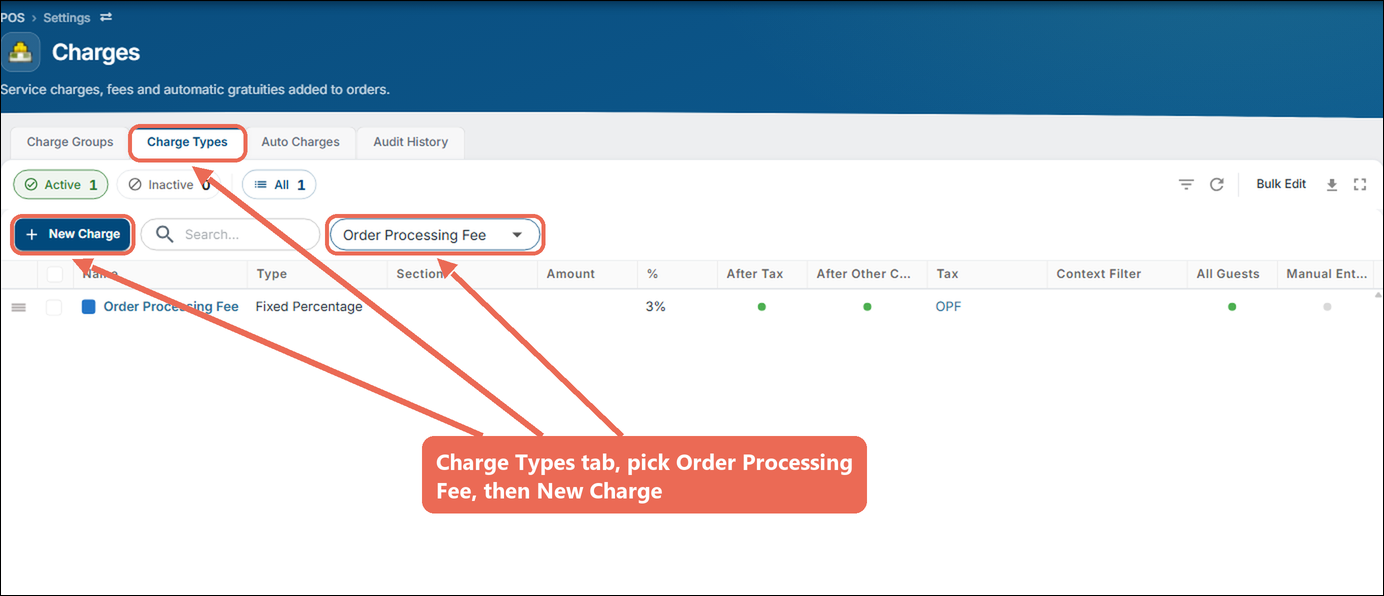
OnCharge Types Tab. Use the
"Chargetypes"Grouptabdrop-downusenext to thedropdownsearch box to find the "Order Processing Fee"
, then click New Charge.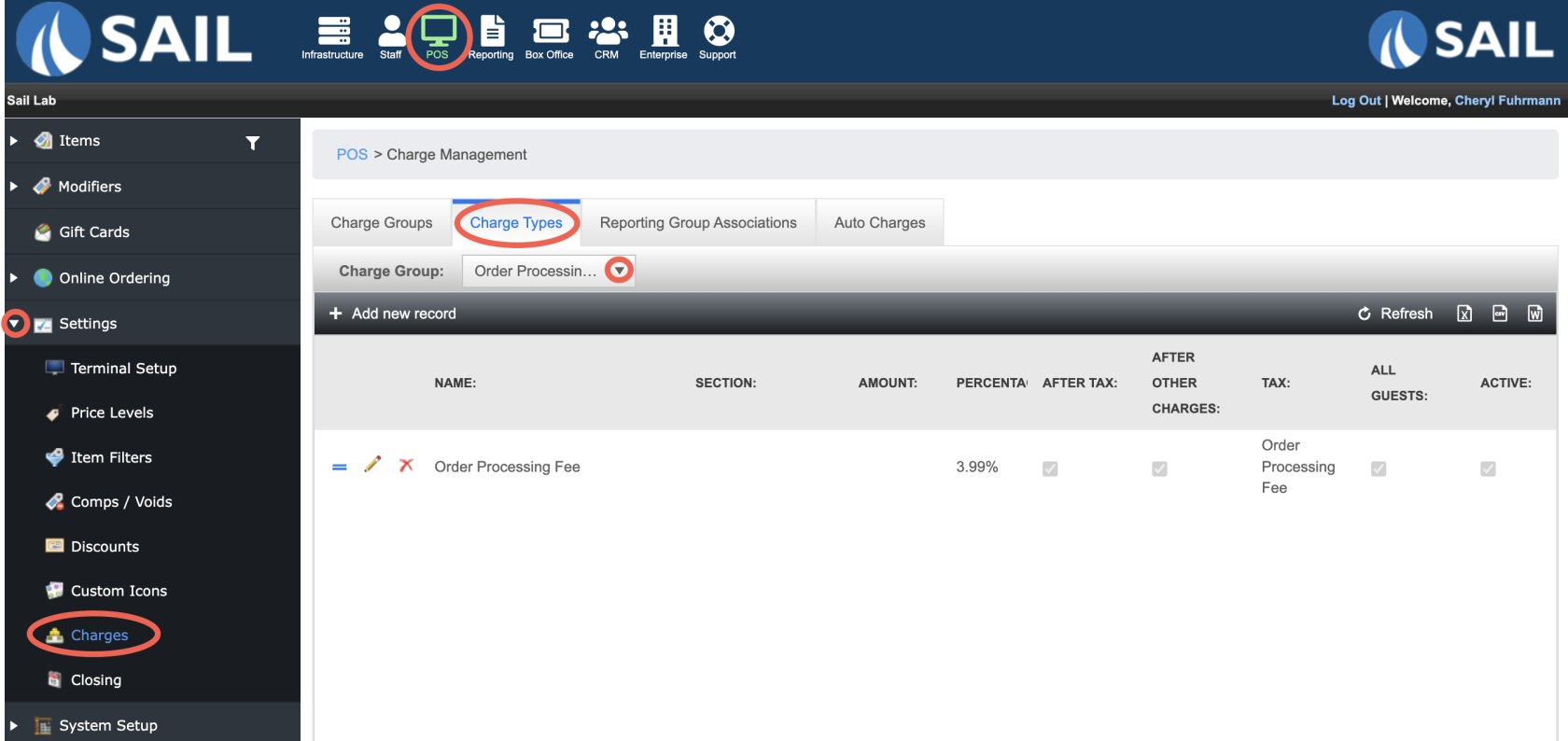
-
Here is how to configure the Order Processing Charge
type
type: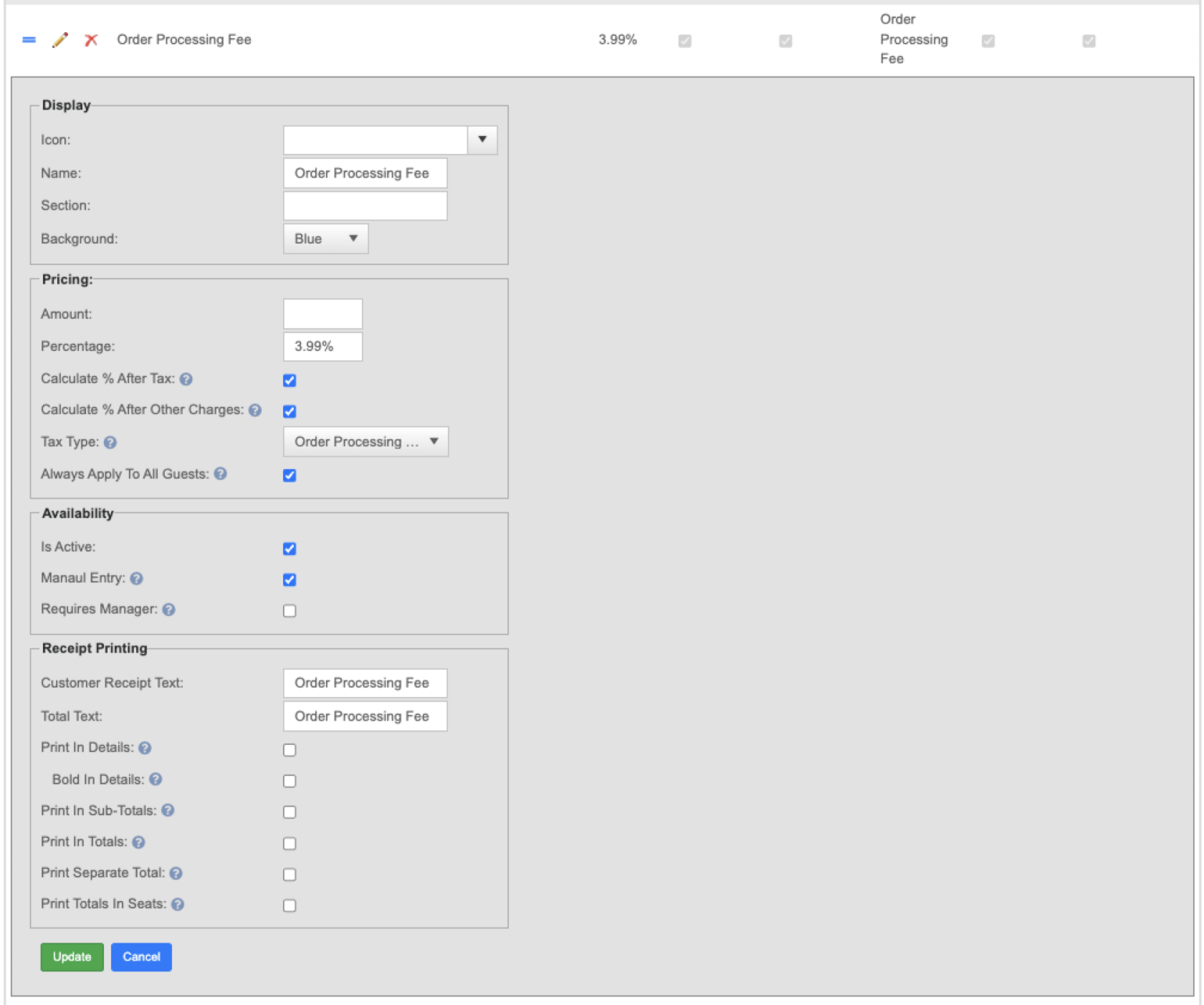
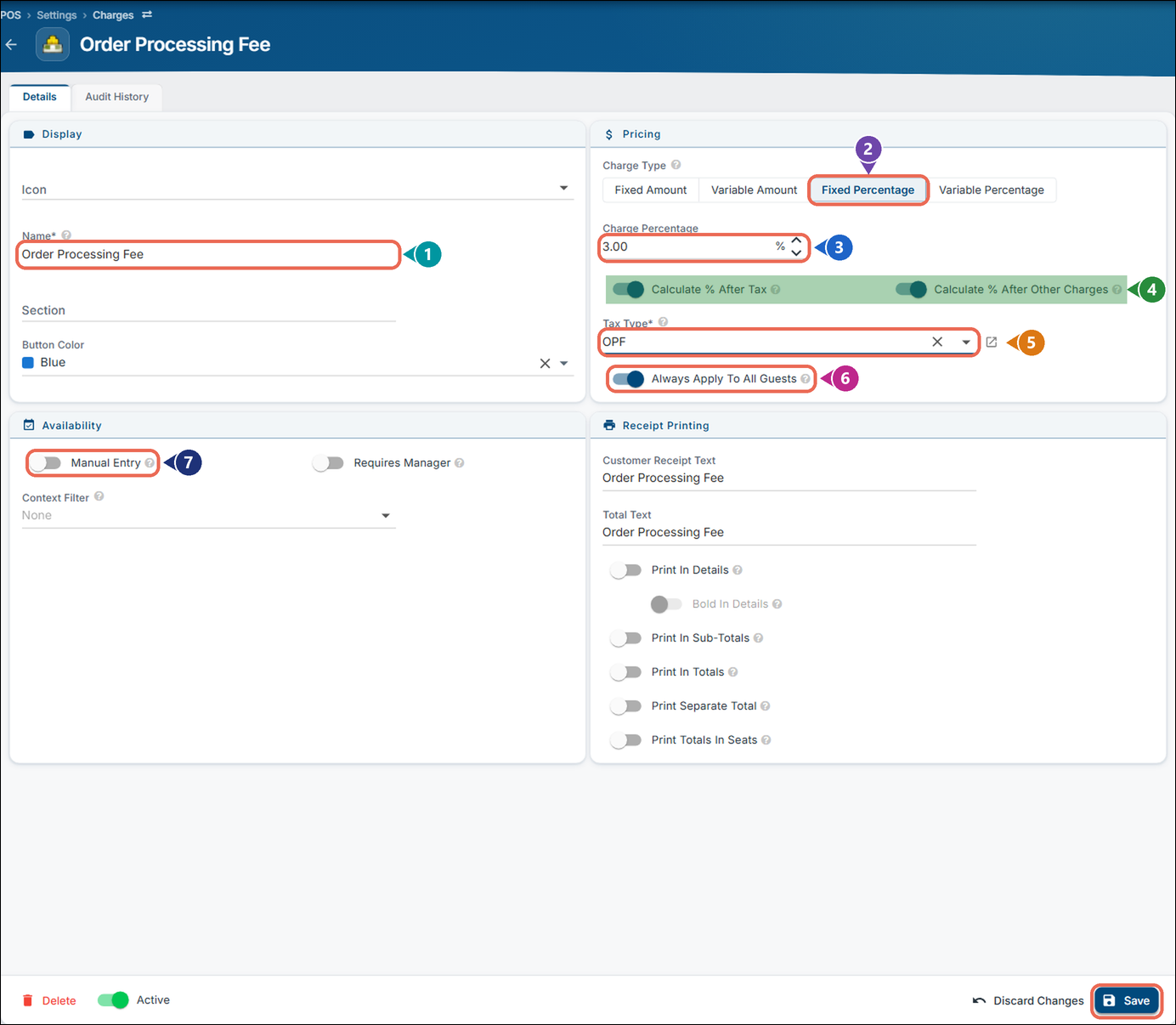
- Name (1): Name it "Order Processing Fee" (required).
- Charge Type (2): Pick "Fixed Percentage".
- Charge Percentage (3): Put in the fee's percentage, for example 3%.
- Calculate % After Tax and Calculate % After Other Charges (4): Turn both on.
- Tax Type (5): Pick the tax type you created above (required).
- Always Apply To All Guests (6): Turn this on.
- Manual Entry (7): Leave this off. The auto charge (below) adds the fee.
-
Click Save.
-
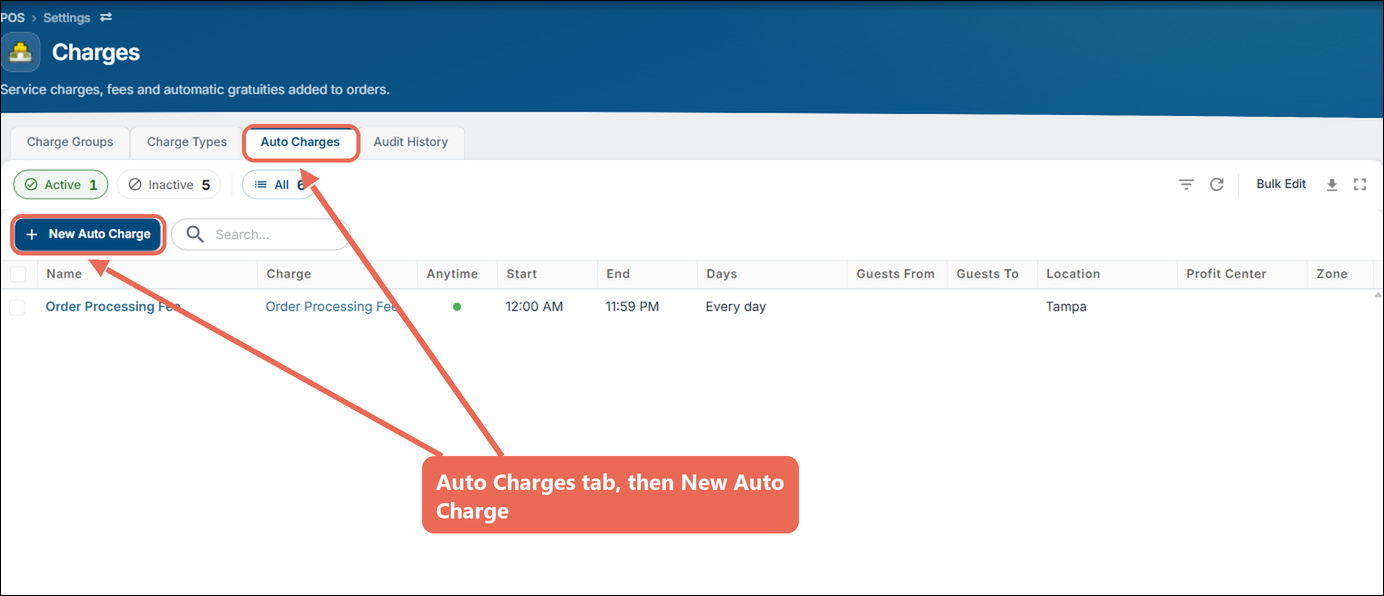
-
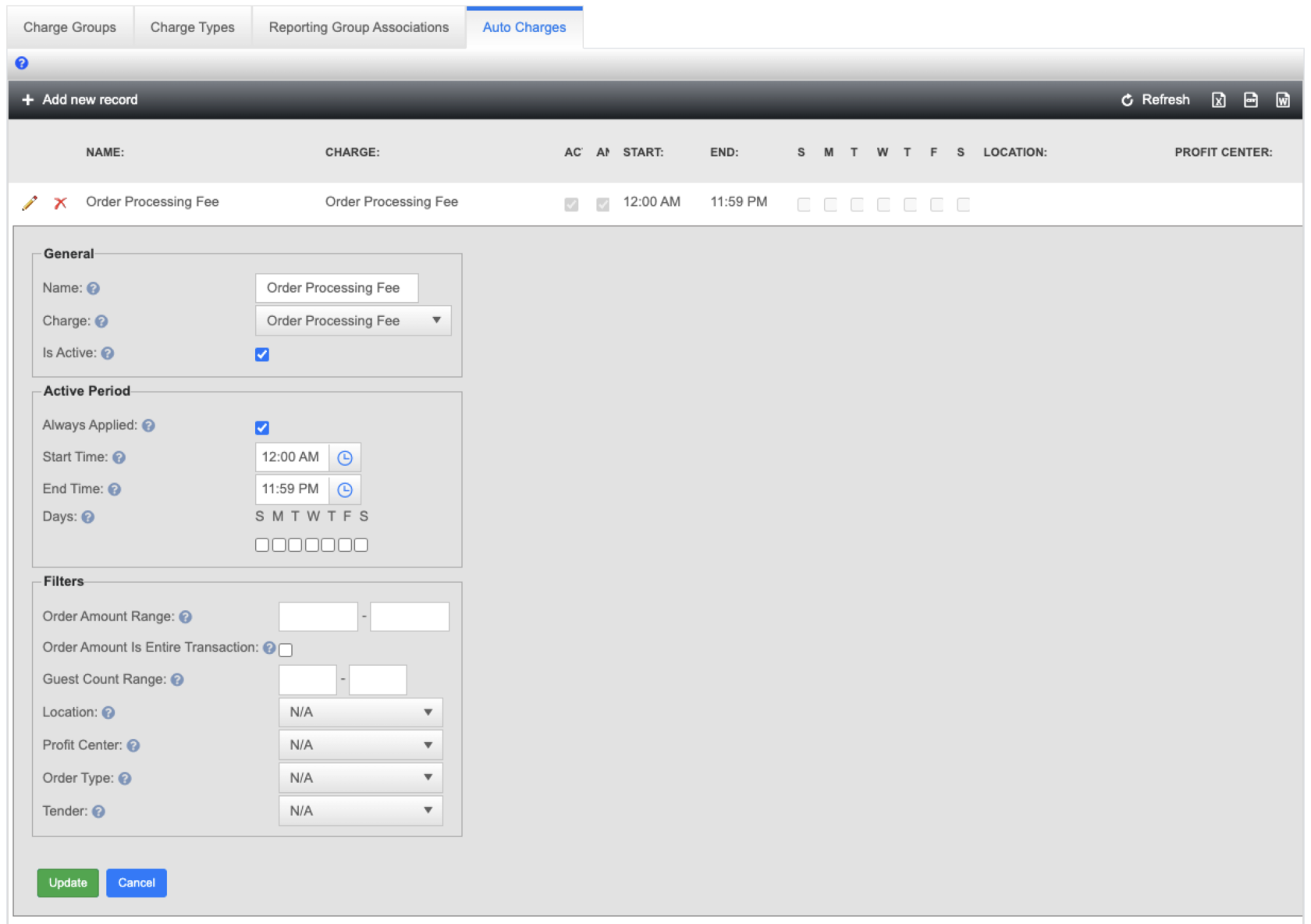
Fill out the window:
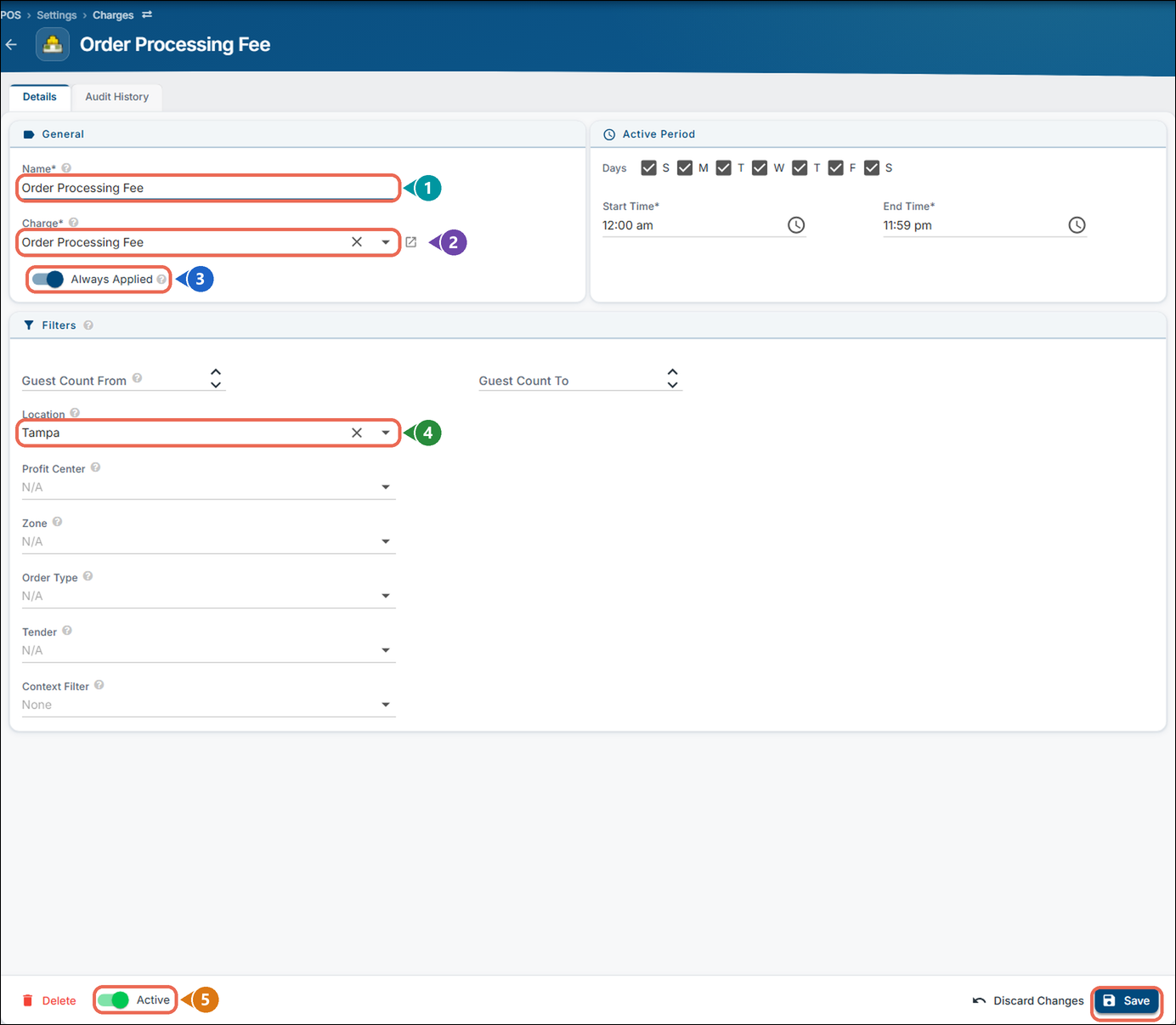
- Name (1): Name it "Order Processing Fee" (required).
- Charge (2): Pick the "Order Processing Fee" charge you created above (required).
- Always Applied (3): Turn this on.
- Location (4): Pick your location.
- Active (5): Turn this on.
-
Click Save.
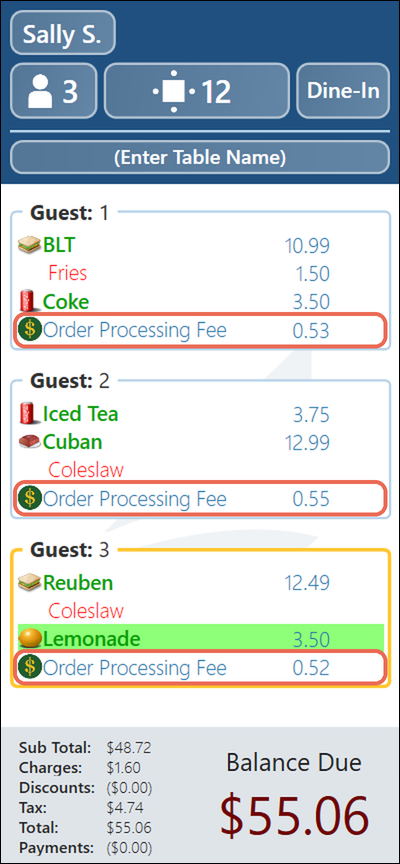
- Each seat shows its own Order Processing Fee (1).
- The section above the Total is the subtotals of each tax type. So the OPF line is the subtotal of all the order processing fees (2).
- One thing to keep in mind is that the Order Processing Fee is configured to "Always Apply
toToALLAll Guests"
- If you take it off one guest it will be removed from all guests.


How to set up the Auto Charge

If you'd like to learn more about auto charges, click here.
Example of what it looks like on the receipt

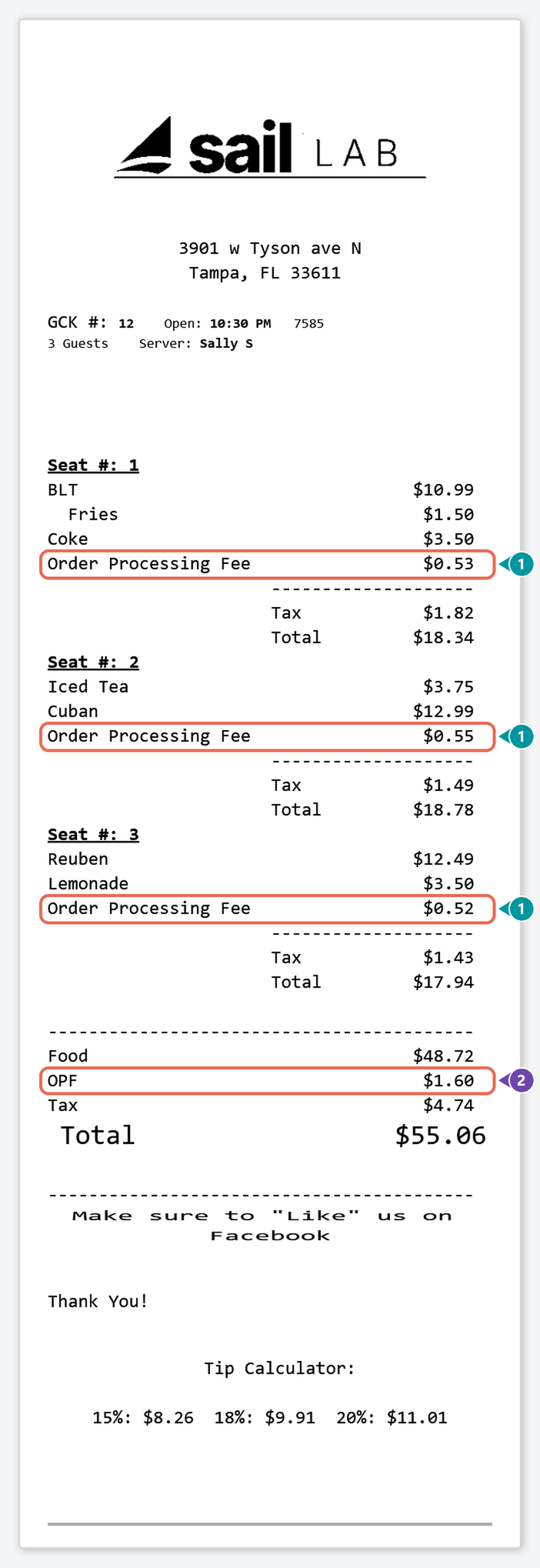
Example of what it looks like on the terminal