
How to create a gift card button
This document will detail how to make a button for a gift card purchase.
You make an item for the gift card, then a gift card type that uses it.
Permissions you need
Your job role needs these tasks in Backoffice (Staff --> Job Roles, under Tasks):
- POS --> Back Office --> Items --> Manage Items - All, to make the item.
- POS --> Back Office --> Gift Cards --> Manage Gift Card Types, to make the gift card type.
- POS --> Back Office --> Gift Cards --> Activate Gift Cards, to activate a range of cards.
Creating the gift card button
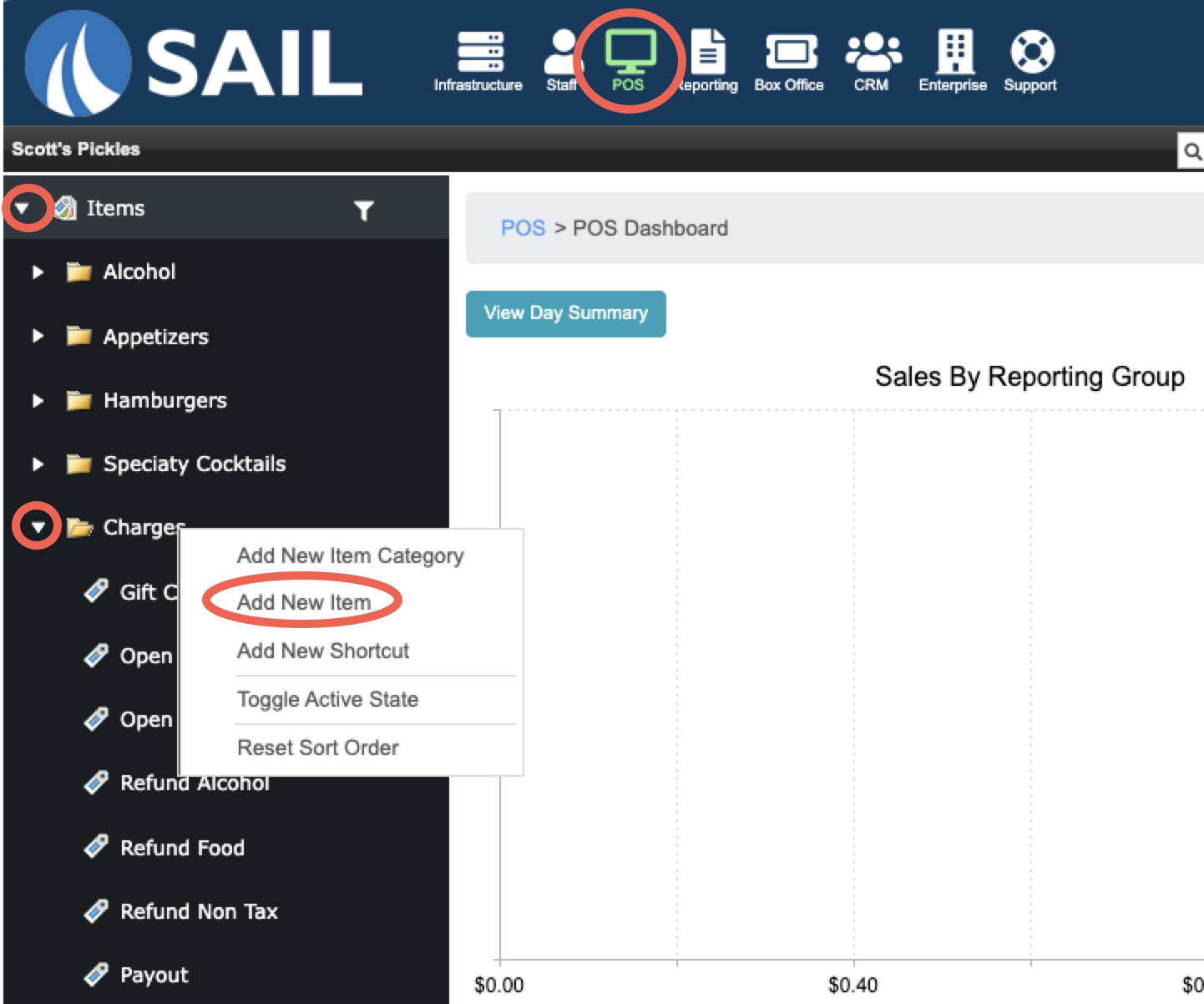
NavigateClick POS at the top, then the arrow next tocreateItemsainnewtheitemmenu- on
Backofficethe-->left.POSRight-click--> Expand items --> Expandthe Charges categoryRightand clickon Charges category to see the option to "Add NewItem"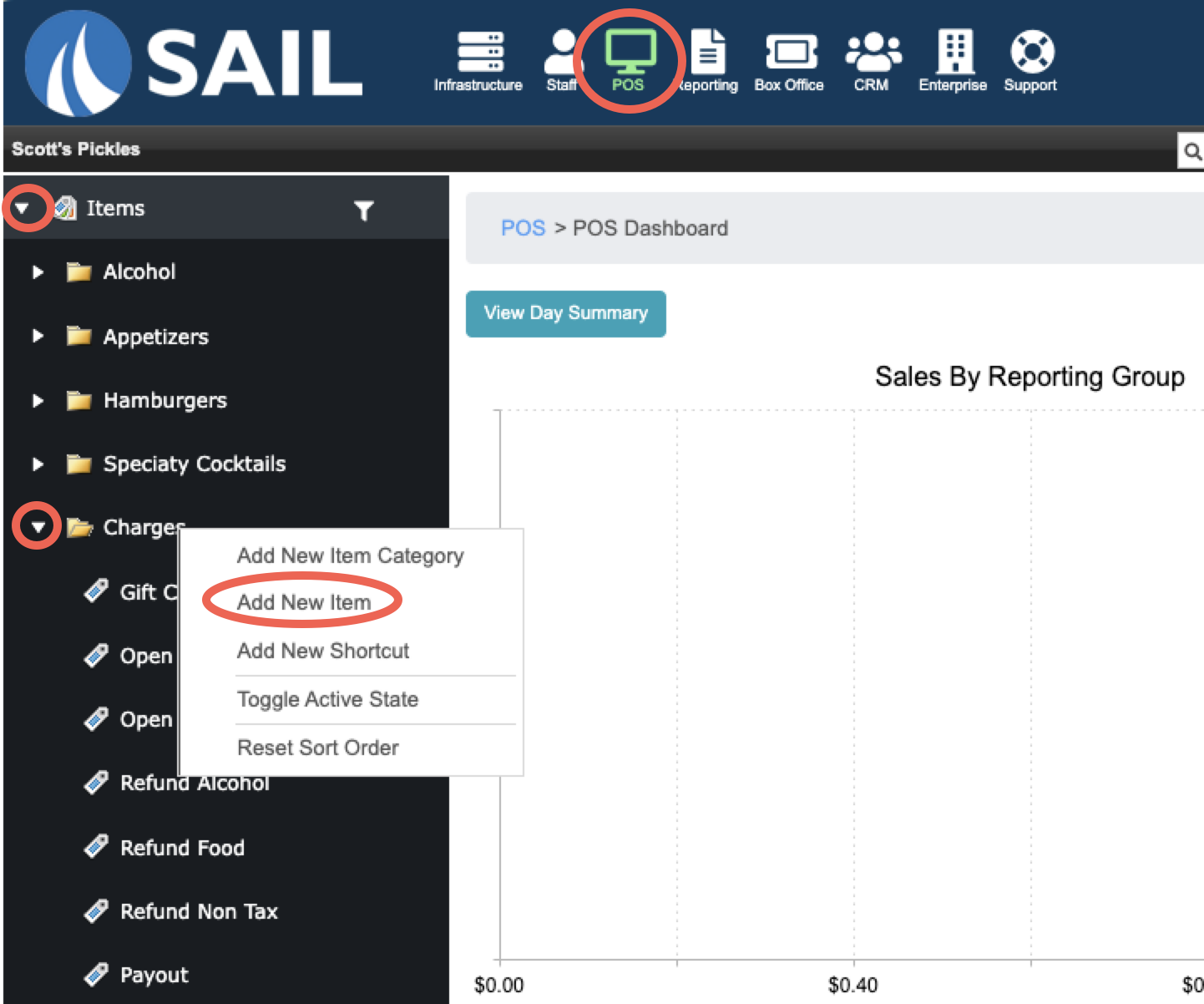 Item.
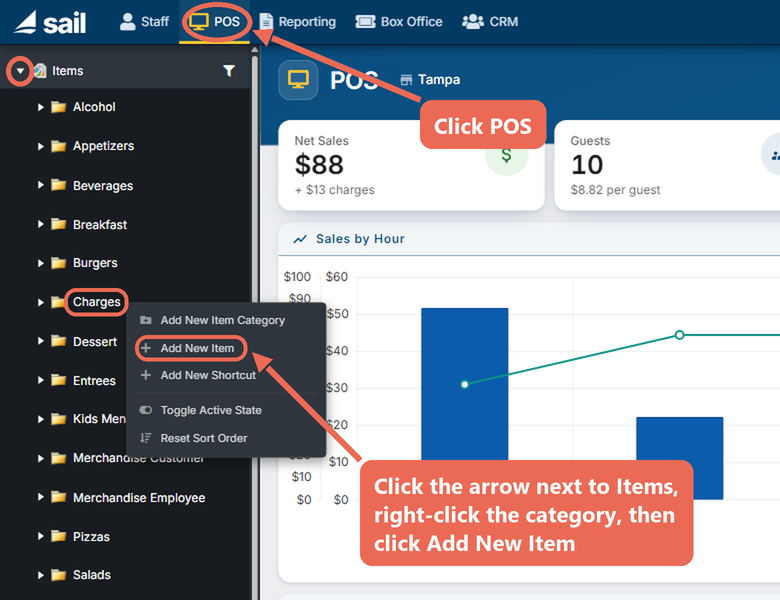
- A new Item will be created.
- Fill
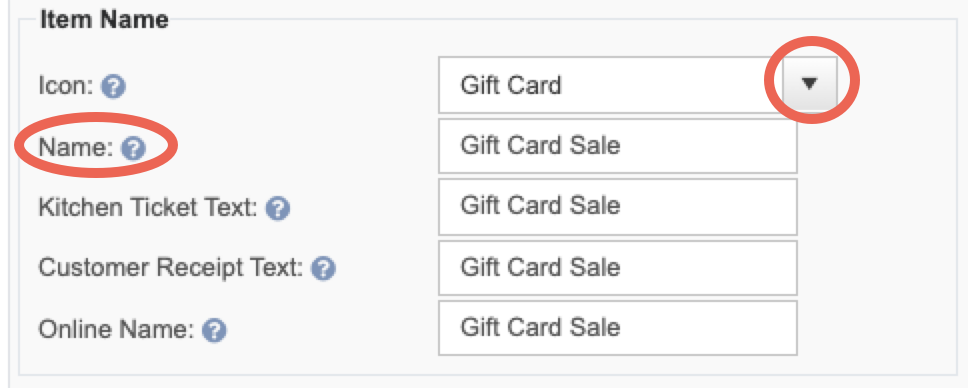
Nameout thePLUGeneralandtab:give it an icon.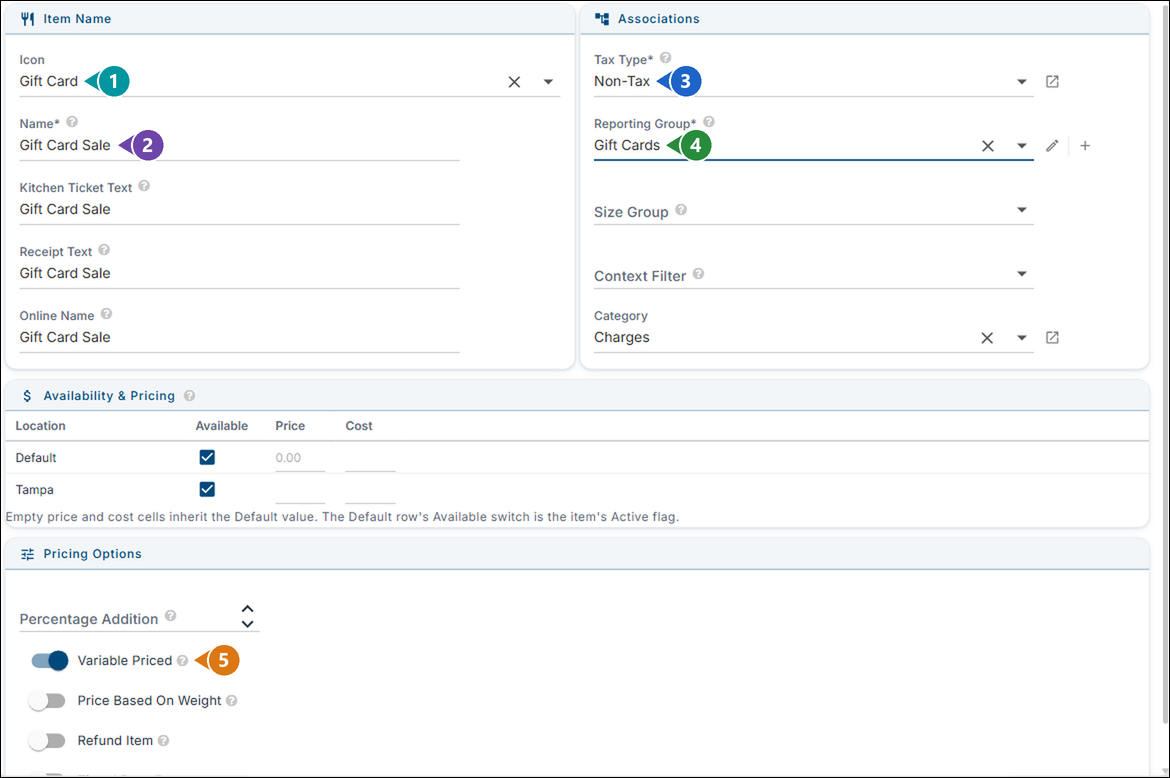
- Icon: We have a gift card icon that can be
usingused forthis.
this:
Gift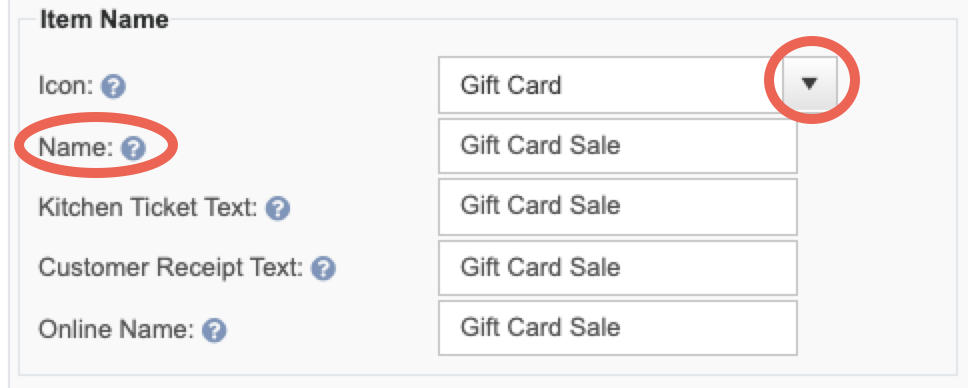
- Icon: We have a gift card icon that can be
SetName:upName theItemsitem,Associationsforsectionexample- Gift
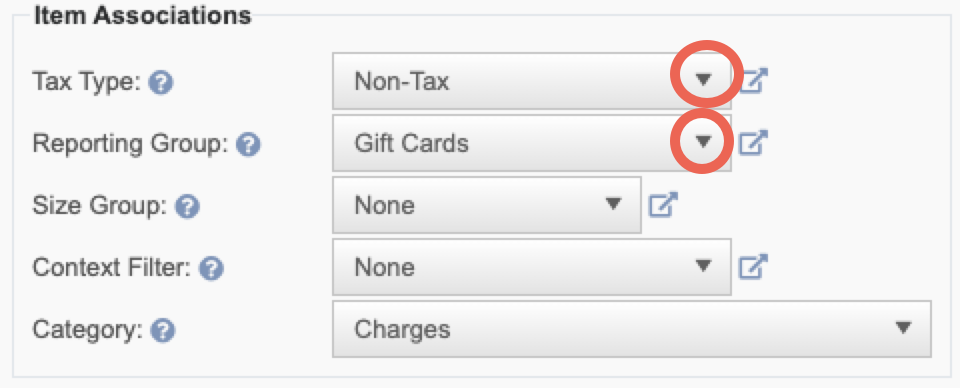
SetCardTaxSale.typeThetoKitchenNon-TaxTicket Text, Receipt Text and Online Name fill in by themselves.SetTax Type: Non-Tax.- Reporting Group
to: GiftCards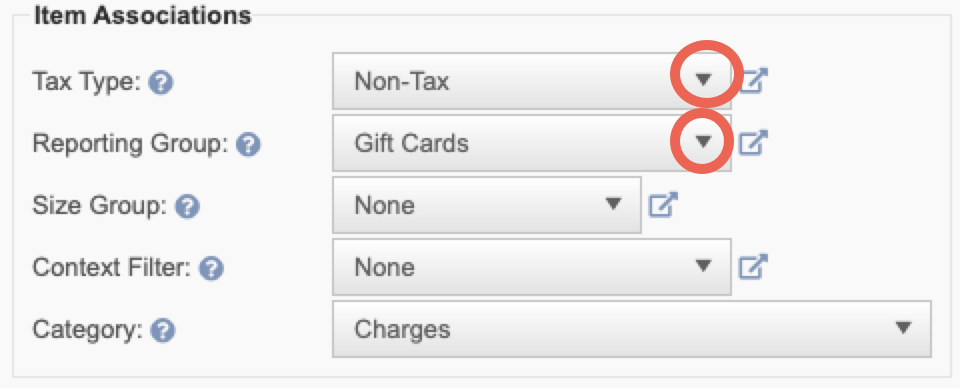
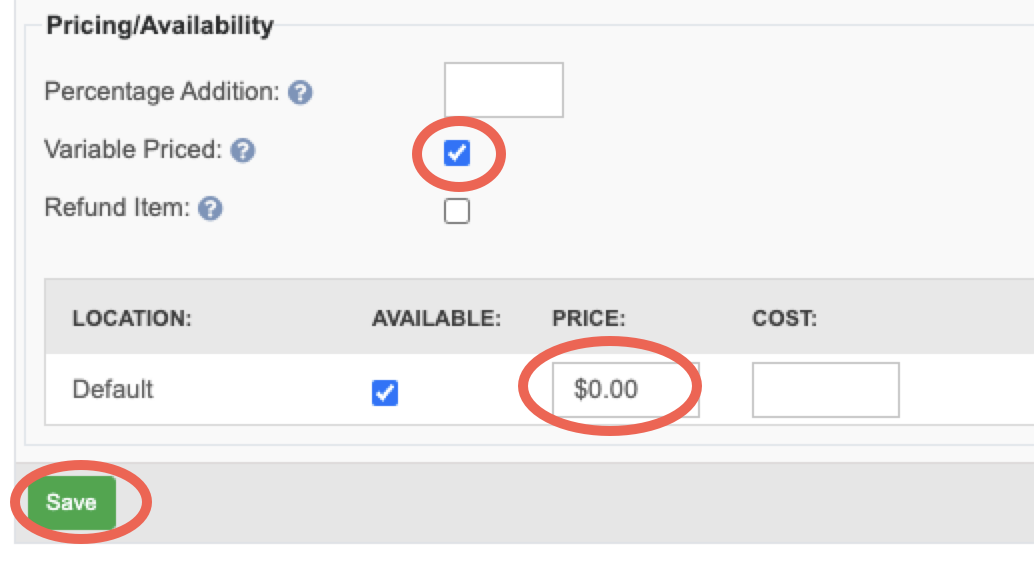
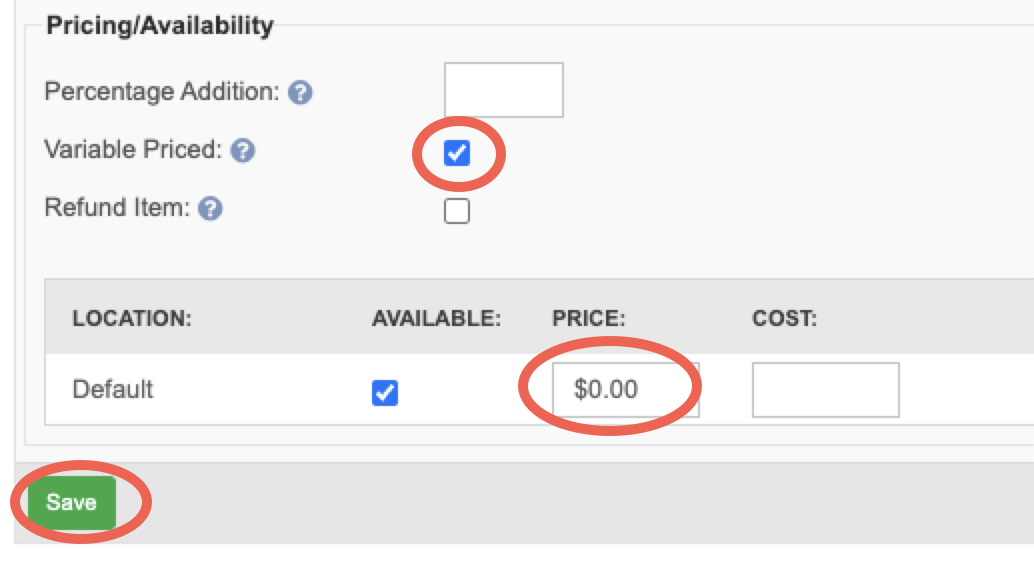
Set the Pricing and AvailabilityCheck the box for "VariablePriced"Priced: Turn it on so that you can enter the price of the gift card when it is purchased.SetYouthedon'tDefaultneedPriceato zero ($0) as it wont save unless there is something in the default price section.price.
- Click
Save
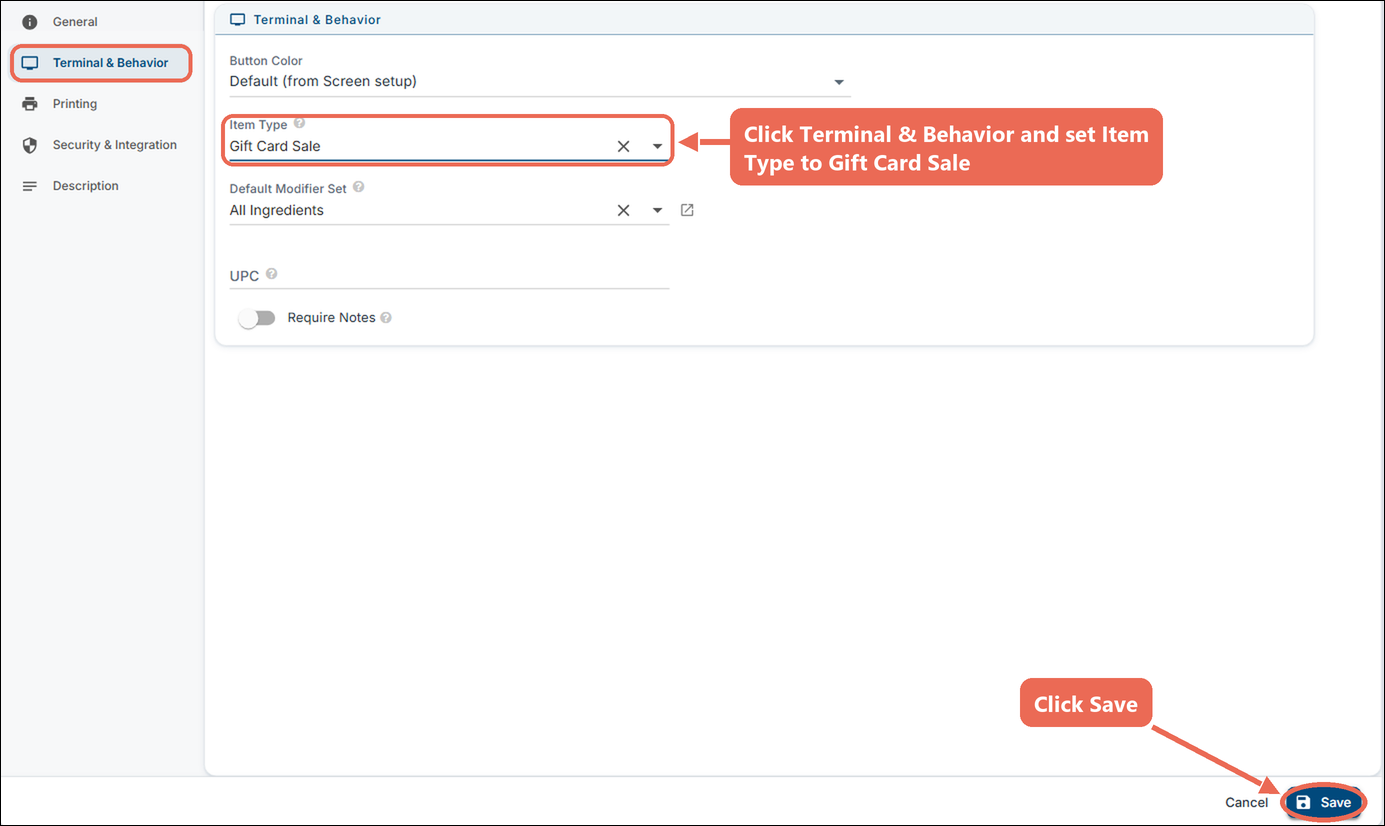
Terminal
& Behavior
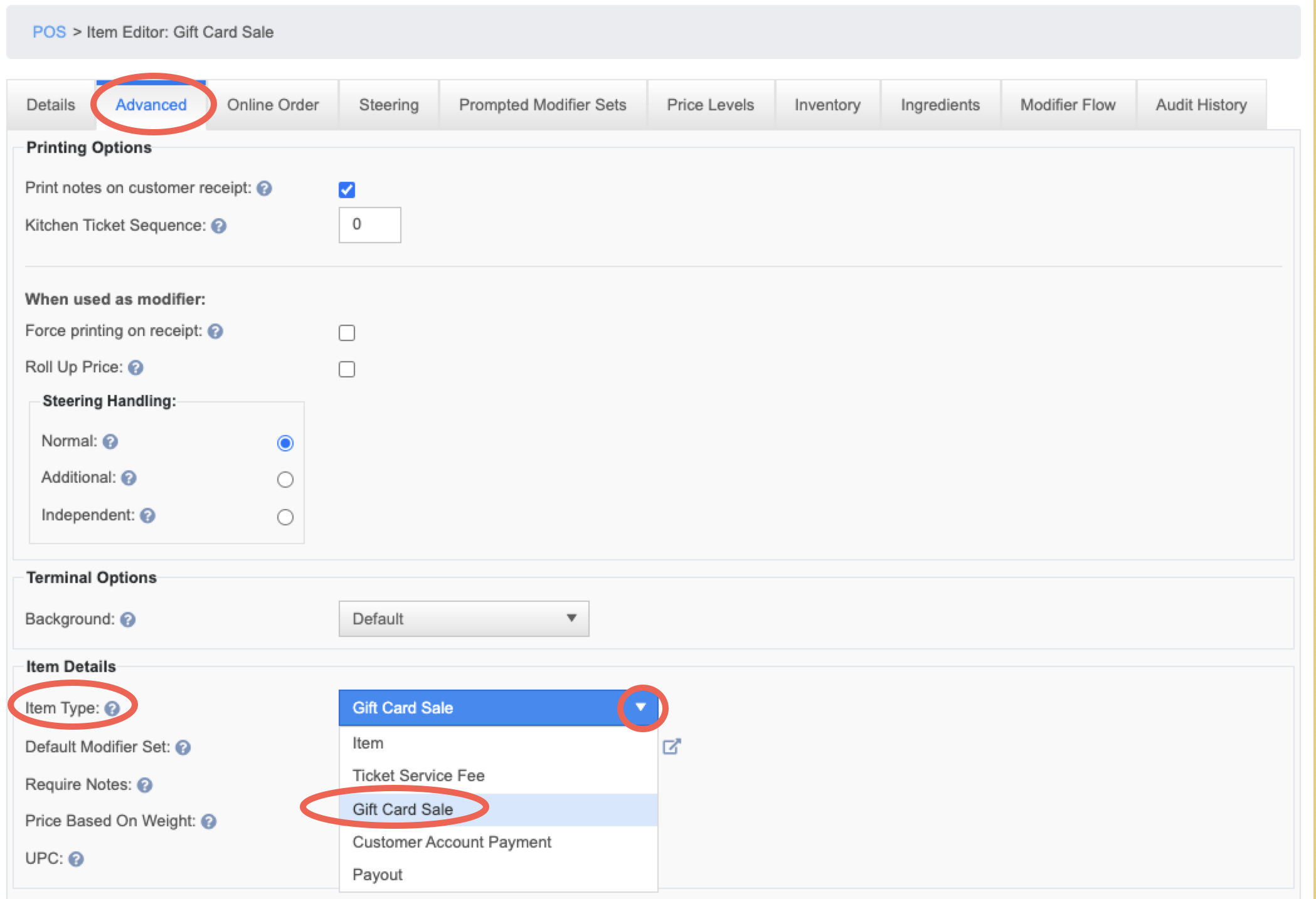
After you have saved the Item, go to thechangeAdvanced tabChangeItem Typein the Item Details sectiontotheGift Card Sale.
Creating the Gift Card Type
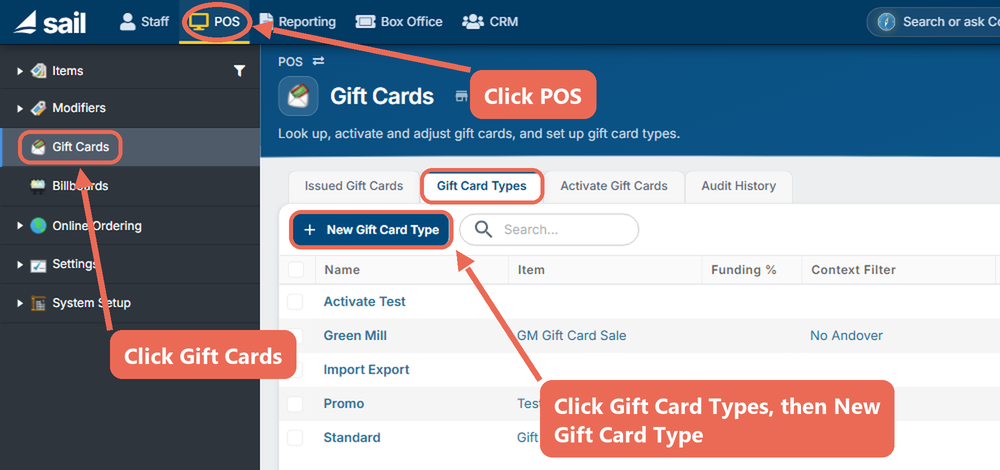
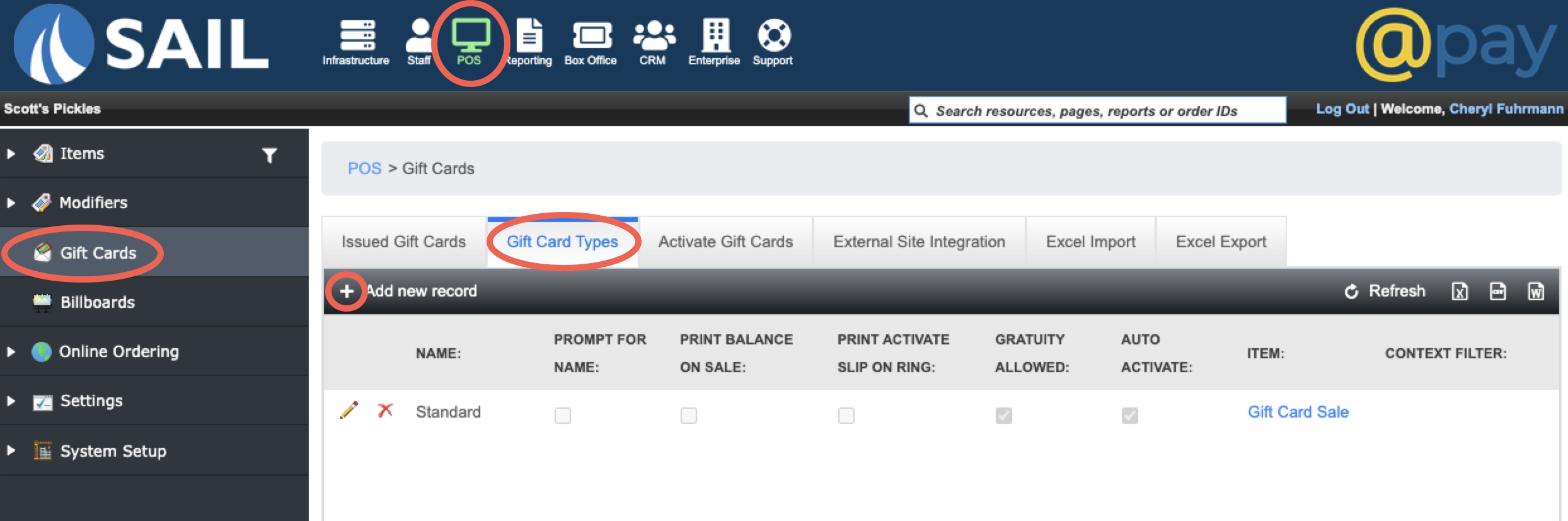
NavigateClicktoPOS at theGifttop,cardsthensection.Backoffice --> POS -->Gift Cards-->in the menu on the left. Click the Gift Card Types tab, then New Gift CardTypes tab
Type.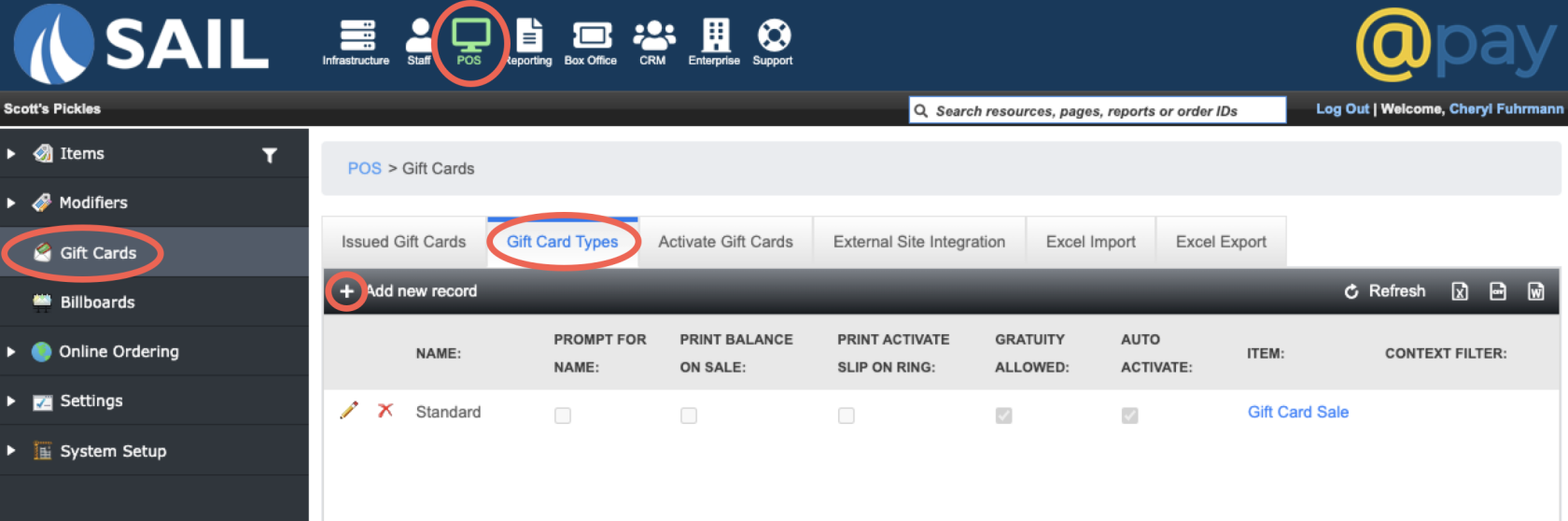
AddFill out the newrecordgift
type,
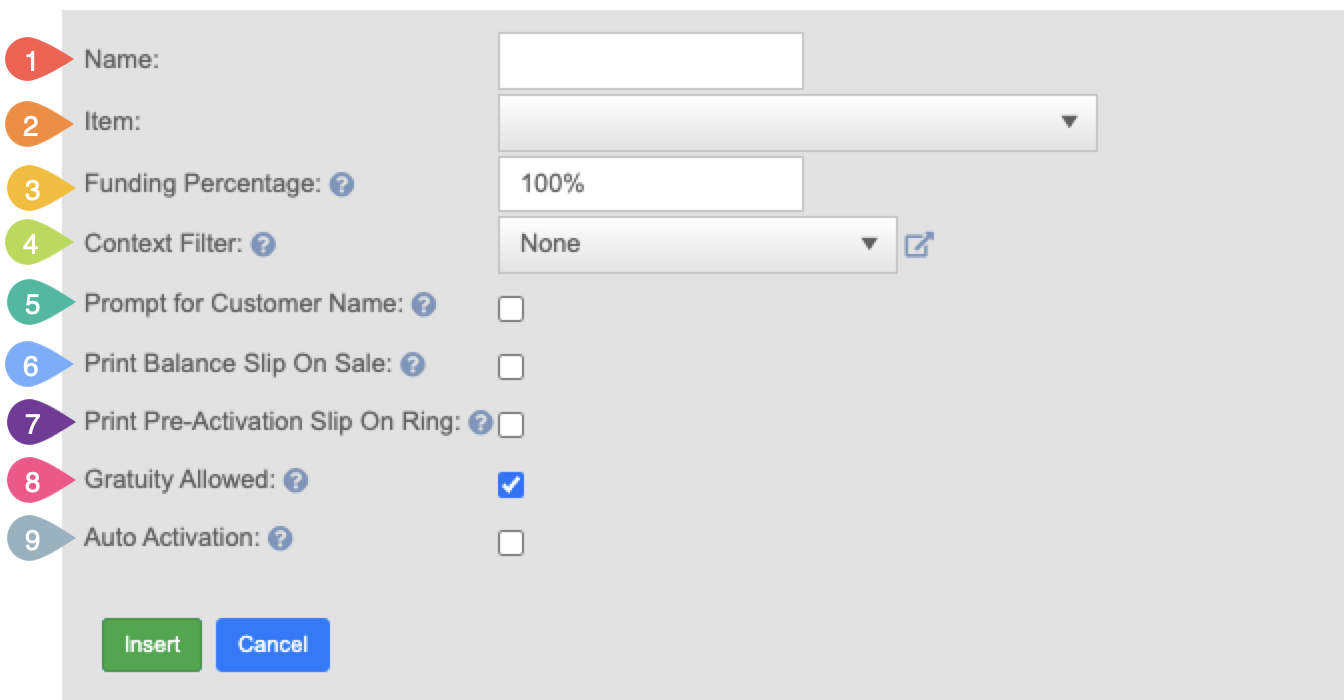
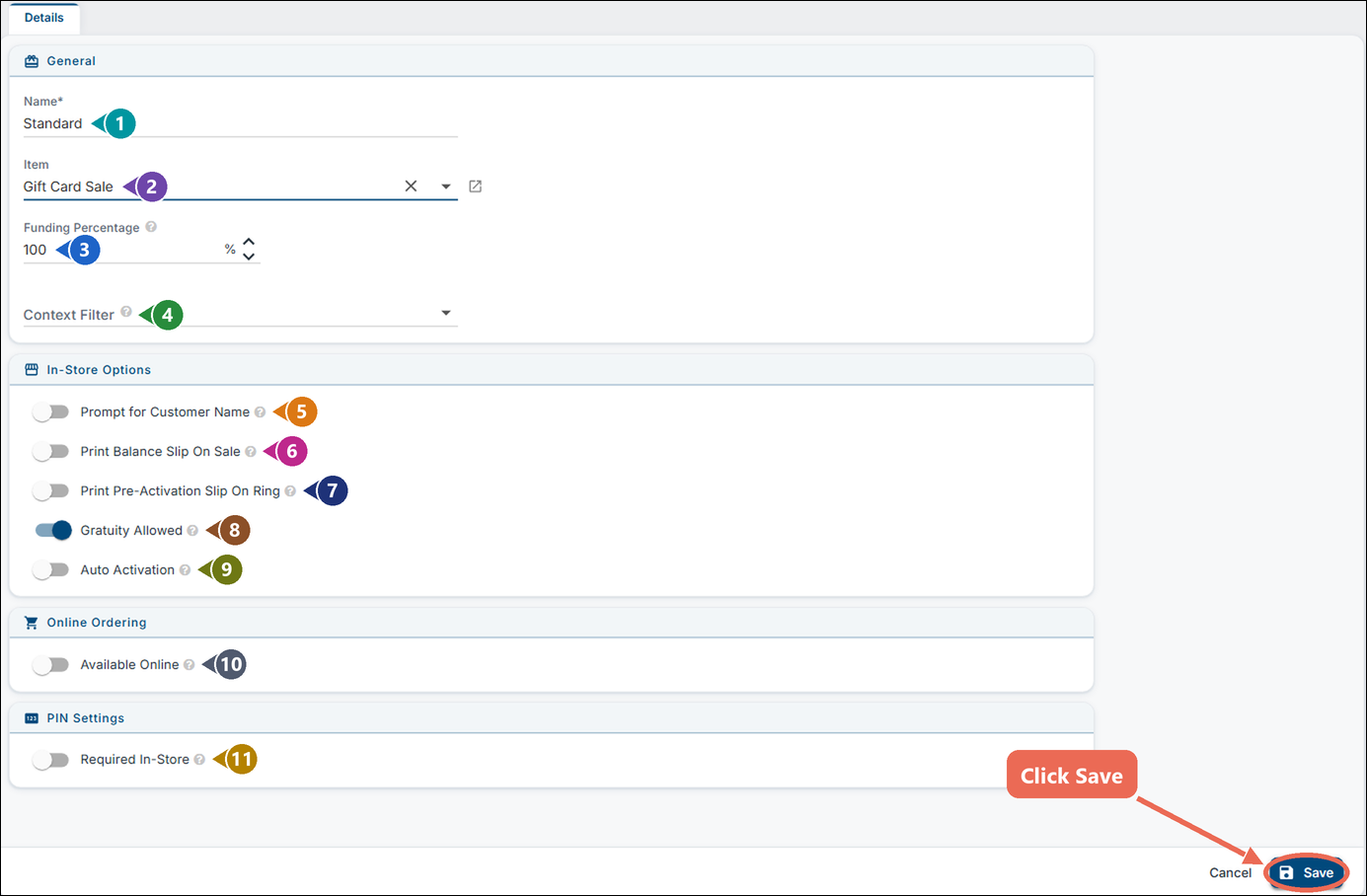
Name:Name: Name the gift card type- (required)
- If you only have one, Standard is our default, but Main or Gift Cards will work
Item:Item:UseType theDropdownnameto findof the "Gift Card Sale" item you created in the step above and pick it from the list. Each item can have only one gift card type.- Funding
Percentage:Percentage: Specify the percentage to apply to this gift card type for cross store funding - Context
Filter:Filter: Optionally, select a context filter in which this will be available - Prompt for Customer
Name:Name: If this ischecked,on,Thethe system will prompt a keyboard for thecustomerscustomer's name in addition to the card number when ringing in a gift card of this type- Helpful for Promo gift cards, to keep track of who they are donated to
- Print Balance Slip
onOnSale:Sale: If this ischecked,on, a balancesheetslip will print on thedeicesdevice's default printer once the salehadhas completed - Print Pre-Activation Slip
onOnRing:Ring: If this ischecked,on, an activation slip will print on thedevices'device's default printer when the gift card has beenrunrung into the system (prior to payment).- Please keep in mind that the card is not funded until the sale is completed
- Gratuity
Allowed:Allowed: Whenselected,on, the gratuity can be adjusted on the gift card payment- This is often turned OFF for Promo gift
cards.cards,Soso customers can not tip with donated funds
- This is often turned OFF for Promo gift
- Auto
Activation:Activation: Whenselected,on, card numbers will be auto added to the system when thesalessale is completed, and will not require pre-activationNote:Note: Pre-activation will help ensure that the range of cards is not duplicated in thesystem.system,Andand that staff can only sell gift cards that you have activated and are ready for sale
- Available Online: When on, this gift card type can be used for online orders. Once it's on, a Required Online switch shows under PIN Settings.
- Required In-Store: When on, a PIN is needed to use a gift card of this type in the store. Required Online does the same for online orders.
Activating a
Unless the gift card type uses Auto Activation, activate your cards before you sell them. You activate a range of card numbers at once, and each card in the range belongs to that gift card type.
- On the
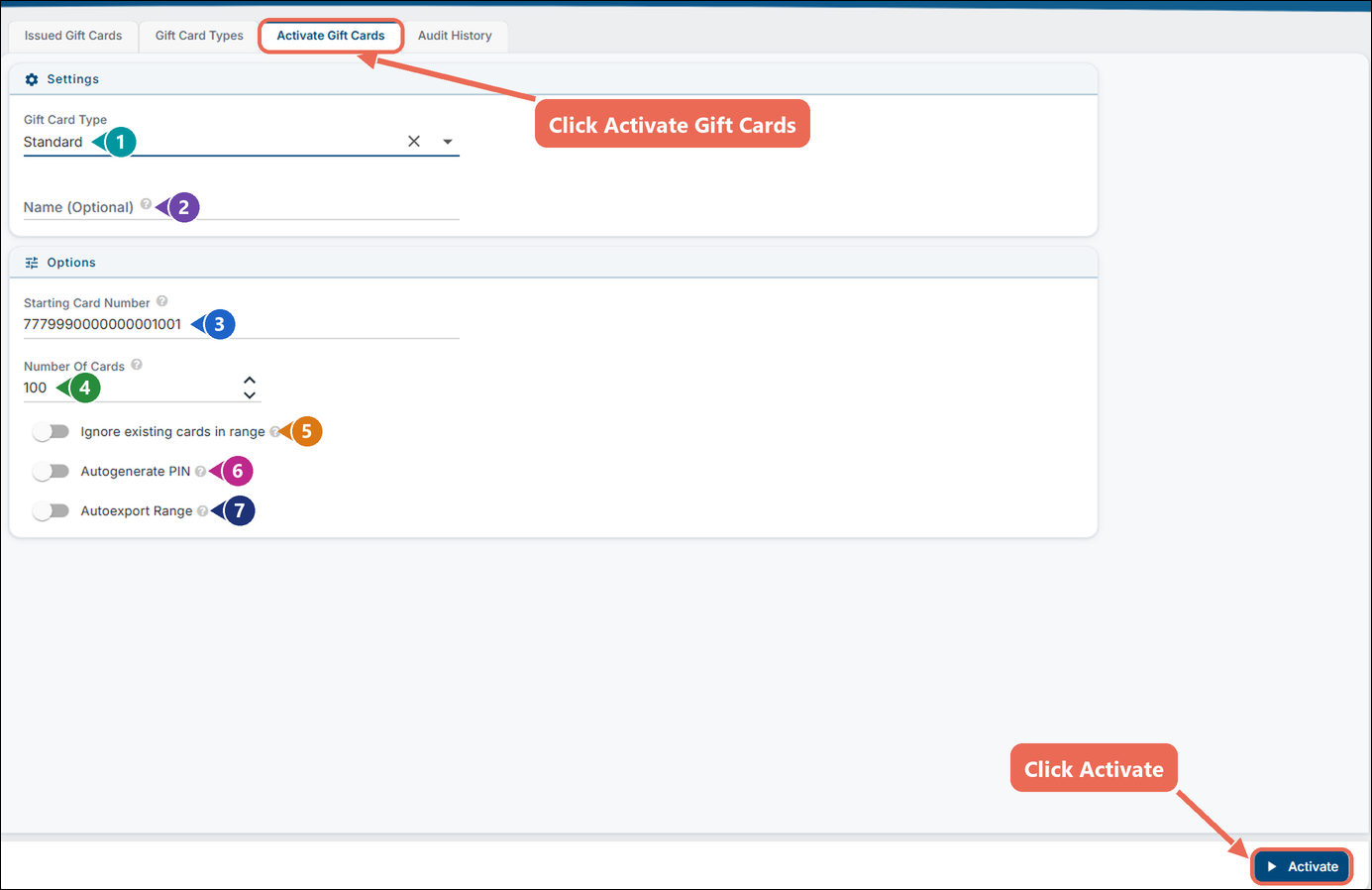
- Gift Card Type: The gift card type these cards belong to (required)
- Name (Optional): If you type a name, every card in the range gets it as the customer name
- Starting Card Number: The number of the first card in the range (required)
- Number Of Cards: How many cards to activate, counting up from the starting number (required)
- Ignore existing cards in range: When on, cards in the range that already exist are skipped. When off, nothing is activated if any card in the range already exists.
- Autogenerate PIN: When on, each card gets its own PIN. A PIN Length box shows to choose how long the PINs are (4 to 12).
- Autoexport Range: When on, you get an email with a list of the activated cards when it's done
Multiple Gift Card Types
In our POS system, you can have multiple types of gift cards — such as Standard, Promo, Holiday, etc. — and each type can have its own dedicated button for selling. However, all gift cards are redeemed using the same “Gift Card” payment button, and the system recognizes cards based on their number, not their type.
Why the Card Design Matters
Because the system can't tell the type during redemption, it's important that each gift card type is physically distinct — such as having different colors or designs — to avoid mix-ups.
Here’s a Common Issue:
Let’s say you sell a gift card (card #1234) as a Standard gift card for $20.
The customer uses the full $20 — that card is now considered used.
Later, if you try to sell that same card number (#1234) again, but this time as a Promo card, the system gets confused.
It sees that card number already linked to a Standard card and won’t allow it to be used again
—asitawillPromocause an error when trying to redeem it.
The Fix (Feature added in 2023):Fix:ToActivate prevent this, we’ve added a feature that lets you assign aeach gift card numbertype's cards as their own range toof numbers (see Activating a specificrange of gift cards above). Each card number then belongs to one gift card type.type, and Backoffice won't activate the same number for another type. That way, card numbers that belong to “Standard” gift cards can’t accidentally be sold as “Promo” cards, and vice versa.
Important:This feature wasn’t originally enabled in the system, so someSome existing customers may not have their gift card types or number ranges properly set up yet. We recommend reviewing your current gift card inventory and setup to make sure each type is clearly defined with:
A unique physical design
A dedicated number range (we can help set this up)
If you'd like to learn how to sell a gift card on a terminal, click here.