
How to create and/or edit a job role
This document will outline how to create and or edit a job rollrole in back office.Backoffice.

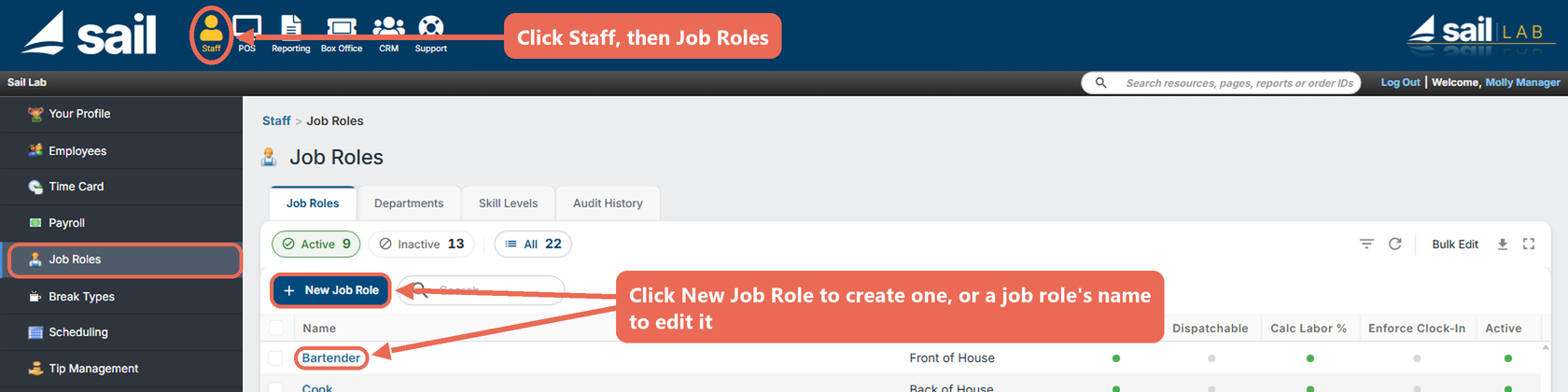
Create a new job role
-
To create a new job
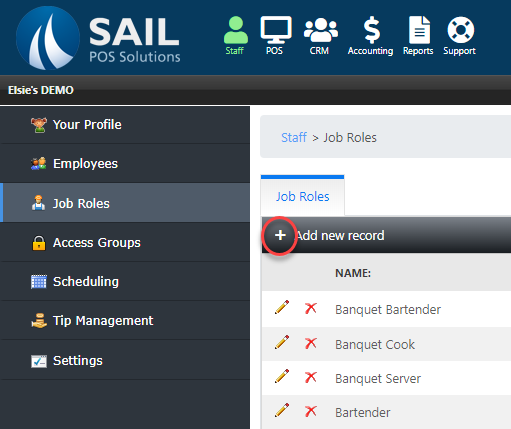
rolerole,startclickbyNewselectingJob Role above theplus sign in the upper left hand corner of the screen.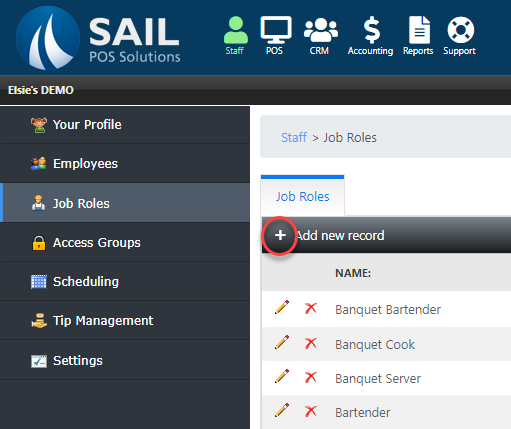
-
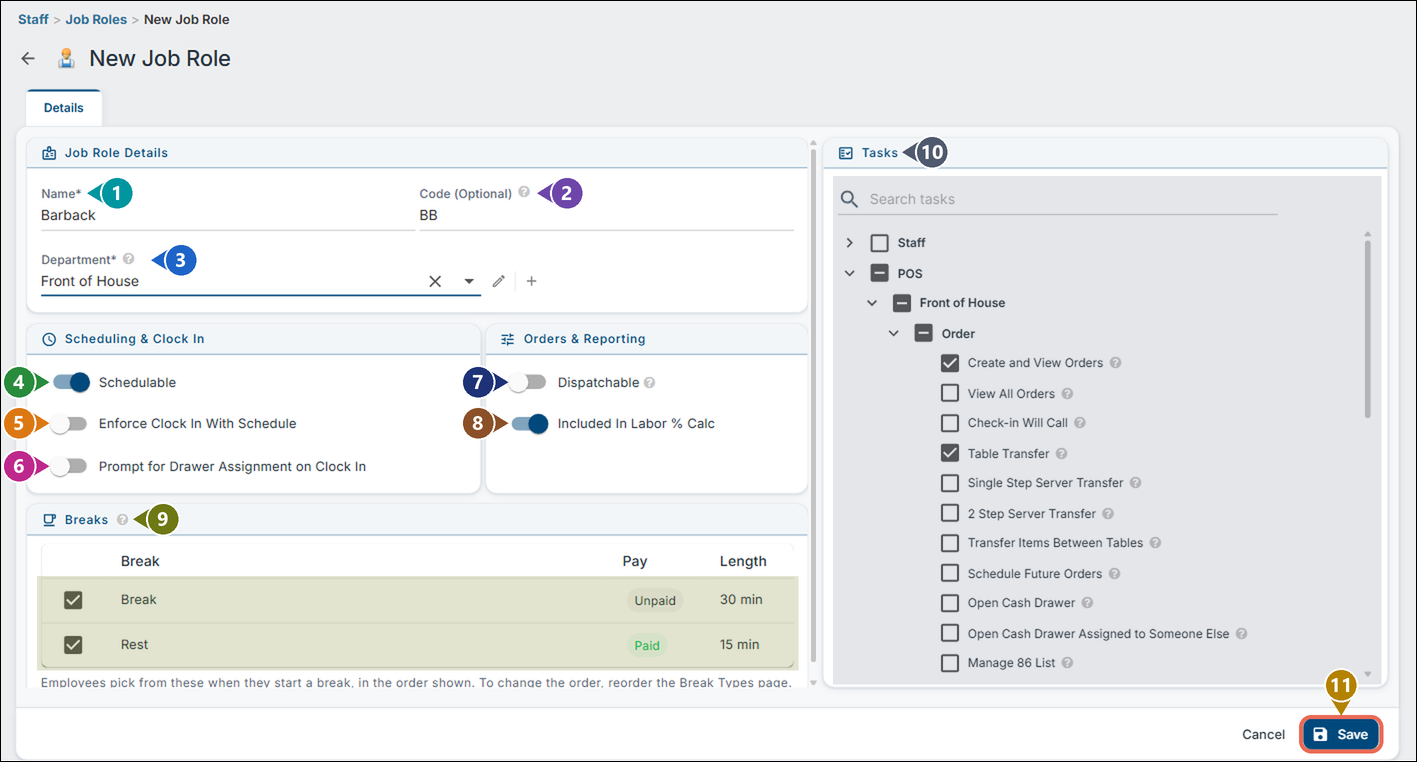
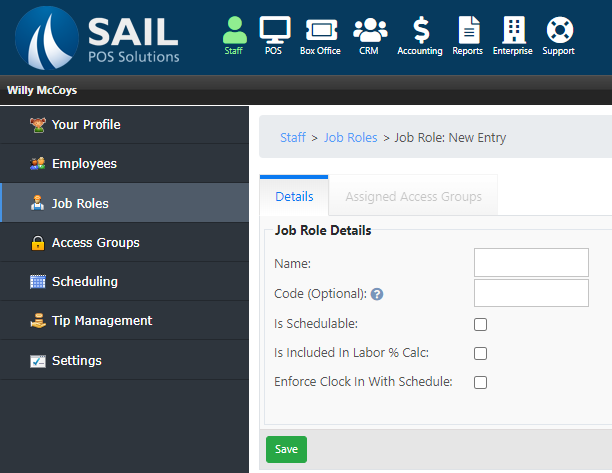
AThePromptNewwithJob Role page opens. Fill in the fieldsthatbelow;willthecreatenumbersamatchnewthejob role will appear.screenshot.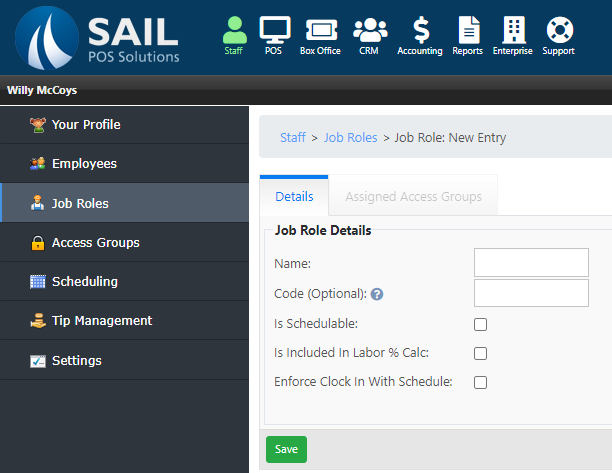
Name:
-
Name - Required. Set the name of the new job role. This is the job title.
-
-
CodeCode:
(Optional)
- -
This will set a code for the job which can be included in payroll exports.
-
IsDepartmentSchedulable:- Required. Choose the department the job role belongs to. The pencil changes the chosen department, and the plus sign adds a new one.
-
Schedulable - This will set the new job role to be available for use with the scheduling system.



Is Included in labor % Calc:

This will set the new job role to be included in the labor %.
Enforce Clock inIn withWith Schedule:

This will set the job role to have limits on when you can clock in based around when you are scheduled.
Save:Prompt for Drawer Assignment on Clock In - When someone clocks in with this job role, the terminal asks them to pick their cash drawer.

Dispatchable - Employees in this job role can be sent out with delivery orders (for example, a Delivery Driver).
Included In Labor % Calc - This will set the new job role to be included in the labor %.
Breaks - Check the breaks employees can take while working this job role. With none checked, they can't take breaks: Start Break isn't shown to them.
Tasks - What the job role is allowed to do. See Choose what the job role can do below.
Save - Once the promptpage has been filled out and all options you want for the role are selectedselected, youclick can hit saveSave to create the job role.
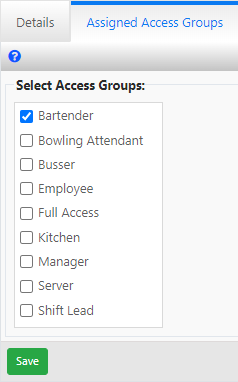
AssignChoose access levels towhat the job role can do
-
toOnceThecreatedTasks list on thenextrightstep is to assign anaccess grouptoof the jobrole.role'sSelectpage (number 10 in theaccessscreenshot above) sets what employees in this job role can do on the terminals and in Backoffice. Click the arrow next to a grouptab.
open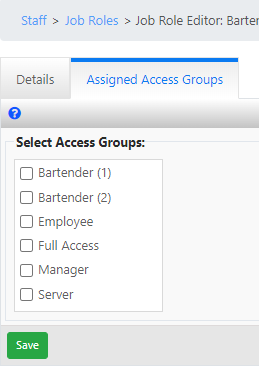
it, or type in Search tasks to find one.
-
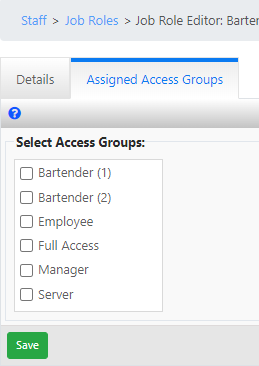
groupSelectCheck thecheckboxbox next toanyeachaccess group or groupstask you would like thenewjobrollrole tohavehave.accessCheckingprivilege'saof.
checks
every task in it.
-
HitNotsave.sure
what a task does? Hover over the ? next to it to read what it means.
Note: The Tasks list shows only the tasks you have yourself, so you can't give a job role more than your own job role allows.
Edit an existing job role
-
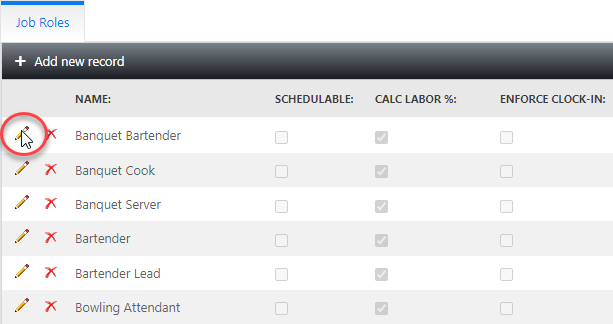
Click the
pencilname of the job role in the list to openthe editor prompt.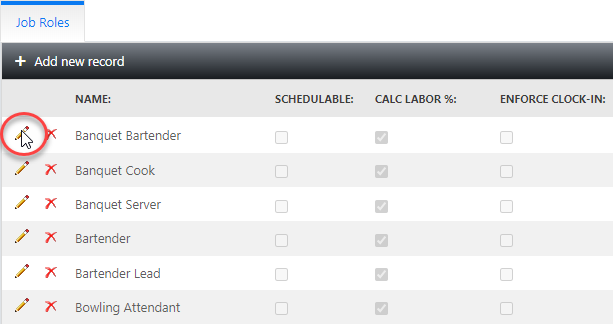
-
You may change any of the options described
aboveabove, thenhitclicksave.Save.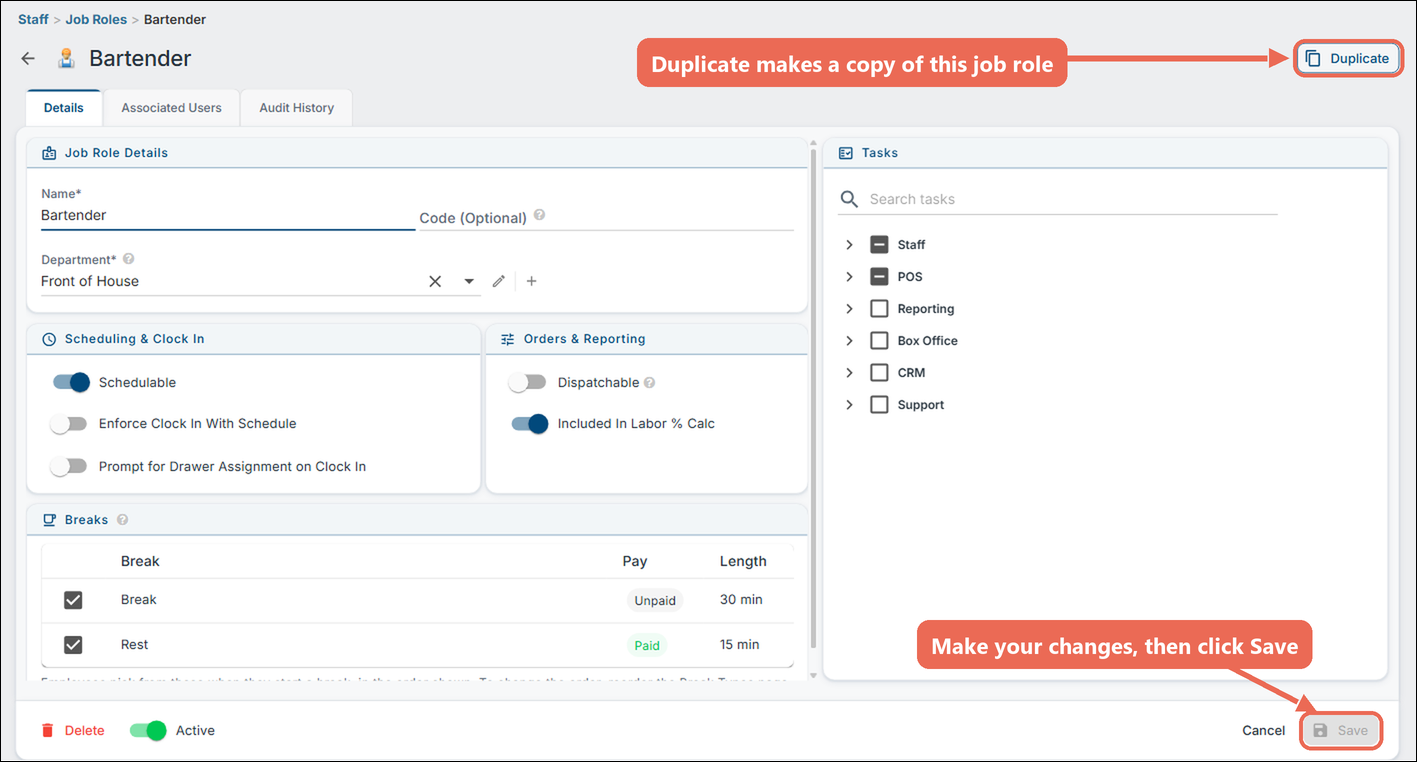
Pro tip: To make a new job role much like one you already have, open that job role and click Duplicate at the top right. It saves a copy (for example "Bartender copy") with the same settings, breaks and tasks, but no employees, and opens it so you can rename and change it.