
How to make a Menu Item
There are two ways to create an item: start from scratch, or duplicate one that already exists. Starting from new gives you a blank item with nothing filled in, while duplicating starts from an existing item's settings and lets you choose exactly which parts carry over to the copy.
Making a New Item
- Log into Backoffice --> POS -->
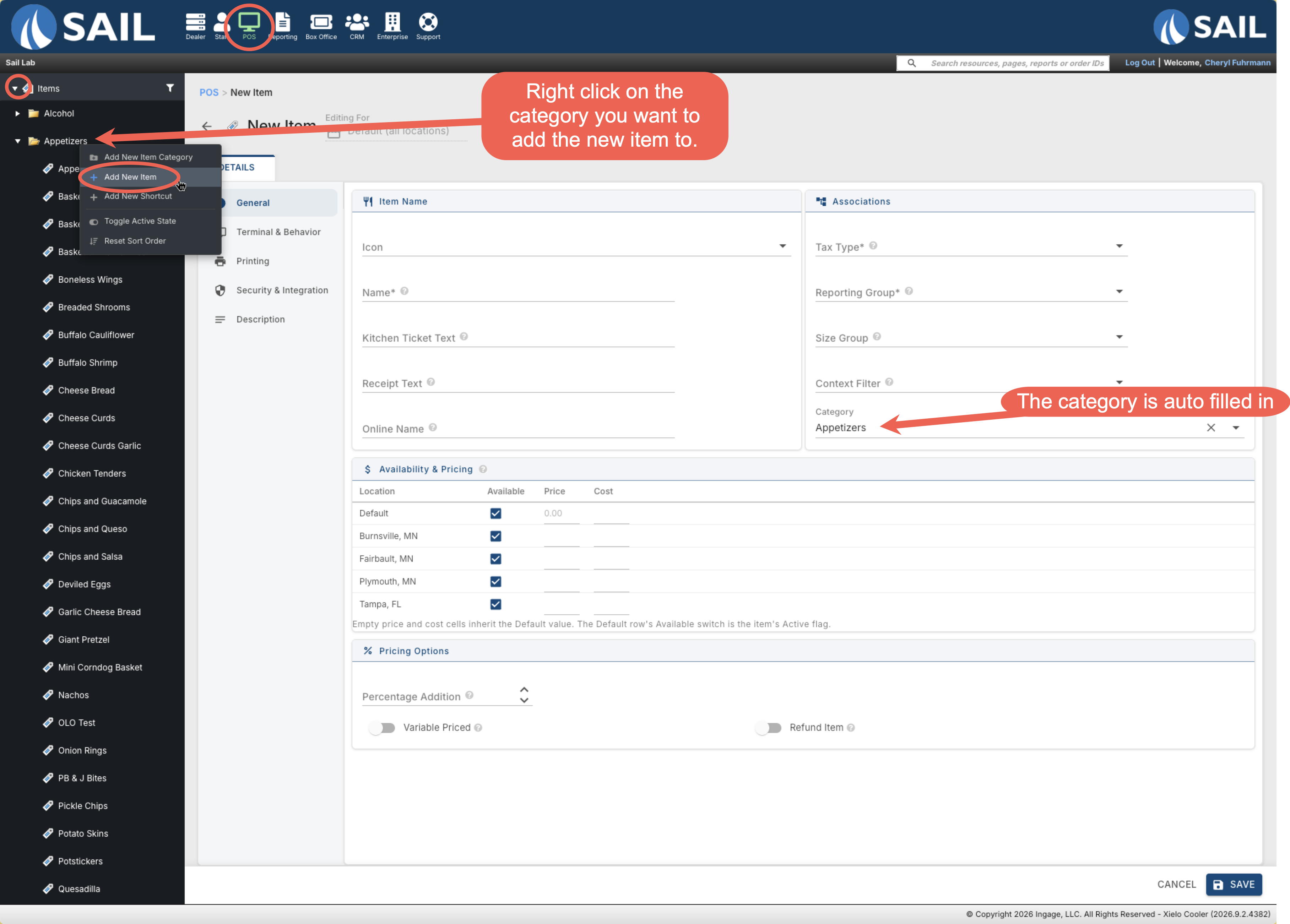
- In the item tree, right-click the category the item belongs to and choose Add New Item. The category is automatically filled in for you.
- A page will appear for you to fill in the detail of you new menu item. The item will not be created until this page has been completed and saved.
Jump to the Configuring a new item for next steps
Duplicating an Item
Duplicating a similar item, when one exists, is usually faster than filling out every field by hand.
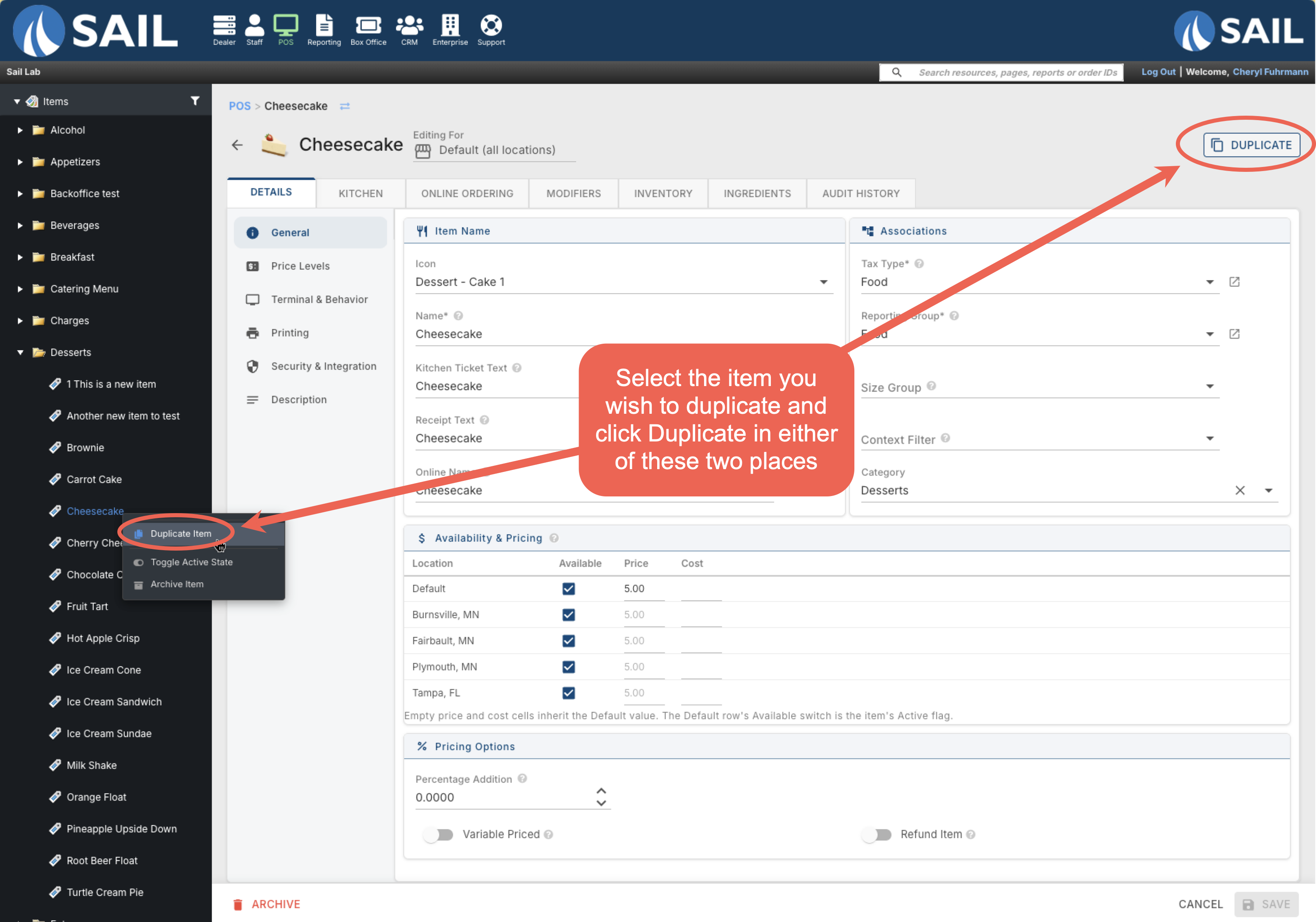
There are two ways to duplicate an item. Select the item on the tree, then either right click on the item and select Duplicate Item in the pop-up or click Duplicate at the top right of the page. Next you will get a dialog box to choose exactly which parts you want to carry over to the copy.
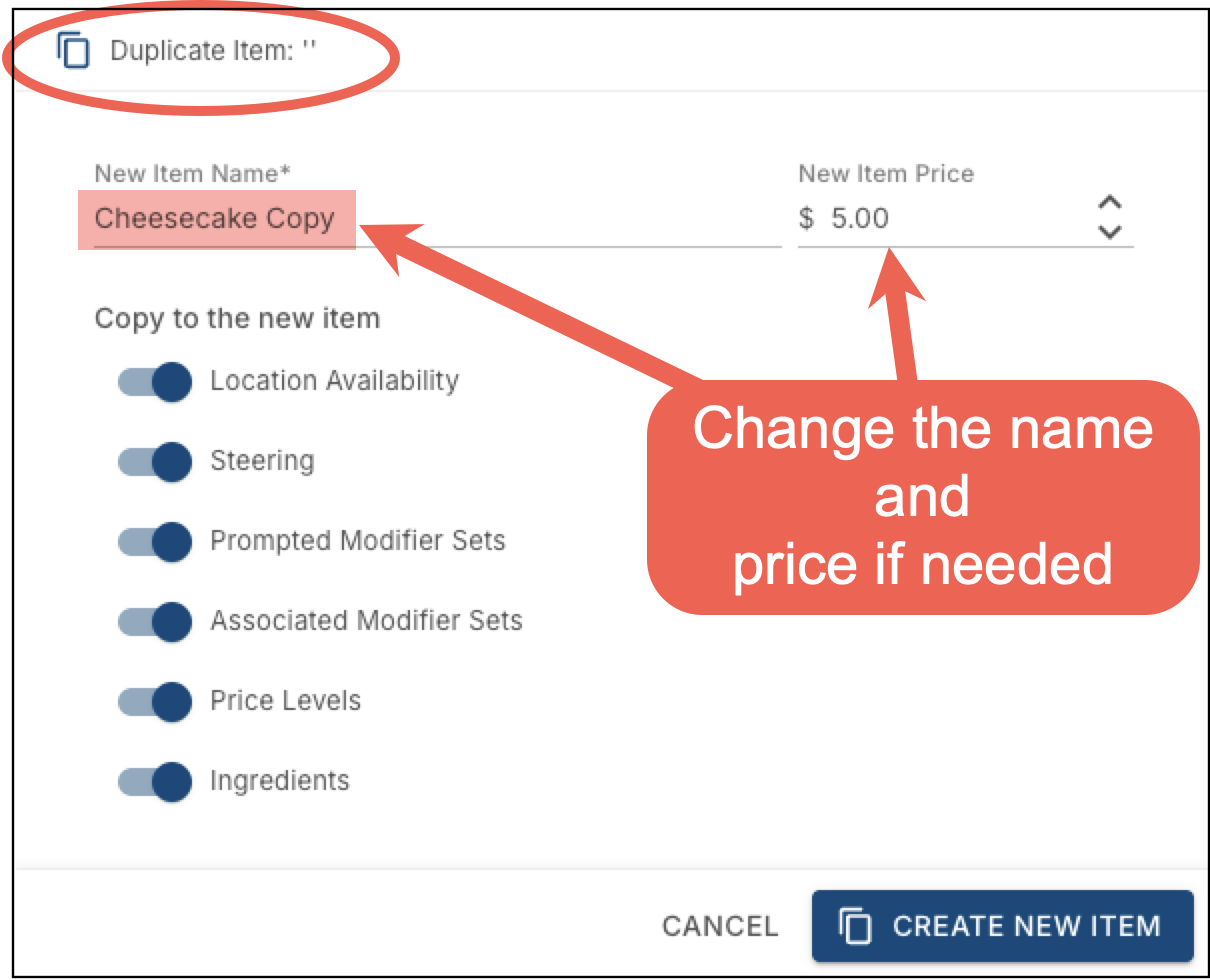
In the dialog, enter a New Item Name and New Item Price, then use the toggles under Copy to the New Item — Location Availability, Steering, Prompted Modifier Sets, Associated Modifier Sets, Price Levels, and Ingredients — to choose which of the original item's settings carry over to the copy. Click Create New Item when you're done.
Configuring a New Item
-
Item Name
-
Associations
-
Availability & Pricing
- Pricing Options
Setting Up Everything Else
Once the item is saved, more tabs and sub tabs are available:
- Details (Price Levels, Terminal & Behavior, Printing, Security & Integration, Description)
- Kitchen (steering, kitchen tickets, and kitchen display settings)
- Online Ordering
- Modifiers (prompted and associated modifier sets, and the modifier flow)
- Inventory
- Ingredients
- Audit History