
How to organize custom reports in folders
BeingCustom written.reports are kept under Reporting --> Reports --> Custom Reports, in My Reports and Team Reports. You can make folders in either one, up to 3 levels deep, and rename, move, copy and delete your reports. This will walk through keeping your custom reports organized.
Permissions you need
- Reporting --> Build Custom Reports, for folders and reports in My Reports.
- Reporting --> Manage Team Custom Reports, to change folders and reports in Team Reports.
Making a folder
- Click Reporting at the top, then Reports and Custom Reports.
- Click the ... next to My Reports, Team Reports or a folder, and click New folder.
- Type the Folder name and click Create folder. Under the name it says where the folder will go.
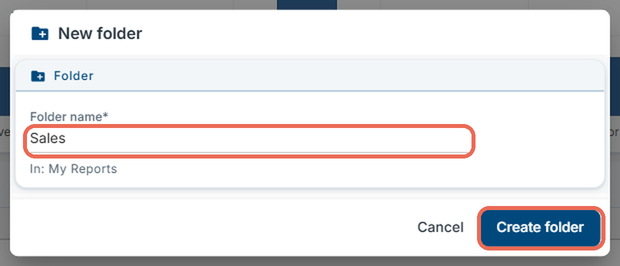
To save a new report straight into a folder, click the ... next to the folder and click New report, or pick the folder when you save the report.
Moving a report into a folder
- Click the ... next to the report and click Move to….
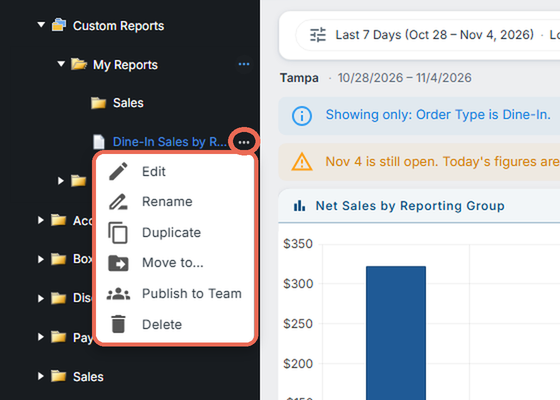
- Click the folder and click Move.
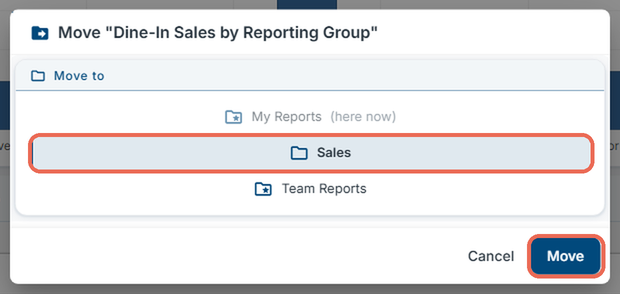
A folder moves the same way, with everything in it.
Changing a report or a folder
Click the ... next to a report or a folder to see what you can do with it:
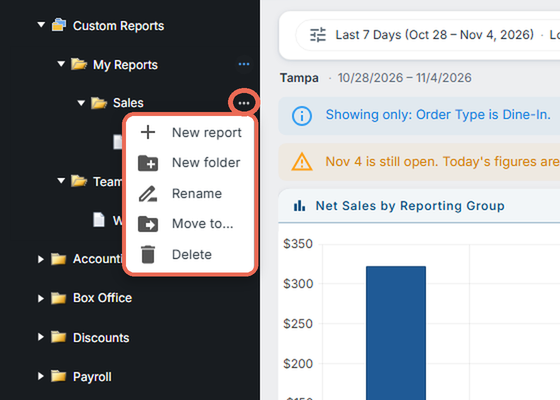
- New report / New folder (folders): Makes a report or a folder inside it.
- Edit (reports): Opens the report in the builder.
- Rename: Changes the name.
- Duplicate (reports): Makes a copy next to it, to change without touching the original.
- Move to…: Moves it to another folder.
- Delete: Removes it. A folder has to be empty first. Deleting a report also removes it from everyone's favorites and stops its schedules; Backoffice asks first and says how many. It can't be undone.
Note: Two reports or folders in the same place can't have the same name.
Click here to learn more about sharing a custom report with your team.