
How to run a custom report
BeingOnce written.a custom report is saved, you run it like any other report: pick the dates and locations, click Run, and see the chart and the table. From the report you can also export it, schedule it, email it or add it to your favorites. This will walk through running a custom report.
Running a custom report
- Click Reporting at the top, then Reports and Custom Reports. Open My Reports or Team Reports (and its folder) and click the report.
- Pick the dates, the locations and the report's filters, then click Run:
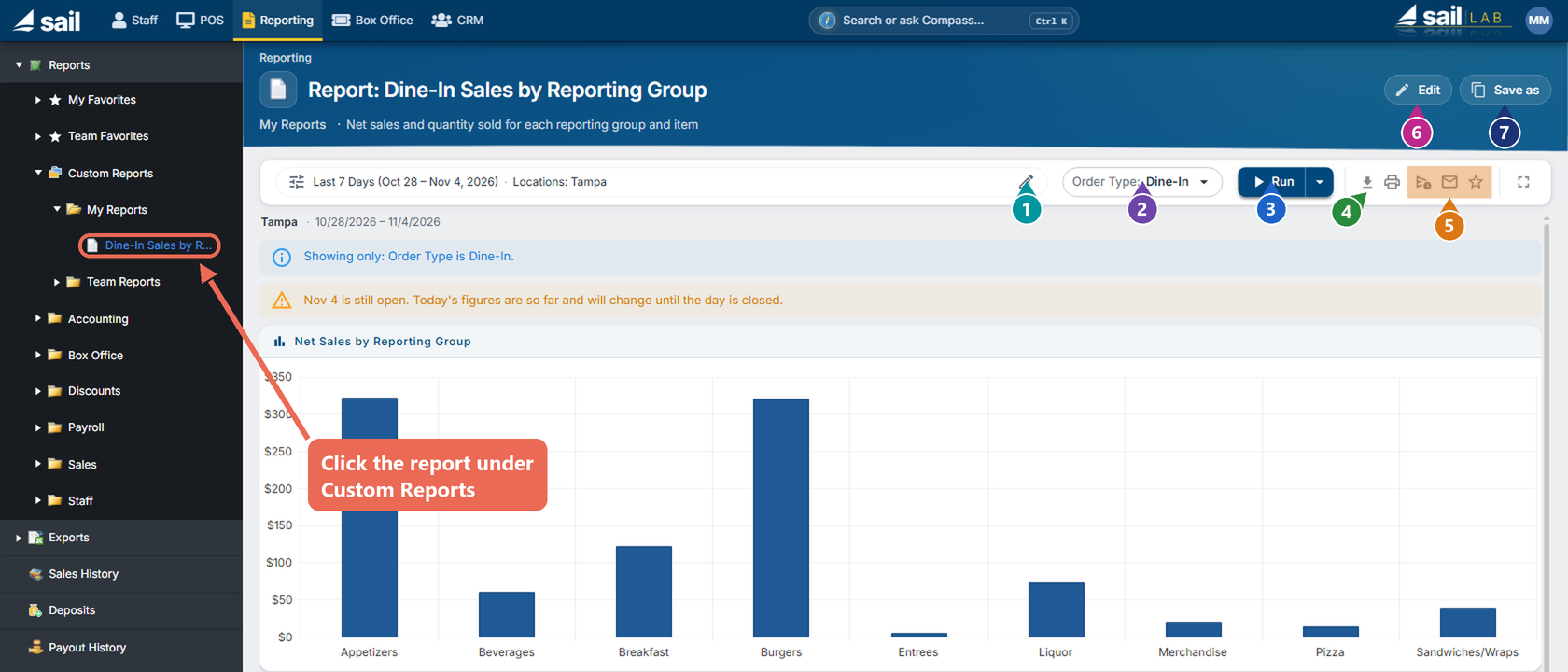
- Dates and locations: The days and locations the report covers. After a run they fold into one line; click the pencil to change them.
- Filters: Filters the report's builder let people change show here, such as Order Type. Pick other values and click Run again.
- Run: Shows the report on the page. The arrow next to it has more ways to run it, such as a PDF or Run and Print.
- Download: Exports the report as PDF, Excel or CSV.
- Schedule, Email and Favorite: The same as on any other report.
- Edit: Opens the report in the builder to change it.
- Save as: Saves a copy under a new name, so you can change the copy and keep the original.
Above the chart the report says what it shows, for example "Showing only: Order Type is Dine-In". When the dates include today, it also says today's numbers are so far and will change until the day is closed.
Click here to learn more about Scheduled Reports.
Good to know
- A favorite or a schedule keeps the dates, locations and filter values you picked when you made it.
- The Excel export has the report as you see it, plus a Data sheet with one plain row per line, handy for your own spreadsheets.
- A report that uses data you can't see (for example pay or tips without access to the payroll reports) isn't listed for you.