
How to set up auto close
This document will detail how to set up auto close.
-
Navigate to
theBackoffice --> POStab--> Settings --> Closing: click POS at the top, then Settings in the menu on the left, then Closing.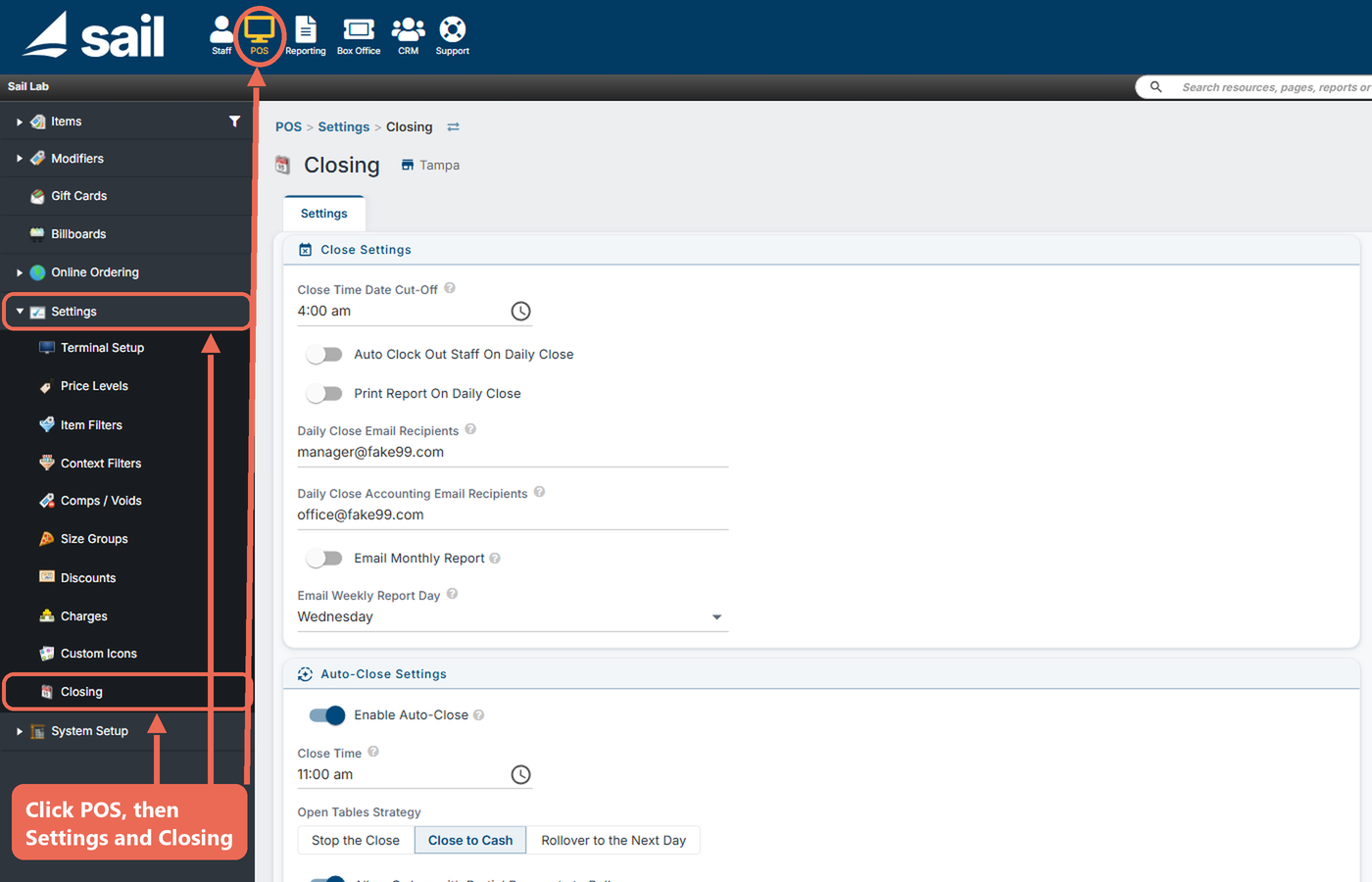
Note: These settings are for one location. If you have more than one location, pick the location at the top of the page, next to Closing, and
clicksettoautoopenclosetheforsettingseachmenulocationthen-selectitthecanclosingbesection.different at every location.
-
The
closingClosingsettingspage contains“closethesettings”"Close Settings" and“Auto"Auto-Closesettings”.Settings" boxes.
-
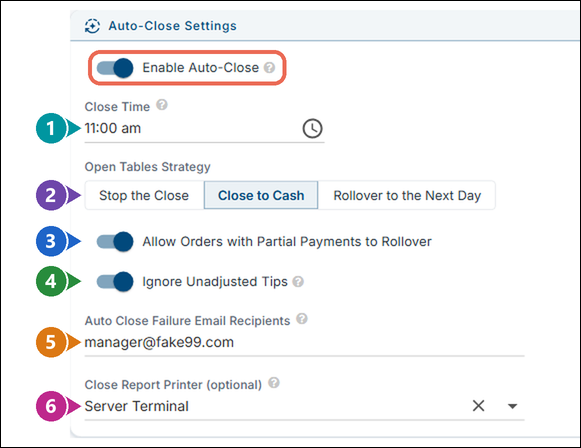
SelectTurn on the Enable Auto-Closecheckboxswitch to set your system to automatically run the daily close at a specified time. Whenselectedit's on, the rest of the settings willpopulateshow.
-
Close Time:

This will set the time that the Auto close will run.
-
IgnoreOpen Tables Strategy: what the auto close does with anyopentablestables:that are still open.
-
Normally, ifStop theClose setting “Force tables To Be Paid Before Close” setting is enabled thanClose: an open table will stop the auto close from running.
-
If Ignore Any Open Tables is checked, it will override the “Force tablesClose tobeCash:paid before close” setting for Auto Close. Anyany open orders left in the system at the daily close will register the same as cash transactions and be included as part of the amount owed by the server at the end of day.
-
-
Rollover to the Next Day: the open tables are not closed - they move to the next business day and are still open on the terminals.
-
Allow Orders with Partial Payments to Rollover: used with Rollover to the Next Day. Turn it on if open tables that are already partly paid should roll over to the next day too. When it's off, a partly paid table will stop the auto close from running.
-
Ignore
anyUnadjustedunadjustedTips:tips:
Normally on a daily close, any credit card that has not had its tip adjustment completed will stop the close from happening.
ActivateTurn on thissetting by selecting the check boxswitch if you would like the auto close to happen when there are credit receipts that have not had the tip adjusted. Any unadjusted tips will automatically be set to zero and will not be adjustable after the daily close has been completed.
-
Auto Close Failure Email Recipients: If the auto close can't run (for example, a table is still open and Stop the Close is selected), an email saying why is sent to these addresses. You may add more than one email recipient by separating emails with ; symbols. If it's left empty, the email goes to the Daily Close Email Recipients in the Close Settings box.
-
Close
ReceiptReport Printer (optional):
If this is set the designated printer will print the appropriate close reports.
-
Once you have configured the Auto-Close settings to your preference
selectclick Save Settings at thesavebottombutton.right of the page. It turns blue once you've changed something.



