
How to set up timed menu items for Online Ordering
This document will show you how to set up timed menus for online ordering
In the example below the store has breakfast only available from 8am-10am, then after 10am breakfast stops and the rest of the menu is available.
Permissions you need
- POS --> Back Office --> Settings --> Manage Item Filters: shows Item Filters, to make the filters.
- POS --> Back Office --> Online Ordering --> Hours: shows the site's Schedule tab, with its Hours.
Step 1: Create Item Filters
- Navigate to Item Filters: Backoffice --> POS -->
SettingSettings --> ItemFiltersFilters, and AddclicknewNewrecordItem Filter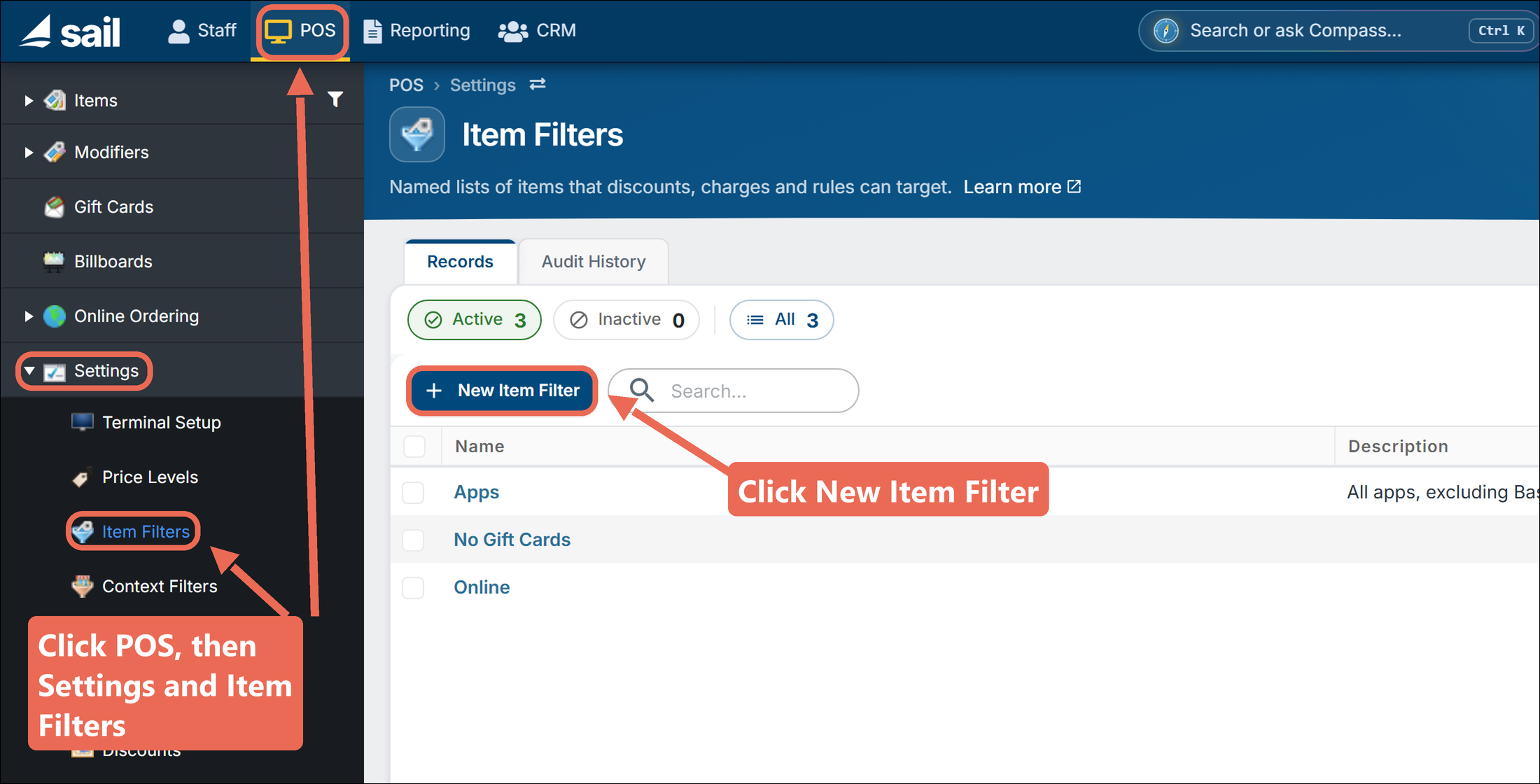
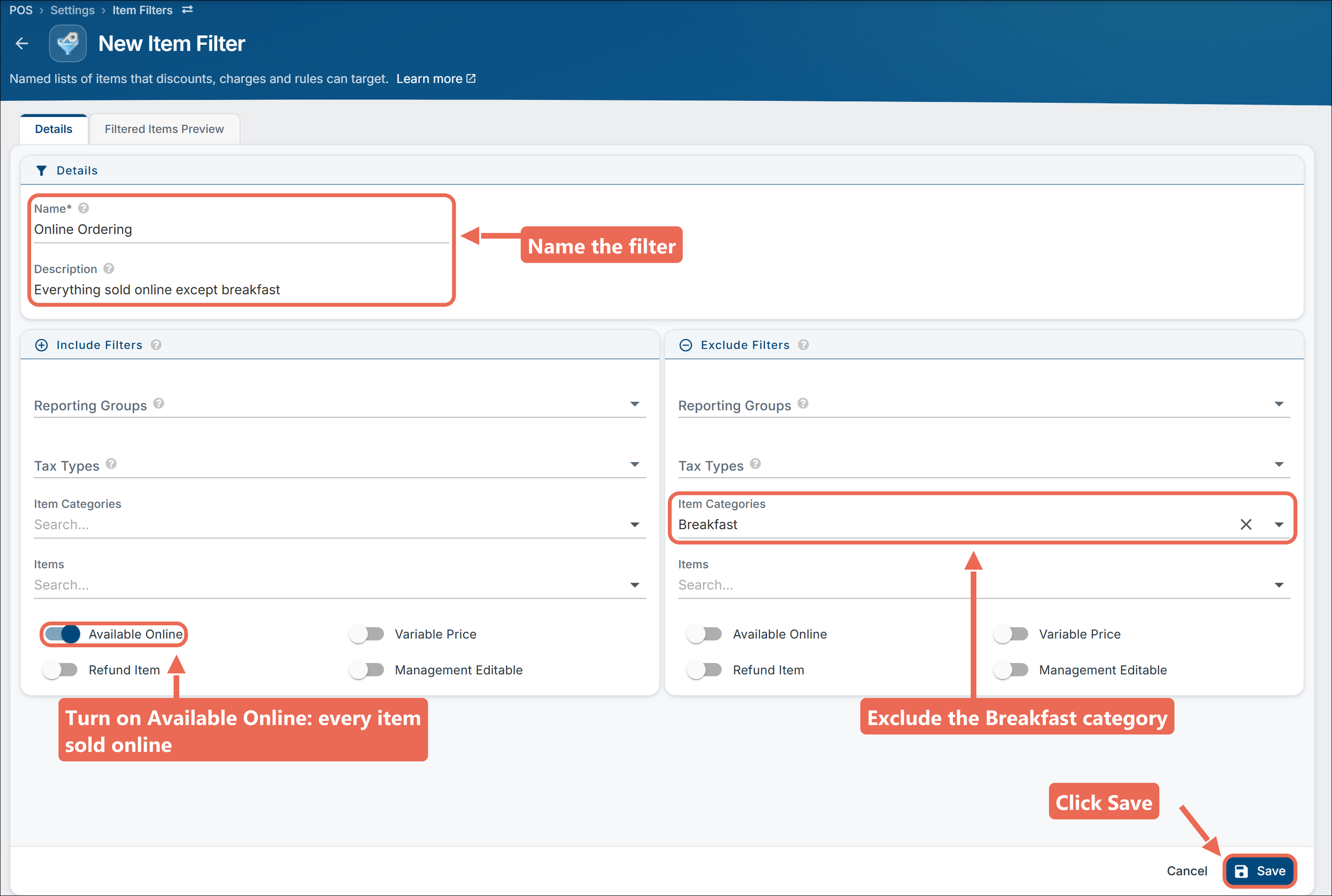
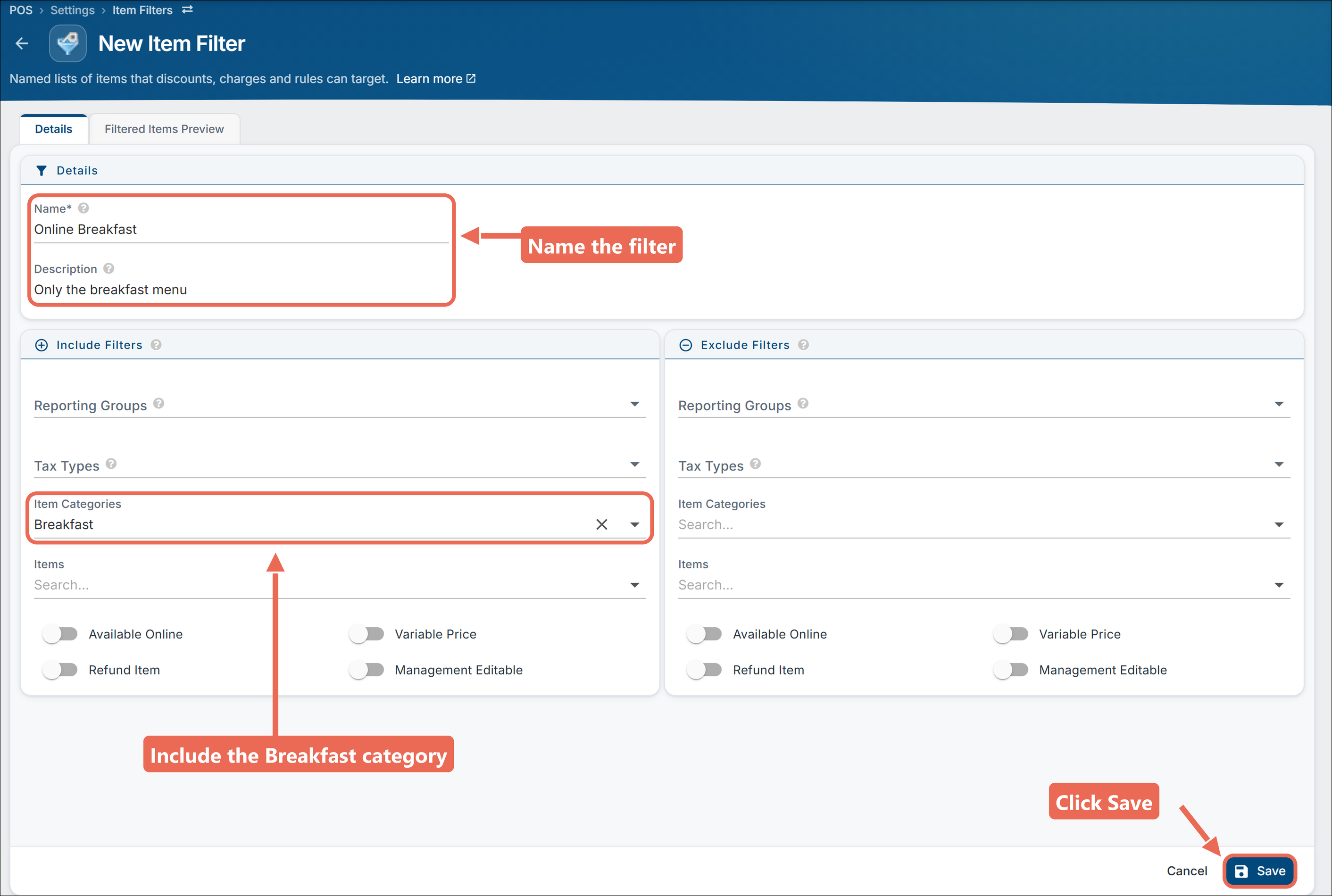
- Name the filter
- Select what needs to be included and/or
excludedexcluded. The Exclude Filters always win: an item that matches both is left out. - Click Save
Filter #1
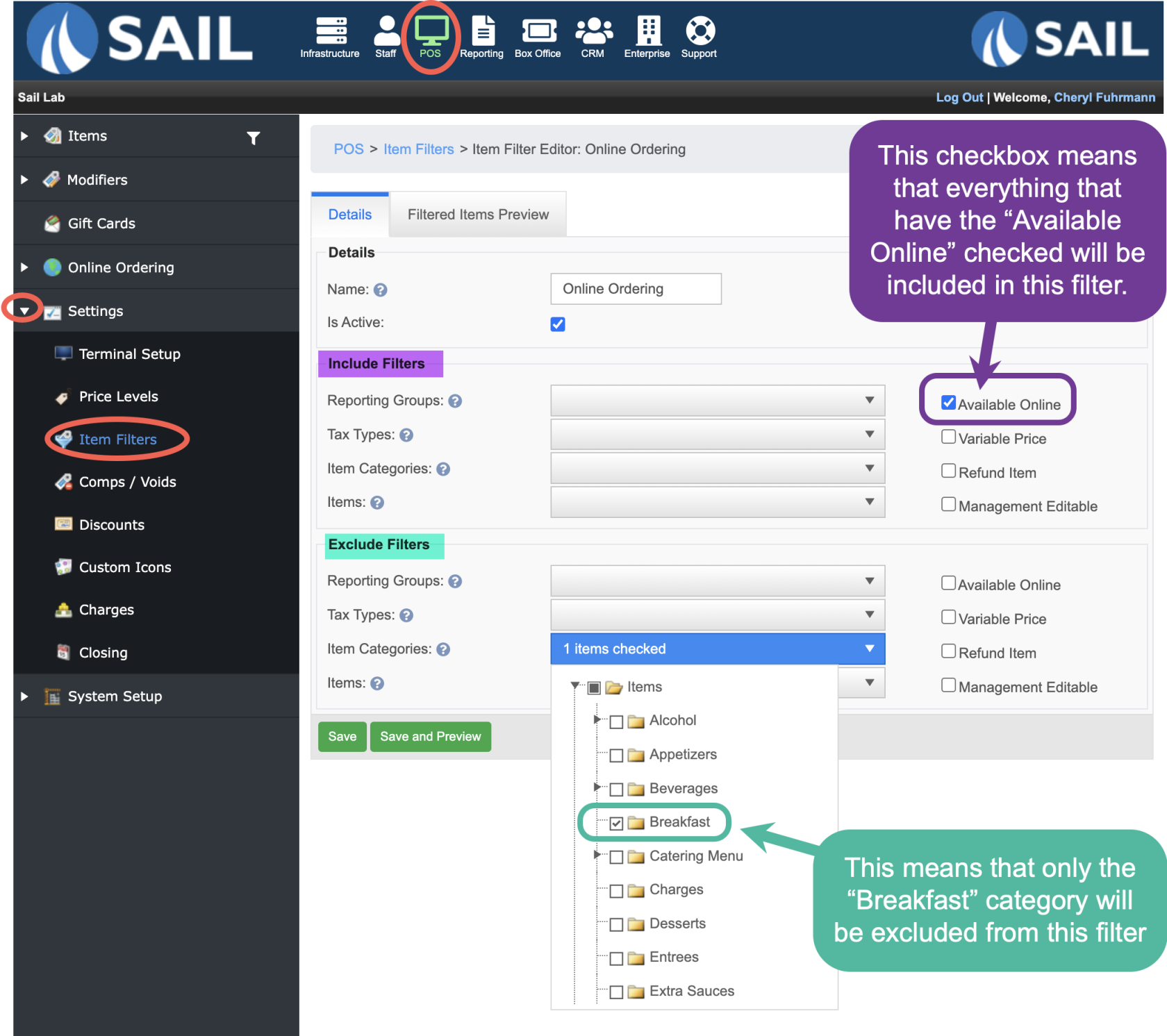
- In this example called "Online Ordering" is for when the entire menu is available except the breakfast menu.
- So I
checkturnthe box foron "Availableonline."Online" under Include Filters. This will include every menu item that is available online (including the breakfast) - Next I need to use the
"Excludefilter"Filters section to exclude the Breakfast item category from this menu

Filter #2
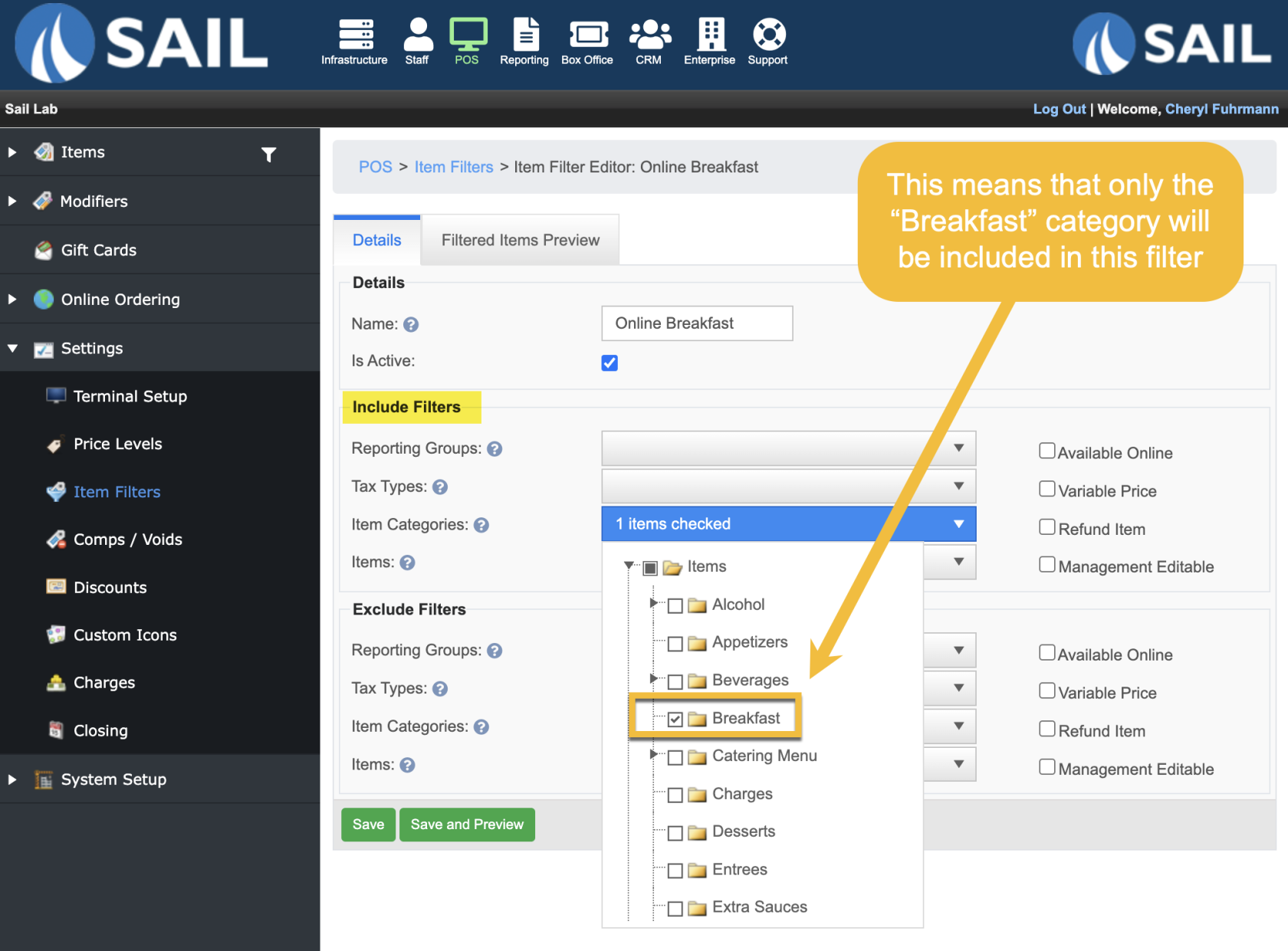
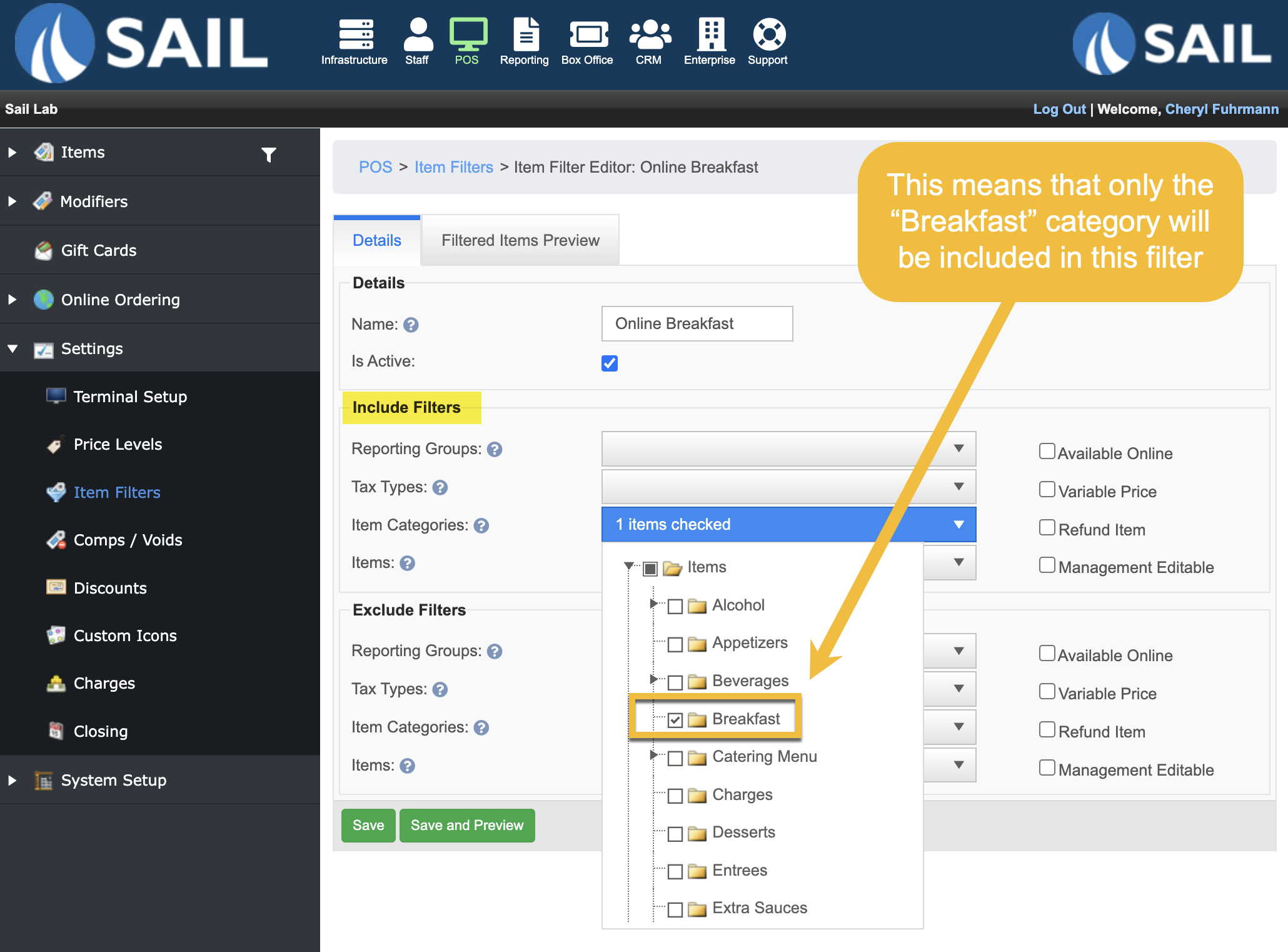
- In this example called "Online Breakfast" is for when only the breakfast menu is available
- Use the
"IncludeFilter"Filters section to select the Breakfast item category.
Pro tip: Before you save, the Filtered Items Preview tab lists the items the filter picks, so you can check it.
Step 2: Configure store hours online
- Navigate to
OnlineyourHours:site: Backoffice --> POS --> Online Ordering -->HoursSite Configuration --> click the site's name - Click
AddthenewSchedulerecordtab. Hours is selected. Click New Hour Rule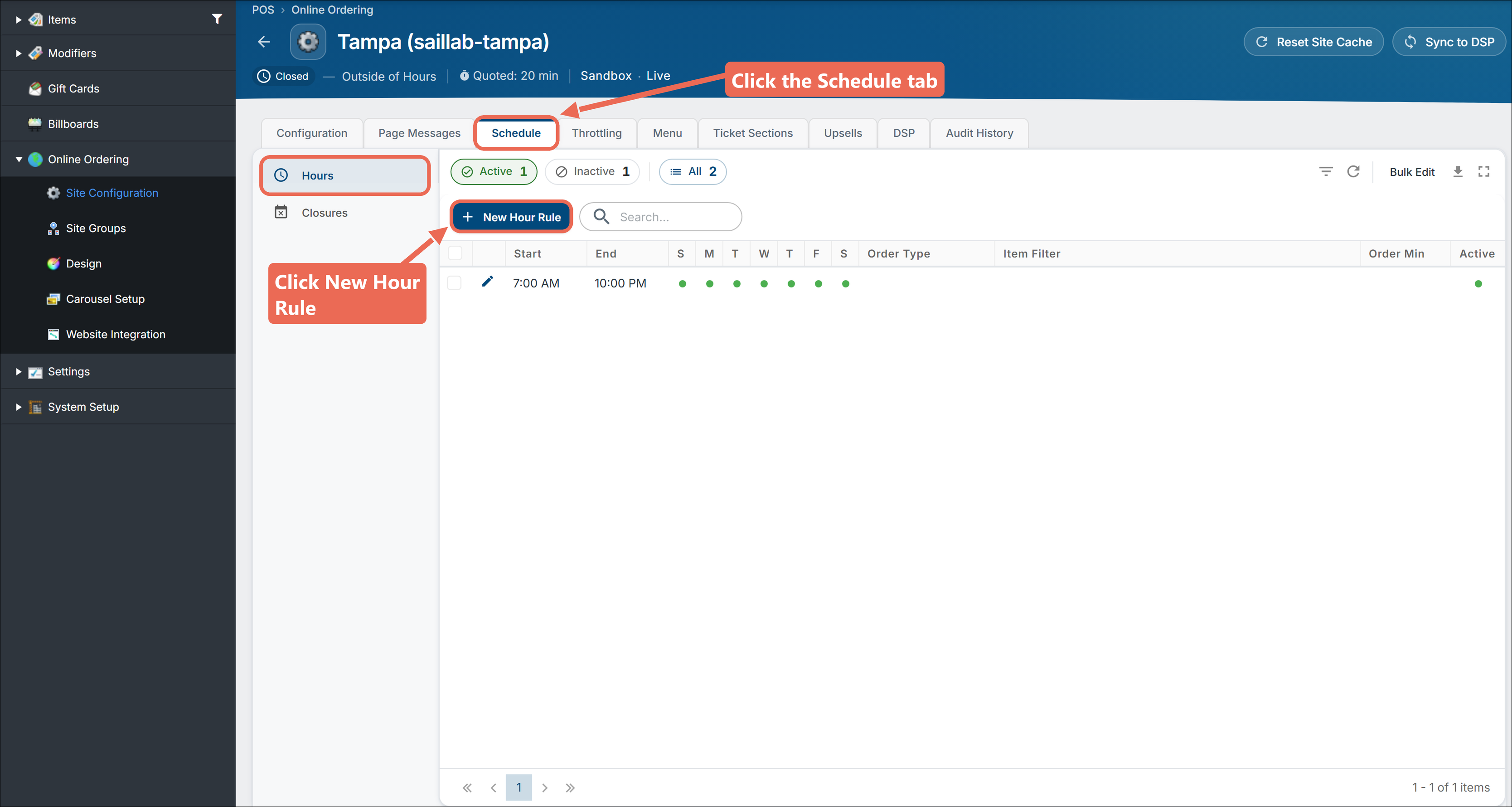
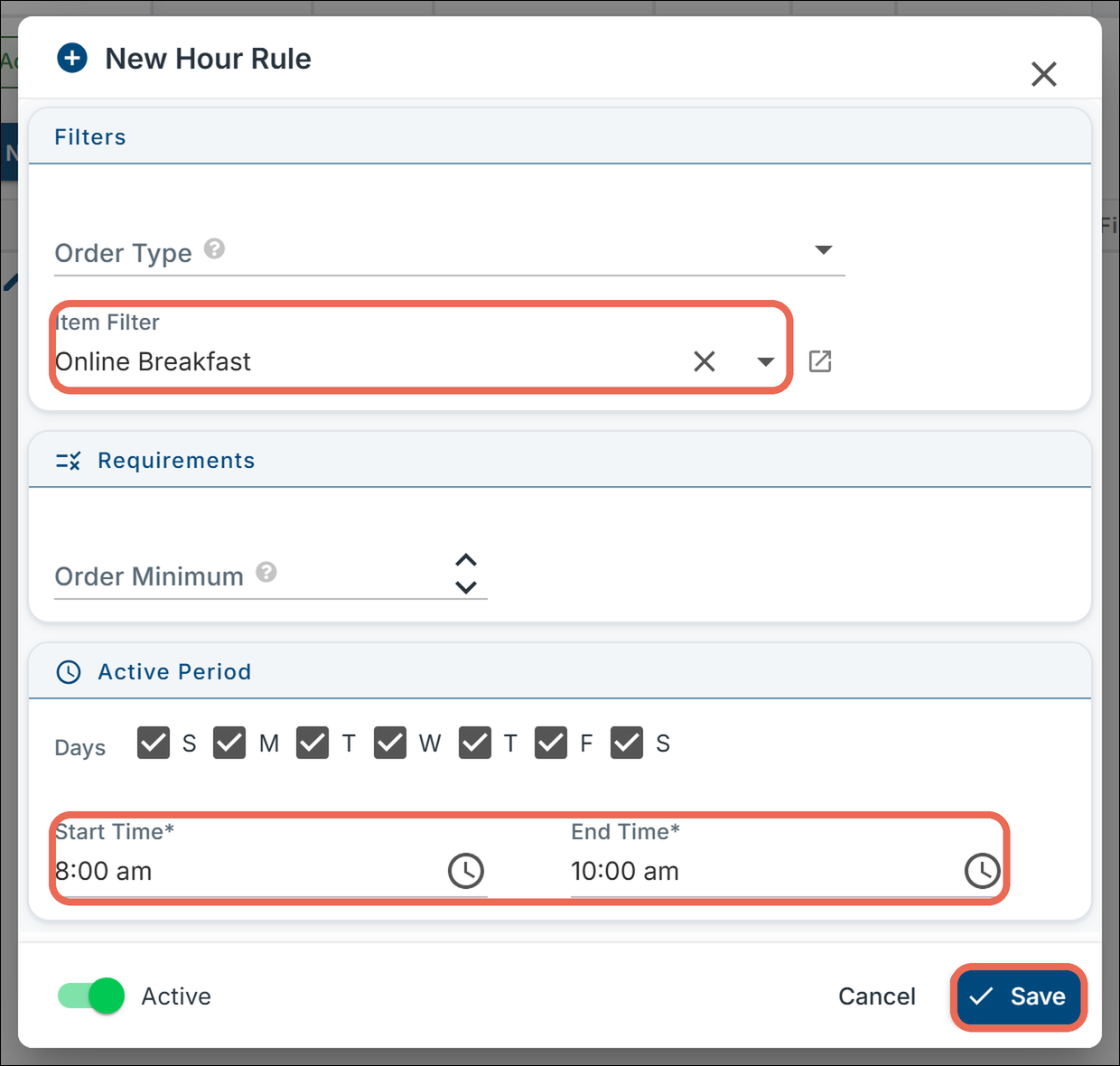
SetFill out theactiveNewstartHour Rule window: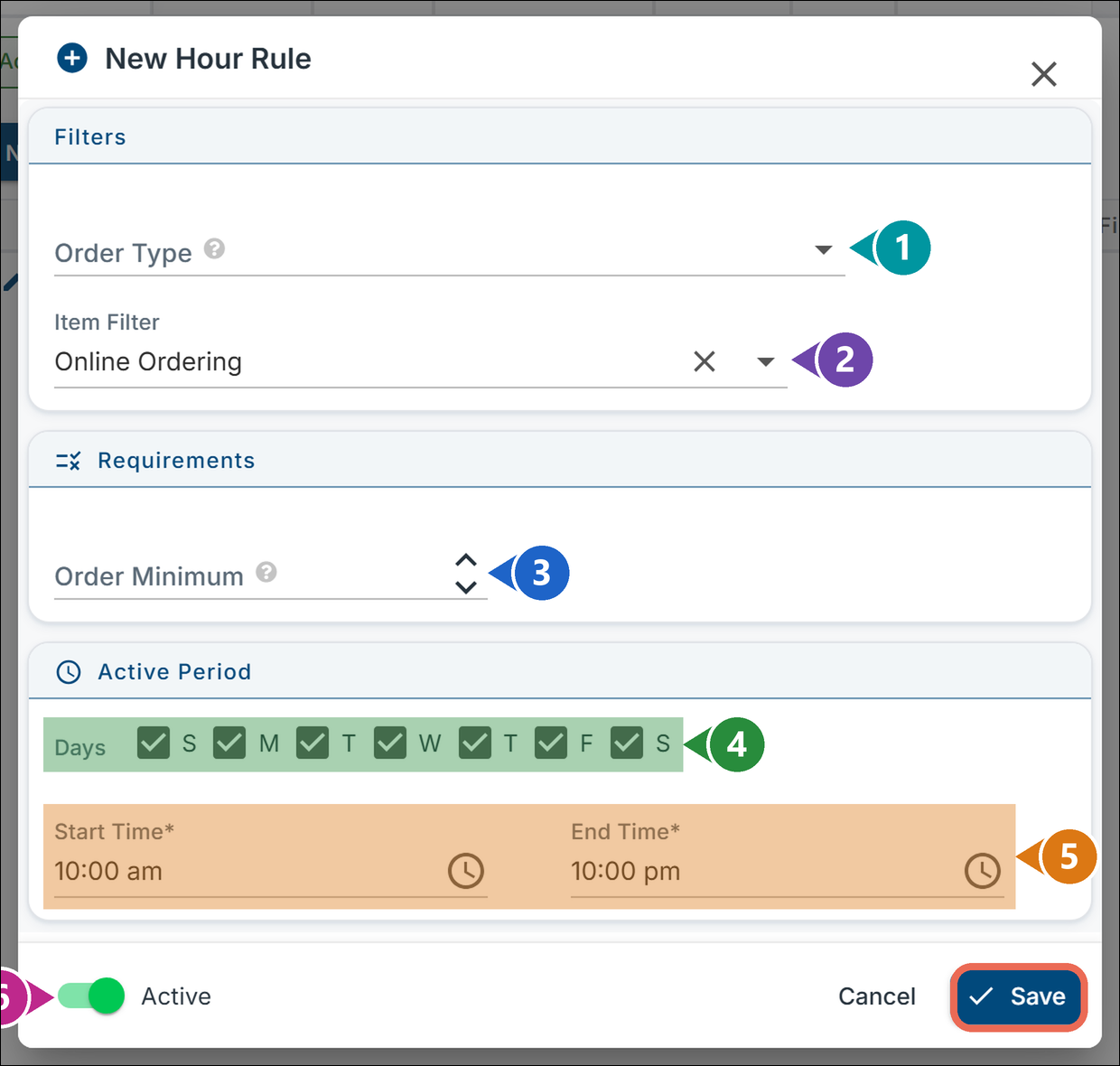
- Order Type (optional): leave it empty for every order type. Pick one (Delivery, Inside Pickup ...) to set hours for just that order type - this is how pickup and
enddeliverytimesgetanddifferentdayshoursofonline.theIfweek
every hour rule has an order type, your site offers only those order types. Use theItem Filterdrop down to select: the item filter you created for this time period. Leave it empty to show everything that's available online.- Order Minimum (optional): the subtotal a guest must reach before they can check out during these hours.
- Days: the days of the week the hours are for.
- Start Time and End Time (required): when this time period starts and ends.
- Active: on, so the hours are used.
- Order Type (optional): leave it empty for every order type. Pick one (Delivery, Inside Pickup ...) to set hours for just that order type - this is how pickup and
- Click Save
- The "Online Ordering" filter I created for the entire menu (excluding breakfast) is available all week from 10am-10pm
(picture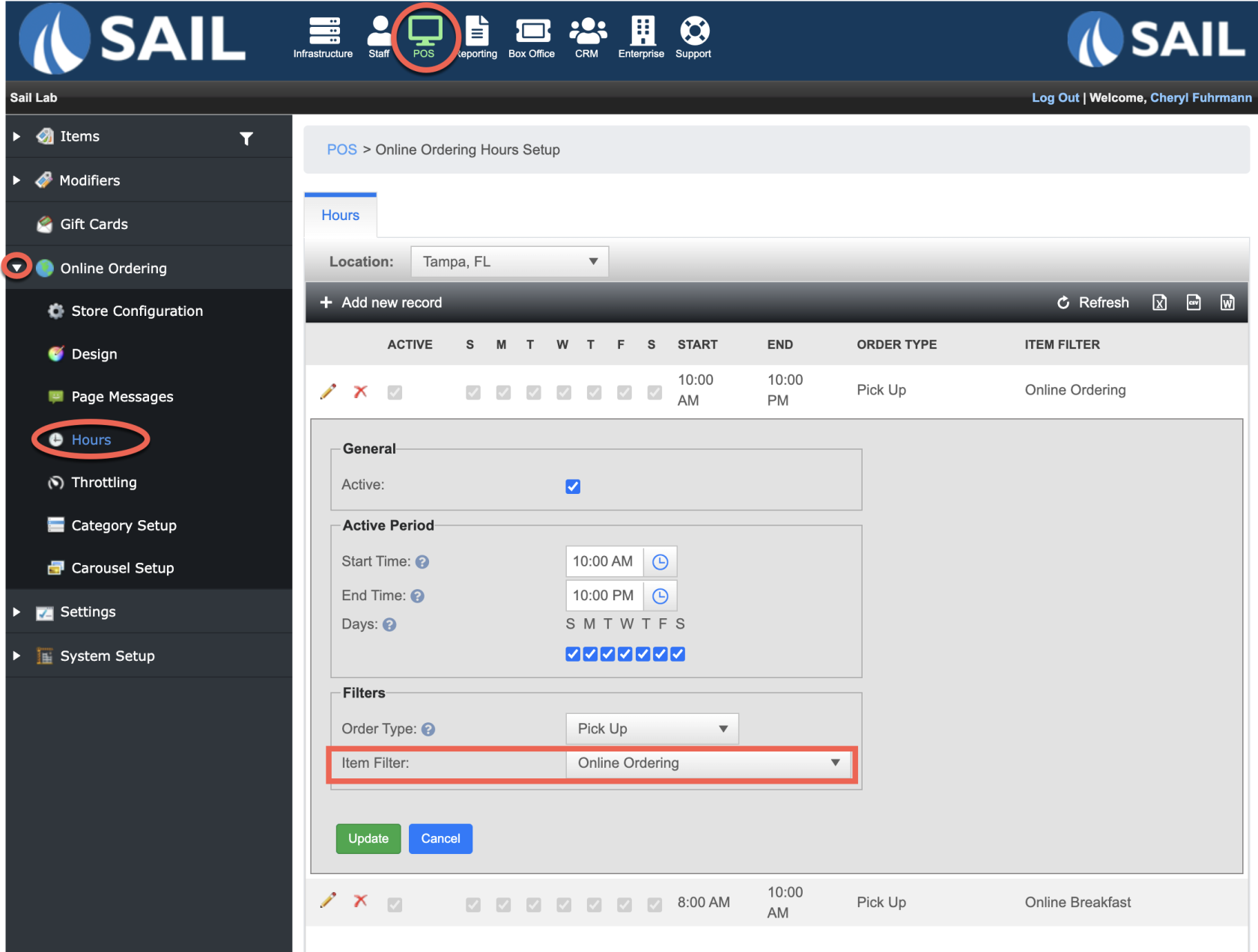
above)

- The "Online Breakfast" filter I created for just the breakfast menu is available all week from 8am-10am
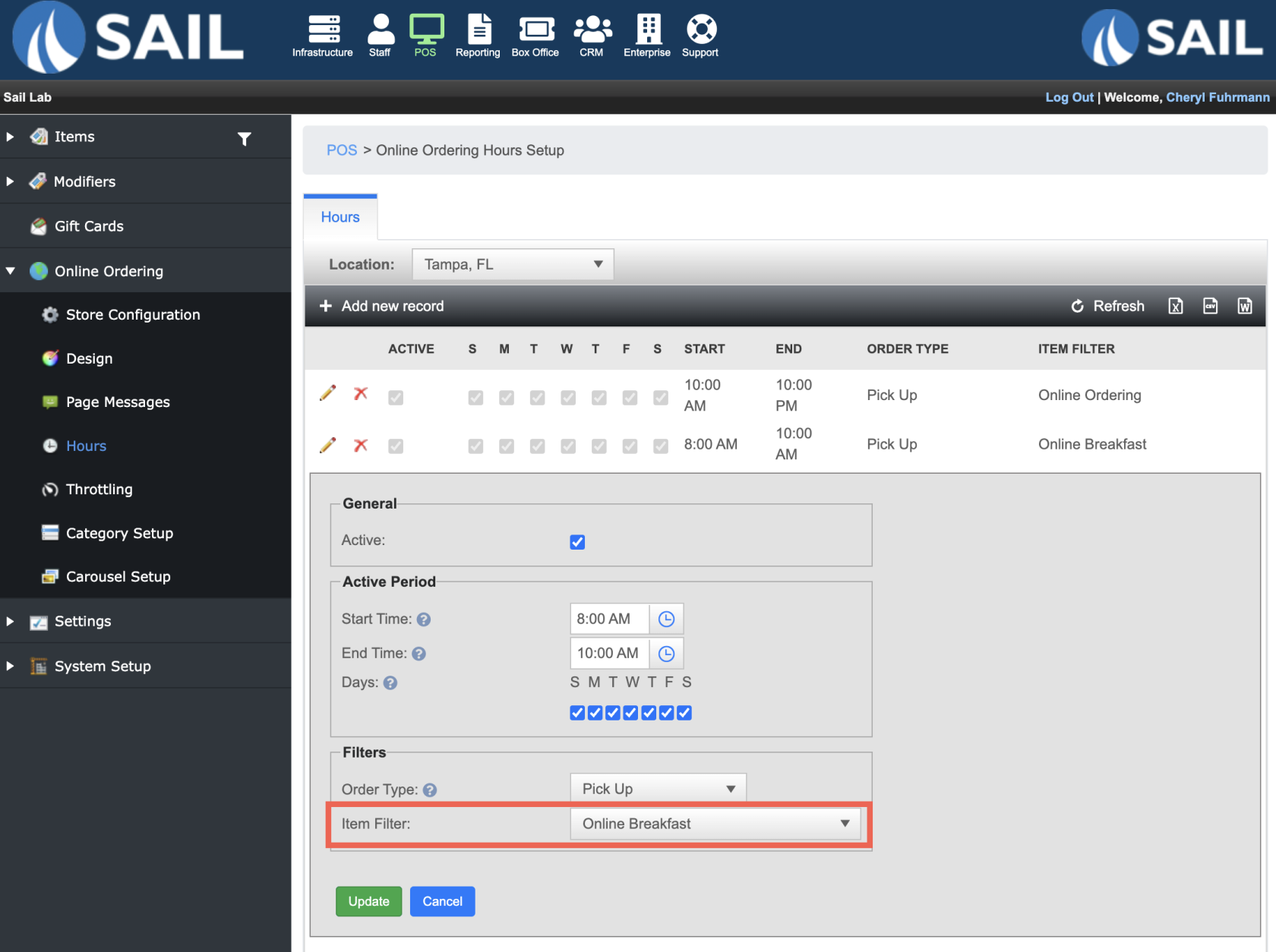
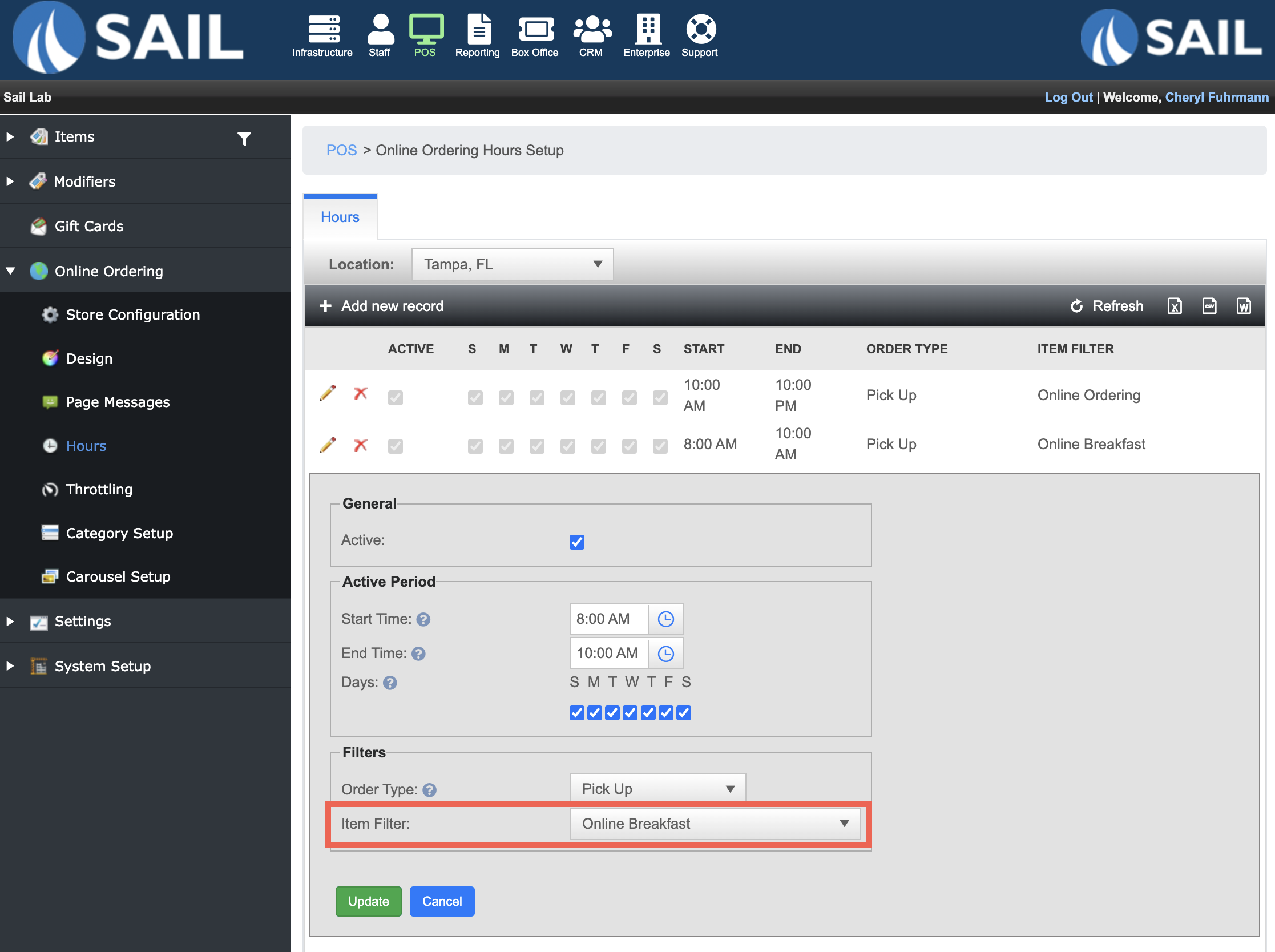
Note: Make the time periods meet but not overlap (breakfast ends at 10:00 am, the rest of the menu starts at 10:00 am). Online ordering stays open from 8am to 10pm, and the menu changes at 10am. A guest who orders ahead sees the menu for the time they pick.