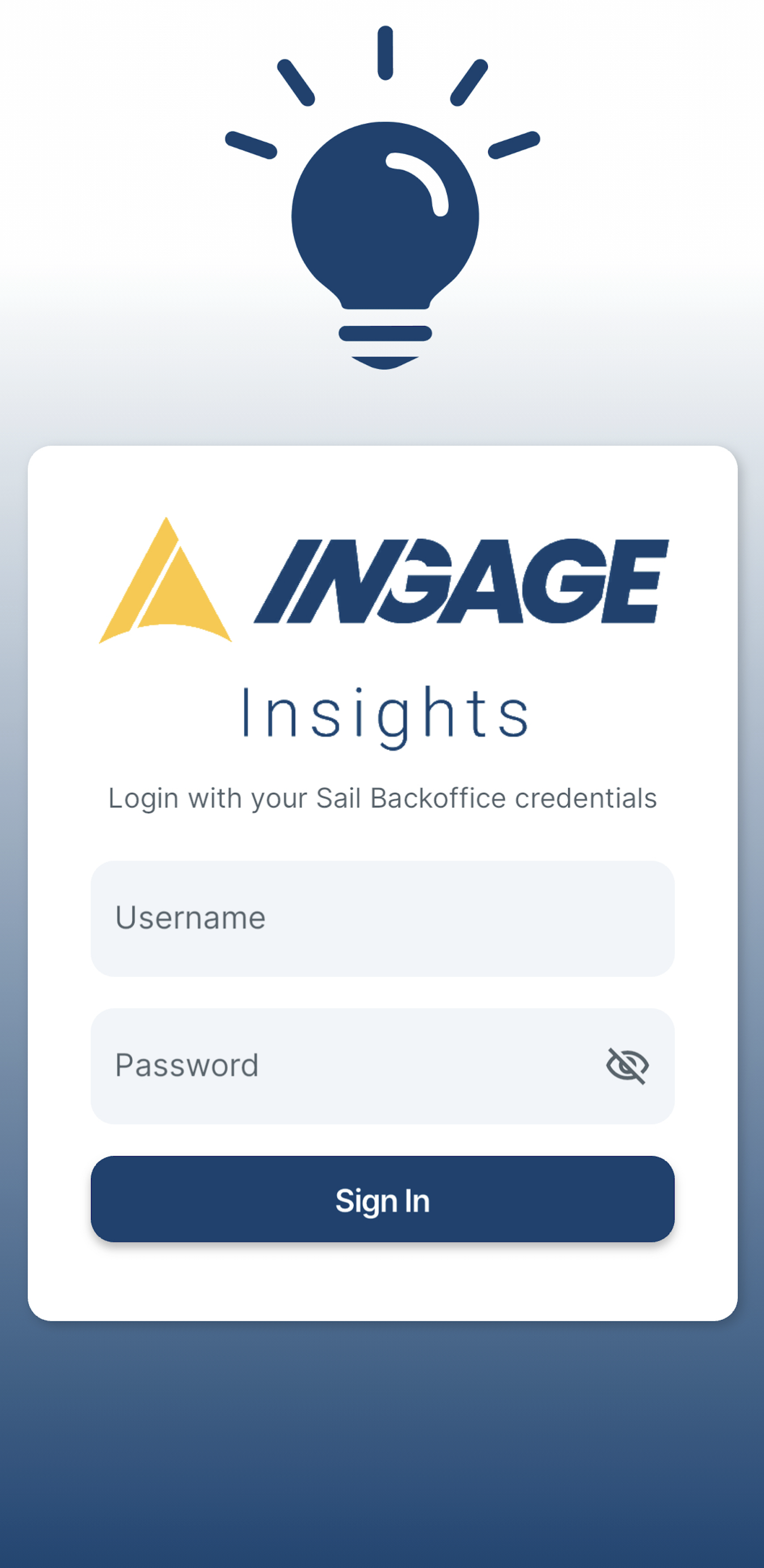
How to sign into the Ingage Insights App
This document will explain what needs to be set up in order to get the Ingage Insights App
Step 1 - You must have a Backoffice Log in
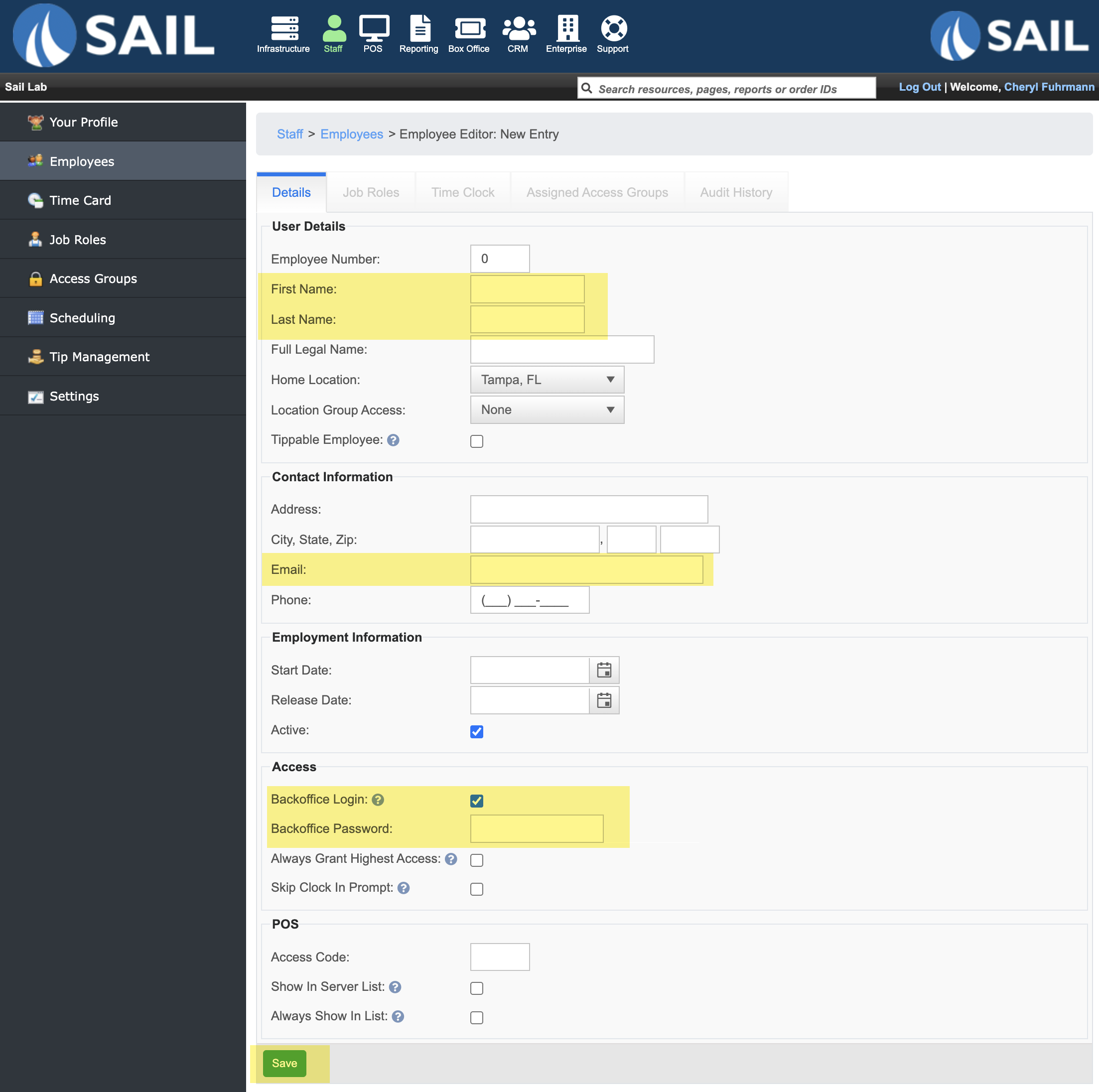
- If a user does not have one go to Staff --> Employees --> Add new record
- Fill out the details tab: Name, email, and Backoffice log in password is required
Step 2 - You must have the job role right to view the Sales Period Report
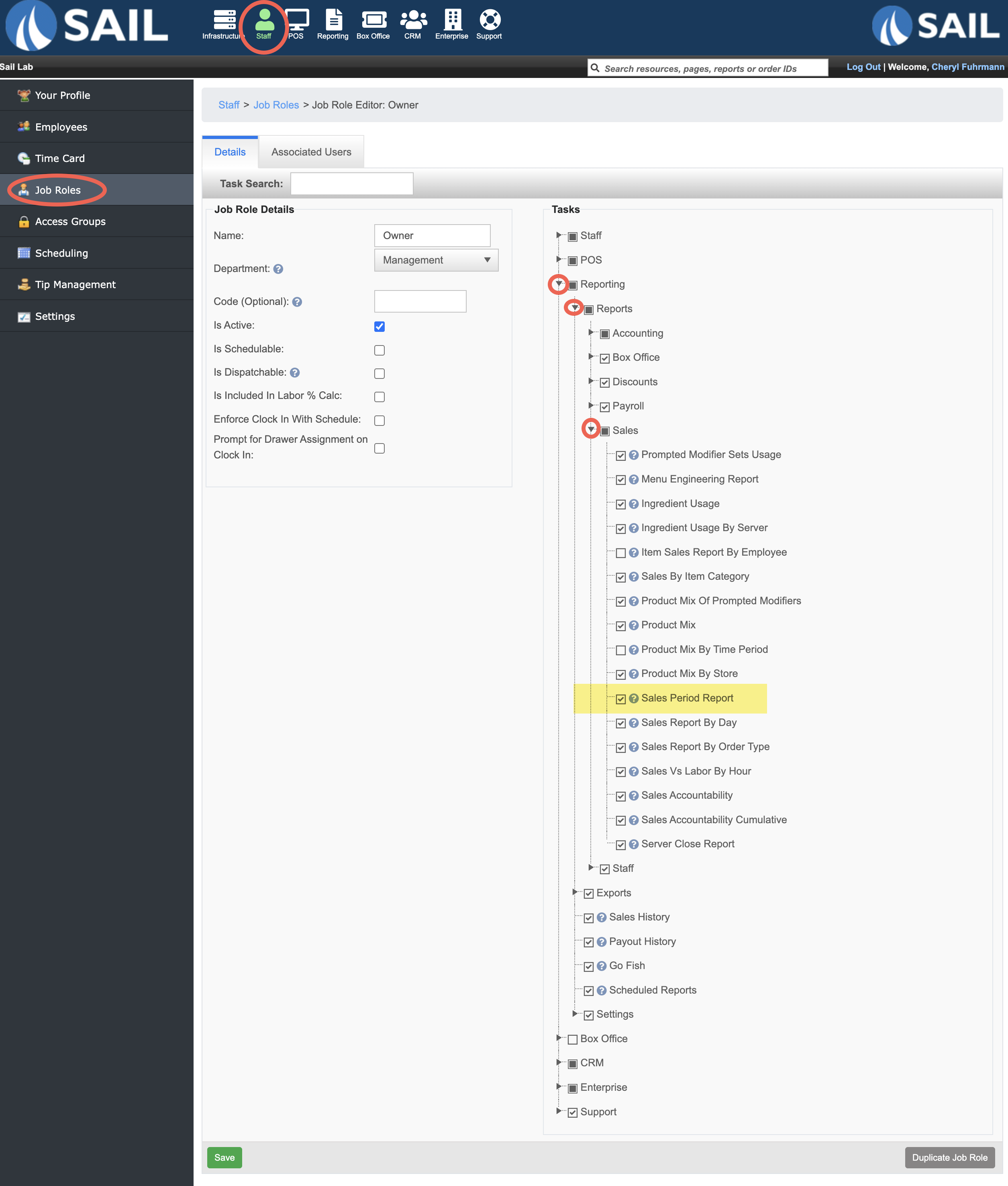
- Staff --> Job Roles --> Edit the job role you'd like to give this task to
- Expand Reporting --> Reports --> Sales --> Check the box for "Sales Period Report" --> Click Save
Step 3 - Download the app
Go to your phones App store and search for "Ingage Insights" and download the app
Or click on one of these links to bring you right to it


Step 4 - Sign In
Use your Backoffice log in to sign into the app