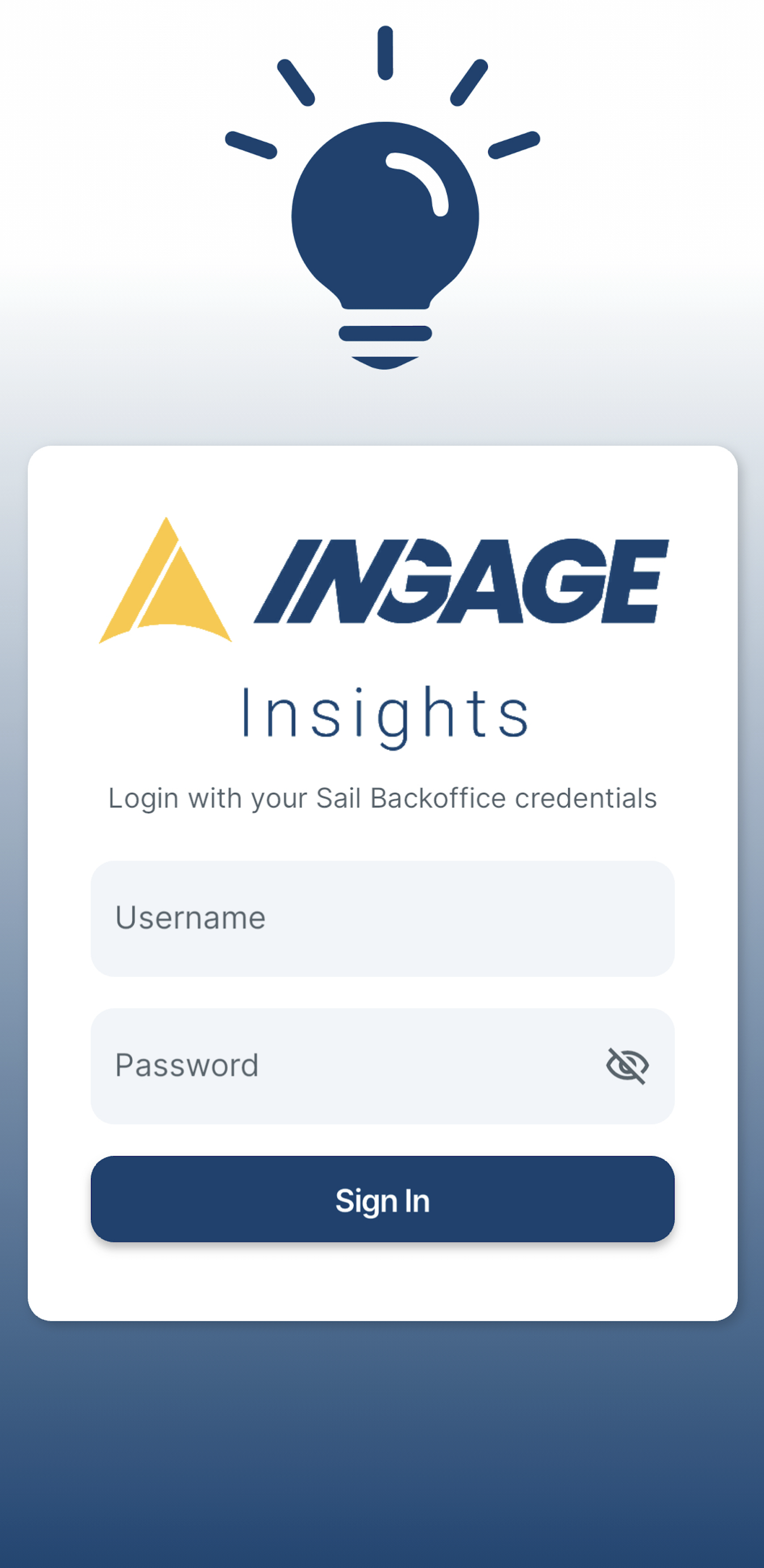
How to sign into the Ingage Insights App
Step 1 - Download the app
Go to your phones App store and search for "Ingage Insights" and download the app
Or click on one of these links to bring you right to it


Step 2 - Sign In
Use your Backoffice log in to sign into the app
If you do notdon’t have a Backoffice loglogin in,— or if you dodo, andbut itsit still notisn’t showing youany informationdata then— double double-check thesethe following two things.
things
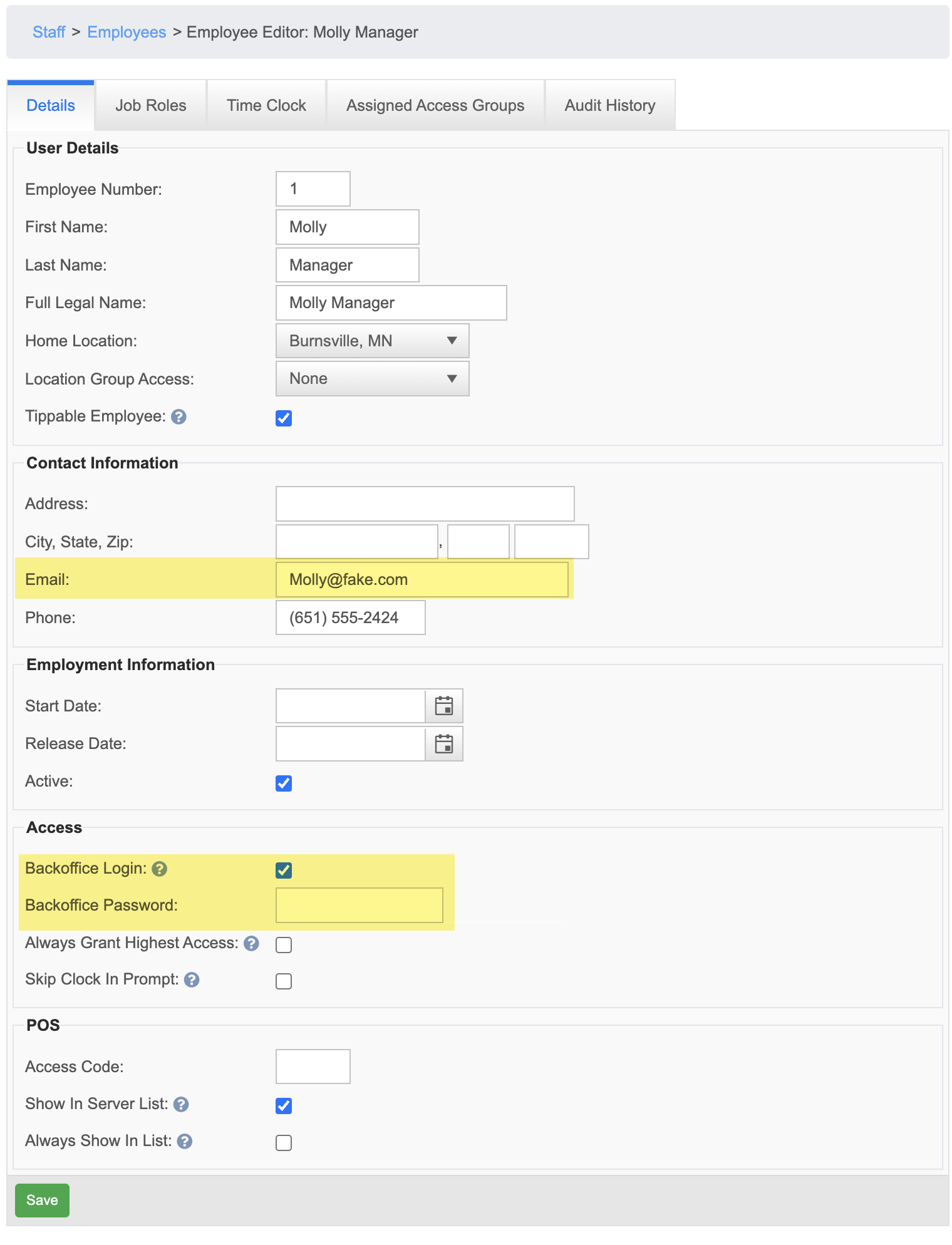
Create a Backoffice Log in
-
Go to Staff
-->→ Employees-->andEditedit the employee who needsaaccess.log in AnMake sure an email address is entered — this is required for
aBackofficeLoglogins.inThenclickCheck the
checkboxbox for"“BackofficeLogin"Login.”-
A
boxnew field will appearforallowingthe useryou to create a password
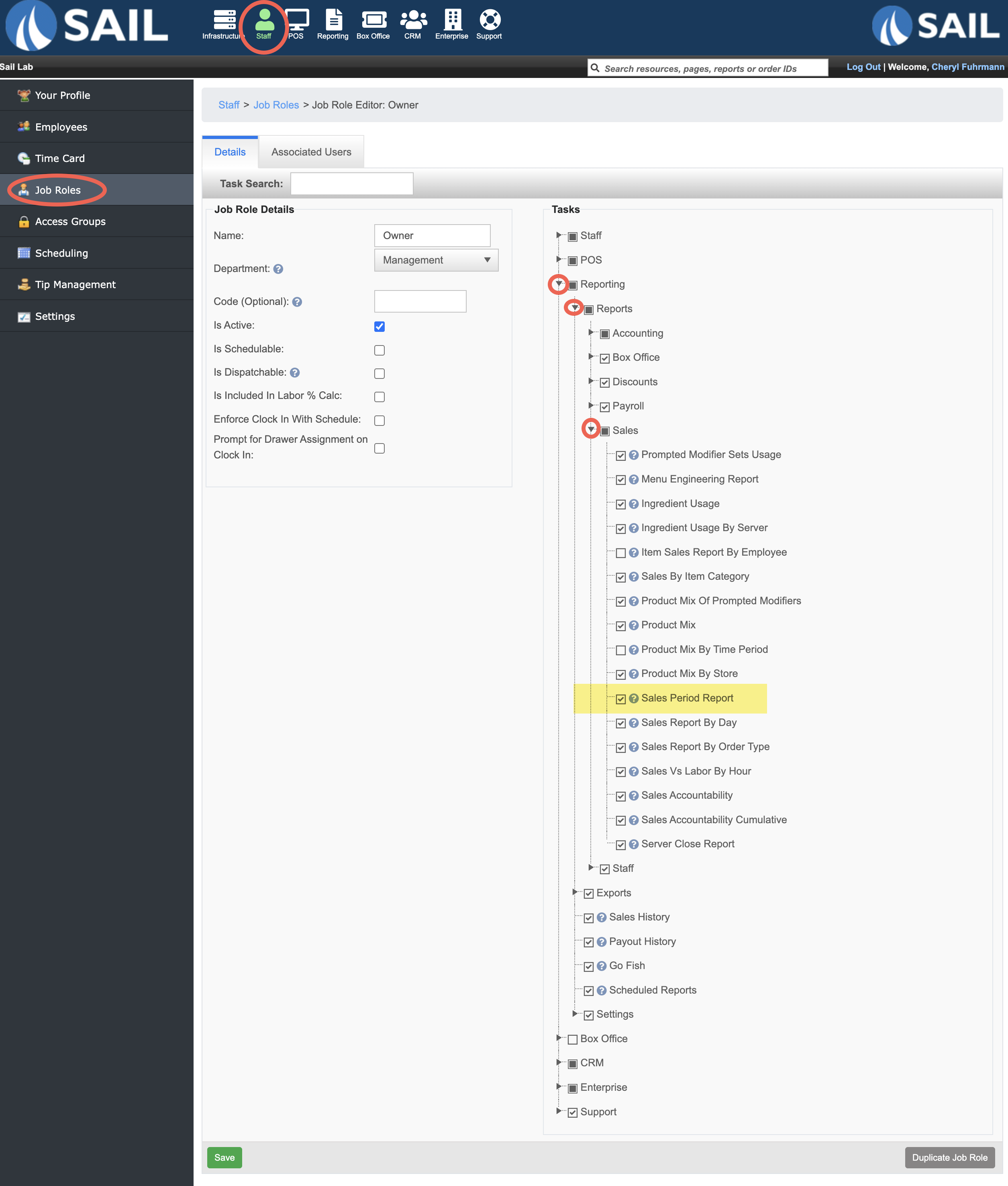
YouVerify must havethat the job role has the right to view the Sales Period Report
If
youthehave a log in and youuser stilldon'doesn't see information it might be becauseyourthe job role doesn't have the correctaccess.permissions.-
Go to Staff
-->→ Job Roles-->andEditedit thejobroleyou'dthatlikeshouldtohavegiveaccess.this task to -
Expand Reporting
-->→ Reports-->→SalesSales.--> -
Check the box for
"“Sales PeriodReport" --> Click SaveReport.”
Click Save.