
Items: Details Tab
The General sub-tab of Details — where you set the item's name, pricing, and associations — is covered in How to Make a Menu Item. This document covers the rest of the Details tab: Price Levels, Terminal & Behavior, Printing, Security & Integration, and Description.
Price Levels
A table of every price level in the system, and how this item participates in each one.
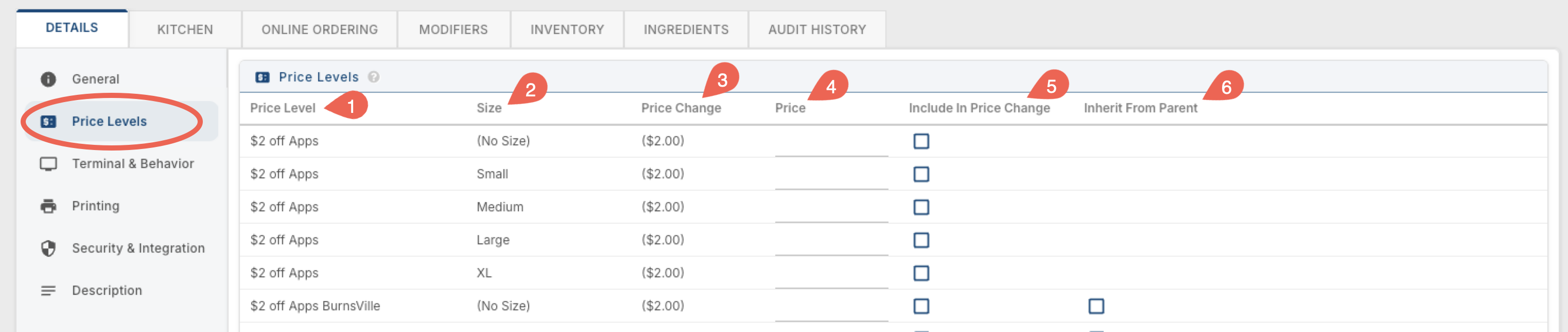
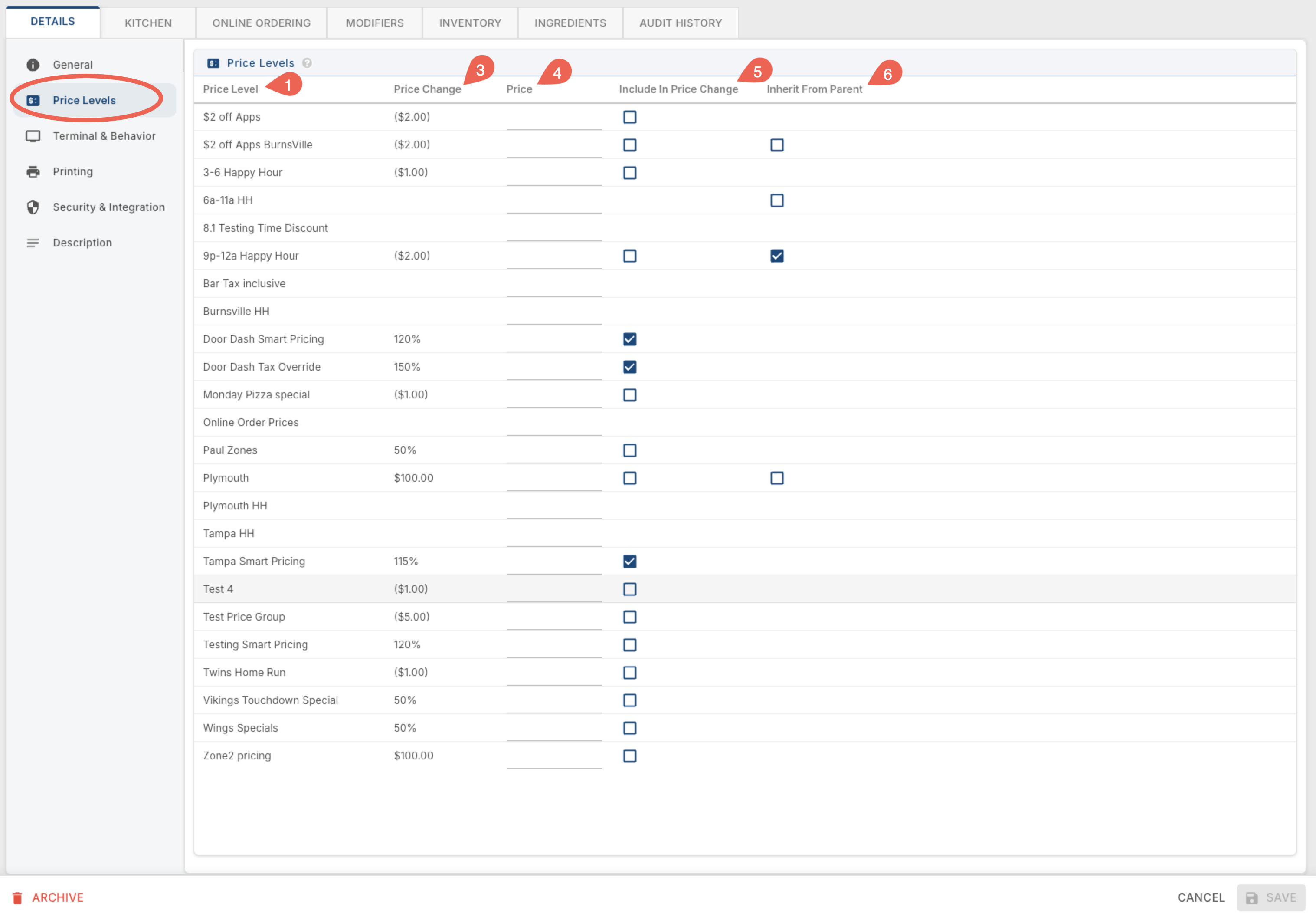
1. Price Level — the name of the price level (a pricing rule set up in POS --> Price Levels).
2. Size — only appears if this item has a Size Group. Shows the price level's effect for each size.
3. Price Change — how much this price level adjusts the item's price by, shown as either a flat dollar amount or a percentage.
4. Price — an override price for this item under this price level, if you'd rather manually set an exact price than apply a Price Change adjustment.
5. Include In Price Change — check this to have the item actually participate in the price level; unchecked, the price level exists but doesn't affect this item.
6. Inherit From Parent — lets this price level copy its setup from another price level instead of being configured separately. For example, if you've already built a Happy Hour price level for 3-6pm and want the exact same discount for a second window like 9-11pm, check Inherit From Parent and point it at the 3-6pm price level — it will do whatever that parent price level is set up to do.
Example with a Size Group:
Example without a size group:
Terminal & Behavior
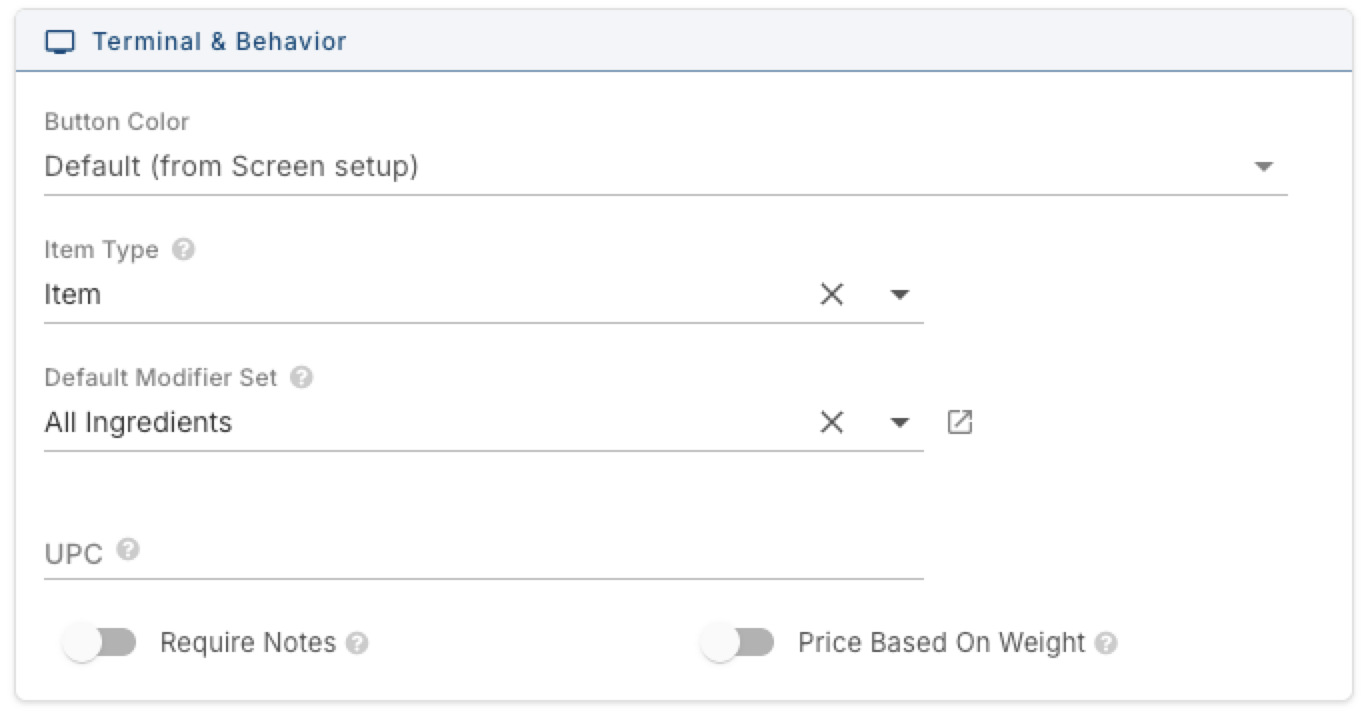
Color Options:

Item Type — what kind of button this is. Options are Item, Customer Account Payment, Gift Card Sale, Instruction, Payout, and Ticket Service Fee. About 98% of items in the system are just "Item."
Default Modifier Set — the modifier set that opens when someone clicks Modify on the terminal's bottom toolbar.
UPC — the barcode number for this item, used for barcode scanning.
Require Notes — forces whoever's ringing this item in to add a note before it can be added to the order.
Price Based On Weight — turns on weight-based pricing. When someone clicks a button configured this way, a popup appears for them to type in the weight manually.
Printing
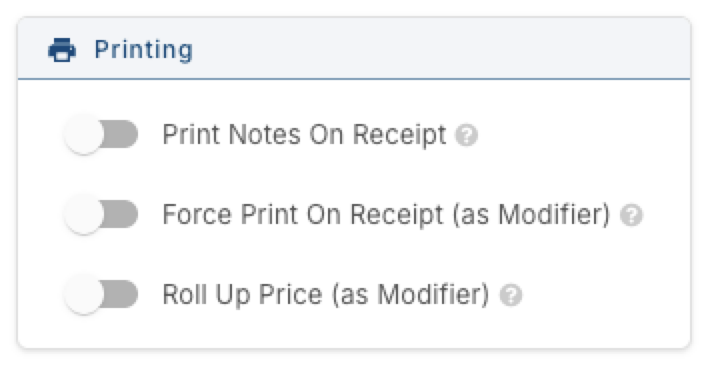
Print Notes On Receipt — prints any notes added to this item on the customer's receipt.
Force Print On Receipt (as Modifier) — by default, modifiers only print on the receipt when they have a price attached. This forces the modifier to print even when it's free.
Roll Up Price (as Modifier) — the modifier still shows as a line on the receipt, but its price isn't listed separately — it's folded into the parent item's price instead.
Security & Integration
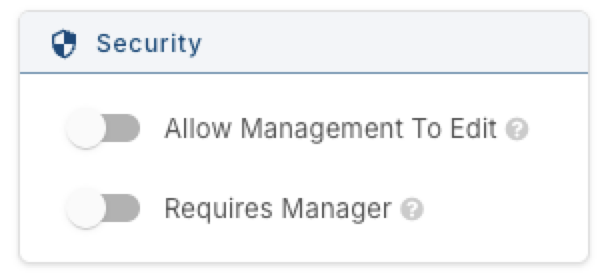
Security
Allow Management To Edit — controls whether a manager can edit this item at the terminal, and whether they can see it in Backoffice at all. If unchecked, the item won't appear in their Backoffice list — but it's still visible (just not editable) on the terminal.
Requires Manager — a manager has to approve before this item can be rung in.
Integration
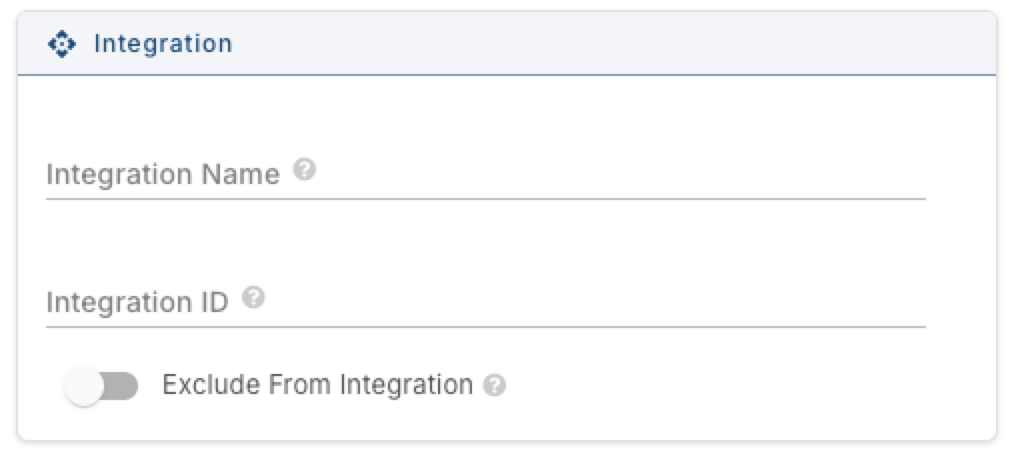
Integration Name — a custom name passed to third-party integrations. If left empty, the item's regular name is used instead.
Integration ID — a custom identifier passed to third-party integrations. If left empty, the system ID is used instead.
Exclude From Integration — keeps this item from being sent to third-party integrations at all.
Description
A free-text field for anything you want staff to see — most often a recipe or prep instructions. For example, a drink might list its glass, ice, and pour amounts; a food item might list its ingredients. See How to add a recipe to a menu item for more on using this field for recipes specifically.