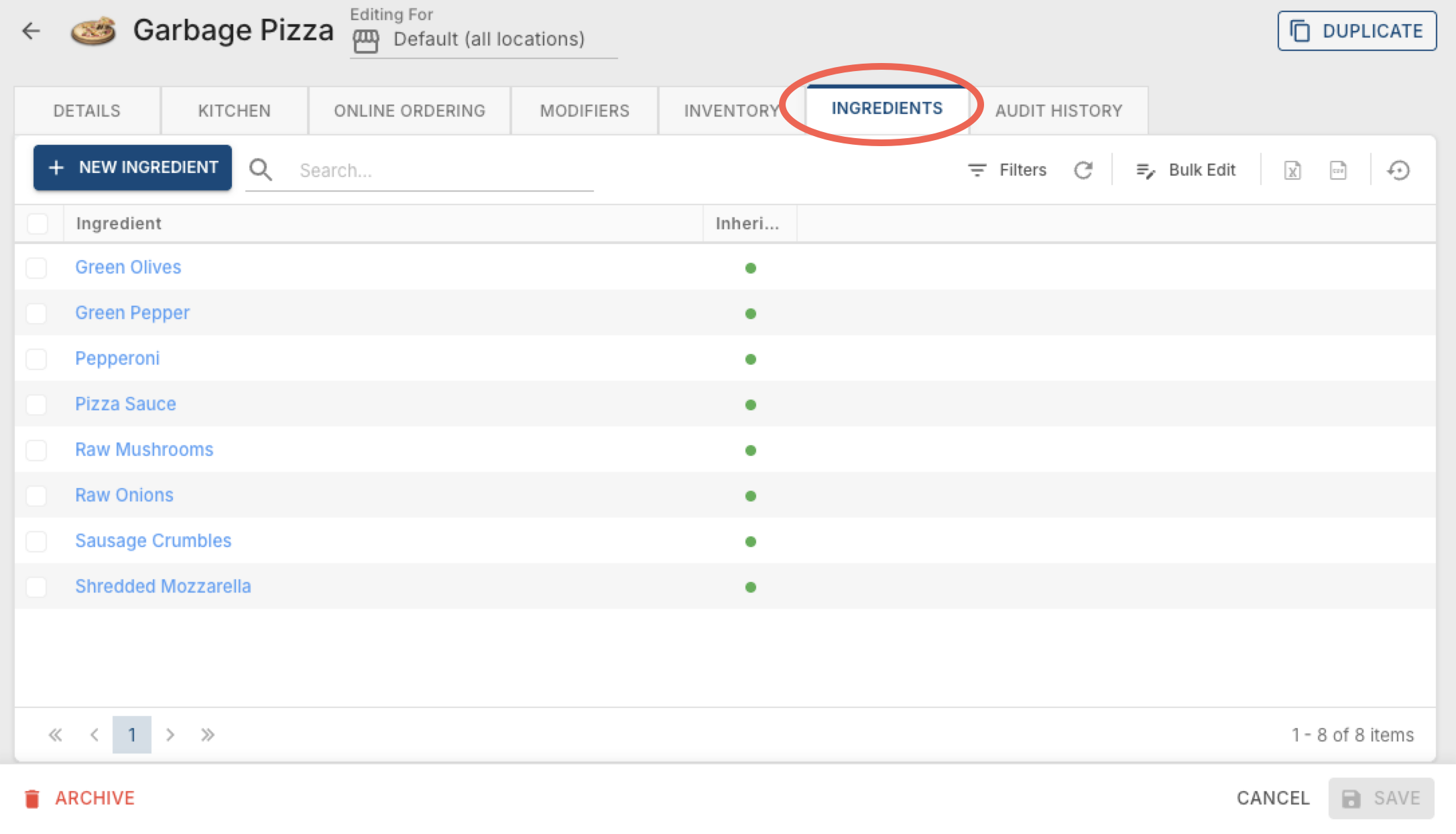
Items: Ingredients Tab
The Ingredients tab lists what goes into this item. Like Online Ordering and Inventory, it's a single page with no sub-tabs.
Ingredients
A list of every ingredient tied to this item. Click + New Ingredient to multi-select ingredients to add to the list.
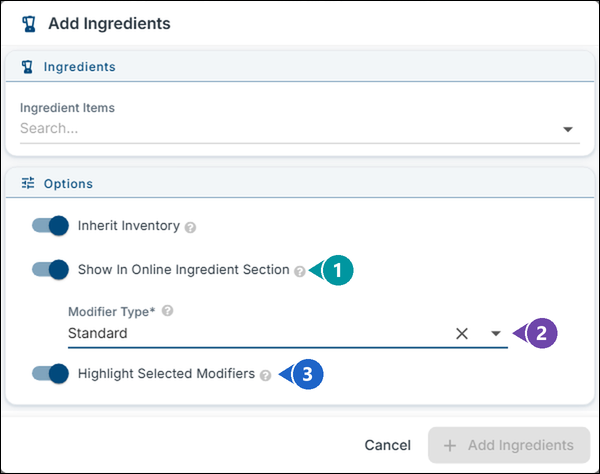
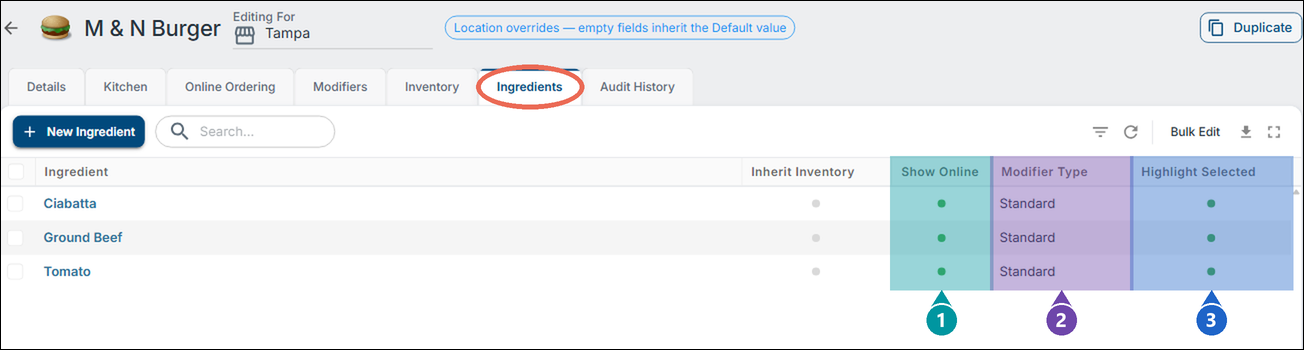
Inherit Inventory — this is a planned feature that isn't fully active yet. For now, it's best to check the box anyway so it's already set up whenever it does go live.
1. Show In Online Ingredient Section — puts the ingredient in an Included Ingredients section at the top of the item on the online menu, so guests can change it (for example, No Tomato).
2. Modifier Type — Required when Show In Online Ingredient Section is on. It sets the choices guests see for the ingredient online and what each one costs.
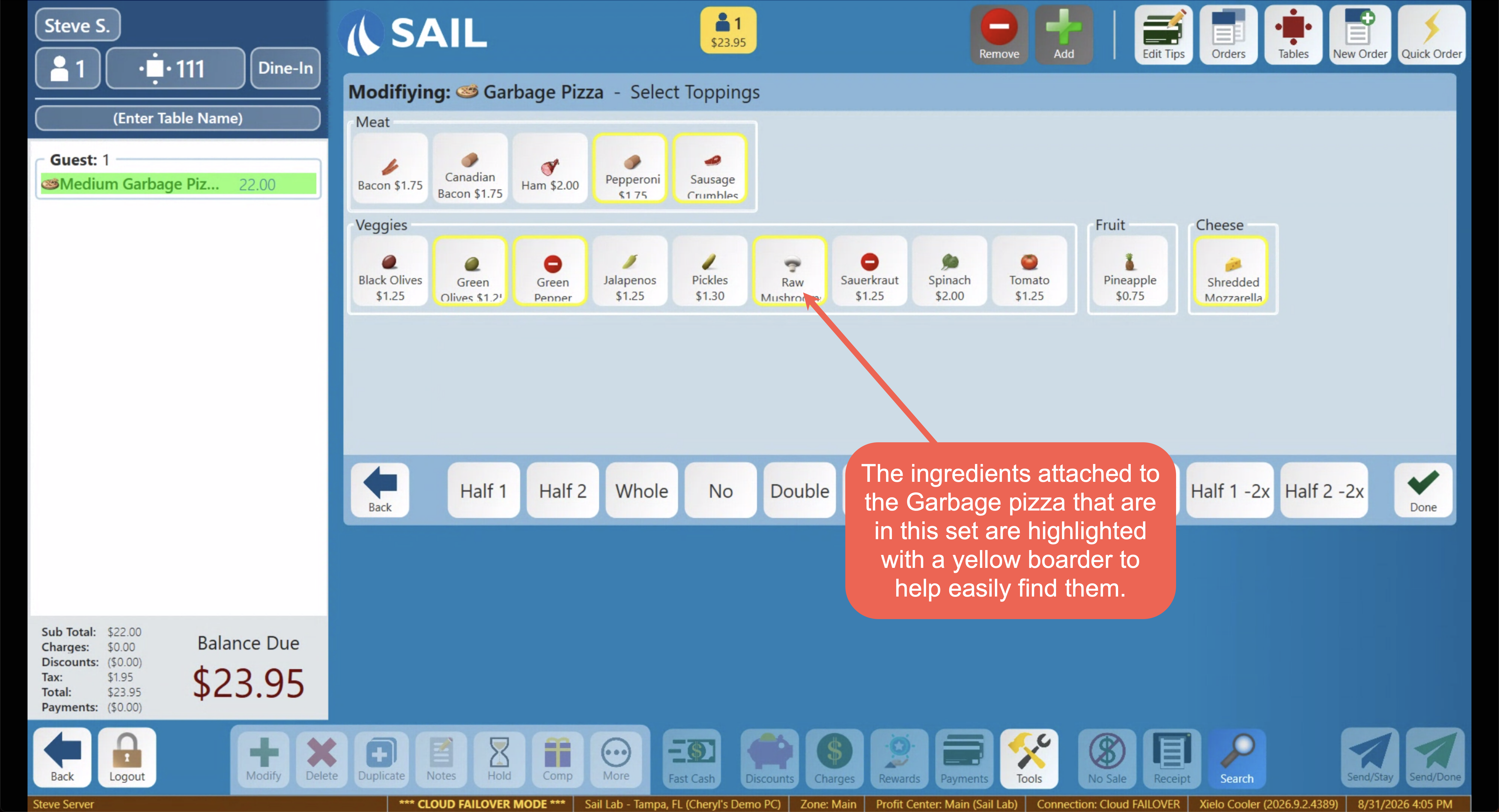
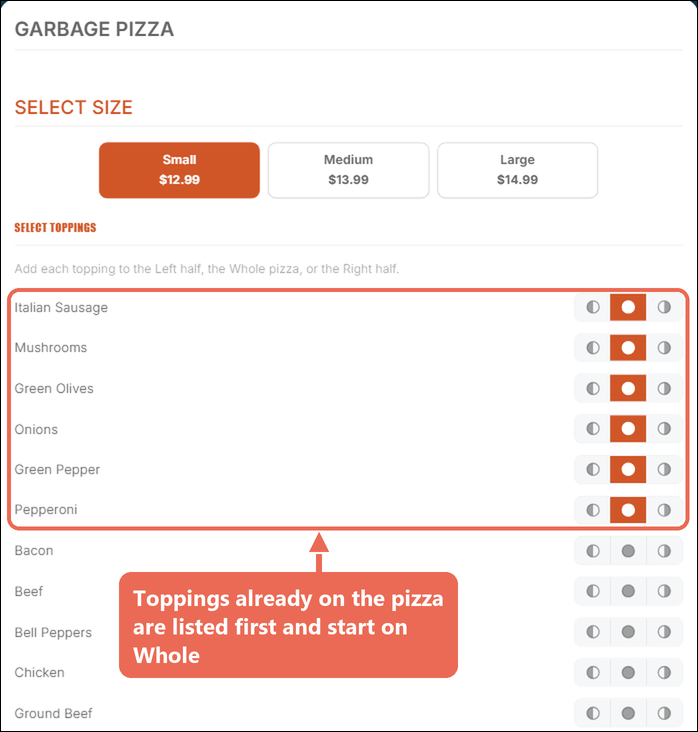
3. Highlight Selected Modifiers — On by default. At the terminal, the ingredient gets the yellow box shown below when staff modify the item. Online, it only changes a Pizza Builder choice: the topping is listed first and starts on Whole at no charge.
Clicking into an existing ingredient, or using Bulk Edit, only lets you checkchange orthese unchecksame this Inherit Inventory box — there's nothing else to configure per ingredient.settings.
Terminal
Adding ingredients here does two helpful things at the terminal:
- If a prompted modifier set is attached to this item, any of its ingredients that also appear in that
setset, and have Highlight Selected Modifiers on, get a yellow box around them — an easy visual for what's already in or on the item.
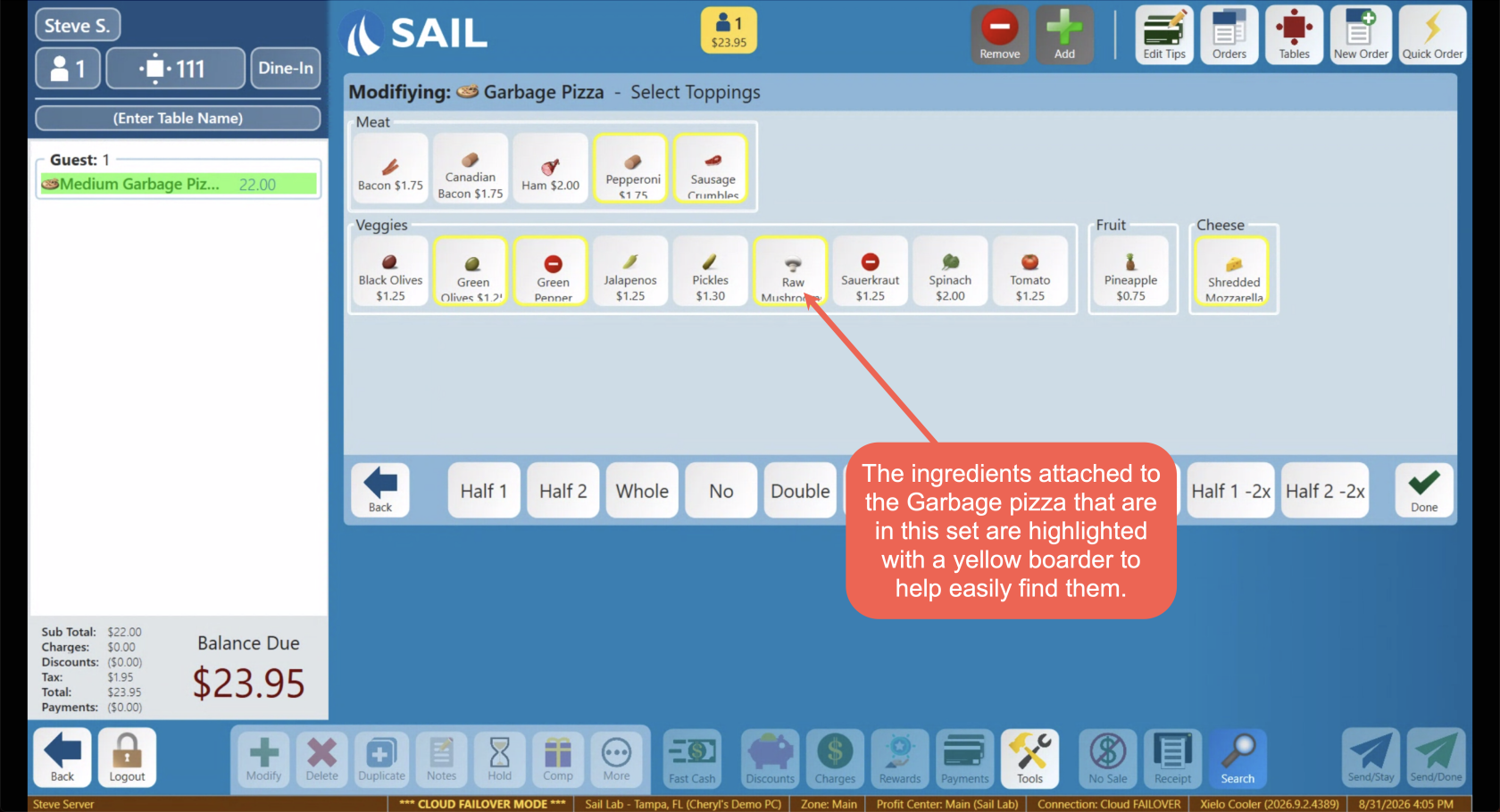
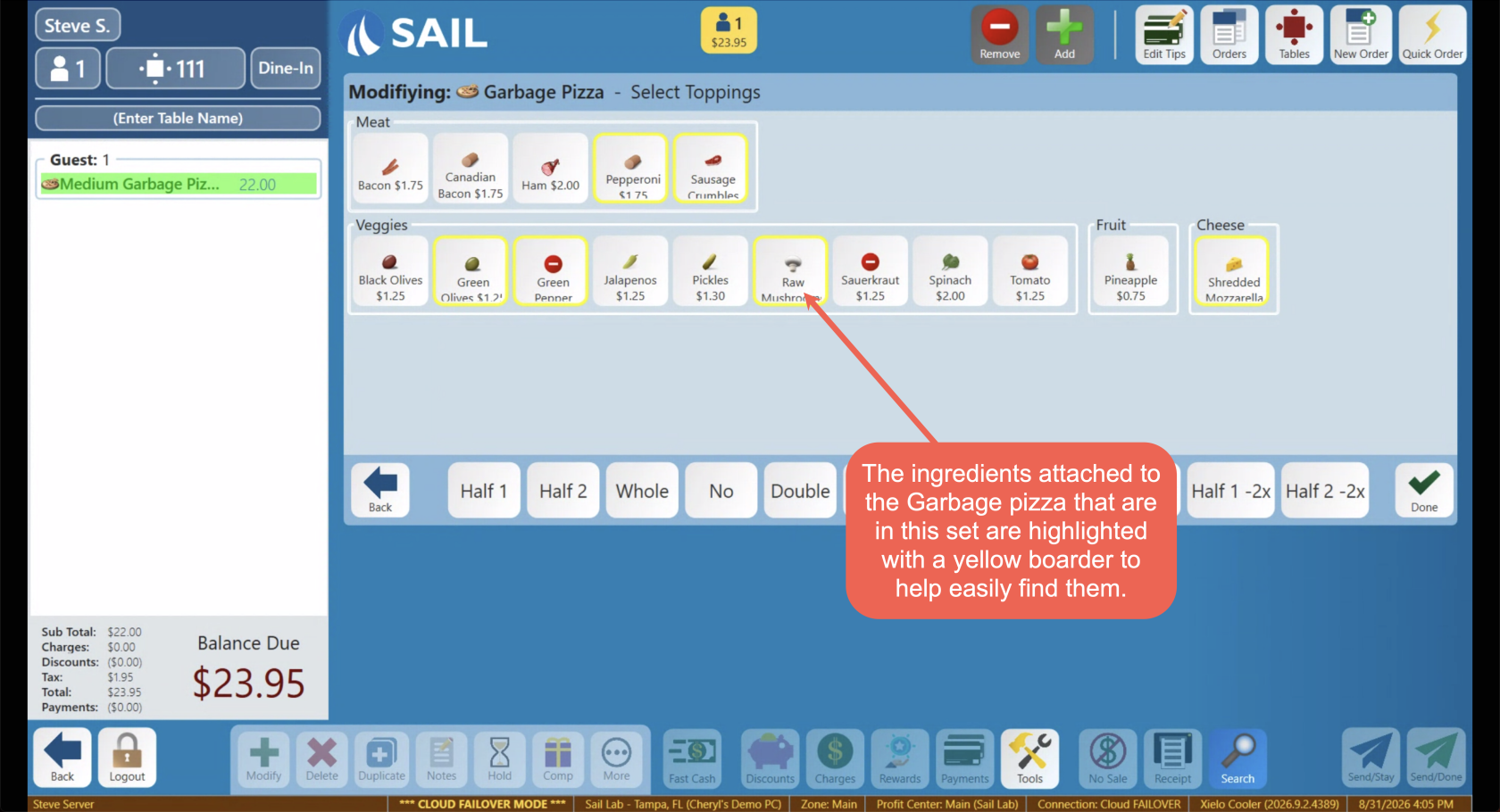
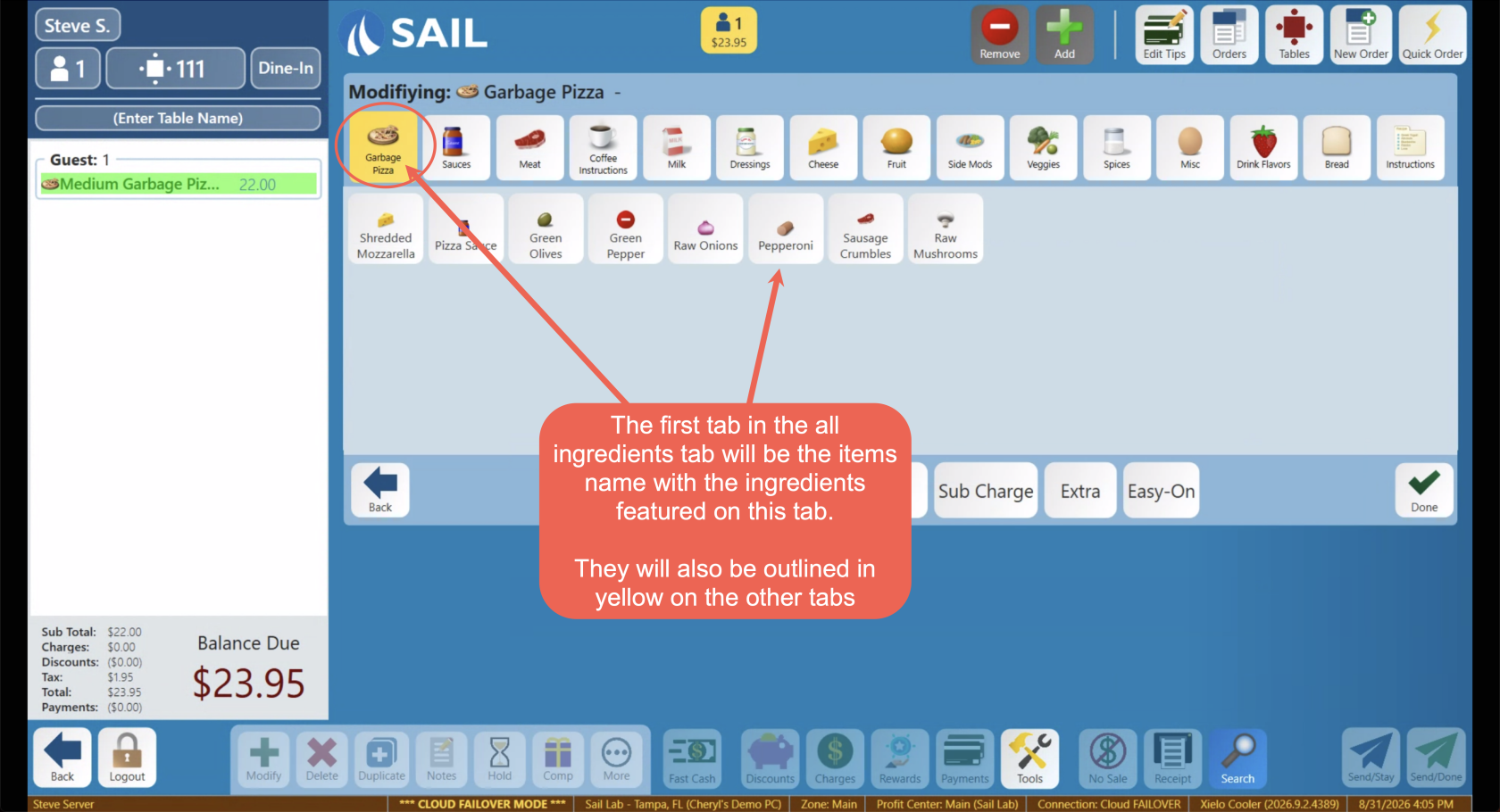
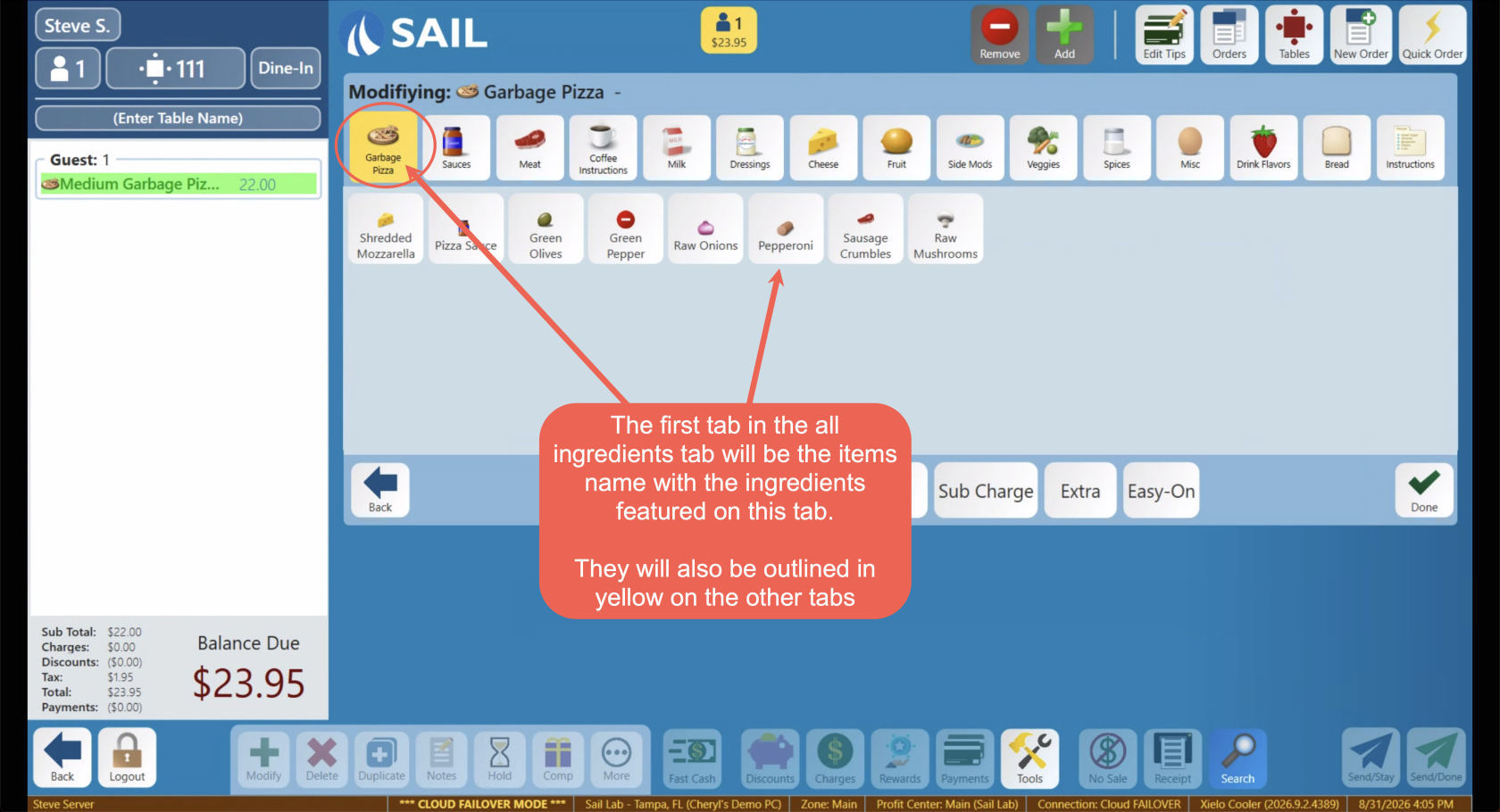
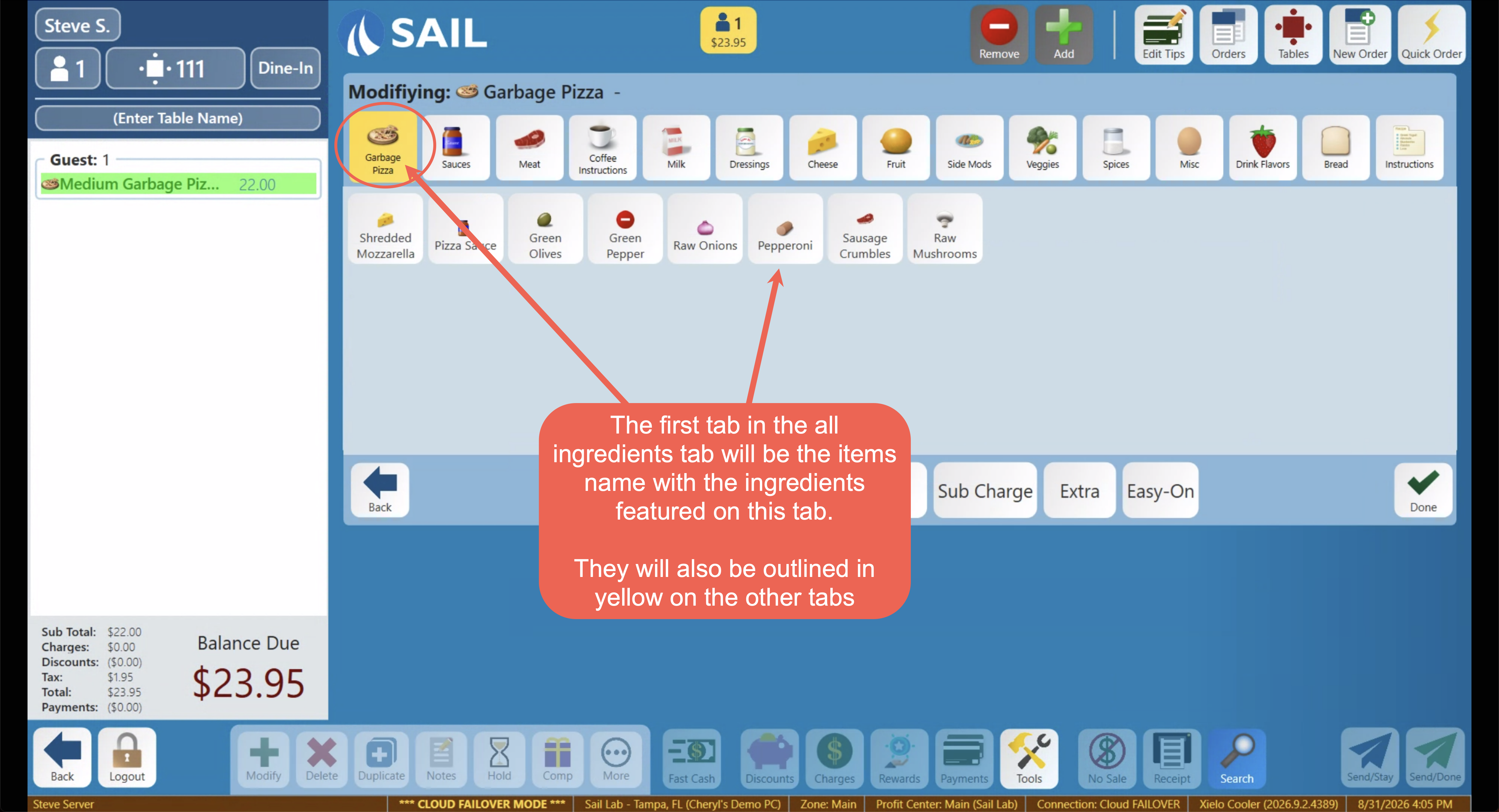
- When someone clicks the Modify button on the terminal's bottom toolbar, the first tab shown is named after the item itself and lists just the ingredients attached to it here — so staff can quickly say No, Extra, or On Side without searching through every ingredient category tab. Those same ingredients also show up highlighted in yellow within the other category tabs.
Online Ordering
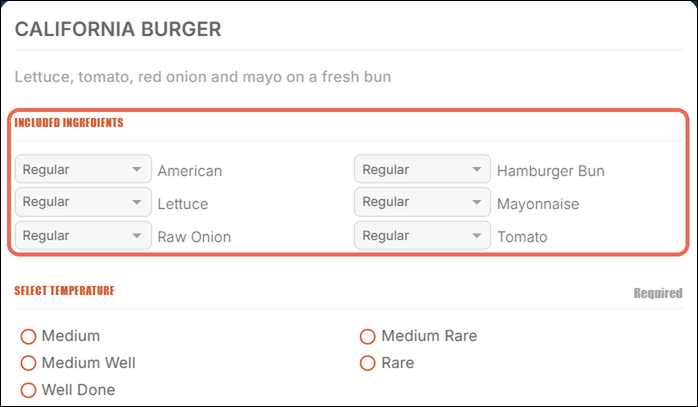
Ingredients with Show In Online Ingredient Section on appear in an Included Ingredients section at the top of the item, or right after the size choice. Each one starts on its Modifier Type's online default, and guests can pick another choice from the list, such as No or Extra. Only a change prints in the kitchen: "No Tomato" shows on the ticket, but an ingredient the guest leaves as it is doesn't.
In a Pizza Builder choice, toppings with Highlight Selected Modifiers on are listed first and start on Whole at no charge. If the guest unselects one, the kitchen gets "No" with that topping.
Modifier Type settings for Online Ordering
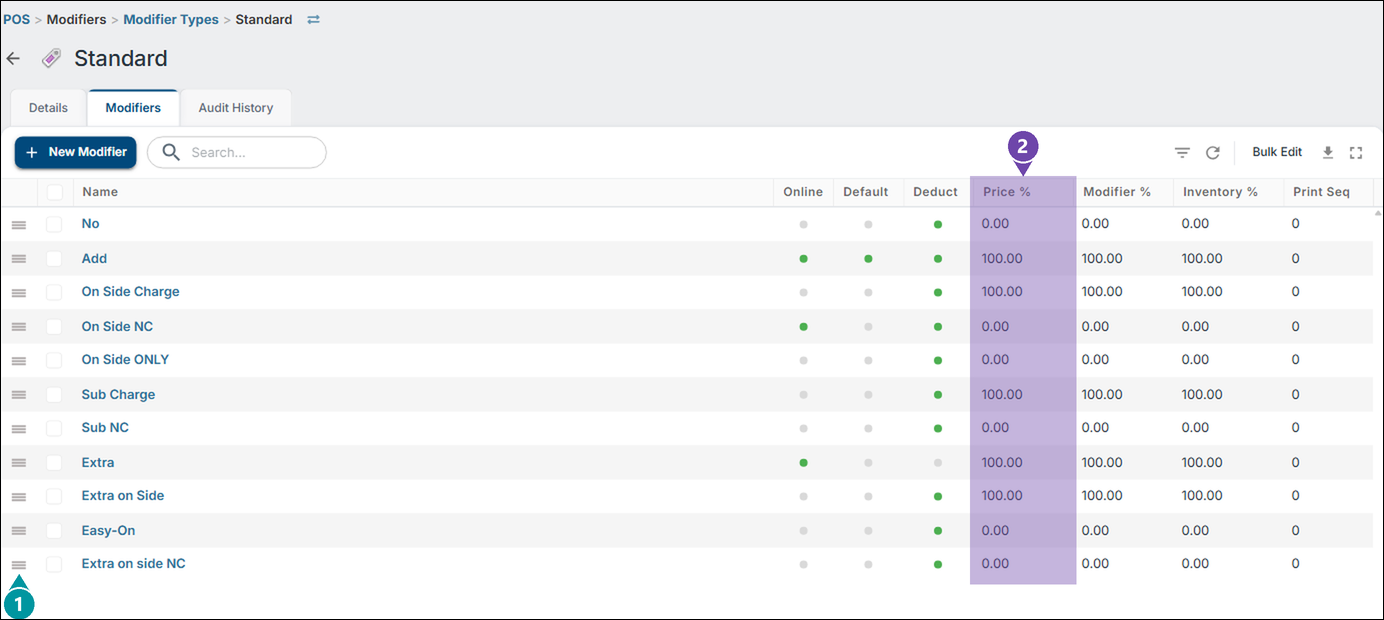
The Modifier Type you pick for an ingredient has two settings that decide what guests start on and what they pay. Find them at Backoffice --> POS --> Modifiers --> Modifier Types --> the type --> Modifiers tab, or click into a modifier and look under Online Settings.
1. Online Default — the choice each included ingredient starts on online, such as Regular. Only a change from it is sent to the kitchen. One modifier per type can be the default.
2. Deduct When Included — On by default. When a guest picks this choice for an ingredient the item already comes with, it takes off the price of one full portion, because the guest already paid for it with the item. Leave it on for choices that change or replace what comes on the item, like No or Lite. Turn it off for choices added on top, like Extra or Double, so they charge their full price.